
1. Introducció
The Orion EZ Finder II Telescope Reflex Sight is a non-magnifying sighting device designed to simplify the process of aiming your telescope. It projects a small, LED-powered red dot onto a wide viewing window, allowing you to quickly and accurately point your telescope at celestial objects. This manual will guide you through the installation, operation, and care of your EZ Finder II.

Figure 1: Orion EZ Finder II Telescope Reflex Sight mounted on a telescope.
2. Components
The Orion EZ Finder II package includes the following:
- EZ Finder II Reflex Sight unit
- Dovetail mounting bracket (pre-attached)
- CR-2032 3-volt lithium battery (pre-installed or included separately)
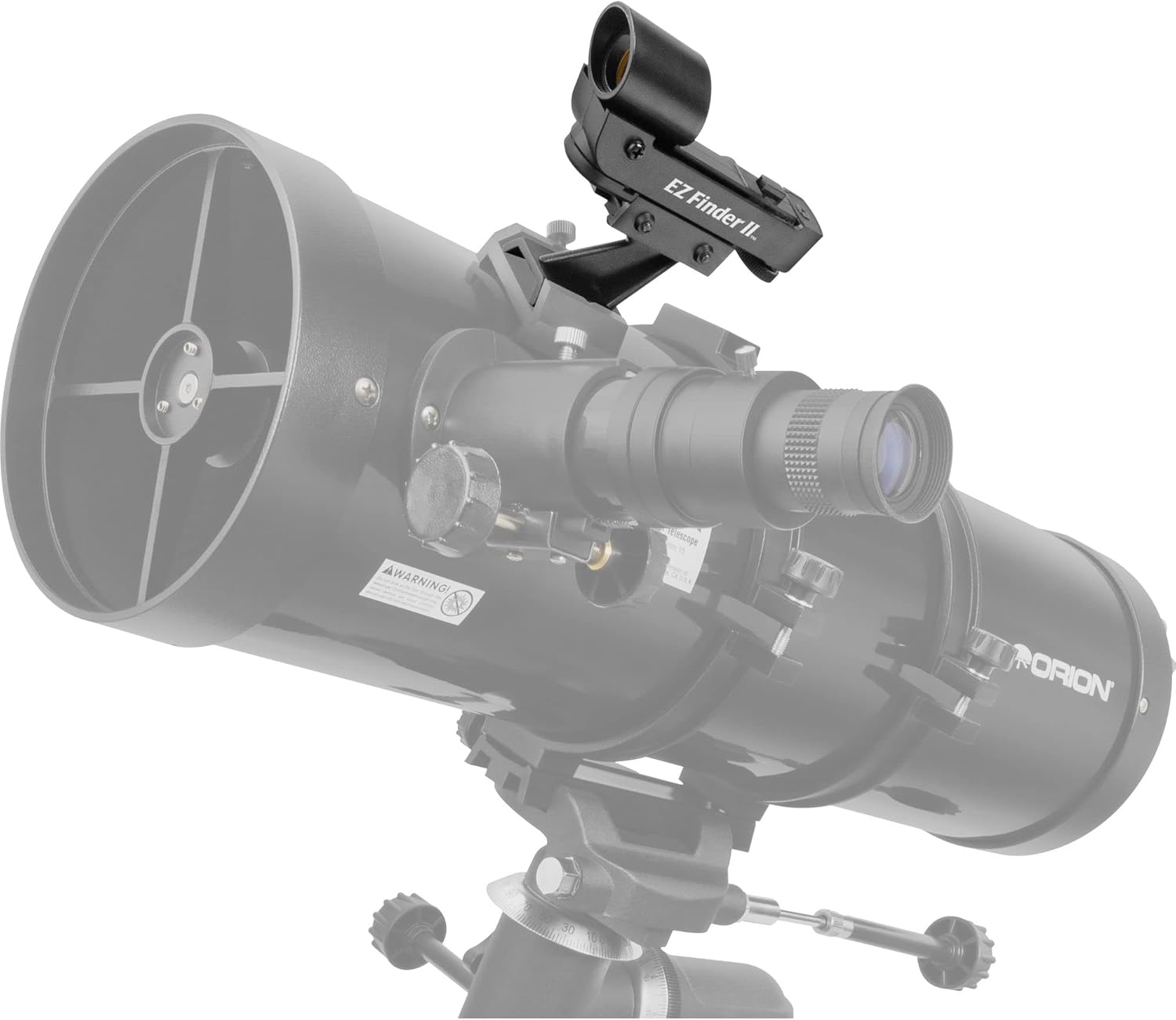
Figure 2: The EZ Finder II unit with its integrated dovetail bracket.
3. Configuració
3.1. Instal·lació de la bateria
The EZ Finder II uses one CR-2032 3-volt lithium battery. If not already installed, locate the battery compartment, typically on the side or bottom of the unit. Insert the battery with the positive (+) side facing up. Close the compartment securely.
3.2. Mounting the EZ Finder II
The EZ Finder II comes with a dovetail bracket designed to fit the quick-release dovetail mounting base found on many Orion telescopes. This bracket provides sufficient height for clearance from the optical tube.
- Locate the dovetail mounting base on your telescope.
- Slide the EZ Finder II's dovetail bracket into the mounting base.
- Secure the bracket by tightening the thumbscrew on the mounting base. Ensure it is firm but do not overtighten.
For telescopes without a compatible dovetail mounting base, a separate dovetail base can be purchased from Orion or compatible retailers and installed on your telescope's optical tube.
4. Funcionament
4.1. Powering On and Adjusting Brightness
The EZ Finder II features an adjustable brightness control. A small knob or switch, usually located on the side of the unit, controls both power and brightness.
- Rotate the knob clockwise to turn the unit on and increase the brightness of the red dot.
- Rotate the knob counter-clockwise to decrease brightness and turn the unit off.
Adjust the brightness to a comfortable level that allows the red dot to be clearly visible without overpowering the background sky or target object.
4.2. Alignment Procedure
Before first use, or if the EZ Finder II has been removed and re-attached, it must be aligned with your main telescope. This ensures that where the red dot points, your telescope is also pointing.
- During daylight hours, point your main telescope at a distant, stationary object (e.g., a distant tree, telephone pole). Center the object in the eyepiece of your main telescope.
- Turn on the EZ Finder II and adjust the red dot brightness.
- Look through the EZ Finder II's viewing window. You will see the red dot superimposed on the background.
- Use the two small thumbwheels on the EZ Finder II to adjust the position of the red dot. One thumbwheel adjusts horizontal position, and the other adjusts vertical position.
- Adjust the thumbwheels until the red dot is precisely centered on the same distant object that is centered in your main telescope's eyepiece.
- Once aligned, the EZ Finder II is ready for use.
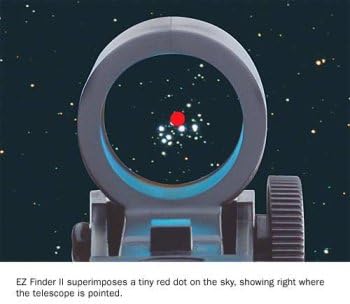
Figure 3: The red dot as seen through the EZ Finder II, indicating the telescope's target.
4.3. Using the EZ Finder II for Aiming
With the EZ Finder II aligned, aiming your telescope becomes intuitive:
- Look through the EZ Finder II's viewfinestra d’engegada.
- Move your telescope until the red dot is positioned directly over the celestial object you wish to observe.
- Once the red dot is on your target, the object should be within the field of view of your main telescope's eyepiece.
Vídeo 1: Un overview video demonstrating the features and usage of the Orion EZ Finder Deluxe Telescope Reflex Sight. Note that while this video refers to the 'Deluxe' model and mentions green reticle patterns, the core functionality for aiming and mounting is similar to the EZ Finder II.
5. Manteniment
5.1. Neteja
Mantenir el viewing window of your EZ Finder II clean for optimal performance. Use a soft, lint-free cloth, such as a microfiber cloth, to gently wipe away dust or smudges. Avoid using abrasive materials or harsh chemicals.
5.2. Substitució de la bateria
If the red dot becomes dim or fails to illuminate, it is likely time to replace the CR-2032 battery. Follow the battery installation steps (Section 3.1) to replace it.
5.3. Emmagatzematge
When not in use, turn off the EZ Finder II to conserve battery life. Store the unit in a clean, dry place, preferably in its original packaging or a protective case, to prevent dust accumulation and accidental damage.
6. Solució De Problemes
| Problema | Causa possible | Solució |
|---|---|---|
| Red dot does not appear. | La bateria està morta o mal instal·lada. | Comproveu l'orientació de la bateria. Substituïu la bateria si cal. |
| Red dot is too dim or too bright. | Brightness setting is incorrect. | Adjust the brightness control knob. |
| Red dot is not aligned with the telescope's view. | EZ Finder II needs alignment. | Perform the alignment procedure as described in Section 4.2. |
| Red dot appears blurry or distorted. | Viewla finestra està bruta. | Netegeu el viewing window with a soft, lint-free cloth. |
7. Especificacions
| Característica | Detall |
|---|---|
| Marca | Orió |
| Número de model | 7228 |
| Finderscope Type | Reflex |
| Font d'alimentació | Funciona amb bateria |
| Tipus de bateria | 1 Lithium Metal (CR-2032), included |
| Pes de l'article | 85 Grams (2.8 oz) including bracket |
| Dimensions | Approximately 4-3/4 inches long |
| Dispositius compatibles | Orion Telescopes with Dovetail Mounting Base |
8. Garantia i assistència
For specific warranty information and customer support, please refer to the official Orion weblloc web o contacteu directament amb el seu servei d'atenció al client. Conserveu el rebut de compra com a comprovant de compra per a qualsevol reclamació de garantia.
Orion Customer Service: www.telescope.com