
Introducció
The Microsoft Optical Desktop Elite for Bluetooth provides a wireless keyboard and mouse solution designed for use with Windows PCs. This combo utilizes Bluetooth wireless technology for connectivity, offering enhanced range and reliability. It enables synchronization and information sharing between your PC and other Bluetooth-enabled devices.
Què hi ha a la caixa
- Teclat Bluetooth de Microsoft
- Microsoft Bluetooth Optical Mouse
- USB Bluetooth Transceiver
- Piles (preinstal·lades o incloses per separat)
- Documentació del producte

Image: The retail packaging for the Microsoft Optical Desktop Elite for Bluetooth, showing the keyboard, mouse, and USB transceiver.
Configuració
Instal·leu les bateries
Ensure fresh batteries are installed in both the keyboard and the mouse. Refer to the battery compartment markings for correct polarity.
Connect USB Transceiver
Plug the included USB Bluetooth transceiver into an available USB port on your Windows PC. The system will typically install the necessary drivers automatically.
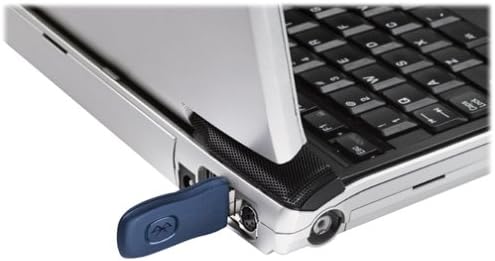
Image: A blue USB Bluetooth transceiver plugged into the side of a laptop computer.
Vincula els dispositius
Follow the on-screen prompts or refer to your Windows Bluetooth settings to pair the keyboard and mouse with the transceiver. This usually involves pressing a connect button on the devices and the transceiver.
Install Software (Optional)
For advanced customization of keyboard shortcuts and mouse buttons, install the Microsoft IntelliPoint and IntelliType Pro software from the official Microsoft weblloc web o el CD inclòs (si escau).
Instruccions de funcionament
The Microsoft Optical Desktop Elite for Bluetooth offers a range of features for enhanced productivity.

Image: The Microsoft Optical Desktop Elite keyboard and mouse, showcasing their ergonomic design and wireless nature.
Característiques del teclat:
- Disseny QWERTY estàndard: Full-size keyboard with a standard QWERTY layout.
- Programmable Hot Keys: Utilize the customizable hot keys for quick access to applications, documents, or web pàgines.
- Controls de mitjans: Dedicated keys for volume control, play/pause, and track navigation.
- Side-to-Side Scrolling: The keyboard features a scroll wheel or button for horizontal scrolling in documents and web pàgines.
Característiques del ratolí:
- Seguiment òptic: Provides precise and smooth cursor control on various surfaces.
- Roda de desplaçament: For vertical scrolling and button functionality.
- Side-to-Side Scrolling: The mouse scroll wheel also supports horizontal scrolling.
- Botons programables: Customize side buttons for specific functions using the IntelliPoint software.
- Durada de la bateria més llarga: Designed for extended use between battery replacements.

Image: A detailed diagram highlighting various features and buttons on the Microsoft Optical Desktop Elite keyboard and mouse.
Manteniment
Neteja:
- Teclat: Utilitzeu un drap suau i sense pelusa lleugerament dampEsbandiu amb aigua o una solució de neteja suau. Eviteu la humitat excessiva.
- Ratolí: Clean the optical sensor area on the bottom of the mouse with a dry cotton swab. Wipe the body with a soft, damp tela.
- Do not immerse devices in liquid.
Substitució de la bateria:
- When battery indicators on the keyboard or mouse signal low power, replace batteries promptly.
- Open the battery compartment, remove old batteries, and insert new ones, ensuring correct polarity.
- Elimineu les piles velles d'acord amb la normativa local.
Resolució de problemes
- Devices not connecting or frequently disconnecting:
- Ensure the USB Bluetooth transceiver is securely plugged into a working USB port.
- Check battery levels in both the keyboard and mouse. Replace if low.
- Re-pair the devices with the transceiver. Refer to the "Pair Devices" step in the Setup section.
- Ensure no other strong wireless signals (e.g., Wi-Fi routers, other Bluetooth devices) are causing interference. Try moving the transceiver closer to the devices.
- Reinicieu l'ordinador.
- El cursor del ratolí és erràtic o no respon:
- Netegeu el sensor òptic de la part inferior del ratolí.
- Ensure you are using the mouse on a suitable surface. Highly reflective or transparent surfaces may cause issues.
- Comproveu els nivells de bateria.
- Keyboard keys are not responding:
- Comproveu els nivells de bateria.
- Ensure the keyboard is paired correctly.
- Verify that the keyboard is not in a sleep mode. Press any key to wake it.
- Side-to-side scrolling not working:
- Ensure the IntelliPoint/IntelliType Pro software is installed and configured correctly.
- Verify that the application you are using supports horizontal scrolling.
Especificacions
| Característica | Detall |
|---|---|
| Marca | Microsoft |
| Model | Optical Desktop Elite for Bluetooth |
| Tecnologia de connectivitat | Bluetooth, USB, Sense fil |
| Dispositius compatibles | Personal Computer (Windows OS) |
| Detecció de moviment | Optical (Mouse) |
| Disposició del teclat | QWERTY (105 Keys) |
| Font d'alimentació | Funciona amb bateria |
| Pes de l'article | 4 lliures (aprox.) |
| Color | Negre/Blau |
Garantia i Suport
For warranty information and technical support, please refer to the documentation included with your product or visit the official Microsoft support weblloc web. Conserveu el comprovant de compra per a reclamacions de garantia.
Assistència en línia: support.microsoft.com