
Microsoft Wireless Optical Desktop Executive Keyboard and Mouse Combo
Manual d'usuari
1. Introducció
This manual provides comprehensive instructions for the Microsoft Wireless Optical Desktop Executive Keyboard and Mouse Combo. Please read this manual thoroughly before use to ensure proper setup and operation. This combo is designed for use with personal computers running Windows or Mac operating systems.
2. Contingut del paquet
- Microsoft Wireless Optical Desktop Executive Keyboard
- Microsoft Wireless Optical Desktop Executive Mouse
- Receptor sense fil USB
- 4 piles AA (2 per al teclat, 2 per al ratolí)
- Guia de l'usuari (aquest document)
3. Configuració
3.1 Instal·lació de la bateria
- Teclat: Locate the battery compartment on the underside of the keyboard. Open the cover and insert two AA batteries, ensuring correct polarity (+/-). Close the cover.
- Ratolí: Localitzeu el compartiment de les piles a la part inferior del ratolí. Obriu la tapa i introduïu-hi dues piles AA, assegurant-vos de la polaritat correcta (+/-). Tanqueu la tapa.
3.2 Connecting the USB Wireless Receiver
- Connecteu el receptor sense fil USB a un port USB disponible de l'ordinador.
- El vostre sistema operatiu hauria de detectar i instal·lar automàticament els controladors necessaris. Aquest procés pot trigar uns instants.
- Once drivers are installed, the keyboard and mouse should be ready for use. If not, press the 'Connect' button on the receiver and then on the keyboard/mouse (if available) to establish a connection.
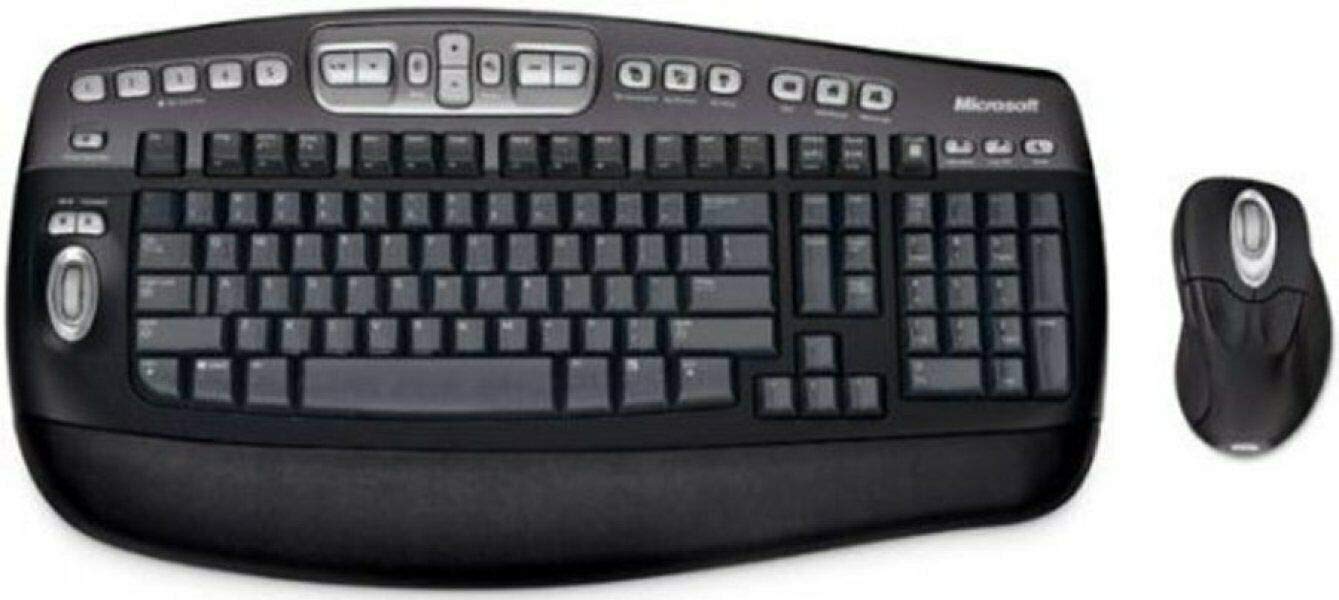
An image showing the Microsoft Wireless Optical Desktop Executive Keyboard and Mouse Combo, highlighting its ergonomic design and wireless components.
4. Funcionament
4.1 Característiques del teclat
- Wider Keys with Softer Edges: Designed for comfortable typing.
- Tecles d'accés ràpid: Provides one-touch access to frequently used computer functions and files such as Mail, Web/Home, Messenger, My Documents, and My Pictures.
- 5 Programmable 'My Favorites' Keys: Customize these keys for one-touch access to your favorite webllocs o aplicacions.
4.2 Característiques del ratolí
- High-Performance Optical Technology: Ensures precise control without the need for maintenance.
- Disseny ergonòmic: Shaped for comfortable use during extended periods.
- Scroll Wheel with Application Switching: Push down on the scroll wheel to easily move between open windows.
- 5 botons programables: Includes two side buttons for forward/back navigation in web browsers. All five buttons, including the wheel button, can be reassigned to various functions.
4.3 Customizing Keys and Buttons
To customize the programmable keys on the keyboard and buttons on the mouse, you may need to install Microsoft's IntelliType Pro and IntelliPoint software, respectively. These can typically be downloaded from the official Microsoft support website. Follow the on-screen instructions within the software to assign desired functions.
5. Manteniment
5.1 Neteja
- Teclat: Utilitzeu un drap suau i sense pelusa lleugerament dampEsbandiu amb aigua o una solució de neteja suau. Eviteu la humitat excessiva. No ruixeu productes de neteja directament sobre el teclat.
- Ratolí: Netejar l'exterior amb un d, suauamp cloth. For the optical sensor, use a dry cotton swab to gently remove any dust or debris.
5.2 Substitució de la bateria
Replace the AA batteries in both the keyboard and mouse when performance degrades or the low battery indicator (if present) illuminates. Always use fresh, high-quality AA alkaline batteries. Dispose of old batteries according to local regulations.
6. Solució De Problemes
6.1 Keyboard or Mouse Not Responding
- Assegureu-vos que les piles estiguin correctament instal·lades i que no estiguin esgotades. Substituïu-les si cal.
- Verify the USB wireless receiver is securely plugged into a working USB port. Try a different USB port.
- Ensure the keyboard and mouse are within range of the receiver (typically up to 30 feet or 10 meters).
- Re-establish the connection: Press the 'Connect' button on the receiver, then on the keyboard and mouse.
- Reinicieu l'ordinador.
6.2 Erratic Mouse Movement
- Netegeu el sensor òptic de la part inferior del ratolí.
- Assegureu-vos que feu servir el ratolí sobre una superfície adequada. Les superfícies molt reflectants o transparents poden causar problemes. Es recomana una estora de ratolí.
- Comproveu si hi ha interferències d'altres dispositius sense fil.
6.3 Hot Keys or Programmable Buttons Not Working
- Ensure Microsoft IntelliType Pro (for keyboard) and IntelliPoint (for mouse) software is installed and up to date.
- Check the software settings to confirm keys/buttons are assigned correctly.
7. Especificacions
| Marca | Microsoft |
| Model | Wireless Optical Desktop Executive |
| Tecnologia de connectivitat | Freqüència de ràdio |
| Característica especial | Disseny ergonòmic |
| Dispositius compatibles | Personal Computer (Windows/Mac) |
| Bateries | Necessites 4 piles AA (incloses) |
| Pes de l'article | 4.75 lliures |
| Dimensions del paquet | 20.4 x 10.9 x 3.5 polzades |
8. Garantia i Suport
8.1 Informació de la garantia
For detailed warranty information, please refer to the documentation included with your product packaging or visit the official Microsoft support weblloc web. Els termes i condicions de la garantia poden variar segons la regió i el producte.
8.2 Atenció al client
Per obtenir més ajuda, assistència tècnica o descàrregues de controladors, visiteu el lloc web oficial de suport de Microsoft. website. You can typically find support resources by searching for your product model on their site.