
Introducció
Aquest manual proporciona instruccions per a la configuració, el funcionament i el manteniment del vostre Microsoft Wireless Comfort Desktop 5000. Aquest producte combina un teclat sense fil i un ratolí sense fil dissenyats per a una interacció còmoda i eficient amb l'ordinador.
El Microsoft Wireless Comfort Desktop 5000 inclou un teclat Comfort Curve de disseny ergonòmic i un ratolí que utilitzen la tecnologia BlueTrack per a un seguiment de superfícies versàtil. Funciona amb una connexió sense fil de 2.4 GHz, oferint una connexió fiable amb un abast de fins a 30 metres.
Guia de configuració
Què hi ha a la caixa
- Teclat Microsoft Wireless Comfort Desktop 5000
- Ratolí Microsoft Wireless Comfort Desktop 5000
- Mini-transceptor USB
- 2 piles alcalines AA (per al teclat)
- 1 pila alcalina AA (per al ratolí)
Requisits del sistema
- Sistema operatiu: Windows 8, Windows 7, Windows Vista, Windows XP (excepte Windows XP de 64 bits)
- Disc dur: 100 MB d'espai lliure
- Port: Port USB
Instal·lació de la bateria
El teclat requereix dues piles alcalines AA i el ratolí necessita una pila alcalina AA. Les piles s'inclouen amb el producte.
- Localitzeu el compartiment de la bateria a la part inferior del teclat i del ratolí.
- Obriu la tapa del compartiment de la bateria.
- Introduïu les piles AA, assegurant-vos de la polaritat correcta (+/-).
- Tanqueu bé la tapa del compartiment de la bateria.
Connexió del transceptor sense fil
El conjunt d'escriptori sense fil es connecta a l'ordinador mitjançant un minitransceptor USB.
- Localitza el minitransceptor USB. Es pot guardar al compartiment de la bateria del ratolí per al transport.
- Inseriu el minitransceptor USB a un port USB disponible de l'ordinador.
- L'ordinador hauria de detectar i instal·lar automàticament els controladors necessaris. Aquest procés pot trigar uns instants.
- Un cop instal·lats els controladors, el teclat i el ratolí haurien d'estar llestos per al seu ús.

Figura 1: El minitransceptor USB compacte per a connexió sense fil.

Figura 2: La part inferior del ratolí que mostra la ranura d'emmagatzematge per al minitransceptor USB.
Instruccions de funcionament
Característiques del teclat

Figura 3: De dalt a baix view de la disposició del teclat Comfort Curve.
- Disseny de corba de confort: El teclat presenta un disseny Comfort Curve aprovat per ergonomistes que afavoreix una postura natural del canell, reduint la tensió durant un ús prolongat.
- Tecles tàctils silencioses: Experimenta una escriptura còmoda amb baix nivell de professionalitatfile, tecles de tacte silenciós.
- Reposamans: Un reposamans suau al tacte està integrat per proporcionar més comoditat i suport als canells.
- Peus extraïbles: Els peus ajustables a la part inferior permeten ajustar el teclat a l'angle que es prefereixi per a una postura del canell més còmoda.
- Preferits de la barra de tasques per a Windows 7: Accediu fàcilment als programes fixats a la barra de tasques de Windows mitjançant tecles de drecera dedicades. Les tecles s'adapten automàticament si reorganitzeu les icones de la barra de tasques.
- Controls del centre multimèdia: Controleu la reproducció multimèdia directament des del teclat mitjançant tecles multimèdia dedicades (per exemple, reproduir/pausa, pujar/baixar el volum, silenciar).

Figura 4: Angle view destacant el reposamans integrat i el disseny Comfort Curve.
Funcions del ratolí

Figura 5: Angle view del ratolí sense fil.
- Tecnologia BlueTrack: El ratolí utilitza la tecnologia BlueTrack de Microsoft, que combina la potència de l'òptica amb la precisió del làser per a un seguiment notable en pràcticament qualsevol superfície, com ara granit, catifes i fusta.
- Desplaçament en quatre direccions: La roda d'inclinació permet el desplaçament en quatre direccions (amunt, avall, esquerra i dreta), cosa que millora l'eficiència i la comoditat a l'hora de navegar per documents o web pàgines.
- Botons personalitzables: Els botons del ratolí es poden personalitzar per accedir ràpidament als programes, files, mitjans de comunicació i webpàgines que feu servir més sovint. Consulteu la configuració del ratolí del vostre sistema operatiu per obtenir opcions de personalització.
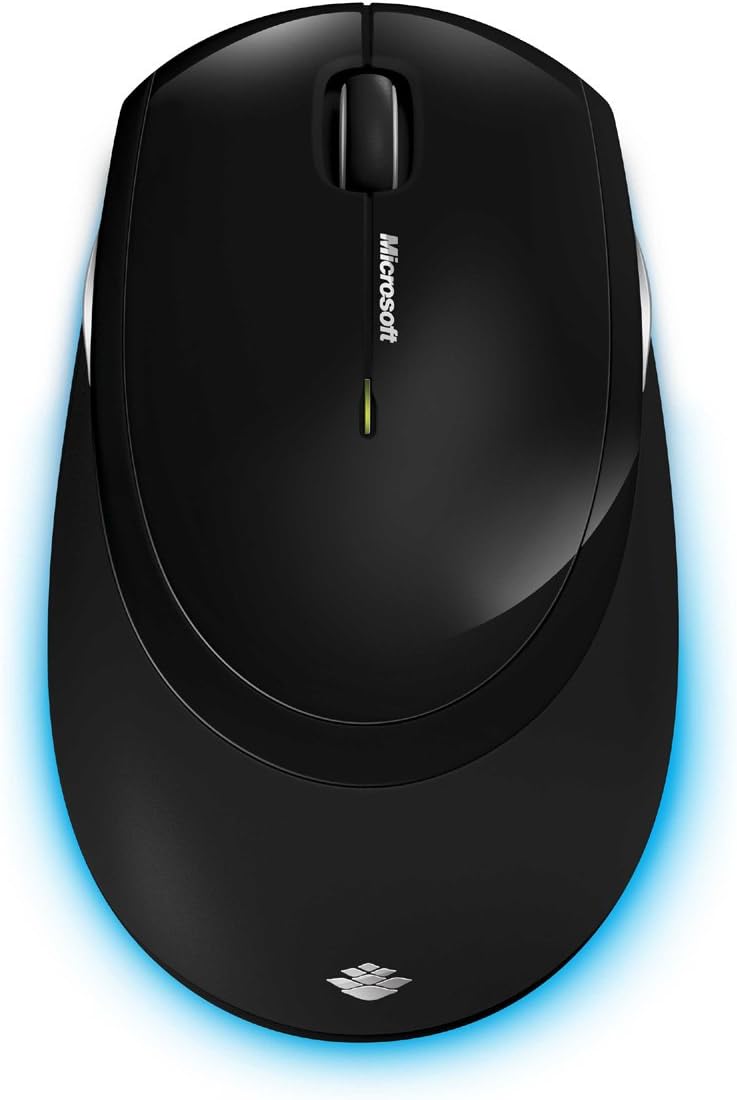
Figura 6: De dalt a baix view del ratolí sense fil.
Manteniment
Neteja
Per mantenir el rendiment i l'aspecte del vostre Microsoft Wireless Comfort Desktop 5000, seguiu aquestes pautes de neteja:
- Desconnecteu el transceptor USB de l'ordinador abans de netejar-lo.
- Utilitzeu un drap suau i sense pelusa lleugerament dampamb aigua o una solució de neteja suau.
- Eviteu utilitzar productes químics agressius, netejadors abrasius o dissolvents, ja que poden danyar les superfícies.
- Per al teclat, podeu utilitzar aire comprimit per eliminar la pols i les restes que hi ha entre les tecles.
- Per al ratolí, netegeu suaument la zona del sensor òptic a la part inferior per garantir un rendiment de seguiment òptim.
Canvi de bateria
Quan les piles estiguin baixes, és possible que l'indicador lluminós del teclat o del ratolí parpellegi. Substituïu les piles tal com es descriu a la secció "Instal·lació de la bateria" de la Guia de configuració.
- Feu servir sempre piles alcalines AA noves i d'alta qualitat.
- Eliminar les bateries usades d'acord amb la normativa local.
Resolució de problemes
Problemes de connexió
- No hi ha resposta del teclat/ratolí:
- Assegureu-vos que el minitransceptor USB estigui ben connectat a un port USB que funcioni de l'ordinador.
- Comproveu si les piles del teclat i del ratolí estan correctament instal·lades i tenen prou càrrega. Substituïu-les si cal.
- Prova de connectar el transceptor a un port USB diferent.
- Reinicieu l'ordinador.
- Interferència:
- La tecnologia sense fil de 2.4 GHz es pot veure afectada per altres dispositius sense fil. Acosteu el transceptor al teclat i al ratolí o allunyeu els altres dispositius sense fil.
- Eviteu col·locar el transceptor a prop d'objectes metàl·lics grans, ja que poden bloquejar el senyal sense fil.
Problemes de seguiment del ratolí
- Seguiment erràtic o nul:
- Assegureu-vos que el sensor BlueTrack de la part inferior del ratolí estigui net i lliure de residus.
- Prova d'utilitzar el ratolí en una superfície diferent. Tot i que BlueTrack és versàtil, les superfícies molt reflectants o transparents (com el vidre transparent) encara poden causar problemes.
Especificacions
| Característica | Detall |
|---|---|
| Marca | Microsoft |
| Número de model | CSD-00001 |
| Tecnologia de connectivitat | Sense fil (transceptor USB) |
| Tipus sense fil | Radiofreqüència de 2.4 GHz |
| Dispositius compatibles | Ordinador personal |
| Compatibilitat de sistemes operatius | Windows 8, Windows 7, Windows Vista, Windows XP (excepte Windows XP de 64 bits) |
| Color | Negre |
| Pes de l'article | 2.9 lliures |
| Dimensions del producte (LxWxH) | 8.7 x 2.9 x 18.54 polzades |
| Font d'alimentació | Funciona amb bateria |
| Piles necessàries | 3 piles AA (2 per al teclat, 1 per al ratolí) |
| Primera data disponible | 29 de juliol de 2009 |
Informació de la garantia
En aquest manual no es proporcionen detalls específics de la garantia del Microsoft Wireless Comfort Desktop 5000. Per obtenir informació completa sobre la garantia, inclosos els termes, les condicions i la durada, consulteu la guia oficial de Microsoft. weblloc web o la targeta de garantia inclosa amb l'embalatge del producte.
Suport
Per obtenir més ajuda, assistència tècnica o per descarregar els controladors i el programari més recents per al vostre Microsoft Wireless Comfort Desktop 5000, visiteu el lloc web oficial de suport de Microsoft. weblloc:
Assistència tècnica d'accessoris de Microsoft
També podeu visitar la Microsoft Store a Amazon per obtenir informació sobre el producte i accessoris relacionats:
Informació important
Avís legal
Tingueu en compte que l'"Avís legal" que s'inclou amb el producte fa referència als termes i condicions de venda, com ara les polítiques de devolució i els detalls d'enviament, i és independent de les instruccions d'ús d'aquest manual d'usuari. Per obtenir directrius específiques d'ús i seguretat del producte, consulteu les seccions pertinents d'aquest manual.