
1. Producte acabatview
The Rosewill RNX-EasyN4 is a 2T2R Wireless Single chip 11N Broadband Router designed to provide high-speed wireless connectivity. It offers data rates up to 300Mbps, delivering faster speeds and extended coverage compared to 802.11g devices. This router supports home networks with superior throughput and performance, along with a robust wireless range.
Característiques principals:
- Compliant with draft 802.11n standard, offering up to 12 times faster speed and 4 times farther range than 802.11g devices.
- Features two built-in antennas utilizing MIMO (Multiple-Input Multiple-Output) technology to create a robust signal, reduce dead spots, and deliver high-speed performance and coverage.
- Supports WEP, WPA, and WPA2 standards for secure wireless encryption and includes a built-in firewall to protect against potential internet attacks.
2. Contingut del paquet
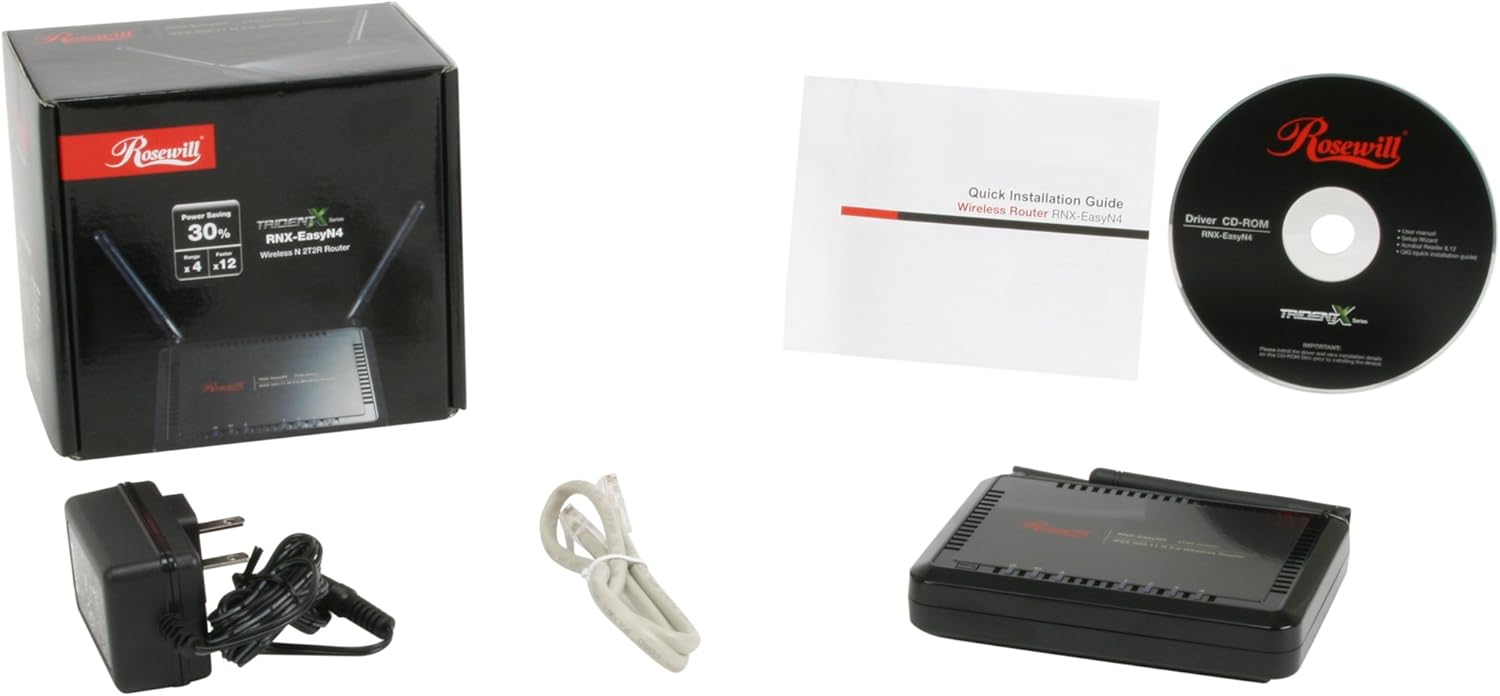
Verify that all items listed below are present in your product package. If any item is missing or damaged, please contact your retailer or Rosewill support.

Imatge 2.1: The image displays the Rosewill RNX-EasyN4 router, its retail box, a power adapter, an Ethernet cable, a Quick Installation Guide, and a Driver CD-ROM.
- Rosewill RNX-EasyN4 Wireless-N 2.0 Broadband Router
- Adaptador d'alimentació
- Cable Ethernet
- Guia d'instal·lació ràpida
- CD-ROM del controlador
3. Maquinari acabatview
Familiarize yourself with the physical components and ports of your Rosewill RNX-EasyN4 router.

Imatge 3.1: This image shows the top and front view of the Rosewill RNX-EasyN4 router, highlighting its compact design and two external antennas.
Imatge 3.2: This image displays the rear panel of the Rosewill RNX-EasyN4 router, showing the power input, four yellow LAN ports, one blue WAN port, and a WPS button.
Descripció del panell posterior:
- Port d'alimentació: Connecteu aquí l'adaptador de corrent proporcionat.
- Ports LAN (groc, 1-4): Four 10/100Mbps Ethernet ports for connecting wired devices such as computers, gaming consoles, or network printers.
- Port WAN (blau): One 10/100Mbps Ethernet port for connecting to your modem (DSL/Cable/Fiber). This port receives the internet connection.
- Botó WPS: Used for Wi-Fi Protected Setup, allowing for easy and secure connection of WPS-compatible wireless devices without manually entering the password.
4. Guia de configuració
Follow these steps to set up your Rosewill RNX-EasyN4 router for the first time.
- Apagueu els dispositius: Disconnect the power from your modem and computer.
- Connect Modem to Router: Connect one end of the provided Ethernet cable to the LAN port on your modem and the other end to the port WAN blau on the Rosewill RNX-EasyN4 router.
- Connect Computer to Router (Optional for initial setup): For initial configuration, connect one end of another Ethernet cable to a yellow LAN port on the router and the other end to your computer's Ethernet port. You can also connect wirelessly after the router is powered on.
- Engegar el mòdem: Connect the power adapter to your modem and power it on. Wait for the modem's indicator lights to stabilize, indicating an active internet connection. This may take a few minutes.
- Encendre el router: Connect the provided power adapter to the router's power port and plug it into a wall outlet. The router will power on automatically. Wait for the router's indicator lights to stabilize.
- Engegar l'ordinador: Enceneu l'ordinador.
- Access Router Configuration: Obre a web browser on your connected computer. In the address bar, type the default IP address (usually
192.168.1.1or192.168.0.1) and press Enter. Refer to the Quick Installation Guide or the label on the bottom of the router for the exact default IP address, username, and password. - Follow On-Screen Wizard: Once logged in, follow the on-screen setup wizard to configure your internet connection type (e.g., Dynamic IP, Static IP, PPPoE) and set up your wireless network name (SSID) and password.
Note: It is recommended to change the default administrator password for security purposes.
5. Instruccions de funcionament
5.1. Configuració de la xarxa sense fil
To customize your wireless network settings:
- Inicia la sessió al router web-based management interface using the IP address and credentials.
- Navigate to the "Wireless" or "Wi-Fi Settings" section.
- SSID (nom de la xarxa): Change the default SSID to a unique name for your wireless network.
- Mode de seguretat: Select a strong security protocol. WPA2-PSK (AES) is recommended for optimal security.
- Contrasenya sense fil (clau precompartida): Enter a strong password (at least 8 characters, including uppercase, lowercase, numbers, and symbols).
- Canal: If you experience interference or slow speeds, try changing the wireless channel. "Auto" mode often works well, but manual selection (e.g., channels 1, 6, or 11 in 2.4GHz) can improve performance in congested areas.
- Save your settings. Your wireless devices will need to reconnect using the new SSID and password.
5.2. WPS (Configuració protegida Wi-Fi)
WPS allows for a quick and secure connection of WPS-compatible devices to your wireless network without entering the password manually.
- Ús del botó WPS: Press the WPS button on the rear panel of the router. Within two minutes, activate WPS on your client device (e.g., wireless adapter, printer). The devices will automatically establish a secure connection.
- Ús del PIN: Some devices may require you to enter a PIN from the router's web interface into the client device, or vice-versa. Refer to your device's manual for specific instructions.
5.3. Firewall and Security
The router includes a built-in firewall to protect your network. You can configure additional security settings through the web interfície:
- Control d'accés: Manage which devices can access your network or the internet.
- Transmissió de ports: Configure rules to allow specific external traffic to reach devices on your local network (e.g., for gaming or specific applications).
- DMZ (zona desmilitaritzada): Designate a device to be exposed to the internet, bypassing the firewall. Use with caution.
6. Manteniment
Un manteniment regular ajuda a garantir un rendiment òptim i una llarga vida útil del vostre encaminador.
- Reinicis regulars: Periodically reboot your router (e.g., once a month) by unplugging the power adapter for 10 seconds and then plugging it back in. This can resolve minor performance issues.
- Actualitzacions de firmware: Check the Rosewill support website for firmware updates. Firmware updates can improve performance, add new features, and fix security vulnerabilities. Follow the instructions provided by Rosewill carefully when performing an update.
- Neteja física: Keep the router in a well-ventilated area. Dust can accumulate and cause overheating. Gently clean the exterior with a soft, dry cloth. Do not use liquid cleaners.
- Col·locació: Place the router in a central location, away from obstructions, large metal objects, and devices that emit strong electromagnetic interference (e.g., microwaves, cordless phones) to maximize wireless coverage.
7. Solució De Problemes
This section addresses common issues you might encounter with your Rosewill RNX-EasyN4 router.
7.1. Sense connexió a Internet
- Comproveu els cables: Ensure all Ethernet cables are securely connected to the correct ports (modem to router WAN, computer to router LAN).
- Cicle d'alimentació: Power off your modem, then the router, then your computer. Wait 30 seconds, then power on the modem, wait for it to fully boot, then power on the router, wait for it to fully boot, and finally power on your computer.
- Estat del mòdem: Verifiqueu que el mòdem tingui una connexió a Internet activa (comproveu els seus indicadors lluminosos).
- Configuració del router: Inicieu sessió al router web interface and ensure your internet connection settings (WAN settings) are correctly configured according to your Internet Service Provider (ISP).
7.2. Cannot Connect to Wireless Network
- Check SSID and Password: Ensure you are selecting the correct wireless network name (SSID) and entering the correct password. Passwords are case-sensitive.
- Adaptador sense fil: Make sure your device's wireless adapter is enabled.
- Intensitat del senyal: Apropeu-vos al router per comprovar si la intensitat del senyal és un problema.
- Canal sense fil: If many wireless networks are in your area, interference might occur. Try changing the wireless channel in the router's settings (e.g., to 1, 6, or 11).
7.3. Slow Wireless Speeds
- Interferència: As mentioned above, try changing the wireless channel.
- Col·locació del router: Assegureu-vos que el router estigui situat en un lloc central i que no estigui obstruït.
- Nombre de dispositius: Too many devices actively using the network can reduce speeds.
- Firmware: Assegureu-vos que el firmware del vostre encaminador estigui actualitzat.
- Compatibilitat de dispositius client: Ensure your wireless client devices support 802.11n for optimal speeds.
8. Especificacions
| Marca | Rosewill |
| Número de model | RNX-EasyN4 |
| Comunicació sense fils estàndard | 802.11a, 802.11b, 802.11b/g, 802.11bgn, 802.11g, 802.11n |
| Velocitat de transferència de dades | Fins a 300 megabits per segon |
| Tecnologia de connectivitat | Wi-Fi, Ethernet |
| LAN Port Bandwidth | 10/100 Megabits Per Second |
| Nombre de ports LAN | 4 |
| Number of WAN Ports | 1 |
| Configuració de l'antena | 2T2R (Two Transmit, Two Receive) with built-in antennas |
| Protocol de seguretat | WEP, WPA-PSK, WPA2-PSK |
| Característica especial | WPS (configuració protegida per Wi-Fi) |
| Dispositius compatibles | Ordinador personal i altres dispositius connectats a la xarxa |
| Ús recomanat | Xarxes domèstiques |
| Pes de l'article | 0.9 lliures |
| Fabricant | Rosewill |
9. Garantia i Suport
For warranty information, technical support, or further assistance, please refer to the documentation included with your product or visit the official Rosewill website. Contact information for customer support is typically available on the manufacturer's weblloc.
Fabricant: Rosewill
Conserveu el vostre comprovant de compra per a reclamacions de garantia.


