
1. Introducció
The D-Link DES-1210-52 is a 48-port Fast Ethernet Smart Switch designed for small to medium-sized businesses. It features 48 10/100Mbps ports, two 10/100/1000Mbps Gigabit ports, and two combo SFP Gigabit uplinks, providing flexible connectivity options. This switch offers advanced management functions, including VLANs, QoS, and security features, to enhance network performance and security. This manual provides essential information for the proper installation, configuration, and operation of your DES-1210-52 switch.
2. Contingut del paquet
Verify the contents of your DES-1210-52 package. If any item is missing or damaged, please contact your local D-Link reseller for assistance.
- D-Link DES-1210-52 Smart Switch
- Cable d'alimentació
- Rack Mount Kit (two brackets and screws)
- Peus de goma (per a la instal·lació d'escriptori)
- CD-ROM (containing documentation and utility software)
- Guia d'instal·lació ràpida
3. Descripció física
The DES-1210-52 switch features a standard 1U rack-mountable design. Understanding the front and rear panel components is crucial for proper installation and operation.
3.1. Tauler frontal
The front panel includes all network ports, LED indicators, and a console port for management.
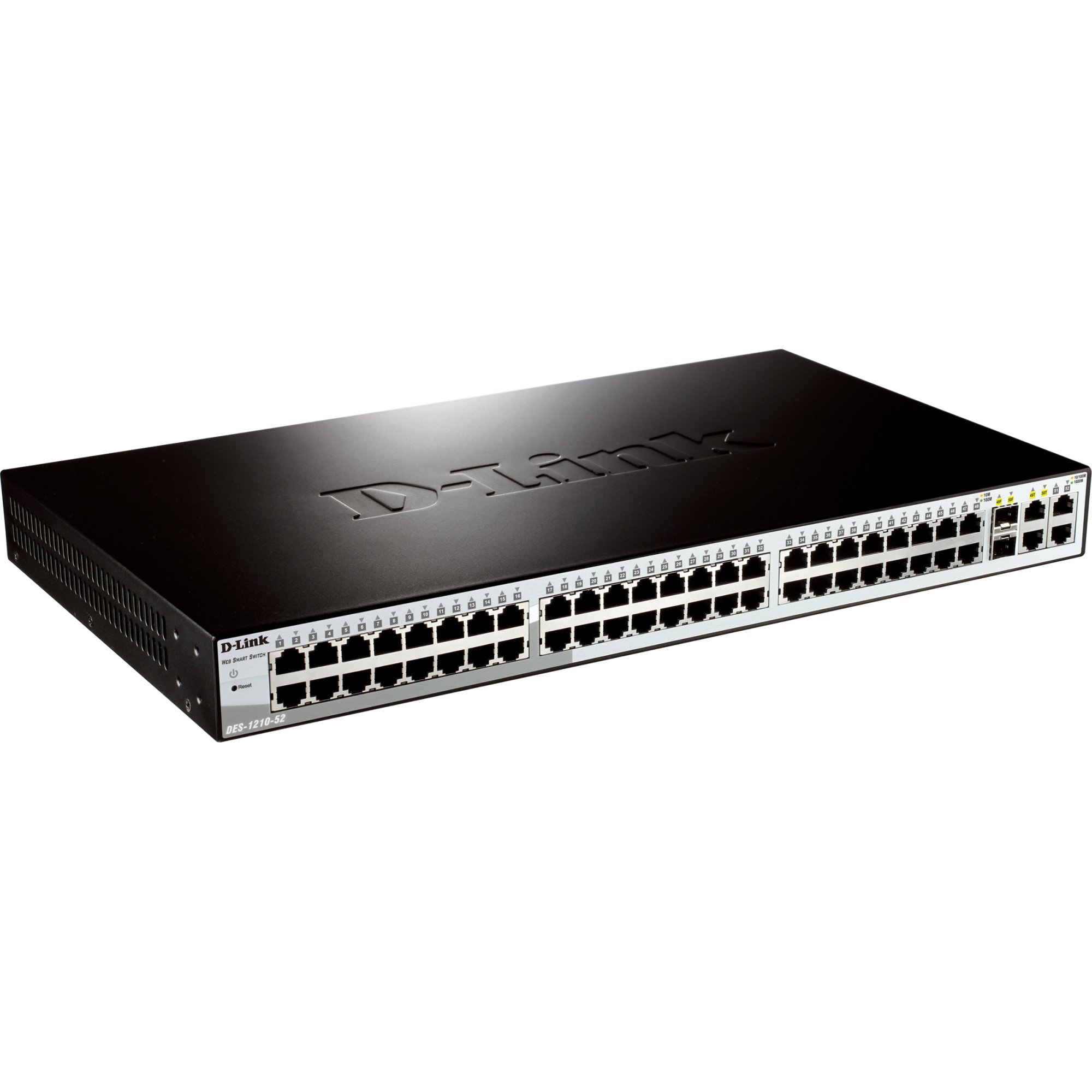
Figura 1: Davant view of the D-Link DES-1210-52 Smart Switch, showing 48 Fast Ethernet ports, 2 Gigabit Ethernet ports, and 2 SFP combo ports, along with LED indicators for power, link/activity, and speed.
- Indicadors LED: Power, Link/Act (per port), Speed (per port).
- 10/100BASE-TX Ports (1-48): RJ-45 ports for Fast Ethernet connections.
- 10/100/1000BASE-T Ports (49-50): RJ-45 ports for Gigabit Ethernet connections.
- Combo SFP Ports (51-52): SFP slots that share bandwidth with Gigabit ports 49-50. When an SFP module is inserted, the corresponding Gigabit RJ-45 port is disabled.
- Port de la consola: RJ-45 port for command-line interface (CLI) access.
3.2. Panell posterior
The rear panel contains the power input and grounding screw.
- Receptacle d'alimentació de CA: Connects to the provided AC power cord.
- Cargol de presa de terra: Provides an optional connection for grounding the device.
4. Configuració
This section outlines the steps for physically installing and connecting your D-Link DES-1210-52 Smart Switch.
4.1. Preparació del lloc
- Ensure the installation site is well-ventilated and within the recommended operating temperature and humidity ranges.
- Place the switch on a sturdy, level surface or in a standard 19-inch equipment rack.
- Assegureu-vos que hi hagi disponible una font d'alimentació estable.
4.2. Instal·lació d'escriptori
For desktop use, attach the included rubber feet to the bottom of the switch to prevent scratching and provide stability.
4.3. Instal·lació del bastidor
To install the switch in a standard 19-inch equipment rack:
- Attach the two rack-mounting brackets to the sides of the switch using the provided screws.
- Secure the switch in the rack using the screws provided with the rack.
4.4. Potència de connexió
Connect the supplied AC power cord to the power receptacle on the rear panel of the switch and then to a suitable power outlet. The Power LED on the front panel will illuminate.
4.5. Connexió de dispositius de xarxa
Connect network devices (e.g., computers, servers, other switches) to the 10/100BASE-TX or 10/100/1000BASE-T ports using standard Ethernet cables. For fiber optic connections, insert compatible SFP transceivers into the SFP slots and connect fiber optic cables.
5. Funcionament
The DES-1210-52 is a Smart Switch, offering various management options for configuration and monitoring.
5.1. Accés inicial
El commutador es pot gestionar mitjançant un Web-based GUI, a Command Line Interface (CLI) through the console port, or SNMP.
- WebGestió basada en: By default, the switch obtains an IP address via DHCP. If no DHCP server is present, it will use a default IP address (refer to the Quick Installation Guide or CD-ROM documentation for the specific default IP). Connect a computer to any switch port and configure its IP address to be in the same subnet as the switch. Open a web navegador i introduïu l'adreça IP del commutador.
- Gestió de la CLI: Connect a console cable (RJ-45 to DB-9) from the switch's console port to a serial port on a computer. Use a terminal emulation program (e.g., PuTTY, Tera Term) with appropriate settings (e.g., 115200 baud, 8 data bits, no parity, 1 stop bit, no flow control).
5.2. Configuració bàsica
After initial access, it is recommended to:
- Change the default administrator password.
- Configure a static IP address for the switch if a DHCP server is not consistently available or preferred.
- Establiu l'hora i la data del sistema.
- Save the configuration to prevent loss upon reboot.
6. Manteniment
Regular maintenance ensures optimal performance and longevity of your D-Link DES-1210-52 Smart Switch.
- Actualitzacions de firmware: Comproveu periòdicament el suport de D-Link website for the latest firmware versions. Updating firmware can provide new features, performance improvements, and security patches. Follow the instructions provided with the firmware update package carefully.
- Neteja: Keep the switch free from dust and debris. Use a soft, dry cloth to clean the exterior. Ensure ventilation openings are clear. Do not use liquid or aerosol cleaners directly on the switch.
- Còpia de seguretat de la configuració: Regularly back up your switch configuration to an external device. This allows for quick restoration in case of a device failure or misconfiguration.
- Seguiment ambiental: Ensure the operating environment remains within specified temperature and humidity limits to prevent overheating or moisture damage.
7. Solució De Problemes
This section provides solutions to common issues you might encounter with your DES-1210-52 Smart Switch.
7.1. Power LED is Off
- Assegureu-vos que el cable d'alimentació estigui connectat correctament tant a l'interruptor com a una presa de corrent que funcioni.
- Verify the power outlet is supplying power by testing it with another device.
7.2. No Link/Activity LED on a Connected Port
- Check that the Ethernet cable is properly connected at both ends.
- Assegureu-vos que el dispositiu connectat estigui encès i funcioni correctament.
- Prova un cable Ethernet diferent.
- Verify that the port on the connected device is active.
7.3. No es pot accedir WebInterfície de gestió basada en
- Assegureu-vos que l'adreça IP de l'ordinador es troba a la mateixa subxarxa que l'adreça IP del commutador.
- Verify the switch's IP address. If unknown, you may need to reset the switch to factory defaults (refer to the full manual for instructions, as this will erase all configurations).
- Desactiveu temporalment qualsevol tallafocs o programari antivirus de l'ordinador per descartar interferències.
- Try accessing the interface from a different web browser or computer.
8. Especificacions
| Característica | Descripció |
|---|---|
| Número de model | DES-1210-52 |
| Marca | D-Link |
| Nombre de Ports | 48 (10/100Mbps) + 2 (10/100/1000Mbps) + 2 (Combo SFP) |
| Tipus d'interfície | RJ-45, SFP |
| Velocitat de transferència de dades | 10/100 Mbps (Fast Ethernet), 1 Gbps (Gigabit Ethernet) |
| Pes de l'article | 4.08 quilos |
| Dispositius compatibles | Desktop (and other network devices) |
| Plataforma | No específic de la màquina |
9. Garantia i Suport
D-Link provides a limited warranty for its products. The specific terms and conditions of the warranty may vary by region. Please refer to the warranty information included with your product or visit the official D-Link website for detailed warranty statements.
For technical support, product documentation, firmware updates, and FAQs, please visit the D-Link support portal. You can typically find support resources by searching for your product model (DES-1210-52) on the D-Link weblloc.
Suport de D-Link Weblloc: www.dlink.com/support