
Introducció
The ADATA S102PRO is a high-performance USB 3.0 flash drive designed for fast and reliable data storage and transfer. Its durable design and high-speed interface make it ideal for everyday use, allowing you to carry important files, documents, photos, and videos with ease.
Configuració
Follow these steps to begin using your ADATA S102PRO USB Flash Drive:
- Identifiqueu un port USB: Locate an available USB port on your computer. For optimal performance, use a USB 3.0 port (often colored blue internally). The ADATA S102PRO is backward compatible with USB 2.0 ports, but data transfer speeds will be limited to USB 2.0 rates.
- Traieu la tapa: Carefully remove the protective cap from the USB flash drive to expose the USB connector.
- Inseriu la unitat: Insert the USB connector firmly into the USB port on your computer. Ensure it is inserted correctly; do not force it.
- Reconeixement del sistema: Your operating system (Windows, macOS, Linux) should automatically detect and install the necessary drivers. A notification may appear indicating that the device is ready for use. The drive will typically appear as a removable disk or volume in your file explorador.
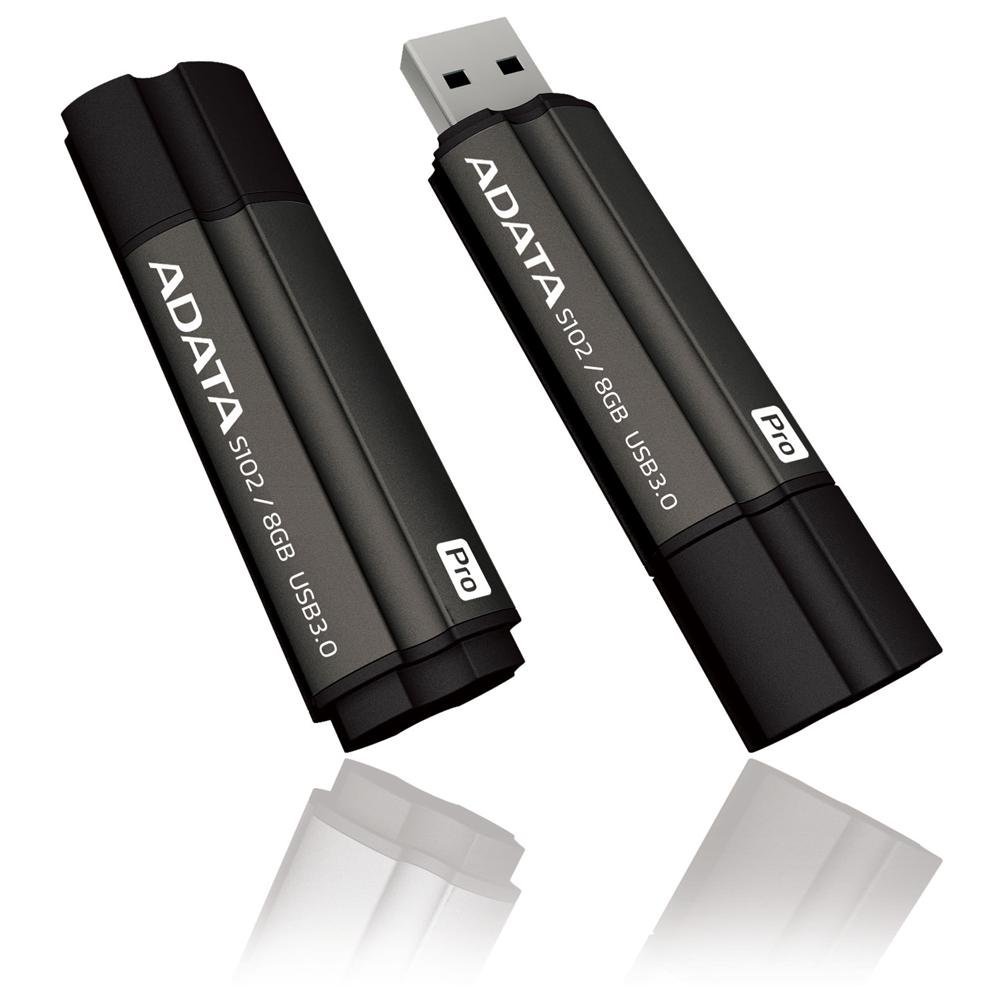
Image: The ADATA S102PRO USB Flash Drive shown with its protective cap on and with the cap removed, revealing the USB 3.0 connector. This illustrates the physical appearance and how to prepare the drive for insertion.
En funcionament
Once the ADATA S102PRO is recognized by your computer, you can begin transferring files:
- Accés a la unitat:
- Windows: Open "This PC" or "My Computer" and locate the drive listed under "Devices and drives" (e.g., "Removable Disk" or a drive letter like E:).
- macOS: La icona de la unitat apareixerà a l'escriptori o a la barra lateral del Finder, a "Ubicacions".
- Transferència Files:
- Per copiar files a the flash drive, drag and drop them from your computer's folders into the flash drive's window.
- Per copiar files des de the flash drive, drag and drop them from the flash drive's window to a folder on your computer.
- You can also use the standard copy (Ctrl+C / Command+C) and paste (Ctrl+V / Command+V) functions.
- Extracció segura de la unitat: És crucial expulsar la unitat flaix de manera segura abans de treure-la físicament per evitar que les dades es corrompin.
- Windows: Click the "Safely Remove Hardware and Eject Media" icon in the system tray (bottom-right corner), then select your flash drive and click "Eject." Wait for the "Safe to Remove Hardware" message.
- macOS: Drag the drive icon from the desktop to the Trash, or click the Eject button next to the drive name in the Finder sidebar. Wait for the icon to disappear before removing the drive.
Manteniment
Proper care will help ensure the longevity and reliability of your ADATA S102PRO USB Flash Drive:
- Protegiu el connector: Mantingueu sempre la tapa protectora al connector USB quan no utilitzeu la unitat per evitar pols, brutícia i danys físics.
- Eviteu condicions extremes: Do not expose the drive to extreme temperatures, direct sunlight, high humidity, or strong magnetic fields.
- Manejar amb cura: Eviteu deixar caure la unitat ni sotmetre-la a impactes forts.
- Do Not Remove During Transfer: Never unplug the drive while data is being read from or written to it. Always follow the safe removal procedure.
- Còpies de seguretat periòdiques: While flash drives are reliable, it is always recommended to back up critical data to another storage device or cloud service.
Resolució de problemes
If you encounter issues with your ADATA S102PRO, try the following solutions:
- Unitat no reconeguda:
- Assegureu-vos que la unitat estigui completament inserida al port USB.
- Proveu un port USB diferent a l'ordinador.
- Proveu la unitat en un altre ordinador per descartar un problema específic de l'ordinador.
- Check your computer's Device Manager (Windows) or System Information (macOS) to see if the drive is listed, even if it doesn't appear in File Explorer/Finder.
- Velocitats de transferència lentes:
- Ensure you are connected to a USB 3.0 port for optimal performance. USB 2.0 ports will limit speeds.
- Transferint molts petits files can be slower than transferring a few large files.
- Tanqueu altres aplicacions que puguin estar utilitzant recursos del sistema o realitzant operacions de disc.
- No puc escriure Files per conduir:
- Comproveu si la unitat està plena. Suprimiu els elements innecessaris. files o transferir-los a un altre lloc.
- Assegureu-vos el file system (e.g., FAT32, NTFS, exFAT) is compatible with your operating system and allows writing. If formatted as NTFS on macOS, you may only have read access without third-party software.
- Check for any software-based write protection or permissions issues on your computer.
Especificacions
| Marca | ADATA |
| Nom del model | S102PRO |
| Número de model | AT806-4G-CPK |
| Capacitat d'emmagatzematge de memòria | 4 GB |
| Interfície del maquinari | USB 3.0 (Backward compatible with USB 2.0) |
| Fabricant | A-DATA TECHNOLOGY (USA) CO. L |
| UPC | 842243005080 |
| ASIN | B004AVOGW8 |
Garantia i Suport
For detailed warranty information, product registration, and technical support, please visit the official ADATA weblloc web. Normalment hi podeu trobar recursos d'assistència, preguntes freqüents i informació de contacte per al servei d'atenció al client.
ADATA Official Weblloc: www.adata.com


