
Introducció
This manual provides essential instructions for setting up, operating, and maintaining your Amazon Kindle Touch e-reader. The Kindle Touch features a 6-inch E Ink display, offering a comfortable reading experience with its high contrast and sharp text.
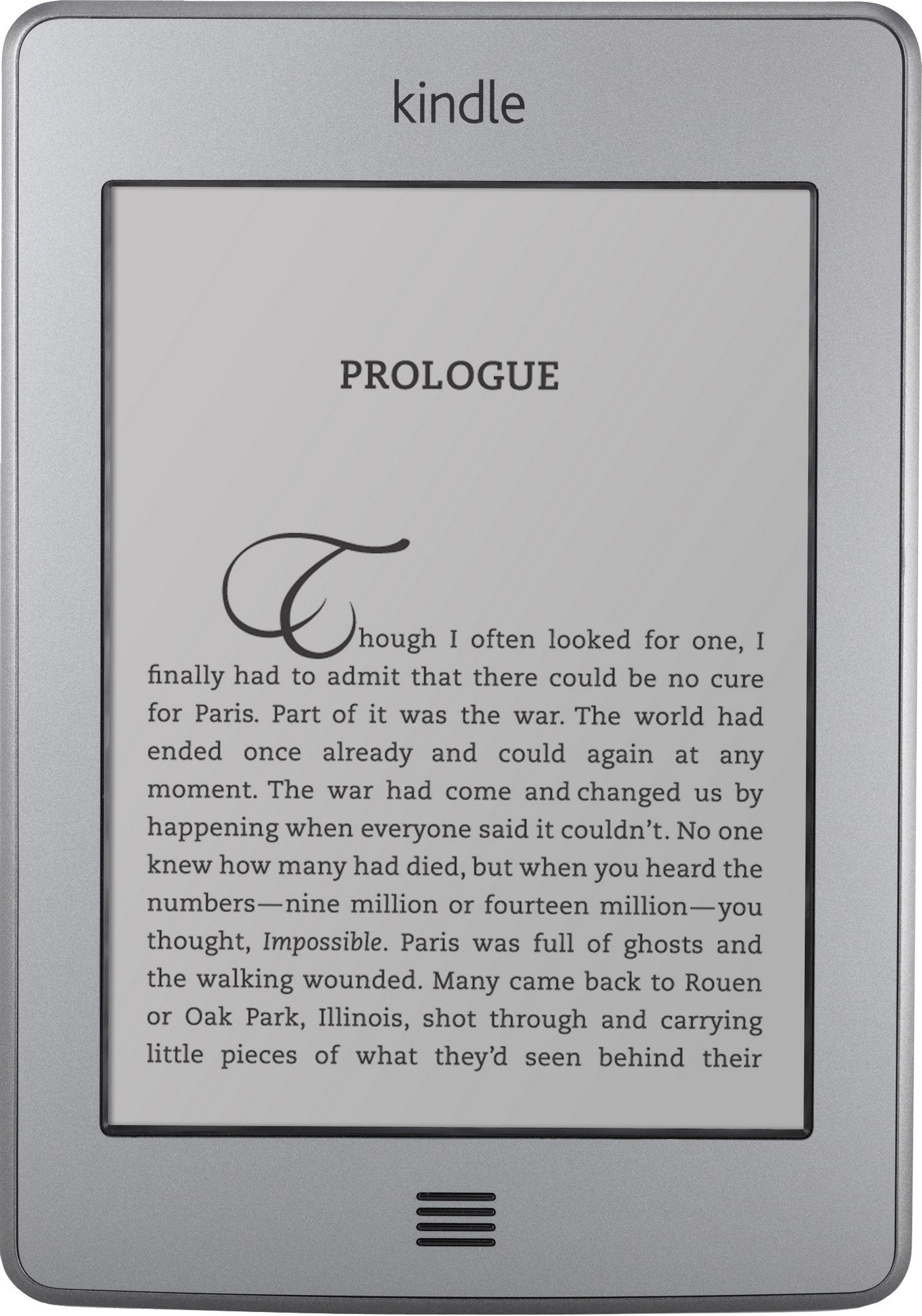
Imatge: Frontal view of the Kindle Touch e-reader, showing a book page with the title "PROLOGUE". The device has a light gray bezel and a physical home button at the bottom.
Configuració
1. Càrrega inicial i engegada
Upon receiving your Kindle Touch, connect it to a power source using the provided USB cable to ensure it is fully charged. Once charged, press the power button located on the bottom edge of the device to turn it on.
2. Device Registration and Wi-Fi Connection
The device will guide you through an initial familiarization course. If you have an existing Amazon account, the Kindle Touch may already be registered to it. You will be prompted to connect to a Wi-Fi network. Select your network from the list and enter the password if required. The Kindle Touch can also connect to 3G networks if you have the 3G model.
3. Accessing Your Content
After setup, navigate to the "Home" screen. Any previously purchased Kindle books associated with your Amazon account will be available in your "Archive" or "Cloud" for download. You can download these books directly to your device.
Operating Your Kindle Touch
Navegació bàsica
- Page Turns: To turn to the next page while reading, touch the right side of the screen. To go back to the previous page, touch the far left side (approximately 1 inch from the edge) of the screen.
- Accés al menú: Touch the top 1-inch margin of the screen to bring up the menu bar, which provides options for navigation, settings, and the Kindle Store.
- Botó d'inici: The physical button at the bottom of the device serves as the Home button, taking you directly to your main library screen.
- Sleep/Power Button: The button on the bottom edge of the device puts it into sleep mode with a single press. Hold it down for a few seconds to power the Kindle Touch off completely.

Imatge: Anglesa view of the Kindle Touch, showing the device displaying the Kindle Store interface with several book covers. The screen is responsive to touch.
Experiència de lectura
- E Ink Display: The 6-inch E Ink display offers high contrast and sharp text, making it comfortable for extended reading periods. It is designed to be easily readable in various lighting conditions, including direct sunlight, without glare.
- Real Page Numbers: The Kindle Touch displays actual page numbers, allowing you to track your progress accurately within a book.
Text Interaction
- Dictionary Lookup: To look up a word, touch and hold the word for approximately 1.5 seconds. A definition from the built-in dictionary will appear. You can then choose to view the full definition.
- Subratllat i notes: To highlight text, touch and hold the first word, then drag your finger across the desired selection. A menu will appear, allowing you to highlight the text or add a note.

Image: A person's hand is shown interacting with the Kindle Touch screen, specifically touching an item in a list within the device's interface.
Gestió de continguts
- Col·leccions: Organize your books into custom collections directly from the Home screen. A single book can be part of multiple collections.
- Emmagatzematge al núvol: All books purchased from Amazon are stored permanently in your Amazon cloud library. You can download them to any of your registered Kindle devices or Kindle apps at any time.
- Archiving: To remove a book from your device while keeping it in your cloud library, touch and hold the book title on the Home screen and select "Move to archive."
- Library Books: The Kindle Touch supports borrowing books from local public libraries that offer Kindle-compatible titles.
Text a veu
The Kindle Touch includes a Text-to-Speech feature that can read books aloud. This function uses a synthesized voice. While it articulates words, it may not include natural pauses or inflections found in human narration.
Manteniment
Neteja de la pantalla
To clean the screen, gently wipe it with a soft microfiber cloth. Avoid using paper towels or abrasive materials, as these can scratch the display. If your hands are greasy, fingerprints may appear on the screen; however, light touches for navigation generally do not leave significant smudges.
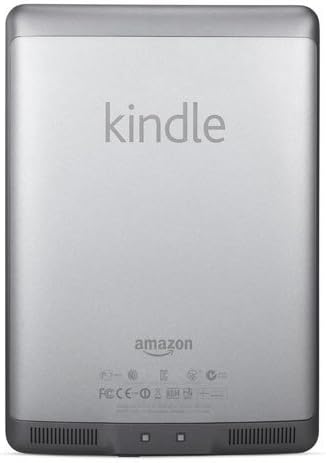
Imatge: Enrere view of the Kindle Touch e-reader, displaying the "kindle" logo at the top and "amazon" branding near the bottom. The back is a light gray color.
Resolució de problemes
Bloqueig o manca de resposta del dispositiu
If your Kindle Touch becomes unresponsive or freezes, you can perform a hard reboot. Press and hold the power button (located on the bottom edge) for a full 20 seconds. Release the button, and the device should restart.
Accidental Page Turns
If you experience frequent accidental page turns, it may be due to lingering your finger on the screen. The touch screen is highly sensitive. If you accidentally turn too many pages, simply touch the far left side of the screen to go back one page.
Especificacions
| Característica | Descripció |
|---|---|
| Mostra | 6-inch E Ink display |
| Emmagatzematge | 4 GB internal (holds approximately 3,000 books) |
| Connectivitat | Wi-Fi (802.11b/g/n), optional 3G |
| Durada de la bateria | Up to two months on a single charge with wireless off (based on 30 minutes of reading per day) |
| Entrada | Pantalla tàctil |
| Formats suportats | Kindle (AZW), TXT, PDF, unprotected MOBI, PRC natively; HTML, DOC, DOCX, JPEG, GIF, PNG, BMP through conversion. |