
Introducció
This manual provides detailed instructions for the installation, operation, and maintenance of the AzureWave AW-NE785H AR9285 AR5B95 Half Mini PCI-Express PCIe Wireless WLAN Wifi Card. Please read this manual thoroughly before installation and use to ensure proper functionality and to avoid potential issues.
The AW-NE785H is designed to provide 802.11 BGN wireless connectivity for compatible laptop systems.
Informació de seguretat
- Always disconnect power from your device before installing or removing the wireless card.
- Handle the card by its edges to avoid touching sensitive components.
- Use appropriate anti-static precautions (e.g., anti-static wrist strap) to prevent electrostatic discharge (ESD) damage.
- Ensure the card is correctly seated in the PCI-Express slot to prevent damage.
Contingut del paquet
Comproveu que el vostre paquet contingui els elements següents:
- AzureWave AW-NE785H Wireless Card
- (Optional) Driver CD or link to driver download
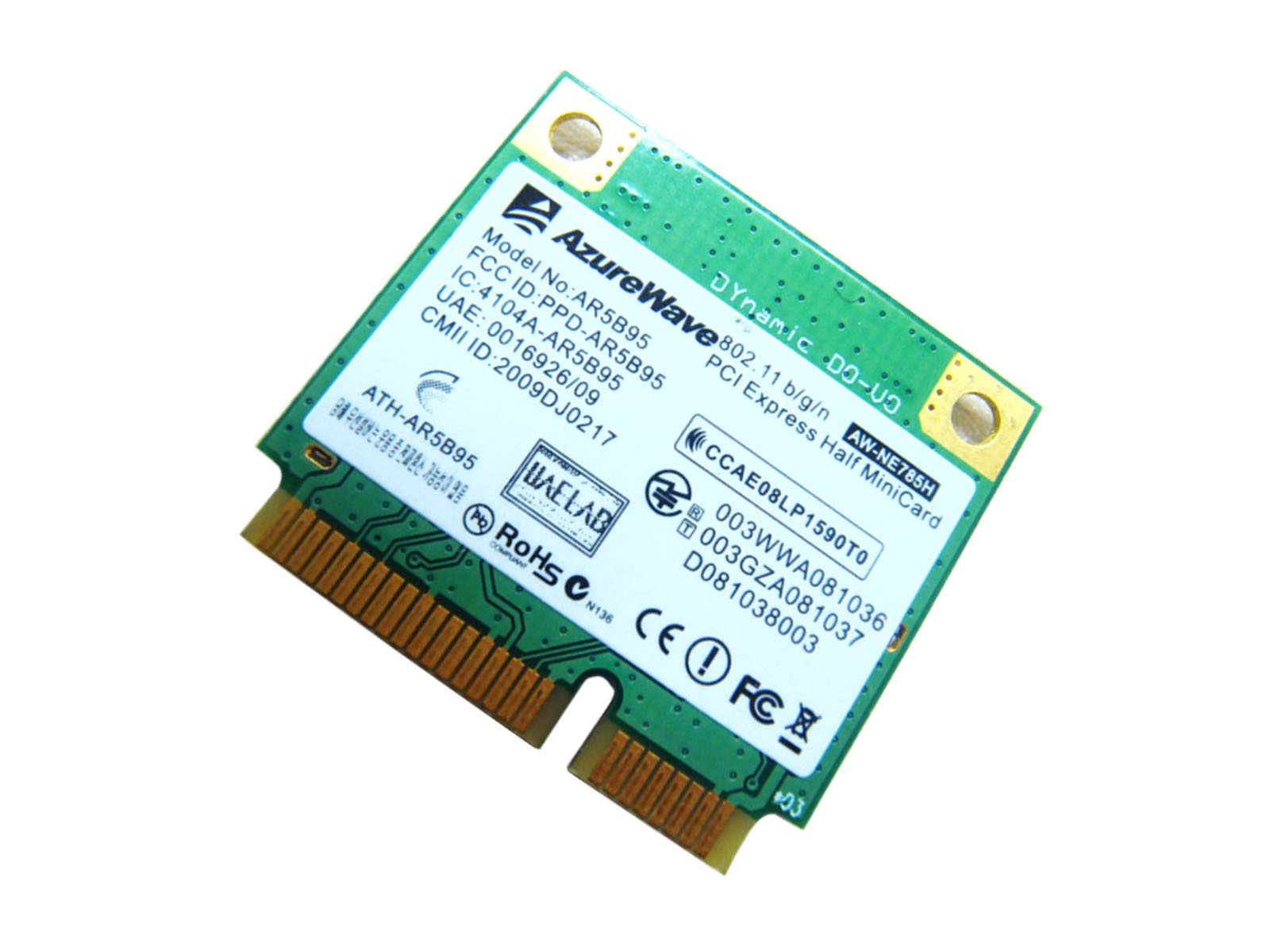
Image: The AzureWave AW-NE785H wireless card sealed in an anti-static bag, displaying product information and compliance labels. This is how the product is typically received.
Configuració i instal·lació
This section outlines the steps for installing the AW-NE785H wireless card into a compatible laptop.
1. Prepare Your Laptop
- Apagar: Shut down your laptop completely and disconnect it from the power adapter.
- Traieu la bateria: If applicable, remove the laptop battery.
- Tauler d'accés: Locate and open the access panel for the wireless card slot, typically on the bottom of the laptop. Refer to your laptop's service manual for specific instructions.
- Precaucions antiestàtiques: Wear an anti-static wrist strap or periodically touch a grounded metal object to discharge static electricity.
2. Install the Wireless Card
- Treure la targeta antiga (si escau): If replacing an existing wireless card, carefully disconnect any antenna cables and remove the screw securing the card. Gently slide the old card out of the slot.
- Inserir una targeta nova: Align the AW-NE785H card with the Half Mini PCI-Express slot. Gently push the card into the slot at an angle until it is fully seated.
- Targeta segura: Press the card down and secure it with the screw (if provided or reused from the old card).
- Connecteu les antenes: Carefully connect the antenna cables to the corresponding connectors on the wireless card. Typically, the main antenna connects to "MAIN" or "1" and the auxiliary antenna to "AUX" or "2". Ensure a firm connection.
3. Reassemble and Power On
- Tanca el panell: Replace the access panel and secure it.
- Torneu a instal·lar la bateria: Reinstall the laptop battery (if removed).
- Encès: Connect the power adapter and turn on your laptop.
4. Instal·lació del controlador
After the hardware installation, you may need to install drivers for the operating system to recognize and utilize the wireless card.
- Instal·lació automàtica: Modern operating systems (Windows 10/11, Linux) may automatically detect and install the necessary drivers. Check Device Manager (Windows) or network settings to confirm.
- Instal·lació manual: If drivers are not automatically installed, download the appropriate drivers for the Atheros AR9285 chipset (often associated with AW-NE785H) from your laptop manufacturer's support website or the AzureWave weblloc.
- Passos d'instal·lació:
- Download the driver package.
- Extreu el files if compressed.
- Executeu l'executable d'instal·lació (per exemple,
setup.exe) and follow the on-screen instructions. - Reinicieu l'ordinador després de la instal·lació si se us demana.
Instruccions de funcionament
Once the wireless card is installed and drivers are in place, you can connect to Wi-Fi networks.
Connecting to a Wi-Fi Network (Windows Example)
- Activa la Wi-Fi: Ensure your laptop's Wi-Fi is enabled. This can usually be done via a physical switch, a function key combination (e.g., Fn + F2), or through the operating system's network settings.
- Accés a la configuració de xarxa: Click on the Wi-Fi icon in the system tray (bottom-right corner of the screen).
- Seleccioneu la xarxa: Apareixerà una llista de xarxes Wi-Fi disponibles. Seleccioneu la xarxa desitjada (SSID).
- Connectar: Click "Connect". If the network is secured, you will be prompted to enter the network security key (password).
- Confirmeu la connexió: Once connected, the Wi-Fi icon will indicate an active connection, and you should have internet access.
Nota: The card supports 802.11 B, G, and N standards, allowing connection to a wide range of wireless routers and access points.
Manteniment
The AW-NE785H wireless card requires minimal maintenance. Follow these guidelines to ensure optimal performance:
- Mantenir els controladors actualitzats: Periodically check for updated drivers from your laptop manufacturer or the chipset vendor (Atheros/Qualcomm) to ensure compatibility and performance improvements.
- Keep Laptop Clean: Ensure your laptop's internal components, including the wireless card slot, are free from dust and debris. Dust can impede airflow and potentially affect performance.
- Eviteu danys físics: Protect your laptop from drops or impacts that could dislodge or damage internal components.
Resolució de problemes
If you encounter issues with your AW-NE785H wireless card, refer to the following common troubleshooting steps:
No Wi-Fi Connection / Card Not Detected
- Comprovació de la instal·lació física: Ensure the card is securely seated in its slot and antenna cables are properly connected.
- Verificar els controladors: Open Device Manager (Windows) and check under "Network adapters". Look for the Atheros AR9285 or a similar entry. If there's a yellow exclamation mark or the device is missing, reinstall or update the drivers.
- Activa la Wi-Fi: Confirm that Wi-Fi is enabled in your operating system settings and via any physical switches or function keys on your laptop.
- Configuració de la BIOS/UEFI: Some laptops have an option in the BIOS/UEFI to enable or disable wireless devices. Ensure it is enabled.
Slow Connection / Intermittent Disconnections
- Proximitat del router: Move closer to your Wi-Fi router or access point to improve signal strength.
- Interferència: Other electronic devices (cordless phones, microwaves) can cause interference. Try changing your router's Wi-Fi channel.
- Actualització del controlador: Assegureu-vos que teniu els darrers controladors instal·lats.
- Configuració del router: Check your router's settings. Ensure it's operating on a compatible 802.11 B/G/N mode.
Bluetooth Functionality (if applicable)
While primarily a Wi-Fi card, some AR9285 chipsets may offer Bluetooth functionality. If you experience issues with Bluetooth:
- Comproveu el Gestor de dispositius: Verify that the Bluetooth device is recognized and has proper drivers installed.
- Activa el Bluetooth: Ensure Bluetooth is enabled in your operating system settings.
- Problemes d'aparellament: Ensure the device you are trying to pair with is in pairing mode and within range.
Especificacions
| Característica | Detall |
|---|---|
| Marca | AzureWave |
| Número de model | AW-NE785H (AR5B95) |
| Interfície del maquinari | Half Mini PCI-Express (PCIe) |
| Estàndards sense fil | IEEE 802.11b/g/n |
| Protocol d'enllaç de dades | 802.11b/g/n, Bluetooth (as per product data) |
| Dispositius compatibles | Laptops with Half Mini PCI-Express slot |
| Pes de l'article | 0.07 lliures (aprox. 32 grams) |
| Fabricant | AzureWave |
Informació de la garantia
Specific warranty terms for the AzureWave AW-NE785H wireless card are typically provided by the retailer or the original equipment manufacturer (OEM) of the laptop it is installed in. Please refer to your purchase documentation or contact your vendor for detailed warranty information.
Nota: Unauthorized modification or improper installation may void the product warranty.
Suport i Contacte
For technical support, driver downloads, or further assistance, please visit the support section of the AzureWave website or the support page of your laptop manufacturer.
You may also refer to the information provided on the product packaging for customer support details, such as the "Global e-Commerce" and "Original Source Trade Co., Ltd" information found on the label.
- General Product Info: www.os-store.com
- Customer Support Blog: blog.os-store.com