
Introducció
This manual provides detailed instructions for the installation and operation of the TooQ TQDS-802B Dual Bay SATA Docking Station. This device allows for easy connection of 2.5-inch and 3.5-inch SATA I/II/III hard drives or solid-state drives (SSDs) to your computer via USB 3.0, and features an offline cloning function for direct drive duplication without a PC.
Contingut del paquet
- TooQ TQDS-802B Dual Bay SATA Docking Station
- Adaptador d'alimentació (DC 12V)
- USB 3.0 Type-A to Type-B Cable
- Manual d'usuari
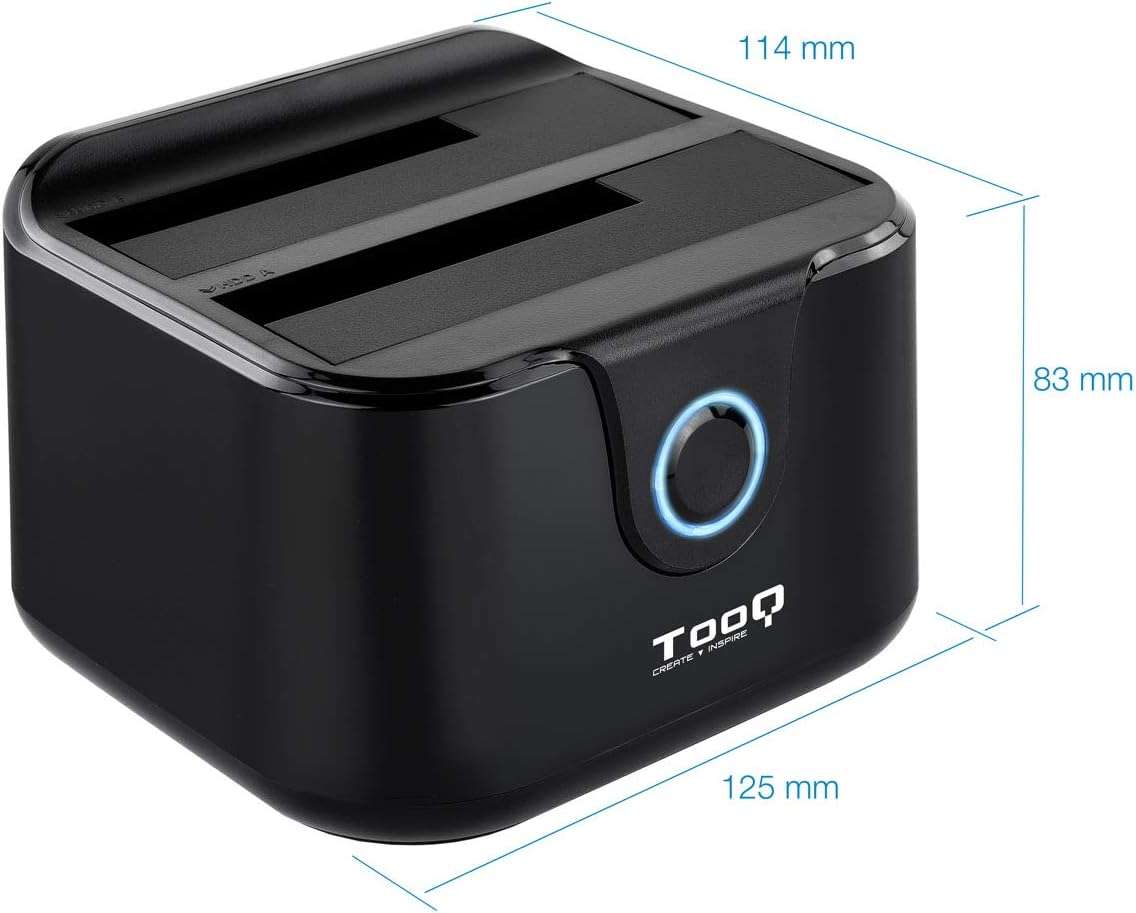
Image: Package contents including the docking station, power adapter, and USB 3.0 cable.
Producte acabatview
Panell frontal

Imatge: Frontal view of the docking station. The central button serves as the Clone button, surrounded by an LED indicator.
- Indicador LED: S'il·lumina per indicar energia i activitat.
- Botó Clonar: Initiates the offline disk cloning process.
Panell posterior

Imatge: Part posterior view of the docking station, detailing the power switch, DC 12V power input, and USB-B port for computer connection.
- Interruptor ON / OFF: Powers the docking station on or off.
- Presa DC 12V: Es connecta a l'adaptador de corrent inclòs.
- Port USB-B: Connects the docking station to your computer via the USB 3.0 cable.
A dalt View (Drive Bays)

Imatge: Superior view showing two drive bays, labeled A and B, designed to accommodate both 2.5-inch and 3.5-inch SATA HDDs/SSDs.
- Badia d'accionament A: For inserting the source drive during cloning, or a primary drive for data access. Compatible with 2.5" and 3.5" SATA drives.
- Badia d'accionament B: For inserting the target drive during cloning, or a secondary drive for data access. Compatible with 2.5" and 3.5" SATA drives.
Configuració
- Connectar l'alimentació: Connect the included power adapter to the DC 12V jack on the rear of the docking station, then plug the adapter into a power outlet. Do not power on the device yet.
- Connect to Computer (Optional for Data Transfer): If you intend to use the docking station for data transfer with a computer, connect the USB 3.0 cable from the USB-B port on the docking station to an available USB 3.0 port on your computer.
- Inserir unitats: Gently insert your 2.5-inch or 3.5-inch SATA hard drives or SSDs into the drive bays (A and/or B) until they are firmly seated. Ensure the SATA connectors align correctly.
- Encès: Flip the ON/OFF switch on the rear panel to the 'ON' position. The LED indicator will illuminate.
Instruccions de funcionament
A. Data Transfer (Connected to PC)
When connected to a computer via USB, the docking station functions as an external drive enclosure. Insert one or two SATA drives into the bays. Your operating system should automatically detect the drives. You can then access, read, and write data to them as you would with any other external storage device.
- Ensure the docking station is powered on and connected to your computer.
- Insert the SATA drive(s) into the bays.
- The drives will appear as removable storage in your computer's file explorador.
- For safe removal, always eject the drives through your operating system before powering off the docking station or disconnecting the USB cable.
B. Offline Clone Function
The offline clone function allows you to duplicate a source drive to a target drive without needing a computer connection. The target drive must be equal to or larger in capacity than the source drive.
- Preparar les unitats: Ensure both the source drive (the drive you want to copy FROM) and the target drive (the drive you want to copy TO) are free of errors. All data on the target drive will be erased during the cloning process.
- Inserir unitats:
- Inseriu el Unitat font a Badia A.
- Inseriu el target Drive a Badia B.
- Desconnectar del PC: Ensure the USB cable is disconnected from the computer. The docking station must be operating independently for offline cloning.
- Encès: Turn on the docking station using the ON/OFF switch.
- Iniciar clon: Manteniu premut el botó Botó de clonació for approximately 3-5 seconds until the LED indicator begins to flash. Release the button.
- Supervisar el progrés: The LED indicator will show the cloning progress. It will typically flash or change color to indicate different stages (e.g., 25%, 50%, 75%, 100%).
- Finalització: Once the cloning process is complete, the LED indicator will stop flashing and remain solid. You can then power off the docking station and remove the drives.
Important: Do not interrupt the cloning process by powering off the device or removing drives, as this may lead to data corruption on both drives.
Manteniment
- Keep the docking station in a clean, dry environment, away from direct sunlight and extreme temperatures.
- Eviteu deixar caure o sotmetre el dispositiu a forts impactes.
- Netegeu l'exterior amb un drap suau i sec. No utilitzeu netejadors líquids ni dissolvents.
- Assegureu-vos que hi hagi una ventilació adequada al voltant del dispositiu durant el funcionament.
Resolució de problemes
Drive Not Detected by Computer
- Ensure the docking station is powered on and the USB cable is securely connected to both the docking station and the computer.
- Proveu de connectar-vos a un altre port USB de l'ordinador.
- Verify that the hard drive is properly seated in the bay.
- Consulteu l'Administració de discos (Windows) o la Utilitat de discos (macOS) per veure si la unitat es reconeix però no està formatada o no està assignada.
- Test the drive directly in a computer or with another enclosure to rule out drive failure.
Offline Clone Fails or Does Not Start
- Ensure the USB cable is disconnected from the computer. Offline cloning requires the device to be standalone.
- Verify that the source drive is in Bay A and the target drive is in Bay B.
- Confirmeu que la capacitat de la unitat de destinació és igual o superior a la capacitat de la unitat d'origen.
- Ensure both drives are properly inserted and seated.
- Press and hold the Clone button for the specified duration (3-5 seconds) until the LED indicator responds.
- Check for any errors on the source drive before attempting to clone.
Especificacions
| Número de model | TQDS-802B |
| Marca | TOOQ |
| Unitats compatibles | 2.5" and 3.5" SATA I/II/III HDDs/SSDs |
| Drive Bays | 2 (Dual Bay) |
| Interfície a PC | USB 3.0 (compatible enrere amb USB 2.0) |
| Velocitat de transferència de dades | Fins a 5.0 Gbps (USB 3.0) |
| Offline Clone Function | Supported (PC-independent) |
| Capacitat màxima de la unitat | Up to 2.0 TB (32-bit/64-bit systems) and 3.0 TB or more (64-bit systems) |
| Sistema operatiu compatible | Windows, macOS, Linux (for USB connection) |
| Font d'alimentació | Adaptador d'alimentació DC 12V |
| Dimensions | Aproximadament 125 mm x 114 mm x 83 mm |
| Pes | 350 grams |

Image: Dimensions of the TooQ TQDS-802B Dual Bay SATA Docking Station.
Garantia i Suport
TOOQ products are designed for reliability and performance. For warranty information, please refer to the warranty card included with your product or visit the official TOOQ website. For technical support or further assistance, please contact TOOQ customer service through their official channels.
Manufacturer: Tooq & Nanocable Spain