
1. Introducció
The Brother DCP-J132W is a compact and versatile multifunction inkjet printer designed for home and small office use. It offers printing, scanning, and copying functionalities, along with wireless connectivity for convenient use from various devices. This manual provides essential information to help you get the most out of your printer.
2. Informació de seguretat
Please read these safety instructions carefully before using the printer to prevent injury and damage to the machine.
- Always place the printer on a flat, stable surface.
- Do not block or cover the ventilation slots.
- Feu servir només el cable d'alimentació que s'inclou amb la impressora.
- No exposeu la impressora a l'aigua ni a una humitat excessiva.
- Keep ink cartridges out of reach of children.
- Desendolleu la impressora de la presa de corrent abans de netejar-la o fer-ne el manteniment.
3. Què hi ha a la caixa
Verifiqueu que tots els components siguin presents a l'embalatge:
- Brother DCP-J132W Multifunction Printer
- Ink Cartridges (Starter Set)
- Cable d'alimentació
- CD-ROM d'instal·lació
- Guia de configuració ràpida
Note: A USB cable is not typically included and may need to be purchased separately if you prefer a wired connection.
4. Configuració
4.1 Desembalatge i col·locació inicial
- Traieu la impressora del seu embalatge i traieu totes les cintes protectores i els materials d'embalatge.
- Col·loqueu la impressora sobre una superfície estable i plana a prop d'una presa de corrent.
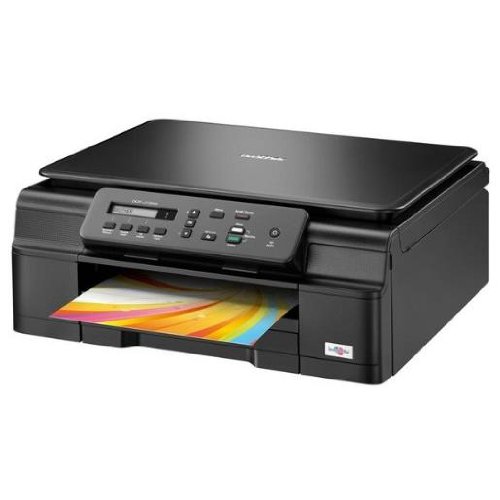
Figura 4.1: Frontal view of the Brother DCP-J132W printer, showing the paper output tray with a colorful document.
4.2 Instal·lació de cartutxos de tinta
- Open the ink cartridge cover located on the front of the printer.
- Unpack each ink cartridge (Black, Cyan, Magenta, Yellow).
- Insert each cartridge into its corresponding slot, pressing down until it clicks into place.
- Tanqueu la tapa del cartutx de tinta. La impressora iniciarà un procés de càrrega de tinta.
4.3 Càrrega de paper
- Pull out the paper tray completely from the printer.
- Adjust the paper guides to fit the paper size you are loading (e.g., A4).
- Load paper into the tray, print side down. Do not overfill.
- Empenyeu suaument la safata de paper cap a dins de la impressora fins que quedi bloquejada.
4.4 Connexió de potència
- Connecteu el cable d'alimentació a l'entrada d'alimentació de la impressora.
- Connecteu l'altre extrem del cable d'alimentació a una presa de corrent.
- Premeu el botó d'engegada per encendre la impressora.
4.5 Instal·lació del programari i connexió de xarxa
Install the printer drivers and software from the included CD-ROM or download the latest versions from the official Brother support weblloc. Seguiu les instruccions que apareixen a la pantalla per a la instal·lació.
- Configuració sense fil: During software installation, select the wireless connection option and follow the prompts to connect your printer to your Wi-Fi network. You may need your network SSID and password.
- Connexió USB: If using a USB cable (not included), connect it to the printer and your computer when prompted by the installation software.

Figura 4.2: Angle view of the Brother DCP-J132W printer, highlighting its compact design and control panel.
5. Funcionament de la impressora
5.1 Impressió de documents
- Obriu el document o la imatge que voleu imprimir a l'ordinador o al dispositiu mòbil.
- Seleccioneu "Imprimir" al menú de l'aplicació.
- Choose "Brother DCP-J132W" as your printer.
- Adjust print settings (e.g., paper size, color/grayscale, number of copies) as needed.
- Feu clic a "Imprimeix".
5.2 Escaneig de documents
- Place the document face down on the scanner glass, aligning it with the guide marks.
- Tanqueu la tapa de l'escàner.
- On your computer, open the Brother ControlCenter software or a scanning application.
- Select "Scan" and choose your desired scan settings (e.g., resolution, color mode, destination).
- Feu clic a "Escaneja" per iniciar el procés.
5.3 Còpia de documents
- Col·loqueu el document cara avall al vidre de l'escàner.
- On the printer's control panel, press the "Copy" button.
- Use the arrow keys to select the number of copies or other settings (e.g., quality).
- Press "Start" (Color or Black & White) to begin copying.
6. Manteniment
6.1 Substitució dels cartutxos de tinta
When an ink cartridge is low or empty, a message will appear on the printer's display or your computer. Use genuine Brother LC121 or LC123 series ink cartridges for optimal performance.
- Obriu la tapa del cartutx de tinta.
- Premeu la palanca d'alliberament del cartutx buit i retireu-lo.
- Unpack a new cartridge and insert it firmly into the correct slot until it clicks.
- Tanqueu la coberta del cartutx de tinta.
6.2 Neteja del capçal d'impressió
If print quality declines (e.g., missing lines, streaking), perform a print head cleaning from the printer's control panel or through the printer driver software on your computer. Refer to the on-screen instructions for the cleaning procedure.
6.3 Neteja del vidre de l'escàner
To ensure clear scans and copies, regularly clean the scanner glass with a soft, lint-free cloth moistened with a non-abrasive glass cleaner. Avoid spraying cleaner directly onto the glass.
7. Solució De Problemes
This section addresses common issues you might encounter with your Brother DCP-J132W printer.
- Printer Not Turning On:
- Assegureu-vos que el cable d'alimentació estigui connectat correctament tant a la impressora com a una presa de corrent que funcioni.
- Try plugging another device into the outlet to confirm it has power.
- Embussos de paper:
- Carefully open all covers and remove any jammed paper following the instructions on the printer's display or in the full user guide.
- Assegureu-vos que el paper estigui carregat correctament i que no hi hagi massa paper a la safata.
- Mala qualitat d'impressió:
- Comproveu els nivells de tinta i substituïu els cartutxos buits o amb pocs nivells de tinta.
- Perform a print head cleaning and alignment from the printer's maintenance menu.
- Assegureu-vos que feu servir el paper adequat per a la configuració d'impressió.
- Problemes de connexió sense fil:
- Verifiqueu que la impressora estigui dins de l'abast del vostre encaminador Wi-Fi.
- Reinicieu el router, l'ordinador i la impressora.
- Re-run the wireless setup utility from the printer's control panel or the Brother software.
- Ensure your Wi-Fi password is entered correctly.
Per a una resolució de problemes més detallada, consulteu el manual d'usuari complet disponible al servei d'assistència de Brother. weblloc.
8. Especificacions
| Característica | Detall |
|---|---|
| Marca | germà |
| Nom del model | DCPJ132W |
| Tecnologia de connectivitat | Wi-Fi, USB |
| Sortida de la impressora | Color |
| Velocitat màxima d'impressió (color) | 27 pàgines per minut |
| Velocitat màxima d'impressió (blanc i negre) | 27 pàgines per minut |
| Resolució màxima d'impressió (color) | 1200 x 1200 ppp |
| Resolució màxima d'impressió (blanc i negre) | 1200 x 1200 ppp |
| Dimensions del producte (PxWxH) | 16.1P x 41l x 16.1h cm |
| Max Supported Paper Size | A4 |
| Printing Media Support | Plain paper, Glossy photo paper, Transparencies |
| Tipus d'escàner | Llit pla |
| Resolució de l'escàner | 2400 ppp |
| Impressió dúplex | Automàtic |
| Cartutxos compatibles | LC121BK/C/M/Y & LC123BK/C/M/Y |
| Capacitat màxima del full d'entrada | 250 |
9. Garantia i Suport
9.1 Informació de la garantia
The Brother DCP-J132W typically comes with a manufacturer's warranty. Please refer to the warranty card included with your product or visit the official Brother website for specific terms and conditions applicable in your region. The availability of spare parts in the EU is guaranteed for 1 year.
9.2 Atenció al client
For technical assistance, driver downloads, or further information, please visit the official Brother support weblloc web. Hi trobareu preguntes freqüents, guies de resolució de problemes i informació de contacte per al servei d'atenció al client.
Suport germà Weblloc: www.brother.eu/support