1. Introducció
The BenQ XL2420Z is a 24-inch Full HD LED LCD monitor designed for high-performance gaming. It offers a 1ms response time and a 144Hz refresh rate, providing a fluid and responsive visual experience. This monitor incorporates advanced features such as Motion Blur Reduction, Low Blue Light, and Gaming-comfort Flicker-free technology to enhance user comfort during extended use. The Display Pilot software and Gaming Refresh Rate Optimization Management (GROM) further allow for precise control and customization of display settings.
2. Contingut del paquet
Si us plau, reviseu atentament el contingut del paquet. Si falta algun article o hi ha algun dany, poseu-vos en contacte immediatament amb el vostre distribuïdor.
- BenQ XL2420Z Monitor
- Suport de monitor (base i coll)
- Cable d'alimentació
- Cable DVI-D
- Cable HDMI
- Cable USB
- S Switch Controller
- Guia d'inici ràpid
- CD de controladors (o enllaç per descarregar els controladors)
3. Producte acabatview
The BenQ XL2420Z monitor is engineered to provide a competitive edge in gaming with its high refresh rate and fast response time. It features multiple input ports for versatile connectivity and an ergonomic stand for comfortable viewing.
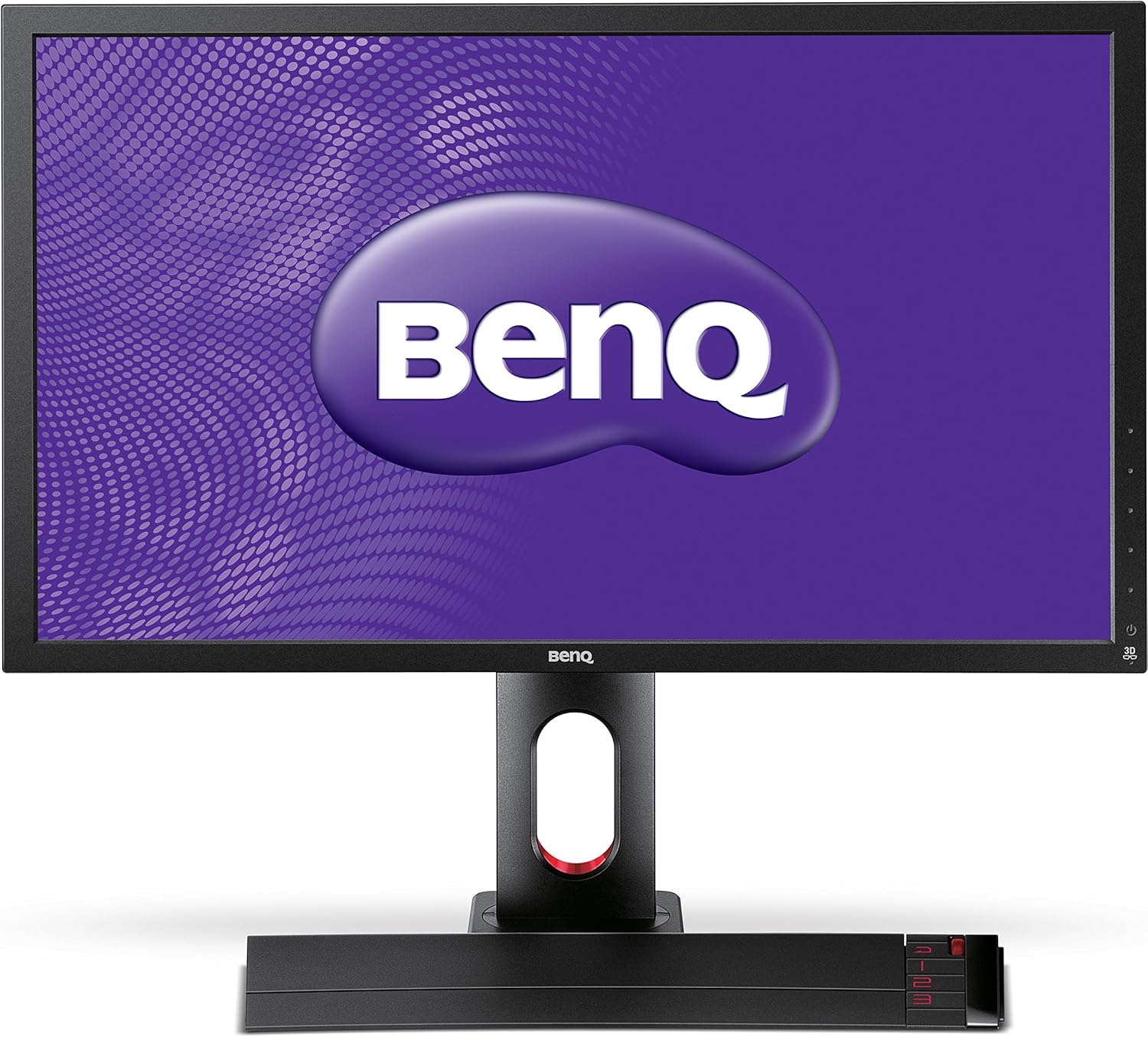
Figura 3.1: Davant view of the BenQ XL2420Z monitor. This image shows the monitor from the front, displaying the BenQ logo on its screen, with the stand and the S Switch controller positioned in front of the base.

Figura 3.2: posterior view of the BenQ XL2420Z monitor. This image highlights the various input ports located on the back of the monitor, including D-SUB, DVI-D, HDMI, and USB ports, along with the stand attachment point.
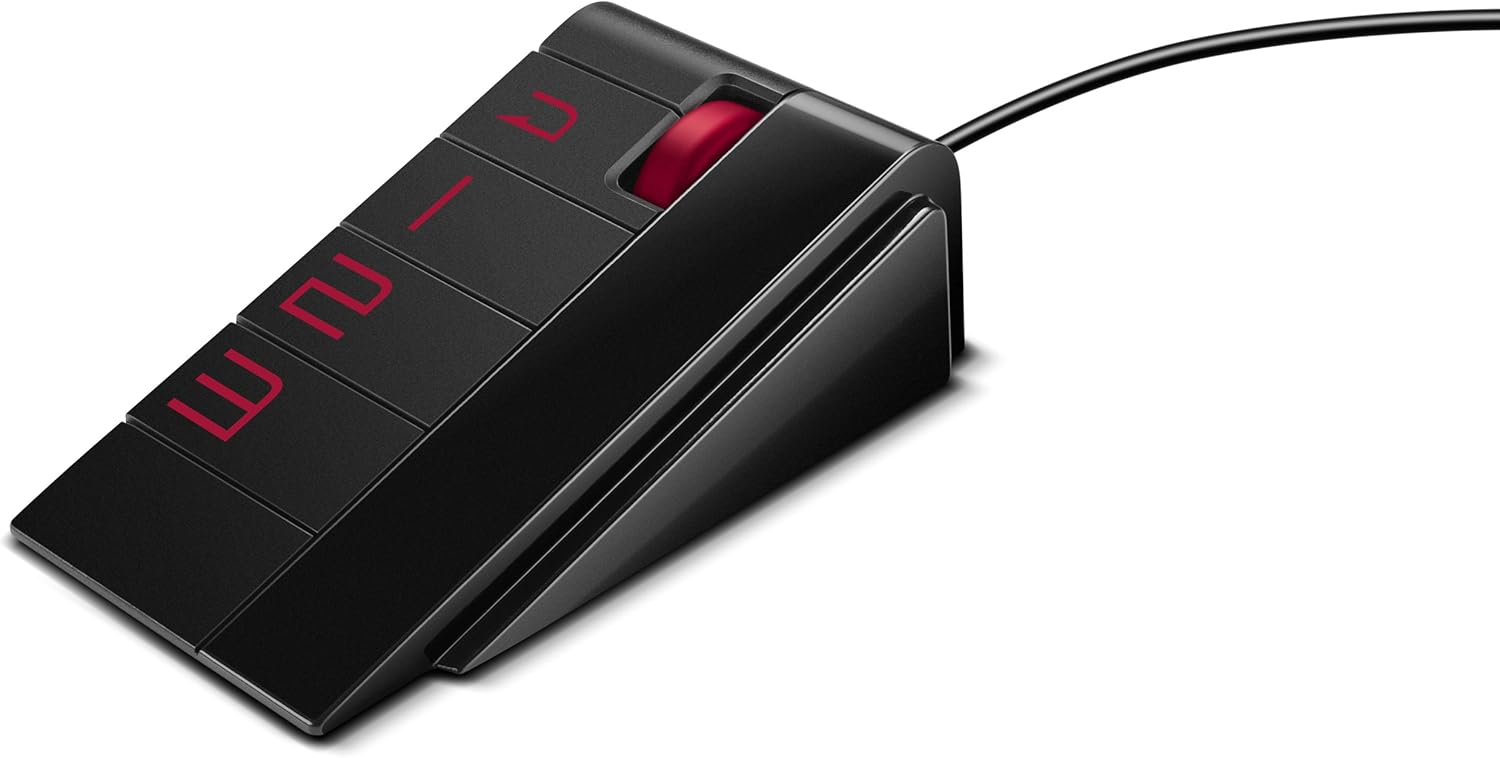
Figura 3.3: The S Switch controller. This external controller allows for quick and convenient navigation of the monitor's On-Screen Display (OSD) menu and switching between custom display modes.
Característiques principals:
- Pantalla Full HD de 24 polzades: 1920x1080 resolution for crisp visuals.
- Freqüència de refresc de 144 Hz: Provides ultra-smooth motion for competitive gaming.
- Temps de resposta GTG d'1 ms: Minimizes ghosting and motion blur.
- Reducció del desenfocament de moviment: Enhances clarity of fast-moving images.
- Low Blue Light & Flicker-free: Designed to reduce eye strain during prolonged use.
- S Switch: External controller for quick OSD navigation and preset switching.
- Connectivitat versàtil: DVI-D, HDMI (x2), DisplayPort, VGA, USB hub.
- Suport ergonòmic: Height adjustment, tilt, swivel, and pivot for optimal viewangles d'ajust.
4. Configuració
4.1 Muntatge del monitor
- Traieu amb cura tots els components de l'embalatge.
- Col·loqueu la pantalla del monitor cara avall sobre una superfície suau i neta per evitar ratllades.
- Fixeu el coll del suport al panell del monitor, assegurant-vos que encaixi correctament al seu lloc amb un clic.
- Fixeu la base del suport al coll del suport i estrenyeu el cargol captiu de la part inferior de la base.
- Aixequeu suaument el monitor muntat i col·loqueu-lo dret sobre un escriptori estable.
4.2 Connexió a un ordinador
The XL2420Z offers multiple input options. For optimal performance (144Hz), use the DVI-D Dual Link or DisplayPort connection.
- Connexió d'alimentació: Connecteu el cable d'alimentació a l'entrada d'alimentació del monitor i després a una presa de corrent.
- Connexió de vídeo:
- DVI-D: Connect one end of the DVI-D Dual Link cable to the monitor's DVI-D port and the other end to your computer's graphics card DVI-D port.
- HDMI: Connect an HDMI cable from the monitor's HDMI port to your computer's HDMI port.
- DisplayPort: Connect a DisplayPort cable from the monitor's DisplayPort to your computer's DisplayPort.
- VGA (D-SUB): Connect a VGA cable from the monitor's D-SUB port to your computer's VGA port.
- Connexió del concentrador USB: Connect the upstream USB cable (Type-B to Type-A) from the monitor to an available USB port on your computer to enable the monitor's USB 2.0 ports.
- Connexió d'àudio: If using DVI or VGA, connect an audio cable from your computer's audio output to the monitor's audio input. For HDMI/DisplayPort, audio is carried digitally.

Figura 4.1: lateral view of the monitor with accessible ports. This image shows the USB and headphone jack ports conveniently located on the side of the monitor for easy access.

Figura 4.2: Side profile of the monitor. This image provides a clear view of the monitor's slim profile, the ergonomic stand, and the side-mounted USB and audio ports.
4.3 Encès inicial
Després de connectar tots els cables necessaris:
- Press the power button on the monitor (located on the lower right bezel).
- The monitor will automatically detect the active input source. If not, use the S Switch or the OSD menu to manually select the input.
- Install the monitor drivers from the provided CD or download them from the official BenQ weblloc (www.benq.com) for full functionality.
5. Funcionament del monitor
5.1 Navegació pel menú en pantalla (OSD)
The OSD menu allows you to adjust various monitor settings. You can navigate the OSD using the touch-sensitive buttons on the monitor bezel or the included S Switch controller.
- Using the S Switch: The S Switch provides dedicated buttons for quick access to preset display modes (e.g., FPS, RTS) and a scroll wheel for OSD navigation.
- Using Bezel Buttons: Press any of the touch-sensitive buttons on the right side of the monitor to bring up the OSD menu. Use the up/down arrows to navigate and the enter button to select.
5.2 Configuració comuna de l'OSD
- Mode d'imatge: Select from various preset modes (Standard, Movie, Photo, sRGB, Eco, FPS1, FPS2, RTS, Gamer1/2/3) or customize your own.
- Visualització: Ajusta la brillantor, el contrast, la nitidesa, la gamma i la temperatura del color.
- Entrada: Manually select the video input source (DVI, HDMI1, HDMI2, DisplayPort, VGA).
- Àudio: Ajusteu el volum o silencieu.
- Sistema: Access settings for OSD language, OSD timeout, DDC/CI, and reset to factory defaults.
5.3 Ajustaments ergonòmics
El suport del monitor permet diversos ajustaments per optimitzar el vostre viewcomoditat:
- Ajust d'alçada: Puja o baixa el monitor a l'alçada dels ulls.
- Inclinació: Ajusta l'angle de la pantalla cap endavant o cap enrere.
- Girar: Gireu el monitor cap a l'esquerra o la dreta sobre la base.
- Pivot: Gira la pantalla 90 graus per al mode retrat viewing.
6. Manteniment
Una cura i un manteniment adequats allargaran la vida útil del vostre monitor.
- Neteja de la pantalla: Netegeu suaument la pantalla amb un drap suau i sense borrissol. Per a marques difícils, dampHumitegeu lleugerament el drap amb aigua o un netejador de pantalles sense amoníac ni alcohol. No ruixeu el netejador directament sobre la pantalla.
- Neteja de la Casing: Feu servir un drap suau i sec per netejar el monitor casing. Eviteu utilitzar productes de neteja o dissolvents abrasius.
- Ventilació: Assegureu-vos que les obertures de ventilació del monitor no estiguin bloquejades. No col·loqueu el monitor en un espai tancat sense un flux d'aire adequat.
- Apagar: Apagueu sempre el monitor i desendolleu-lo de la presa de corrent abans de netejar-lo o si no l'utilitzareu durant un període prolongat.
7. Solució De Problemes
If you encounter issues with your BenQ XL2420Z monitor, refer to the following common problems and solutions:
| Problema | Causa possible | Solució |
|---|---|---|
| No hi ha imatge a la pantalla | Cable d'alimentació no connectat; Cable de vídeo no connectat; Font d'entrada incorrecta seleccionada. | Ensure power cable is securely connected. Check video cable connection to both monitor and computer. Select correct input source via OSD or S Switch. |
| La imatge és borrosa o distorsionada | Incorrect resolution; Loose video cable; Graphics card driver issue. | Set display resolution to 1920x1080. Reconnect video cable. Update graphics card drivers. |
| Sense so | Audio cable not connected (for DVI/VGA); Volume too low; Incorrect audio output selected on PC. | Ensure audio cable is connected if not using HDMI/DP. Increase monitor volume via OSD. Check PC audio output settings. |
| Parpelleig del monitor | Discrepància de freqüència d'actualització; Interferència. | Ensure refresh rate is set correctly (e.g., 144Hz). Check for nearby electronic devices causing interference. |
| El menú OSD no apareix | Buttons not responding; Monitor in power-saving mode. | Ensure monitor is powered on. Try pressing different OSD buttons or using the S Switch. |
Si el problema persisteix després de provar aquestes solucions, poseu-vos en contacte amb el servei d'atenció al client de BenQ.
8. Especificacions
| Característica | Detall |
|---|---|
| Número de model | 9H.LC5LB.RBE |
| Mida de la pantalla | 24 polzades |
| Tipus de panell | TN (Twisted Nematic) |
| Resolució | 1920 x 1080 (Full HD) |
| Relació d'aspecte | 16:9 |
| Freqüència d'actualització | 144Hz (via DVI-D Dual Link / DisplayPort) |
| Temps de resposta | 1 ms (GtG) |
| Brillantor | 300 cd/m² |
| Relació de contrast | 1000:1 (típic) |
| Viewangle ing | 170° (H) / 160° (V) |
| Connectivitat | 1x D-SUB, 1x DVI-D Dual Link, 2x HDMI, 1x DisplayPort, USB 2.0 Hub (3x Downstream, 1x Upstream), Headphone Jack, Mic Jack |
| Consum d'energia | 5 Volts (Operating) |
| Dimensions (AxAxP) | 22.48 x 20.31 x 5.87 polzades (amb suport) |
| Pes | 13.42 lliures (amb suport) |
| Característiques especials | Motion Blur Reduction, Low Blue Light, Flicker-free, S Switch, Gaming Refresh Rate Optimization Management (GROM), Display Pilot |
9. Garantia i Suport
9.1 Informació de la garantia
The BenQ XL2420Z monitor comes with a Garantia del fabricant de 1 anysAquesta garantia cobreix els defectes de materials i de fabricació en condicions d'ús normal. Si us plau, conserveu el comprovant de compra per a reclamacions de garantia.
For detailed warranty terms and conditions, please refer to the warranty card included with your product or visit the official BenQ weblloc.
9.2 Atenció al client
For technical assistance, troubleshooting beyond this manual, or warranty service, please contact BenQ customer support through their official channels:
- BenQ Oficial Weblloc: Visita www.benq.com for support resources, FAQs, driver downloads, and contact information.
- Assistència en línia: Many common issues can be resolved by checking the support section of the BenQ weblloc.