
NVIDIA VCQK4200-PB
Manual d'usuari de la targeta gràfica NVIDIA Quadro K4200
Model: VCQK4200-PB
1. Introducció
This manual provides comprehensive instructions for the installation, operation, maintenance, and troubleshooting of your NVIDIA Quadro K4200 graphics card. The Quadro K4200 is designed for professional workstations, offering high-performance 3D application capabilities and advanced display support. Please read this manual thoroughly before installing and using your graphics card.
2. Informació de seguretat
Observeu les següents precaucions de seguretat per evitar danys al producte o lesions personals:
- Desconnecteu sempre l'alimentació de l'ordinador abans d'instal·lar o treure qualsevol component.
- Wear an anti-static wrist strap to prevent electrostatic discharge (ESD) when handling the graphics card.
- Handle the card by its edges; avoid touching the gold connector pins or components on the board.
- Assegureu-vos de ventilar adequadament la carcassa de l'ordinador per evitar que s'escalfi.
- No exposeu la targeta gràfica a la humitat ni a temperatures extremes.
3. Contingut del paquet
Comproveu que el vostre paquet contingui els elements següents:
- Targeta gràfica NVIDIA Quadro K4200
- CD de controladors (o enllaç per descarregar els controladors)
- Guia d'inici ràpid
- Display adapter cables (e.g., DVI to VGA, DisplayPort to DVI, if included)
4. Configuració i instal·lació
4.1 Llista de comprovació prèvia a la instal·lació
- Ensure your computer's power supply meets the minimum wattagRequisits per a la Quadro K4200.
- Confirm your motherboard has an available PCI Express 2.0 x16 slot.
- Backup important data before proceeding with hardware changes.
- Uninstall any previous graphics card drivers from your system.
4.2 Instal·lació de maquinari
- Apagueu l'ordinador i desconnecteu tots els cables.
- Obriu la caixa de l'ordinador.
- Localitza una ranura PCI Express 2.0 x16 disponible a la placa base.
- Remove the metal bracket cover from the back of the computer case corresponding to the chosen slot.
- Carefully align the Quadro K4200 graphics card with the PCIe slot and press firmly until it is securely seated. Ensure the retention clip locks into place.
- Secure the graphics card to the computer case with a screw.
- Connect any necessary auxiliary power connectors from your power supply to the graphics card (if applicable). The Quadro K4200 typically requires a single 6-pin PCIe power connector.
- Tanqueu la funda de l'ordinador.

Figura 4.2.1: lateral view of the NVIDIA Quadro K4200 graphics card, illustrating its form factor and branding. This view helps in identifying the card and understanding its physical dimensions for installation.
4.3 Instal·lació del controlador
- Torneu a connectar tots els cables i engegueu l'ordinador.
- If your operating system automatically installs a basic driver, proceed to download the latest official drivers.
- Visita la pàgina oficial d'NVIDIA weblloc (www.nvidia.com/drivers) to download the most current drivers for the Quadro K4200 and your operating system.
- Run the downloaded driver installer and follow the on-screen instructions.
- Reinicieu l'ordinador després que s'hagi completat la instal·lació del controlador.
5. Instruccions de funcionament
5.1 Connexió de pantalles
The NVIDIA Quadro K4200 supports multiple displays. Connect your monitors to the available ports on the graphics card. The card typically features DVI and DisplayPort outputs.
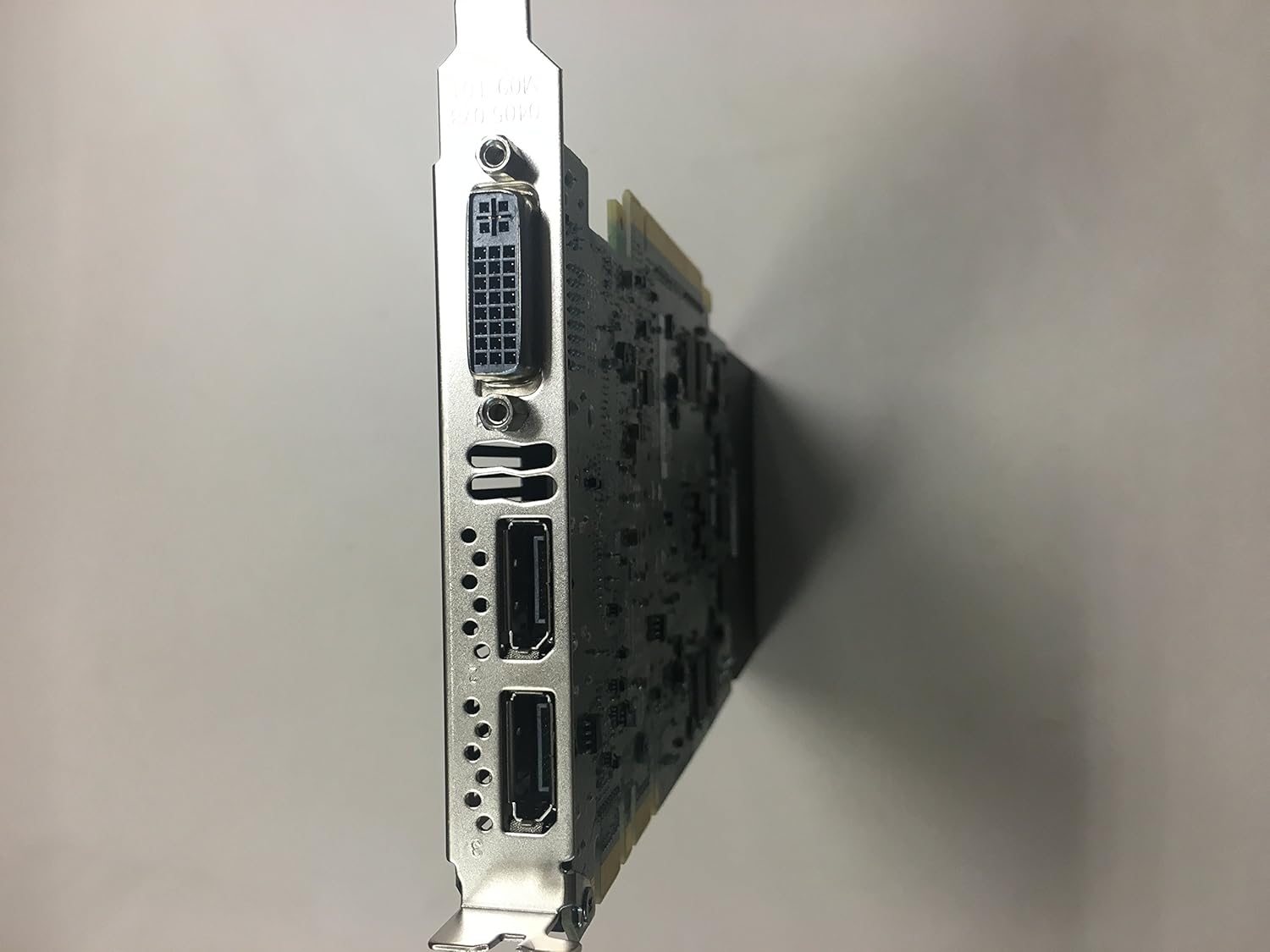
Figura 5.1.1: posterior view of the NVIDIA Quadro K4200 graphics card, highlighting the various display output ports. This image assists users in identifying and connecting their monitors correctly.
- DVI: Connect DVI-compatible monitors directly or use a DVI to VGA adapter for older VGA monitors.
- DisplayPort (DP): Connect DisplayPort-compatible monitors directly. Adapters for HDMI or DVI are also available if needed.
After connecting your displays, you can configure their arrangement and resolution through your operating system's display settings or the NVIDIA Control Panel.
5.2 Tauler de control d'NVIDIA
The NVIDIA Control Panel provides advanced settings for your graphics card, including:
- Display resolution and refresh rate adjustments.
- Multiple display setup (e.g., extended desktop, clone mode).
- 3D settings for application-specific performance optimization.
- Color and video image quality adjustments.
Access the NVIDIA Control Panel by right-clicking on your desktop and selecting "NVIDIA Control Panel" or through your operating system's control panel/settings.
6. Manteniment
6.1 Neteja
- Periodically clean dust from the graphics card's fan and heatsink to maintain optimal cooling performance.
- Use compressed air to gently blow away dust. Ensure the fan is held stationary to prevent damage while blowing air.
- Always power off and unplug your computer before cleaning.
6.2 Actualitzacions de controladors
Revisa regularment l'NVIDIA website for updated drivers. Driver updates often include performance improvements, bug fixes, and support for new software features.
7. Solució De Problemes
| Problema | Causa possible | Solució |
|---|---|---|
| No es mostra cap imatge al monitor. |
|
|
| Poor performance in applications. |
|
|
| Driver installation failure. |
|
|
8. Especificacions
| Característica | Detall |
|---|---|
| Motor gràfic | NVIDIA Quadro K4200 |
| Memòria | 4 GB GDDR5 |
| Tipus d'autobús | PCI Express 2.0 x16 |
| Interfície de sortida de vídeo | DVI, DisplayPort |
| Resolució màxima | 3840 x 2160 |
| Nombre de fans | 1 |
| Dispositius compatibles | Escriptori |
| Pes de l'article | 7.2 unces |
| Número de model | VCQK4200-PB |
9. Garantia i Suport
9.1 Informació de la garantia
The NVIDIA Quadro K4200 graphics card comes with a limited 3-year warranty. Please retain your proof of purchase for warranty claims. For full warranty terms and conditions, refer to the documentation included with your product or visit the official NVIDIA weblloc.
9.2 Suport tècnic
For technical assistance, driver downloads, or further product information, please visit the official NVIDIA support weblloc:
Before contacting support, please ensure you have your product model number (VCQK4200-PB) and a detailed description of your issue ready.
Documents relacionatsVCQK4200-PB


Ask a question about this manual
Ask about setup, troubleshooting, compatibility, parts, safety, or missing instructions. Manuals+ will review the question and use this page’s manual context to help answer it.