
Introducció
The Belkin Thunderbolt 2 Express HD Docking Station is designed to expand the connectivity of your Thunderbolt-enabled computer, such as a MacBook or compatible PC. It allows you to connect multiple peripherals, including dual displays, external hard drives, network cables, and audio devices, through a single Thunderbolt cable connection to your computer. This docking station enhances your workstation by providing a wide array of ports and supporting high-resolution displays, including 4K.

The Belkin Thunderbolt 2 Express HD Docking Station features a sleek, silver brushed aluminum design.
Instruccions de configuració
Follow these steps to set up your Belkin Thunderbolt 2 Express HD Docking Station:
- Desempaquetar l'estació d'acoblament: Carefully remove the docking station and all accessories from its packaging. Ensure all components are present, including the docking station, power adapter, and Thunderbolt cable.
- Connectar l'alimentació: Connect the included power adapter to the 'DC IN 12V 6A' port on the rear of the docking station, then plug the adapter into a power outlet. The power indicator light on the front of the docking station should illuminate.
- Connexió a l'ordinador: Use the provided Thunderbolt cable to connect one of the Thunderbolt ports on the docking station to a Thunderbolt port on your computer.
- Connecteu els perifèrics: Connect your desired peripherals to the appropriate ports on the docking station. This may include:
- Mostra: Connect your monitor(s) to the HDMI port or one of the Thunderbolt ports (using appropriate adapters if necessary for DisplayPort, DVI, or VGA). The docking station supports dual displays and 4K resolution via the HDMI port.
- Dispositius USB: Connect USB 3.0 devices (e.g., external hard drives, keyboards, mice) to the available USB 3.0 ports. There is one port on the front and three on the rear.
- Ethernet: Connecteu un cable Ethernet al port Gigabit Ethernet per accedir a la xarxa amb cable.
- Àudio: Connect headphones, speakers, or a microphone to the front audio input/output ports.
- Instal·lació del controlador (si cal): For most modern operating systems (macOS, Windows), drivers should install automatically. If prompted, follow the on-screen instructions to complete any necessary driver installations.

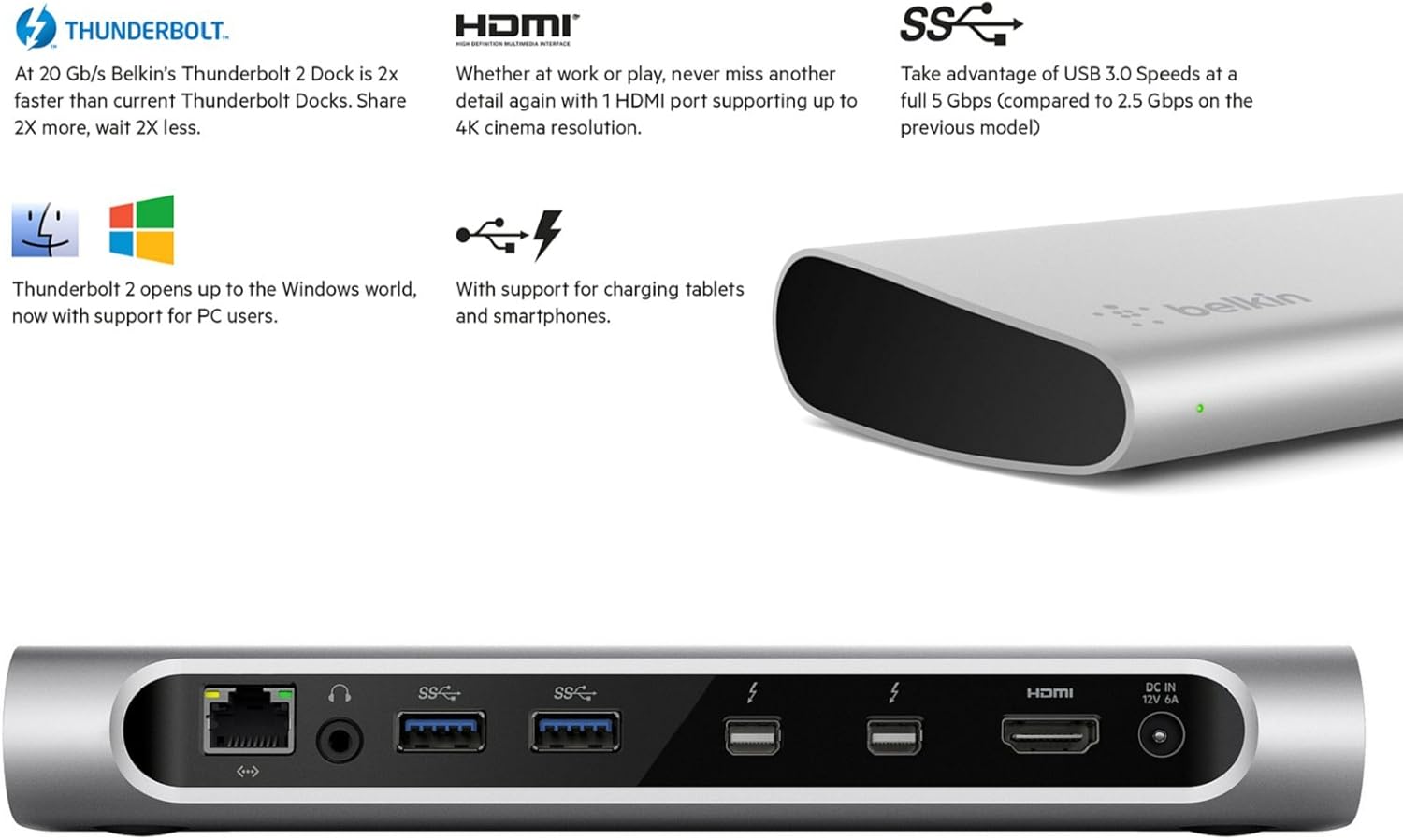
Detallada view of the docking station's front and rear panels, highlighting the USB 3.0, audio, Gigabit Ethernet, Thunderbolt 2, HDMI, and power input ports.

A close-up diagram labeling each port on the docking station, including 1x Gigabit Ethernet, 1x Audio Out, 2x additional USB 3.0 Ports, 2x Thunderbolt 2 Ports, 1x HDMI Port (4K Resolution), and 1x AC/DC Power Input.
Instruccions de funcionament
Once set up, the docking station operates seamlessly with your computer. Here are some key operational aspects:
- Reconeixement automàtic: Your computer should automatically recognize all connected peripherals through the docking station.
- Configuració de pantalla dual: To configure dual displays, access your computer's display settings (e.g., System Preferences > Displays on macOS, or Display Settings on Windows). You can extend or mirror your desktop across the connected monitors.
- Suport de resolució 4K: The HDMI port supports 4K cinema resolution. Ensure your monitor and HDMI cable are also 4K compatible to achieve this resolution.
- USB 3.0 Speeds: The USB 3.0 ports provide data transfer speeds up to 5 Gbps, ideal for fast external storage and other high-bandwidth USB devices.
- Càrrega del dispositiu: The USB 3.0 ports can also be used to charge tablets and smartphones.
- Hot-Plugging: Most devices can be connected or disconnected from the docking station while your computer is running, though it is generally recommended to safely eject storage devices before disconnecting.
Un example of a complete workstation setup utilizing the docking station to connect a laptop to external monitors, speakers, and various peripherals.
Manteniment
Per garantir la longevitat i el rendiment òptim de la vostra estació d'acoblament, seguiu aquestes senzilles pautes de manteniment:
- Neteja: Use a soft, dry, lint-free cloth to clean the exterior of the docking station. Avoid using abrasive cleaners, solvents, or aerosol sprays, which can damage the finish or internal components.
- Ventilació: Ensure the docking station is placed in a well-ventilated area. Do not block any ventilation openings.
- Condicions ambientals: Avoid exposing the docking station to extreme temperatures, humidity, or direct sunlight. Keep it away from liquids.
- Gestió de cables: Organize cables to prevent tangles and strain on the ports. This helps prevent accidental disconnections and damage.
Resolució de problemes
If you encounter issues with your Belkin Thunderbolt 2 Express HD Docking Station, try the following troubleshooting steps:
- Sense energia:
- Assegureu-vos que l'adaptador de corrent estigui connectat correctament tant a l'estació d'acoblament com a una presa de corrent que funcioni.
- Check if the power indicator light on the docking station is on.
- Dispositius no reconeguts:
- Verify that the Thunderbolt cable is firmly connected between the docking station and your computer.
- Ensure the peripheral device (e.g., USB drive, monitor) is properly connected to the docking station.
- Try disconnecting and reconnecting the problematic device.
- Reinicieu l'ordinador.
- Check your computer's operating system for any driver updates for Thunderbolt or USB devices.
- Display Issues (No Signal, Incorrect Resolution):
- Confirm the monitor is powered on and set to the correct input source.
- Ensure the HDMI or Thunderbolt display cable is securely connected.
- Test the monitor by connecting it directly to your computer (if possible) to rule out monitor issues.
- Adjust display settings in your computer's operating system.
- Problemes de connectivitat de xarxa:
- Comproveu la connexió del cable Ethernet tant a l'estació d'acoblament com al vostre encaminador/mòdem.
- Verify that your network router/modem is functioning correctly.
If these steps do not resolve the issue, please refer to the Belkin support weblloc per obtenir més ajuda.
Especificacions
| Característica | Especificació |
|---|---|
| Número de model | F4U085VF |
| Dimensions (L x A x A) | 20.8 x 8.84 x 2.82 cm |
| Pes | 490 g |
| Interfície del maquinari | Tronada |
| Dispositius compatibles | Thunderbolt-enabled Apple MacBooks and PCs |
| Ports Thunderbolt | 2 (Thunderbolt 2) |
| Ports USB | 4 (USB 3.0, 1 front, 3 rear) |
| Ports HDMI | 1 (Supports up to 4K resolution) |
| Port Ethernet | 1 (Gigabit Ethernet) |
| Ports d'àudio | 1x Audio In, 1x Audio Out (front) |
| Entrada de potència | DC 12V 6A |
| Velocitat de transferència de dades | Up to 20 Gbps (Thunderbolt 2) |
Garantia i Suport
Belkin products are designed for reliability and performance. This product comes with a limited warranty. For detailed warranty information, including terms and conditions, please refer to the warranty card included with your product or visit the official Belkin weblloc.
For technical support, driver downloads, or frequently asked questions, please visit the Belkin support page:
When contacting support, please have your product model number (F4U085VF) and purchase information ready.