
1. Introducció
This manual provides instructions for the installation, operation, and maintenance of your BIWIN 256GB M.2 2280 SATA III Solid State Drive (SSD), Model A1 Series. This SSD offers high-speed data transfer and reliable storage for compatible systems.
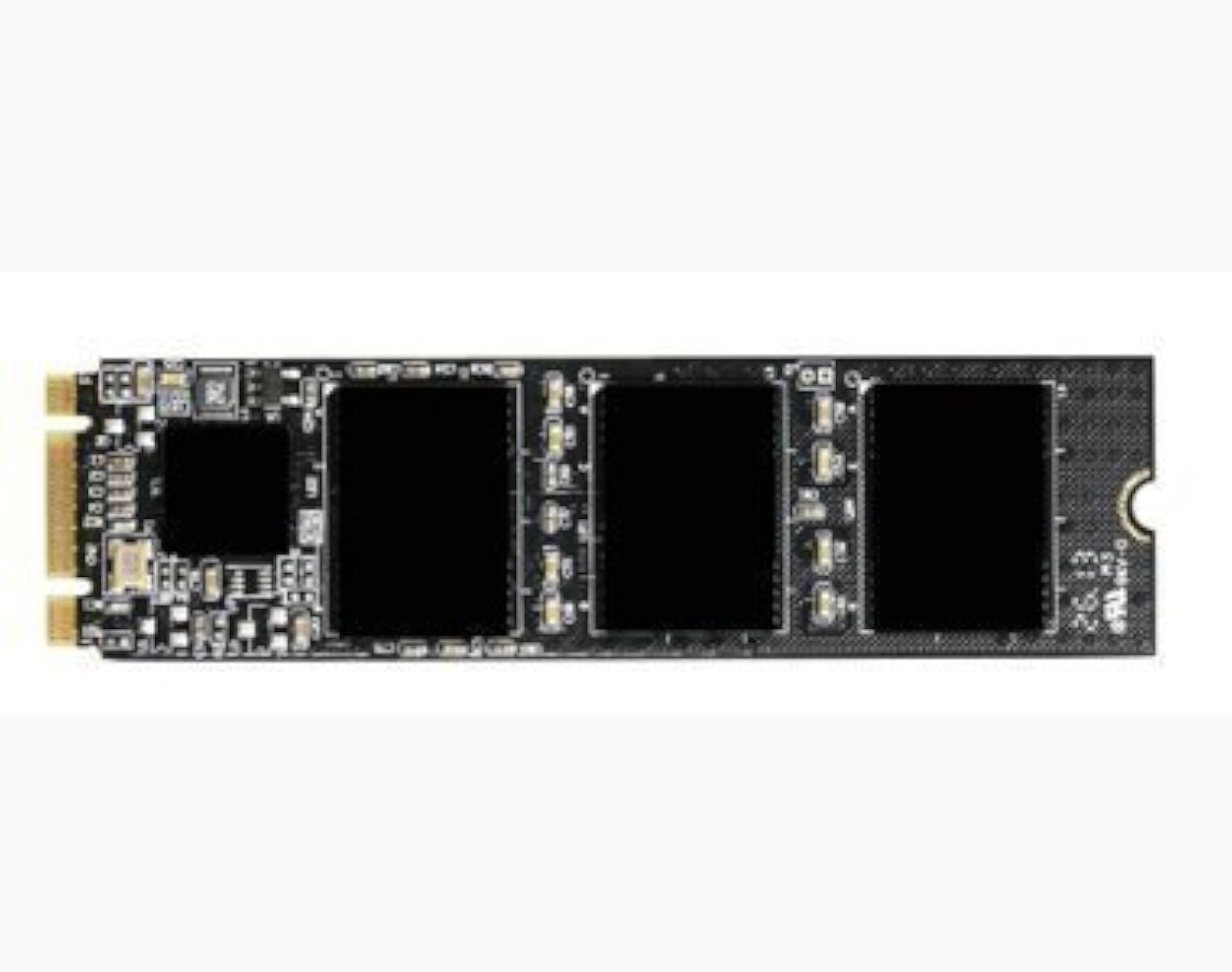
Image 1.1: The BIWIN 256GB M.2 2280 SATA III SSD. This image displays the compact form factor of the M.2 2280 SSD, highlighting its connectors and integrated circuits.
2. Informació de seguretat
Please read the following safety guidelines carefully before installing or using the SSD:
- Precaucions de descàrrega electrostàtica (ESD): Always handle the SSD by its edges and avoid touching the gold connectors. Use an anti-static wrist strap or ground yourself by touching a metal object before handling the drive to prevent ESD damage.
- Apagar: Ensure your computer system is completely powered off and unplugged from the power source before installation.
- Compatibilitat: Verify that your motherboard has an M.2 slot that supports SATA-based M.2 2280 SSDs. Not all M.2 slots support SATA; some are PCIe/NVMe only.
- Danys físics: Do not bend, drop, or apply excessive force to the SSD. Avoid exposing it to liquids or extreme temperatures.
- Instal·lació professional: Si no esteu segurs de cap pas, consulteu un tècnic qualificat.
3. Contingut del paquet
The retail package should contain the following items:
- BIWIN 256GB M.2 2280 SATA III SSD (Model A1 Series)
- (Optional) Mounting screw for M.2 slot
- (Optional) Quick Start Guide
If any items are missing or damaged, please contact your retailer or BIWIN customer support.
4. Configuració i instal·lació
Follow these steps to install your BIWIN M.2 SSD:
- Prepareu el vostre sistema:
- Power off your computer completely and unplug the power cord.
- Open your computer case. Refer to your computer or motherboard manual for instructions on how to safely open the case.
- Ground yourself to prevent ESD by touching a metal part of the computer chassis.
- Locate the M.2 Slot:
Identify the M.2 slot on your motherboard. It is typically labeled and may have a small screw stand-off nearby. Ensure it supports the 2280 form factor and SATA interface.

Image 4.1: Illustrative image of an M.2 SSD being inserted into a motherboard slot. The image shows the SSD being gently pushed into the slot at an angle, aligning with the key notch.
- Instal·leu l'SSD:
- Gently insert the BIWIN M.2 SSD into the M.2 slot at approximately a 30-degree angle.
- Push the SSD firmly but carefully until it is fully seated in the slot. The gold contacts should no longer be visible.
- Press the SSD down towards the motherboard. Secure it with the small screw provided with your motherboard or the SSD package, using the stand-off.
- Tanca i engega:
- Tanqueu la funda de l'ordinador.
- Reconnect the power cord and power on your computer.
- BIOS/UEFI Configuration (if necessary):
- Enter your system's BIOS/UEFI settings (usually by pressing DEL, F2, or F10 during boot-up).
- Verify that the new SSD is detected. You may need to enable the M.2 slot or set the SATA mode to AHCI if it's not already.
- Save changes and exit BIOS/UEFI.
- Inicialitzar i formatar l'SSD:
- Once your operating system loads, you will need to initialize and format the new SSD before it can be used.
- Windows: Open Disk Management (right-click Start button -> Disk Management). Locate the new SSD, right-click it, and select "Initialize Disk." Choose GPT (GUID Partition Table) for modern systems. Then, right-click the unallocated space, select "New Simple Volume," and follow the wizard to format it.
- macOS: Open Disk Utility. Select the new SSD, click "Erase," choose a name, format (e.g., APFS or Mac OS Extended), and scheme (GUID Partition Map).
- Linux: Feu servir eines com ara GParted o `fdisk`/`mkfs` per particionar i formatar el disc.
5. Instruccions de funcionament
Once installed and formatted, your BIWIN M.2 SSD functions as a standard storage device. You can use it for:
- Unitat del sistema operatiu: Install your operating system for faster boot times and overall system responsiveness.
- Application Drive: Install frequently used applications and games to reduce loading times.
- Emmagatzematge de dades: Botiga files, documents, fotos i vídeos.
The SSD utilizes the SATA III 6Gb/s interface, providing sequential read speeds up to 561MB/s and sequential write speeds up to 296MB/s, depending on system configuration and workload.
6. Manteniment
To ensure optimal performance and longevity of your BIWIN M.2 SSD, consider the following maintenance tips:
- Mantenir el firmware actualitzat: Periodically check the BIWIN official website for firmware updates for your SSD model. Firmware updates can improve performance, stability, and compatibility.
- Activa TRIM: Ensure that TRIM is enabled in your operating system. TRIM helps the SSD manage data more efficiently, preventing performance degradation over time. Most modern operating systems enable TRIM by default for SSDs.
- Avoid Filling to Capacity: While SSDs perform well even when nearly full, leaving some free space (e.g., 10-15%) can help maintain optimal performance and extend the drive's lifespan.
- Còpies de seguretat periòdiques: Feu còpies de seguretat de les dades importants en un altre dispositiu d'emmagatzematge regularment. Tot i que els SSD són fiables, cap dispositiu d'emmagatzematge és immune a les fallades.
- Evitar la desfragmentació: No desfragmenteu un SSD. La desfragmentació està dissenyada per a discs durs i pot reduir la vida útil d'un SSD sense proporcionar cap avantatge de rendiment.
7. Solució De Problemes
If you encounter issues with your BIWIN M.2 SSD, refer to the following common problems and solutions:
| Problema | Causa possible | Solució |
|---|---|---|
| El sistema no detecta l'SSD. |
|
|
| SSD detected but not visible in OS. |
|
|
| Rendiment lent. |
|
|
If the problem persists, contact BIWIN customer support for further assistance.
8. Especificacions
| Característica | Descripció |
|---|---|
| Model | Sèrie A1 |
| Capacitat | 256 GB |
| Interfície | SATA III 6 Gb/s |
| Factor de forma | M.2 2280 (80mm x 22mm) |
| Velocitat de lectura seqüencial | Fins a 561 MB/s |
| Velocitat d'escriptura seqüencial | Fins a 296 MB/s |
| Tipus de memòria flash | Estat sòlid |
| Temperatura de funcionament | De 0 °C a 70 °C (32 °F a 158 °F) |
| Temperatura d'emmagatzematge | -40 °C a 85 °C (-40 °F a 185 °F) |
| Dimensions (L x A x A) | 80mm x 22mm x ~2.23mm (approximate, based on M.2 2280 standard) |
| Pes | Aproximadament 0.352 unces (10 g) |
| Característica especial | Portable (refers to its compact nature for various devices) |
9. Garantia i Suport
BIWIN products are manufactured to high quality standards. For specific warranty terms and conditions, please refer to the warranty card included with your product or visit the official BIWIN website. Warranty periods and coverage may vary by region and product model.
For technical support, product inquiries, or warranty claims, please contact BIWIN customer service through their official website or the contact information provided with your purchase. Please have your product model (A1 Series) and serial number ready when contacting support.