
Introducció
This manual provides comprehensive instructions for the setup, operation, and maintenance of your A4tech G11-570FX-4 Rechargeable Wireless USB Mouse. This device features advanced optical tracking, a rechargeable lithium-ion battery, and customizable functions through the Office Shuttle software to enhance your productivity.
Contingut del paquet
- A4tech G11-570FX-4 Wireless USB Mouse
- Nano receptor USB
- Cable de càrrega USB
- Manual d'usuari (aquest document)
Configuració
1. Connexió del nanoreceptor USB
The USB Nano Receiver establishes the wireless connection between your mouse and computer.
- Locate the USB Nano Receiver, typically stored in a compartment on the underside of the mouse.
- Traieu el receptor de la seva ranura d'emmagatzematge.
- Connecteu el nanoreceptor USB a un port USB disponible de l'ordinador.
- L'ordinador hauria de detectar i instal·lar automàticament els controladors necessaris. Aquest procés pot trigar uns instants.
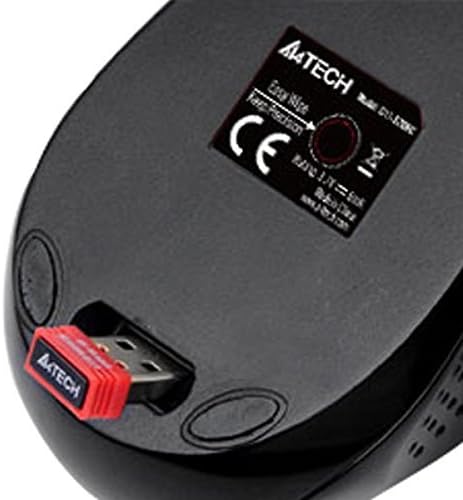
Imatge: Underside of the A4tech G11-570FX-4 mouse showing the USB nano receiver stored in its dedicated slot. This receiver needs to be removed and plugged into your computer's USB port for wireless operation.
2. Càrrega del ratolí
The mouse is equipped with a rechargeable lithium-ion battery. Charge the mouse before first use and whenever the battery indicator suggests low power.
- Connect the small end of the provided USB charging cable to the charging port located on the front of the mouse.
- Connect the standard USB-A end of the charging cable to an available USB port on your computer or a USB wall adapter.
- The charging indicator light (if present) will illuminate during charging and typically turn off or change color when fully charged.
- A full charge provides extended usage time.
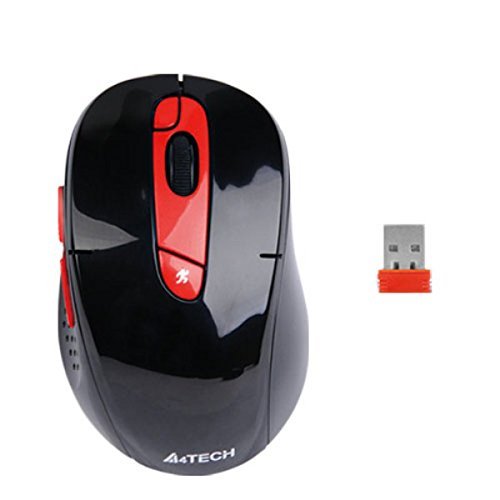
Imatge: Davant view of the A4tech G11-570FX-4 mouse, highlighting the micro-USB charging port located at the front center. This port is used to connect the USB charging cable.
3. Software Installation (Office Shuttle Software)
To unlock advanced customization features, install the A4tech Office Shuttle software.
- Visit the official A4tech website (refer to product packaging or manufacturer's weblloc web per a l'exactitud URL).
- Navigate to the support or downloads section and locate the software for the G11-570FX-4 model.
- Baixeu i executeu l'instal·lador.
- Seguiu les indicacions a la pantalla per completar la instal·lació.
- Once installed, launch the Office Shuttle software to configure mouse settings.
Instruccions de funcionament
1. Funcions bàsiques del ratolí
The A4tech G11-570FX-4 mouse operates like a standard wireless mouse:
- Clic esquerre: Selecció i activació primàries.
- Clic dret: Obre menús contextuals.
- Roda de desplaçament: Scrolls content vertically. Can also be pressed for middle-click functionality.
- Botons laterals: Often configured for forward/back navigation in web navegadors.
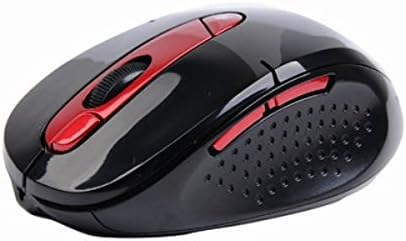
Imatge: lateral view of the A4tech G11-570FX-4 mouse, illustrating its ergonomic shape and the placement of the two customizable side buttons, typically used for navigation.
2. Customizing Buttons with Office Shuttle Software
The Office Shuttle software allows extensive customization of the mouse buttons.
- Launch the Office Shuttle software on your computer.
- Within the software interface, you can define the function of each mouse button.
- Available modes include: Screen Capture, TutorPen, Multimedia controls, 16-in-One functions, 4-Way Wheel scrolling, and Internet navigation shortcuts.
- Apply your desired settings to optimize the mouse for your workflow.
3. Ajust de DPI
The mouse features adjustable DPI (Dots Per Inch) settings, allowing you to change cursor sensitivity.
- Refer to the Office Shuttle software for specific instructions on how to adjust DPI levels.
- Higher DPI settings result in faster cursor movement, suitable for large screens or gaming.
- Lower DPI settings provide more precise control, ideal for graphic design or detailed tasks.
4. Power Saving Management
The mouse incorporates power-saving features to extend battery life.
- The mouse will enter a sleep mode after a period of inactivity.
- Move the mouse or click any button to wake it up.
- Further power management options may be available through the Office Shuttle software.
Manteniment
1. Neteja del ratolí
Una neteja regular ajuda a mantenir un rendiment i una higiene òptims.
- Disconnect the mouse from any charging cables.
- Utilitzeu un drap suau i sense pelusa dampamb aigua o una solució de neteja suau.
- Netegeu suaument la superfície del ratolí.
- Eviteu l'ús de productes químics agressius, netejadors abrasius o humitat excessiva.
- Per al sensor òptic, feu servir un bastonet de cotó sec per eliminar amb cura la pols o les restes.
2. Cura de la bateria
To prolong the life of the rechargeable lithium-ion battery:
- Eviteu descarregar completament la bateria amb freqüència.
- Do not expose the mouse to extreme temperatures (hot or cold).
- Si guardeu el ratolí durant un període prolongat, carregueu-lo aproximadament al 50% abans de guardar-lo.
Resolució de problemes
If you encounter issues with your A4tech G11-570FX-4 mouse, try the following solutions:
- El ratolí no respon:
- Assegureu-vos que el nanoreceptor USB estigui ben connectat a un port USB que funcioni.
- Comproveu si la bateria del ratolí està carregada. Connecteu el cable de càrrega.
- Prova de connectar el receptor a un port USB diferent.
- Reinicieu l'ordinador.
- Moviment erràtic del cursor:
- Netegeu el sensor òptic de la part inferior del ratolí.
- Assegureu-vos que feu servir el ratolí sobre una superfície adequada (no reflectant i de color uniforme).
- Check for any obstructions between the mouse and the receiver.
- Custom functions not working:
- Verify that the Office Shuttle software is installed and running.
- Ensure your custom settings are saved and applied within the software.
- Autonomia curta de la bateria:
- Assegureu-vos que el ratolí estigui completament carregat.
- Check power-saving settings in the Office Shuttle software.
- Avoid using the mouse in extreme temperatures.
Especificacions
| Característica | Detall |
|---|---|
| Marca | A4tech |
| Número de model | G11-570FX-4 |
| Tecnologia de connectivitat | Radio Frequency, USB, Wireless |
| Tecnologia de detecció de moviment | Optical (Pinpoint Optic) |
| Font d'alimentació | Funciona amb bateria (ió de liti recarregable) |
| Interval d'operació | Fins a 15 metres |
| Característiques especials | Zero Delay, Synchronize RF Signal, No Lag Technology, Screen Capture, Selectable Report Rate, Power Saving Management, Adjustable DPI, Channel Lock Setting, Office Shuttle Software |
| Dimensions (LxWxH) | 2.68 x 2.63 x 5.02 polzades |
| Pes | 1 lliures |
Garantia i Suport
Per obtenir informació sobre la garantia i assistència tècnica, consulteu la documentació inclosa amb el producte o visiteu el lloc web oficial d'A4tech. weblloc web. Conserveu el rebut de compra com a comprovant de compra per a reclamacions de garantia.


