1. Introducció
This manual provides essential information for the safe and efficient use of your InFocus IF195a Touch Pad. Please read this manual thoroughly before operating the device and retain it for future reference.
2. Informació de seguretat
- No exposeu el dispositiu a temperatures extremes, llum solar directa ni humitat elevada.
- Eviteu deixar caure o sotmetre el dispositiu a forts impactes.
- Use only the charger provided or approved by InFocus.
- No intenteu desmuntar ni reparar el dispositiu vosaltres mateixos. Encarregueu tot el manteniment a personal qualificat.
- Mantingueu el dispositiu allunyat de l'aigua i altres líquids.
- Desfeu-vos del dispositiu i de la bateria de manera responsable d'acord amb la normativa local.
3. Producte acabatview
The InFocus IF195a is a 20-inch Android-powered touch pad designed for interactive use. Familiarize yourself with its components.
3.1 Davant View

Figura 1: Davant view of the InFocus IF195a Touch Pad. This image shows the large 20-inch display with the Android operating system interface, including various app icons and the Google search bar. The device features a sleek bezel around the screen.
- Visualització: 20-inch multi-touch screen.
- Càmera frontal: Located at the top center bezel.
- Micròfon: Integrated for voice input.
3.2 lateral View i Ports
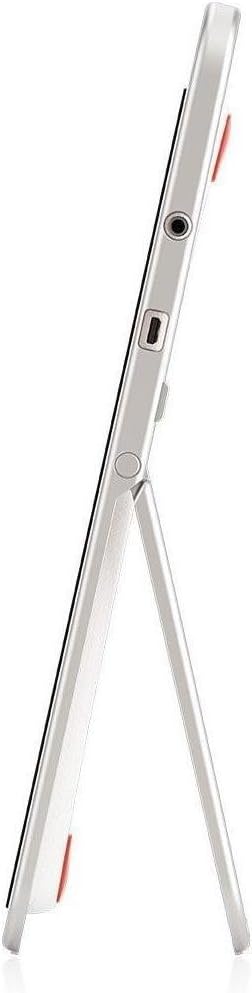
Figura 2: lateral view of the InFocus IF195a Touch Pad. This image highlights the device's slim profile and the integrated kickstand, which allows for upright positioning. Visible ports include a headphone jack and a USB port.
- Botó d'encesa: Used to turn the device on/off or put it to sleep.
- Botons de volum: Adjust the device's audio output.
- Presa d'auriculars (3.5 mm): Per connectar dispositius d'àudio externs.
- Port micro-USB: Per a càrrega i transferència de dades.
- Suport integrat: Allows the device to stand upright.
4. Configuració
4.1 Desembalatge i càrrega inicial
- Carefully remove the InFocus IF195a Touch Pad and all accessories from the packaging.
- Connect the provided power adapter to the Micro-USB port on the device and plug it into a power outlet. Allow the device to charge fully before first use. The charging indicator will typically show a full battery when complete.
4.2 Engegada/apagada
- Per encendre: Press and hold the Power button until the InFocus logo appears on the screen.
- Per apagar: Premeu i manteniu premut el botó d'engegada fins que aparegui un menú d'apagada. Seleccioneu "Apagar" i confirmeu.
- Per dormir/despertar-se: Briefly press the Power button to put the device into sleep mode or wake it up.
4.3 Assistent de configuració inicial
En engegar-lo per primera vegada, el dispositiu us guiarà a través d'un procés de configuració inicial:
- Selecció d'idioma: Trieu el vostre idioma preferit.
- Connexió Wi-Fi: Select your Wi-Fi network from the list and enter the password. A stable internet connection is required for many features.
- Compte de Google: Sign in with an existing Google account or create a new one. This is necessary to download apps from the Google Play Store and access Google services.
- Data i hora: Set the correct date and time or allow the device to set it automatically via the network.
- Configuració de privadesa: Review and adjust privacy settings as desired.
5. Funcionament del dispositiu
5.1 Gestos tàctils
- Toca: Toqueu la pantalla una vegada per seleccionar un element o obrir una aplicació.
- Toca i mantén premut: Mantingueu premut un element per accedir als menús contextuals o arrossegar elements.
- Llisca: Arrossegueu el dit per la pantalla per desplaçar-vos per les llistes o canviar entre les pantalles d'inici.
- Pessiga per fer zoom: Feu servir dos dits per ampliar o reduir imatges, mapes o web pàgines.
5.2 Home Screen and Navigation
- Botó d'inici: Et retorna a la pantalla d'inici principal.
- Botó enrere: Returns to the previous screen or closes the current application.
- Botó d'aplicacions recents: Displays a list of recently used applications for quick switching.
- Panell de notificacions: Llisca cap avall des de la part superior de la pantalla per accedir a les notificacions i a la configuració ràpida.
5.3 Installing and Managing Applications
- Google Play Store: Open the "Play Store" app to browse and download applications. A Google account is required.
- Instal·lació d'aplicacions: Select an app and tap "Install." Follow on-screen prompts for permissions.
- Desinstal·lació d'aplicacions: Vés a Configuració > Aplicacions, select the desired app, and tap "Uninstall." Alternatively, touch and hold an app icon on the home screen and drag it to the "Uninstall" option (if available).
5.4 Connexió a dispositius externs
- Auriculars: Connecteu els auriculars de 3.5 mm a la presa d'auriculars.
- Dispositius USB: Connect compatible USB devices (e.g., flash drives, keyboards) to the Micro-USB port using an appropriate adapter if necessary. The device supports USB On-The-Go (OTG).
6. Manteniment
6.1 Neteja del dispositiu
- Utilitzeu un drap suau i sense pelusa per netejar la pantalla i el cos del dispositiu.
- Per a marques difícils, lleugerament dampNetegeu el drap amb aigua o un netejador de pantalles dissenyat específicament per a electrònica.
- Eviteu utilitzar productes químics agressius, netejadors abrasius o aerosols.
6.2 Cura de la bateria
- Per allargar la durada de la bateria, eviteu descarregar-la completament amb freqüència.
- Do not leave the device connected to the charger for extended periods after it is fully charged.
- Store the device in a cool, dry place if not used for a long time, with the battery charged to about 50%.
6.3 Actualitzacions de programari
Comproveu periòdicament si hi ha actualitzacions de programari per garantir un rendiment i una seguretat òptims. Aneu a Settings > About tablet > System updates to check for and install available updates. Ensure your device is connected to Wi-Fi and has sufficient battery charge before starting an update.
7. Solució De Problemes
| Problema | Possible solució |
|---|---|
| El dispositiu no s'encén. | Ensure the device is charged. Connect the charger and wait a few minutes before attempting to power on again. If unresponsive, perform a hard reset by holding the power button for 10-15 seconds. |
| Problemes de connexió Wi-Fi. | Comprova si el Wi-Fi està activat a la configuració. Reinicia el teu encaminador Wi-Fi. Oblida't de la xarxa i torna a connectar-te. Assegura't que estàs dins de l'abast del senyal Wi-Fi. |
| Applications are crashing or freezing. | Close and restart the application. Clear the app's cache (Configuració > Aplicacions > [Nom de l'aplicació] > Emmagatzematge > Esborra la memòria cau). If the problem persists, uninstall and reinstall the app. |
| La pantalla no respon. | Restart the device. Ensure the screen is clean and free of debris. If the issue continues, contact support. |
| Rendiment lent. | Close unnecessary background applications. Clear cache for frequently used apps. Check available storage (Configuració > Emmagatzematge) and free up space if needed. Consider a factory reset as a last resort. |
7.1 Restabliment de fàbrica
Un restabliment de fàbrica esborrarà totes les dades del dispositiu i el restaurarà a la configuració original de fàbrica. Feu una còpia de seguretat de totes les dades importants abans de continuar.
- Vés a Configuració > Còpia de seguretat i restabliment > Restabliment de dades de fàbrica.
- Read the warning message carefully.
- Tap "Reset tablet" and then "Erase everything" to confirm.
- El dispositiu es reiniciarà i començarà el procés de restabliment.
8. Especificacions tècniques
| Característica | Especificació |
|---|---|
| Model | IF195a |
| Marca | Enfoc |
| Mida de la pantalla | 20 polzades |
| Resolució màxima | 1600 x 900 |
| Processador | ARM Cortex-A15 Quad-Core 1.8 GHz |
| Capacitat RAM | 2 GB |
| Capacitat d'emmagatzematge | 16 GB |
| Sistema operatiu | Android 4.4 KitKat |
| Resolució de la càmera posterior | 5 MP |
| Dimensions (L x A x A) | 61.6 x 47 x 8.6 cm |
| Pes | 3.7 kg |
| Color | Gris |
9. Garantia i Suport
For warranty information, please refer to the warranty card included with your product or visit the official InFocus website. For technical support, product registration, or service inquiries, please contact InFocus customer service through their official channels.
Please note that warranty terms may vary by region and retailer. Keep your proof of purchase for warranty claims.