
1. Introducció
Thank you for choosing the Philips CVR608 Dashcam. This device is designed to provide reliable video recording of your journeys, enhancing road safety and providing crucial evidence in case of incidents. This manual will guide you through the installation, operation, and maintenance of your dashcam.
2. Producte acabatview
2.1 Característiques clau
- Sistema de doble càmera: 4K Ultra HD front camera and 1080P Full HD rear camera for comprehensive coverage.
- Wi-Fi integrat: Seamless connection to a dedicated mobile application for real-time viewing, playback, and downloading.
- Pantalla IPS de 3 polzades: High-definition screen for clear preview i la reproducció.
- Lent gran angular de 140°: Captures multiple lanes, reducing blind spots.
- Visió nocturna superior: Advanced image sensors and processing technology ensure clear recordings in low-light conditions.
- Enregistrament en bucle: Automatically overwrites older footage when the memory card is full, except for locked emergency videos.
- Sensor G: Detects sudden impacts or vibrations and automatically locks the current video segment.
- Monitorització d'aparcament les 24 hores: Records automatically upon detecting a collision while parked (requires dedicated hardwire kit, included).
- Disseny compacte: Discreet and easy to install without obstructing driving visibility.
2.2 Què hi ha a la caixa
- Philips CVR608 Front Dashcam Unit
- Càmera posterior 1080P
- Cable d'alimentació del carregador de cotxe
- Hardwire Kit (for 24-hour parking monitoring)
- Mounting Bracket (adhesive)
- Clips de cable
- Manual d'usuari
- Targeta MicroSD de 32 GB

Figure 1: Philips CVR608 Dashcam and its key features.
3. Configuració i instal·lació
3.1 Mounting the Front Dashcam
- Clean the windshield area where the dashcam will be mounted. Ensure it does not obstruct your view.
- Attach the adhesive mount to the dashcam.
- Remove the protective film from the adhesive and firmly press the dashcam onto the chosen spot on the windshield.
3.2 Connexió de potència
- Connect the car charger power cable to the dashcam's power input port.
- Route the cable neatly along the windshield edge and dashboard, using the provided cable clips.
- Connecteu el carregador del cotxe a la presa de corrent de 12 V del vostre vehicle (endoll de l'encenedor de cigarrets).
3.3 Instal·lació de la càmera posterior
- Munteu la càmera posterior al parabrisa posterior, assegurant una visió clara view.
- Connect the rear camera cable to the main dashcam unit.
- Route the cable discreetly along the vehicle's interior trim.
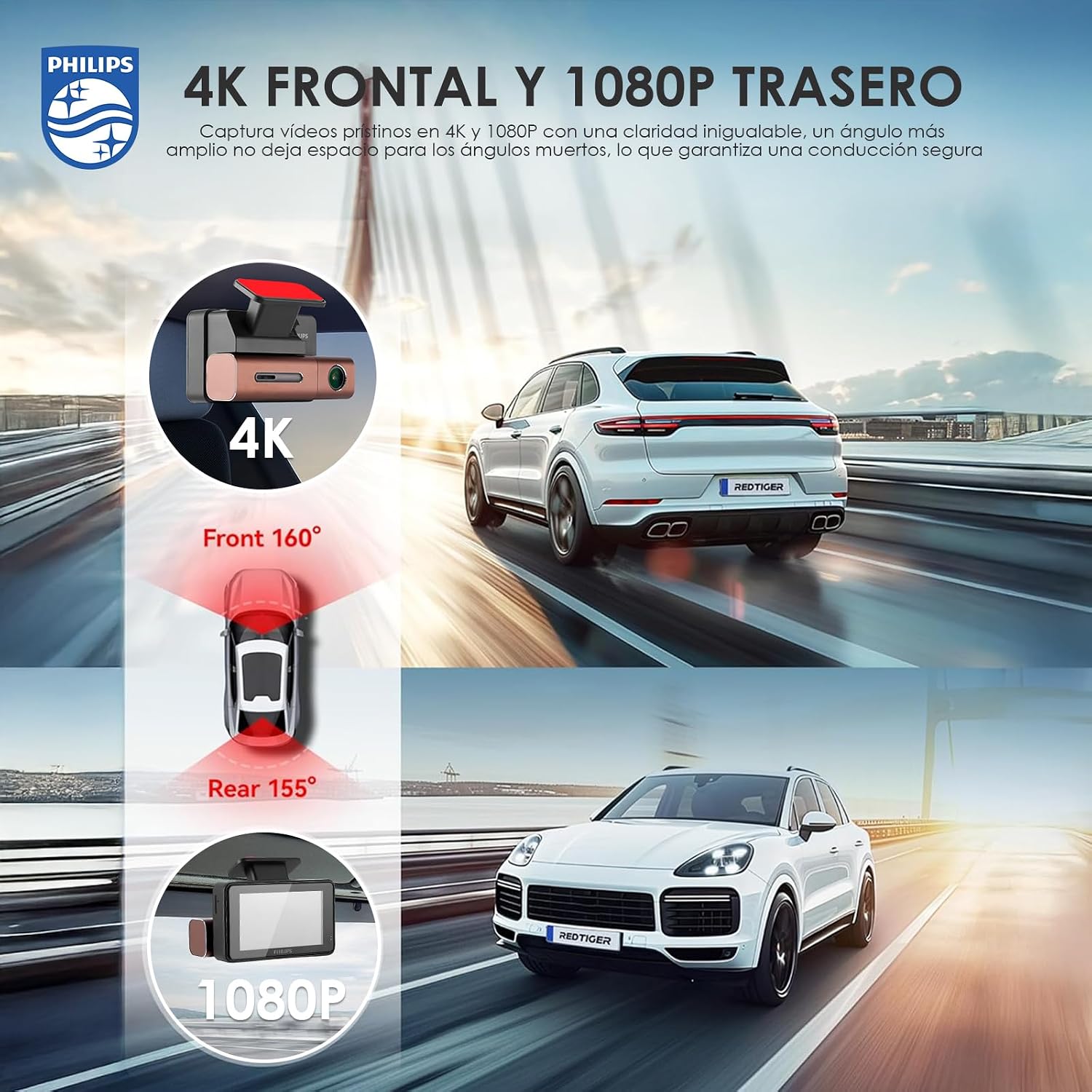
Figure 2: Front (4K) and Rear (1080P) camera views.
Video 1: Installation guide for the Philips Dashcam, demonstrating mounting and wiring.
4. Funcionament
4.1 Encès/Apagat
The dashcam will automatically power on and begin recording when your vehicle's ignition is turned on. It will power off automatically when the ignition is turned off.
4.2 Modes d'enregistrament
- Enregistrament en bucle continu: The dashcam records continuously in short segments (e.g., 1, 3, or 5 minutes). When the memory card is full, the oldest unlocked footage is automatically overwritten.
- Enregistrament d'emergència (sensor G): In the event of a sudden impact or collision, the built-in G-Sensor will detect the event and automatically lock the current video segment, preventing it from being overwritten.
- Supervisió del pàrquing: With the hardwire kit installed, the dashcam can monitor your vehicle for impacts even when parked, recording automatically if a collision is detected. Professional installation is recommended for this feature.

Figure 3: Super Night Vision and Loop Recording features.
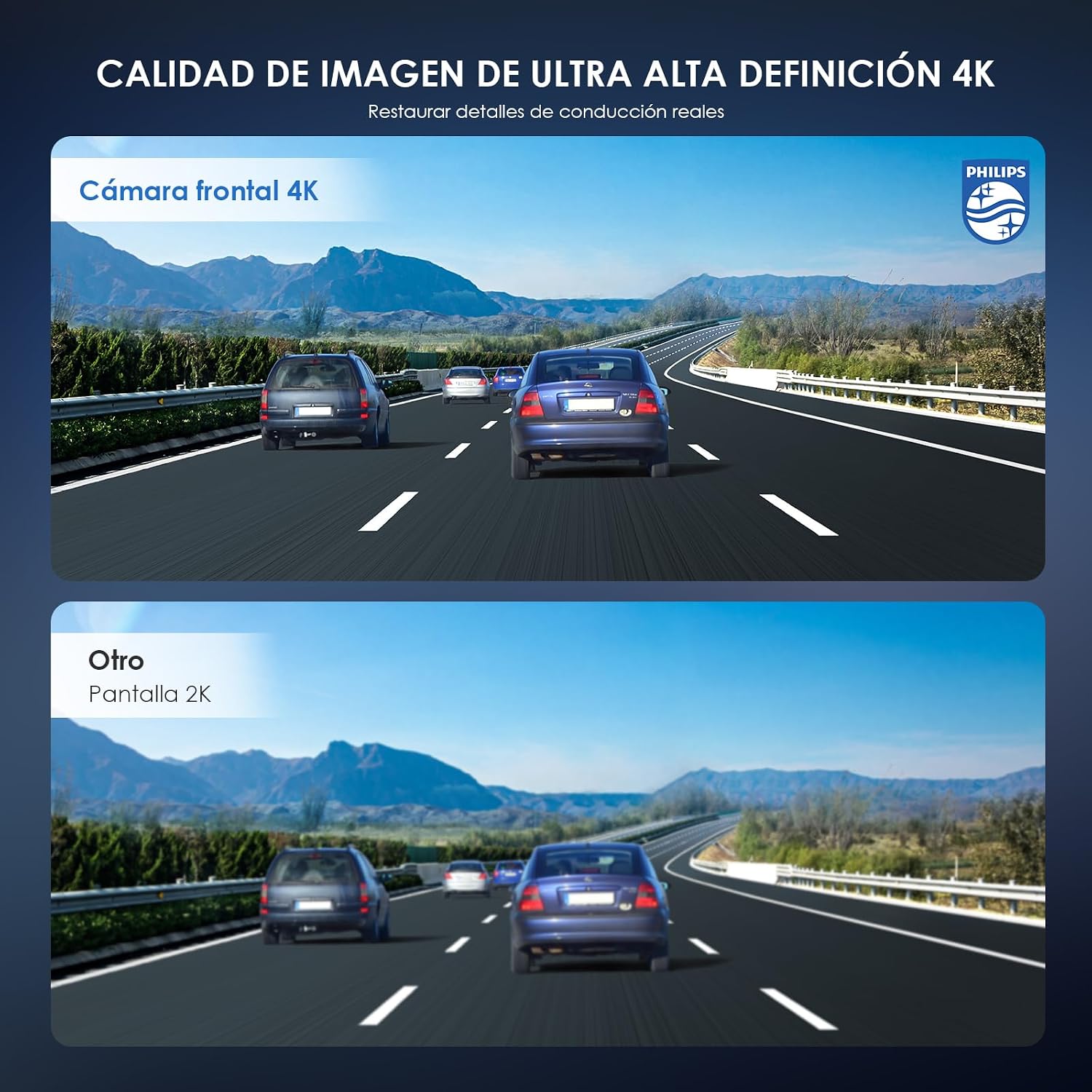
Figure 4: Demonstrating 4K Ultra HD image quality.
5. Connectivity (WiFi & App)
The Philips CVR608 Dashcam features built-in WiFi for seamless connection to a dedicated mobile application. This allows you to control the dashcam, view viu footage, reproduir vídeos gravats, descarregar files to your phone, and share memorable moments.
5.1 Descàrrega i connexió de l'aplicació
- Download the dedicated Philips dashcam application from your smartphone's app store (compatible with iPhone and Android devices).
- Turn on the dashcam and enable its WiFi function through the device settings.
- On your smartphone, connect to the dashcam's WiFi network (SSID and password can be found on the dashcam screen or in the manual).
- Open the application and follow the on-screen instructions to connect to your dashcam.
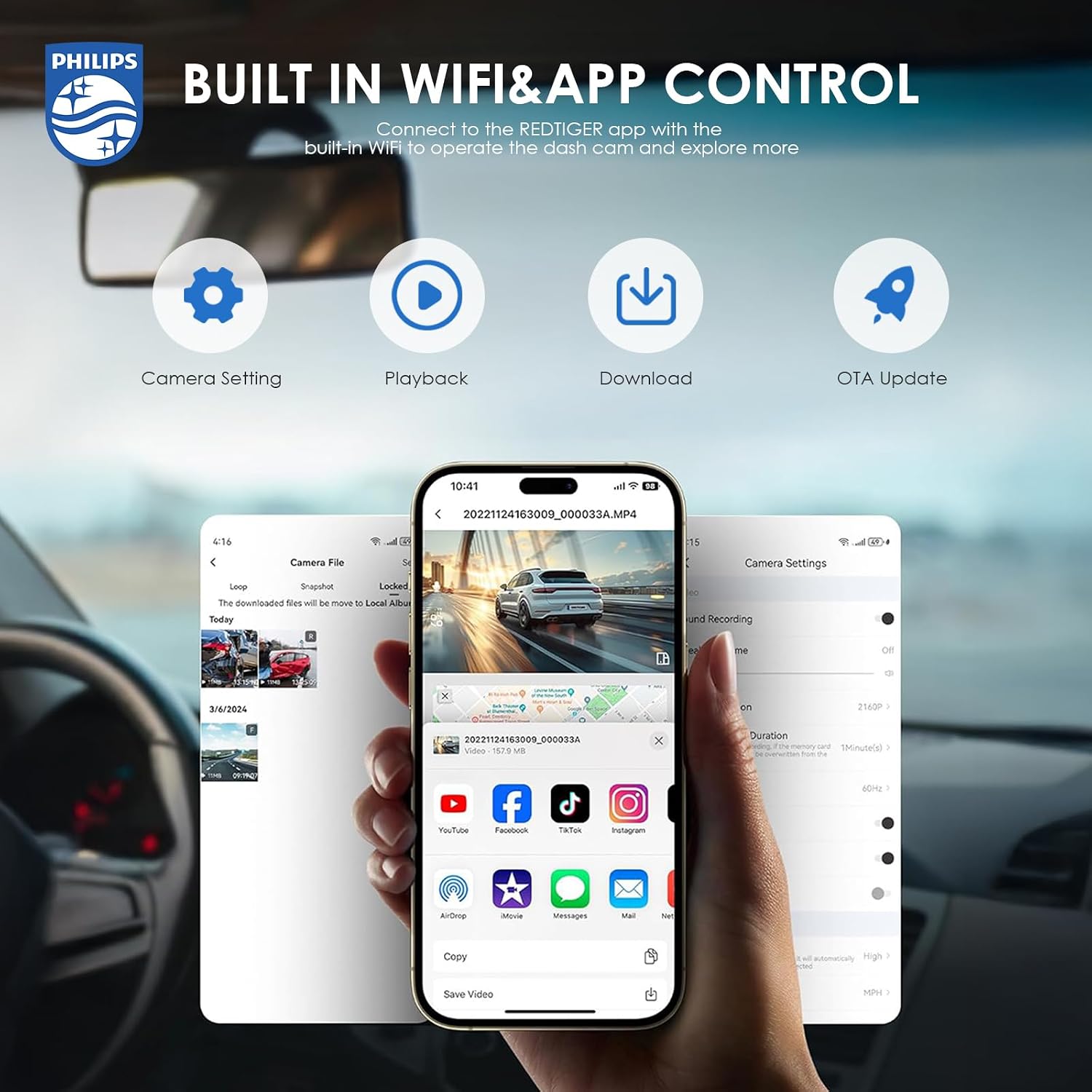
Figure 5: Built-in WiFi and App Control interface.
Video 2: Tutorial on connecting the dashcam to the mobile application.
6. Especificacions
| Característica | Especificació |
|---|---|
| Marca | Philips |
| Model | CVR608 |
| Resolució de captura de vídeo | 4K (Front) + 1080P (Rear) |
| Tipus de visualització | IPS |
| Mida de la pantalla | 3 polzades |
| Angle real de View | 140 graus |
| Tecnologia de connectivitat | Wi-Fi |
| Característiques especials | App Control, Blind Spot Detection, Compact Design, G-Sensor, Night Vision, Built-in WiFi |
| Tipus de muntatge | Lighter Mount (Adhesive) |
| Dimensions del producte | 15 x 8 x 14 cm; 680 g |
7. Solució De Problemes
- La càmera del salpicader no s'encén: Ensure the power cable is securely connected to both the dashcam and the vehicle's 12V outlet. Check if the vehicle's ignition is on.
- Problemes de gravació: Verify that a compatible MicroSD card is inserted and formatted. Check the memory card for errors or if it's full (unless loop recording is active).
- Problemes de connexió Wi-Fi: Ensure WiFi is enabled on the dashcam and your smartphone. Re-enter the WiFi password if necessary. Try restarting both devices.
- Poca qualitat de vídeo: Clean the camera lenses. Ensure the dashcam is securely mounted and not vibrating. Check resolution settings in the menu or app.
- La monitorització d'aparcament no funciona: Confirm the hardwire kit is correctly installed and connected. Professional installation is recommended for this feature.
8. Manteniment
- Neteja: Use a soft, dry cloth to clean the dashcam lenses and screen. Avoid abrasive cleaners.
- Targeta de memòria: Regularly format the MicroSD card (e.g., every 2-4 weeks) to ensure optimal performance and prevent data corruption. Back up important footage abans de formatar.
- Actualitzacions de firmware: Check the Philips website or the mobile application for available firmware updates to ensure your dashcam has the latest features and improvements.
9. Garantia i assistència
For warranty information, technical support, or service inquiries, please refer to the warranty card included in your product packaging or visit the official Philips support weblloc web. Conserveu el rebut de compra com a comprovant de compra.