1. Introducció
This manual provides essential information for the proper setup, operation, and maintenance of your ASUS X540LA-SI30205P 15.6-inch laptop. Please read this guide thoroughly to ensure optimal performance and longevity of your device. Keep this manual for future reference.
2. Contingut del paquet
Upon unpacking your ASUS X540LA-SI30205P laptop, please verify that all items are present and in good condition. The standard package should include:
- ASUS X540LA-SI30205P 15.6-inch Laptop
- Adaptador de corrent altern i cable d'alimentació
- User Documentation (Quick Start Guide, Warranty Card)
3. Producte acabatview
Familiarize yourself with the various components and ports of your ASUS X540LA-SI30205P laptop.
3.1 Davant View

Figura 3.1: Frontal view of the laptop with the screen open, showing the keyboard, touchpad, and display.
3.2 Ports del costat esquerre
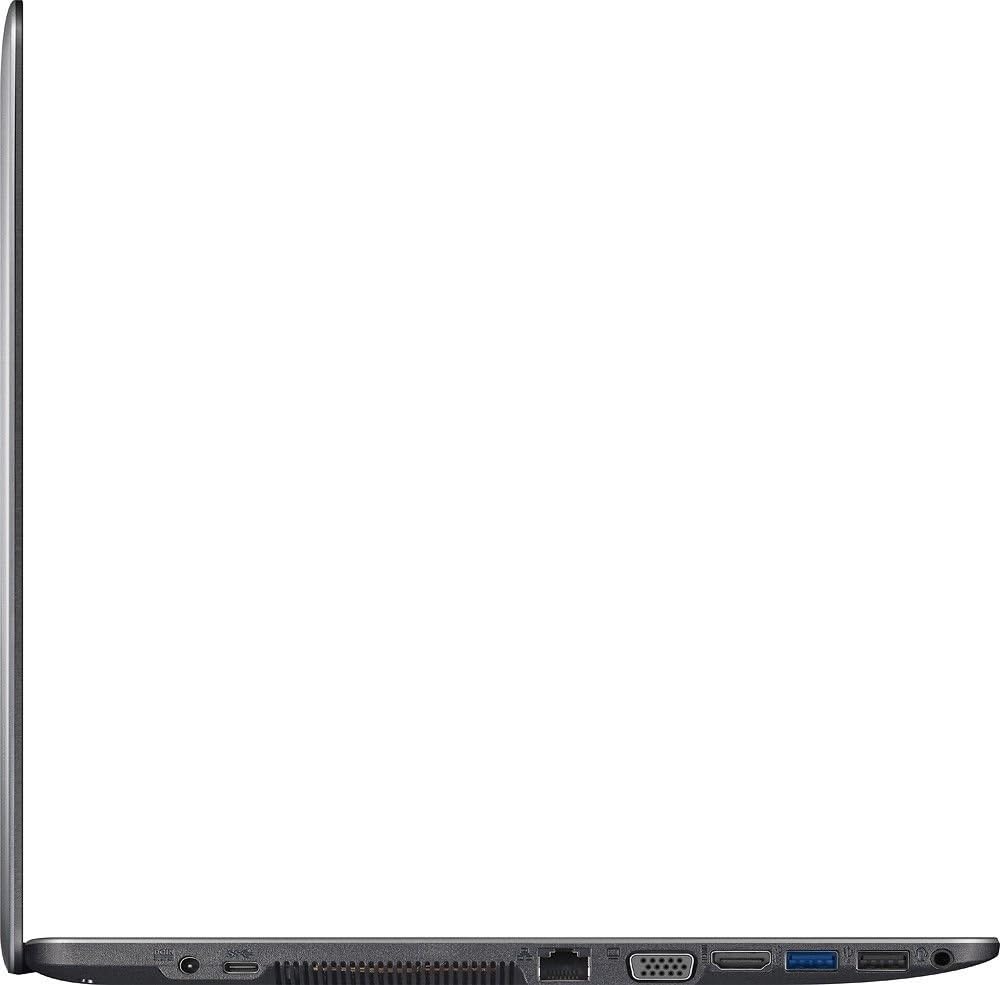
Figure 3.2: The left side of the laptop features the power input, Ethernet (LAN) port, VGA output, HDMI output, and USB ports (USB 3.0 and USB 2.0).
3.3 Right Side Ports and Optical Drive

Figure 3.3: The right side of the laptop includes additional USB ports (USB 2.0), a headphone/microphone combo jack, and the SuperMulti DVD/CD burner.
3.4 Teclat i touchpad

Figure 3.4: The chiclet-style keyboard includes a numeric keypad. The multi-touch touchpad is located below the keyboard.
4. Introducció (Configuració)
Follow these steps to set up your laptop for the first time.
4.1 Connexió de l'adaptador de corrent
- Connect the AC power adapter to the power input port on the left side of your laptop.
- Connecteu el cable d'alimentació a l'adaptador de corrent altern.
- Connecteu l'altre extrem del cable d'alimentació a una presa de corrent amb connexió a terra.
Es recomana carregar completament la bateria abans del primer ús.
4.2 Engegada inicial i configuració del Windows 10
- Obriu la tapa del portàtil i premeu el botó d'engegada, que normalment es troba a sobre del teclat.
- The laptop will boot up and guide you through the Windows 10 initial setup process. Follow the on-screen instructions to configure language, region, network settings, and create a user account.
- Ensure you have an active internet connection during setup to download necessary updates.
5. Com fer servir el portàtil
This section covers basic operations and features of your ASUS X540LA-SI30205P.
5.1 Ús del teclat i del touchpad
- Teclat: The laptop features a full-size chiclet keyboard with a dedicated numeric keypad. Function keys (F1-F12) often have secondary functions (e.g., volume control, screen brightness) accessible by pressing the Fn key in combination with the desired function key.
- Touchpad: The multi-touch touchpad supports various gestures for navigation, such as scrolling, zooming, and switching applications. Refer to Windows 10 settings for customizing touchpad gestures.
5.2 Using the SuperMulti DVD/CD Burner
To open the optical drive tray, press the eject button located on the drive itself. Insert a disc (DVD or CD) with the label side facing up and gently push the tray back into the laptop until it clicks into place. Windows 10 will typically detect the disc automatically.
5.3 Connexió de dispositius externs
- Dispositius USB: Connect USB devices (e.g., external hard drives, mice, keyboards) to the available USB 3.0 (blue port) or USB 2.0 ports.
- Pantalles externes: Use the HDMI port for digital video and audio output, or the VGA port for analog video output to connect to an external monitor or projector.
- Xarxa: Connect an Ethernet cable to the LAN port for a wired internet connection.
- Àudio: Use the headphone output/microphone input combo jack for external headphones or a headset.
5.4 Connectivitat sense fil
Your laptop supports Wi-Fi (802.11bgn) and Bluetooth. To connect to a Wi-Fi network, click the Wi-Fi icon in the Windows taskbar, select your desired network, and enter the password if required. Bluetooth devices can be paired via the Bluetooth settings in Windows.
6. Cura i Manteniment
Proper care ensures the longevity and optimal performance of your laptop.
6.1 Neteja del portàtil
- Utilitzeu un drap suau i sense pelusa lleugerament dampNetegeu la pantalla amb aigua o amb un netejador de pantalles especialitzat. Eviteu productes químics agressius.
- For the keyboard and chassis, use a soft cloth. A can of compressed air can help remove dust from between keys and vents.
- Assegureu-vos que el portàtil estigui apagat i desendollat abans de netejar-lo.
6.2 Cura de la bateria
- Eviteu exposar la bateria a temperatures extremes.
- For optimal battery life, avoid constantly discharging the battery to 0% or keeping it at 100% for extended periods.
- If storing the laptop for a long time, charge the battery to about 50% and store it in a cool, dry place.
6.3 Actualitzacions de programari
Regularly update your Windows operating system and drivers to ensure security, stability, and performance. Windows Update can be accessed via the Settings menu.
7. Solució De Problemes
Aquesta secció tracta problemes comuns que podeu trobar amb el vostre ordinador portàtil.
7.1 Problemes d'alimentació i arrencada
- El portàtil no s'encén: Ensure the power adapter is securely connected to both the laptop and a working electrical outlet. Check if the power indicator light is on. Try a different outlet.
- El portàtil s'encén però no hi ha pantalla: Connect an external monitor to the HDMI or VGA port to check if the issue is with the laptop's internal display. Restart the laptop.
7.2 Problemes de visualització
- Screen goes black intermittently: This can sometimes be caused by magnetic interference near the laptop's lid sensor. Ensure no magnetic objects (like certain bracelets or accessories) are resting on the palm rest area. Update graphics drivers.
- Poor display quality: Adjust screen resolution and brightness settings in Windows. Ensure graphics drivers are up to date.
7.3 Problemes de rendiment
- Rendiment lent: Close unnecessary applications. Check Task Manager for high CPU or RAM usage. Ensure sufficient free space on the hard drive. Run a disk cleanup.
- Sobreescalfament: Ensure ventilation vents are clear of obstructions. Use the laptop on a hard, flat surface. Consider cleaning internal components if comfortable, or seek professional service.
7.4 Optical Drive Issues
- Disc not reading: Ensure the disc is clean and free of scratches. Try a different disc. Check Device Manager in Windows to ensure the optical drive is recognized and drivers are installed correctly.
8. Especificacions tècniques
| Característica | Especificació |
|---|---|
| Model | X540LA-SI30205P |
| Mostra | 15.6-inch HD (1366 x 768) LED |
| Processador | Intel Core i3-5020U (5th Gen, 2.2 GHz) |
| RAM | 4GB DDR3L 1600 MHz (Expandable to 8GB) |
| Emmagatzematge | 1TB 5400 RPM HDD |
| Sistema operatiu | Windows 10 Home, de 64 bits |
| Unitat òptica | SuperMulti DVD/CD Burner |
| Gràfics | UMA Graphics with Shared Memory |
| Sense fil | Wi-Fi 802.11bgn, Bluetooth |
| Ports | 1x USB 3.0, 2x USB 2.0, HDMI, VGA, LAN (10/100), Headphone/Mic Combo, SD Card Reader |
| Weblleva | Integrat Weblleva |
| Àudio | Built-in Stereo Speakers with SonicMaster |
| Bateria | 3-cell Lithium-Ion |
| Dimensions (LxWxH) | 15 x 9.92 x 1 polzades |
| Pes | 4.41 lliures |
| Color | Plata |
9. Informació sobre garantia i assistència
Your ASUS X540LA-SI30205P laptop comes with a limited warranty. Please refer to the warranty card included in your package for specific terms and conditions, including coverage period and service procedures. For technical support, driver downloads, or further assistance, please visit the official ASUS support weblloc:
When contacting support, please have your laptop's model number (X540LA-SI30205P) and serial number readily available.