
1. Introducció
This manual provides detailed instructions for the installation, operation, and maintenance of your SMONET Wireless Security Camera System. This system is designed to provide reliable surveillance with easy setup and remote access capabilities.
Imatge 1: acabatview of the SMONET Wireless Security Camera System, showing the NVR unit and four bullet-style cameras with antennas, indicating wireless connectivity and 24/7 recording capability.
2. Contingut del paquet
Verifiqueu que tots els elements que s'enumeren a continuació s'inclouen al vostre paquet:
- 1 x 4CH 1080p WiFi NVR (Network Video Recorder)
- 4 x Wireless IP Cameras
- 1 x DC 12V/2A Power Adapter (for NVR)
- 4 x DC 12V/1A Power Adapters (for Cameras)
- 1 x ratolí USB
- 1 x 3.3ft Network Cable
- Cargols de muntatge i tacs de paret
- 1 x Manual d'usuari
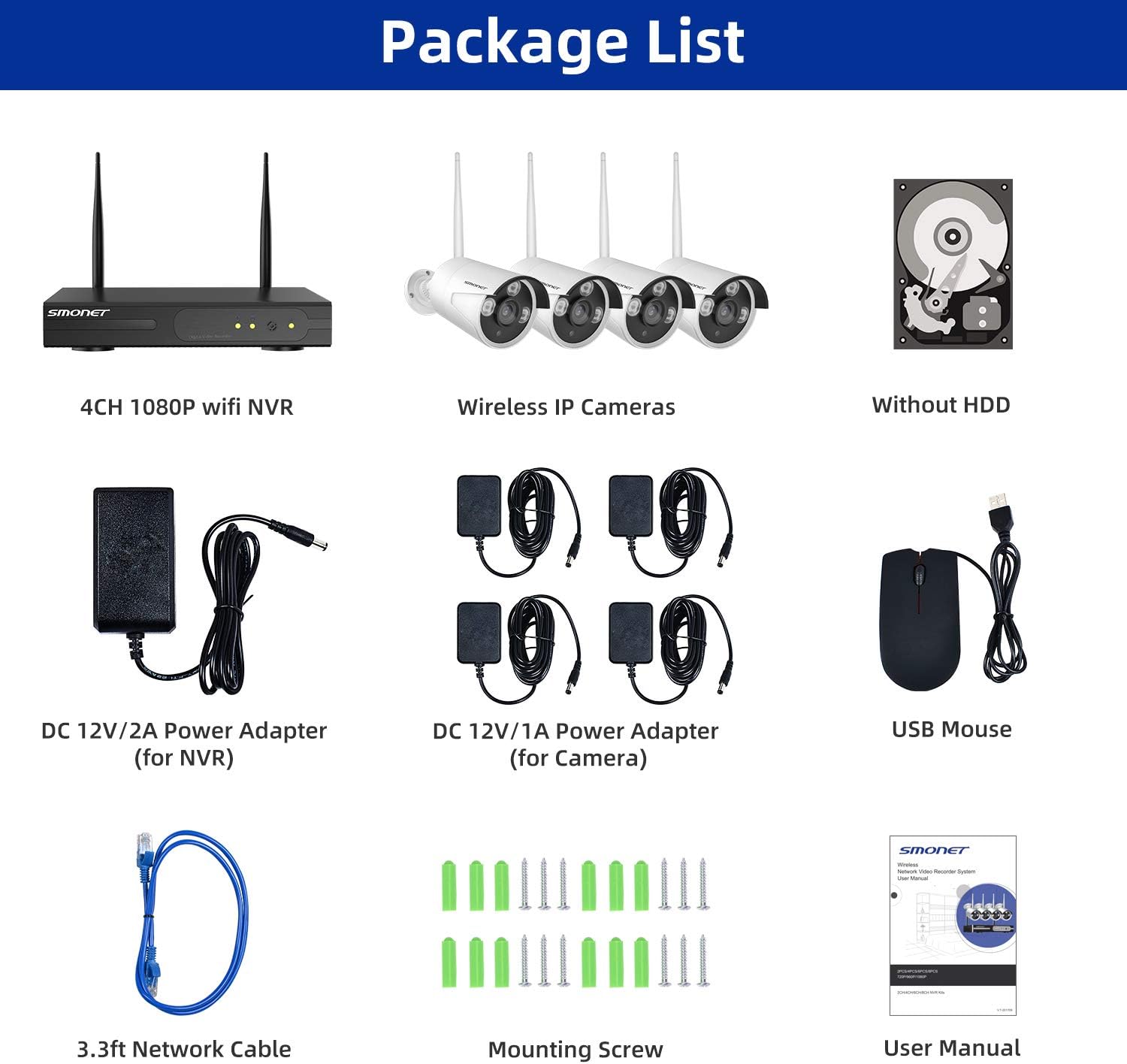
Image 2: Visual representation of the package contents, including the NVR, four cameras, power adapters, USB mouse, network cable, mounting hardware, and user manual.
3. Producte acabatview
3.1 Característiques de la càmera
- 5DB Wi-Fi Antenna: For enhanced wireless signal reception.
- IP66 Metal Housing: Provides weather resistance for outdoor use.
- 3 pcs LEDs: For night vision illumination.
- Sensor de llum: Automatically adjusts between day and night modes.
- Lent de 3.6 mm: Ofereix un ampli camp de view.
3.2 NVR Ports
- Port VGA: Connect to a monitor.
- Port HDMI: Connect to a TV or monitor for high-definition output.
- Port WAN: Connect to your router for internet access.
- Port USB: For mouse and external storage.
- Adaptador d'alimentació: For NVR power supply.
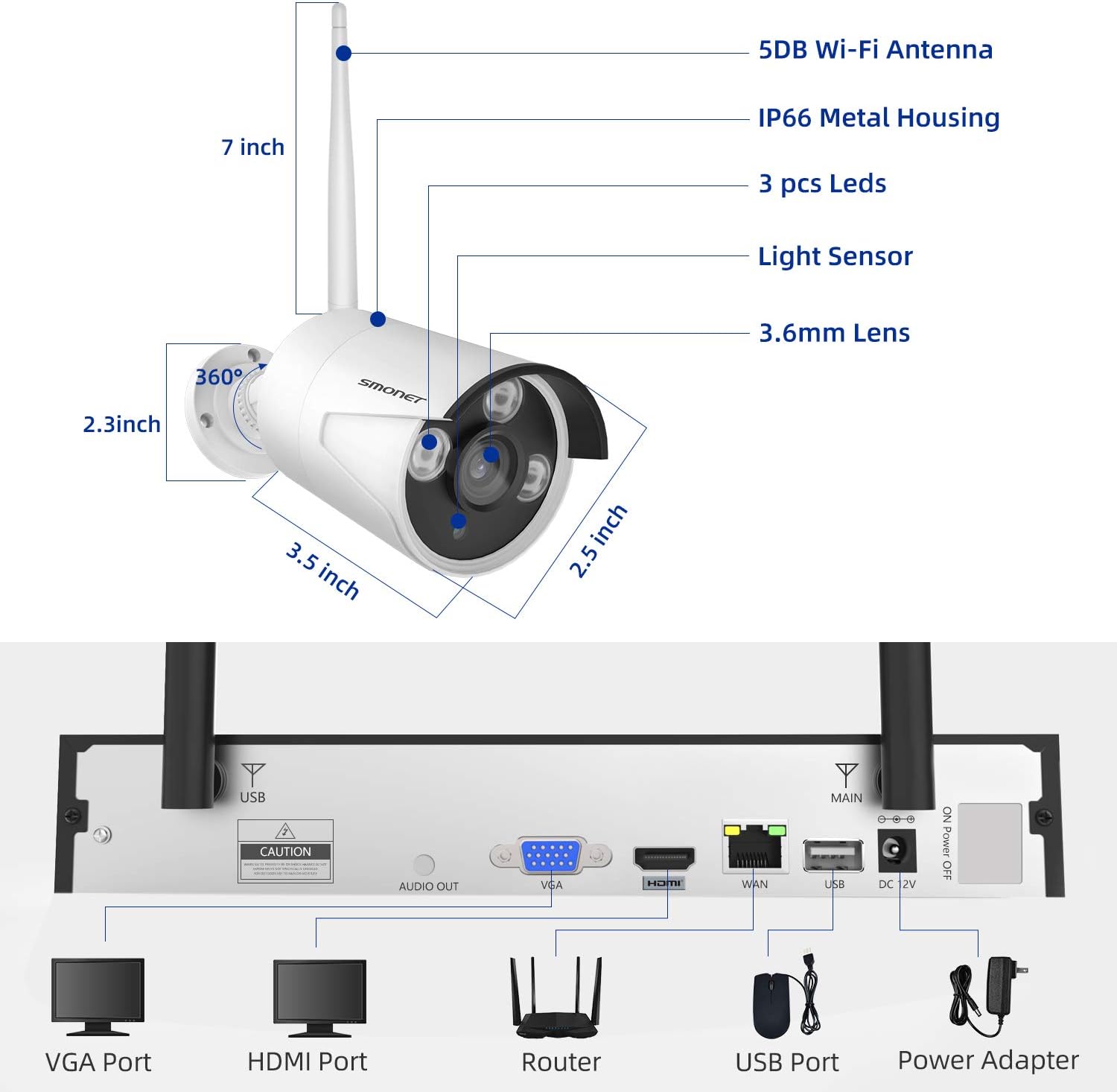
Image 3: Detailed diagram showing the dimensions of a SMONET camera and the various input/output ports on the back of the NVR unit.
4. Configuració
4.1 Instal·lació de la càmera
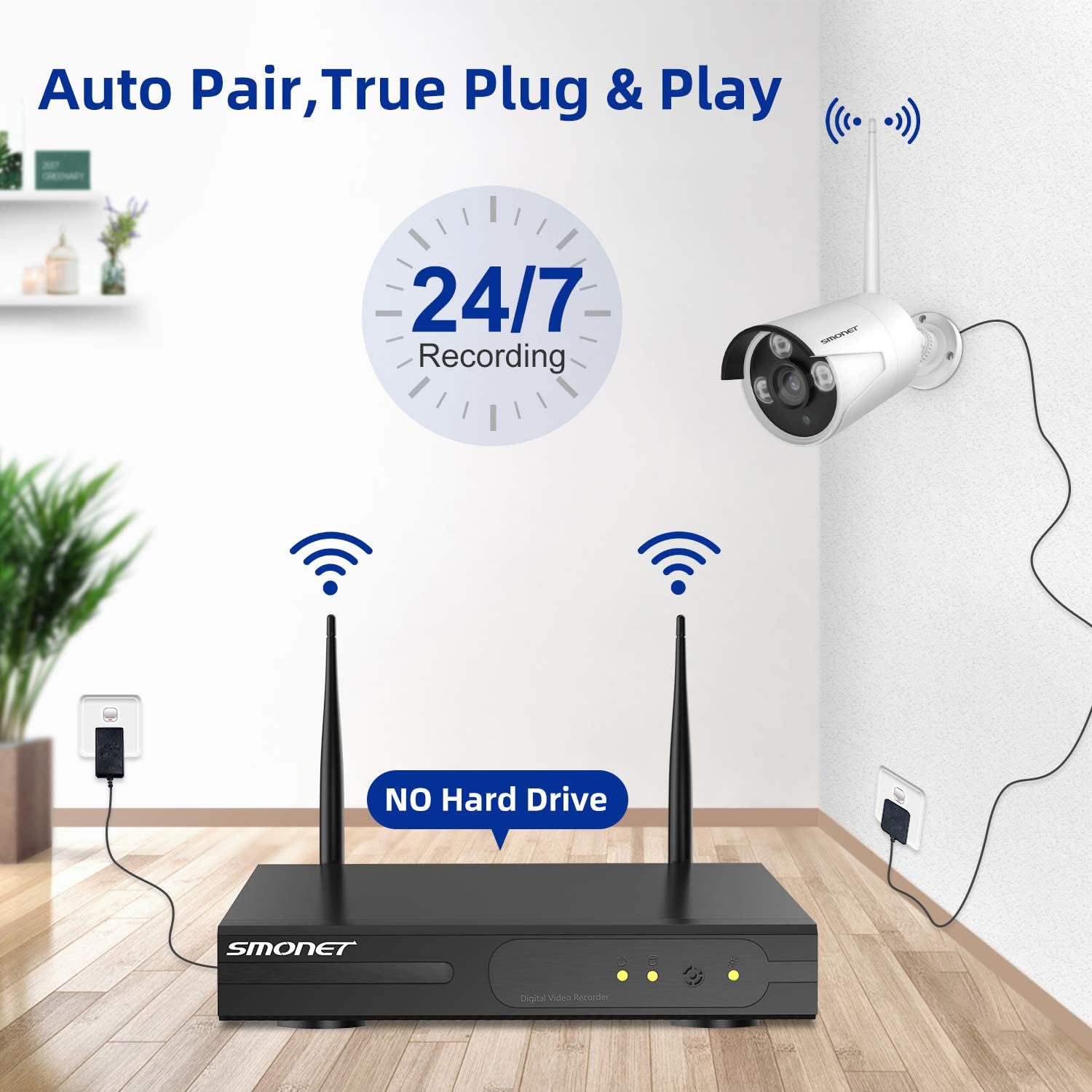
- Choose desired locations for your cameras. Ensure they are within range of the NVR's wireless signal.
- Mount the cameras using the provided screws and wall plugs.
- Connect each camera to its dedicated DC 12V/1A power adapter and plug it into a power outlet.
Image 4: Illustration depicting the simple setup process for the SMONET cameras, highlighting the 'Auto Pair, True Plug & Play' feature.
4.2 Connexió NVR
- Connect the NVR to a monitor or TV using either the VGA or HDMI port.
- Connect the NVR to your home router using the provided network cable (WAN port).
- Plug in the NVR's DC 12V/2A power adapter and power on the system.
- The cameras should automatically pair with the NVR. If not, refer to the troubleshooting section.
Video 1: A brief introduction to the SMONET Wireless Camera System, demonstrating the ease of setup and key features.
4.3 Instal·lació del disc dur (opcional)
This system does not include a hard drive. For continuous recording and video storage, a surveillance-grade hard drive (up to 4TB) must be installed. Refer to the detailed instructions in the full user manual for hard drive installation steps.
5. Funcionament del sistema
5.1 Remot Viewa través de l'aplicació mòbil
The SMONET system supports remote viewing via a dedicated mobile application. This allows you to monitor your cameras from anywhere using your smartphone or tablet.
- Download the 'IP PRO' app from your device's app store (iOS or Android).
- Register a new account within the app.
- Add your NVR device by inputting its Cloud ID and the admin password. The Cloud ID can be found in the NVR's system settings (Main Menu > Advanced > Version > Serial Number).
- Un cop connectat, pots view transmissions en directe de totes les càmeres connectades.
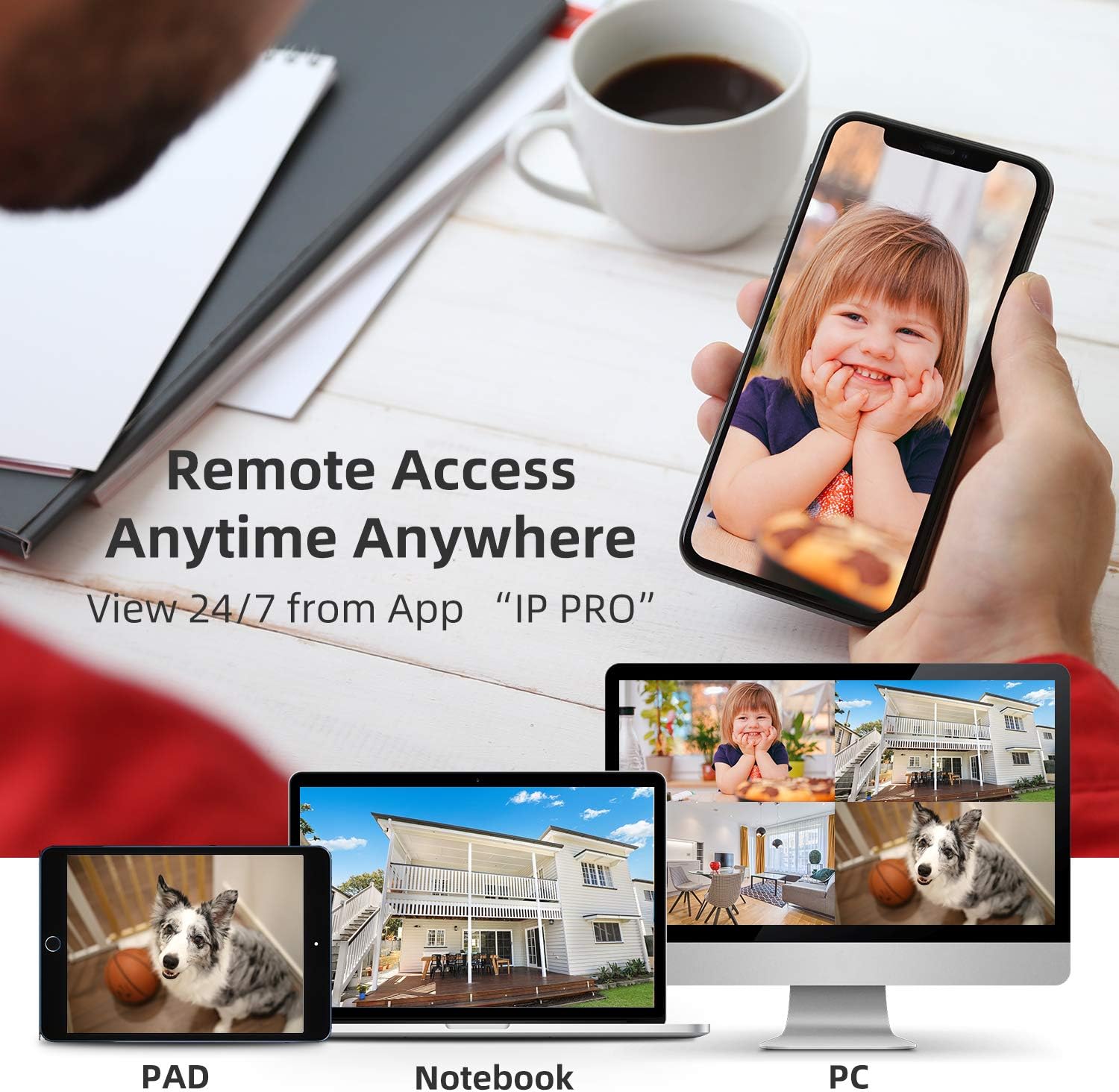
Image 5: Demonstrates remote access capabilities, showing live camera feeds on a smartphone, tablet, and laptop, accessible anytime, anywhere via the 'IP PRO' app.
5.2 Remot Viewing via PC Software
També pots view your camera feeds on a computer using the VMS software.
- Download the VMS software to your computer.
- Log in using the default username 'admin' and password (leave blank if not set).
- In 'Device Manager', click 'Cloud Add' and enter your NVR's Cloud ID and password.
- Once connected, navigate to 'Live View' to see your camera feeds.
Video 2: A tutorial demonstrating how to view video from the SMONET system on a PC using the VMS software.
5.3 Detecció de moviment
The system features real-time motion detection. When motion is detected, cameras can send email alerts or mobile notifications to you, enhancing your property's security.

Image 6: Illustrates the real-time motion detection capability, showing an alert being sent to a smartphone when movement is detected in a monitored area.
5.4 Day and Night Vision
The cameras provide clear vision both day and night. During the day, you get colorful images, and at night, the infrared LEDs enable clear black and white night vision.

Image 7: A side-by-side comparison demonstrating the system's ability to capture colorful images during the day and clear black-and-white images at night using infrared technology.
5.5 Expanding the System
The 4-channel NVR can support up to 8 cameras. You can add additional SMONET 1080P IP cameras (ASIN: B01IR4TXA8) to expand your surveillance coverage.

Image 8: Illustrates the wireless signal repeater function between cameras and the NVR, and shows how the system can be expanded to include up to 8 cameras.
6. Manteniment
- Neteja regular: Netegeu periòdicament les lents de la càmera amb un drap suau i sec.amp tela per garantir una qualitat d'imatge nítida.
- Actualitzacions de firmware: Comproveu el del fabricant weblloc web per a actualitzacions de firmware per garantir un rendiment i una seguretat òptims.
- Comprovació de la font d'alimentació: Ensure all power adapters are securely connected and free from damage.
- Estat del disc dur: If a hard drive is installed, regularly check its health status through the NVR interface to prevent data loss.
7. Solució De Problemes
- Sense imatge al monitor: Check VGA/HDMI cable connections. Ensure NVR and monitor are powered on and input source is correct.
- Cameras Not Connecting: Verify cameras are powered on. Ensure they are within wireless range of the NVR. If issues persist, try re-pairing cameras manually (refer to full manual for specific steps).
- No Remote View: Check NVR's network status (should be 'Healthy Network'). Ensure your mobile device has internet access and the Cloud ID/password are correctly entered in the app.
- Problemes de gravació: Confirm a hard drive is installed and properly formatted. Check recording settings in the NVR menu.
8. Especificacions
| Característica | Especificació |
|---|---|
| Marca | SMONET |
| Tecnologia de connectivitat | Sense fil |
| Nombre de canals | 4 |
| Capacitat d'emmagatzematge de memòria | 4 TB (Max, HDD not included) |
| Font d'alimentació | Battery Powered (Cameras via adapter) |
| Sistema operatiu | Android, iOS (for app) |
| Format del senyal | Digital |
| Visió nocturna | Night color (IR) |
| Velocitat de fotogrames | 30 fps |
| Mode d'enregistrament | Detecció de moviment |
| Tecnologia de sensors òptics | CMOS |
| Interfície del maquinari | 802.11 ac/b/g/n |
| Tipus de lent | Fix (3.6 mm) |
| Entrada de vídeo | RJ45 (NVR) |
| Número de model | SN-WNK 002 |
| Pes de l'article | 7 Pounds (System) |
| Dimensions de l'article | 12.5 x 10.5 x 6.5 polzades (paquet) |
9. Garantia i Suport
For warranty information and technical support, please refer to the official SMONET weblloc web o contacteu directament amb el servei d'atenció al client. Conserveu el rebut de compra per a reclamacions de garantia.


