
1. Introducció
The StarTech.com USB-C Multiport Adapter DKT30CHV is designed to expand the connectivity of your USB-C enabled laptop, tablet, or smartphone. This portable travel dock allows you to connect to a 4K HDMI or 1080p VGA display, a Gigabit Ethernet network, and a 5Gbps USB-A 3.0 peripheral, all through a single USB-C port on your host device. It is bus-powered, eliminating the need for an external power adapter, making it ideal for mobile use.
Característiques principals:
- 4-in-1 Portable Dock: Provides 4K 30Hz HDMI or 1080p VGA video output, one USB-A (USB 3.1 Gen 1 5Gbps) port, and Gigabit Ethernet.
- Àmplia compatibilitat de dispositius: Compatible with USB-C and Thunderbolt 3 (TB3) devices from various brands including HP, Dell, Lenovo, Apple MacBook Pro/Air, and Chromebooks.
- Compatibilitat àmplia amb sistemes operatius: Supports Windows, macOS, Ubuntu, and Chrome OS.
- Compact & Light Design: Easily fits into a laptop bag or pocket for travel.

Image 1: The StarTech.com USB-C Multiport Adapter DKT30CHV, a compact black device with various ports.
2. Contingut del paquet
- 1x USB-C Multiport Adapter (DKT30CHV)
- 1 x manual d'instruccions
3. Configuració
Follow these steps to set up your StarTech.com USB-C Multiport Adapter:
- Connecta't al dispositiu amfitrió: Plug the integrated USB-C cable from the adapter into an available USB-C or Thunderbolt 3 port on your laptop, tablet, or smartphone. Ensure your host device's USB-C port supports video (DisplayPort Alternate Mode) for video output functionality.
- Connecta la pantalla: Connect an HDMI cable from your monitor to the adapter's HDMI port for up to 4K 30Hz resolution, or connect a VGA cable to the adapter's VGA port for up to 1080p resolution. The adapter supports one video output at a time.
- Connecteu-vos a la xarxa: Connect an Ethernet cable from your network router or switch to the adapter's Gigabit Ethernet port for a wired network connection.
- Connecteu els perifèrics USB: Plug your USB-A devices (e.g., mouse, keyboard, external hard drive) into the adapter's USB 3.0 (USB 3.1 Gen 1) port.

Imatge 2: Un primer pla view of the adapter's ports, including Gigabit Ethernet, USB-A 3.0, VGA, and HDMI.
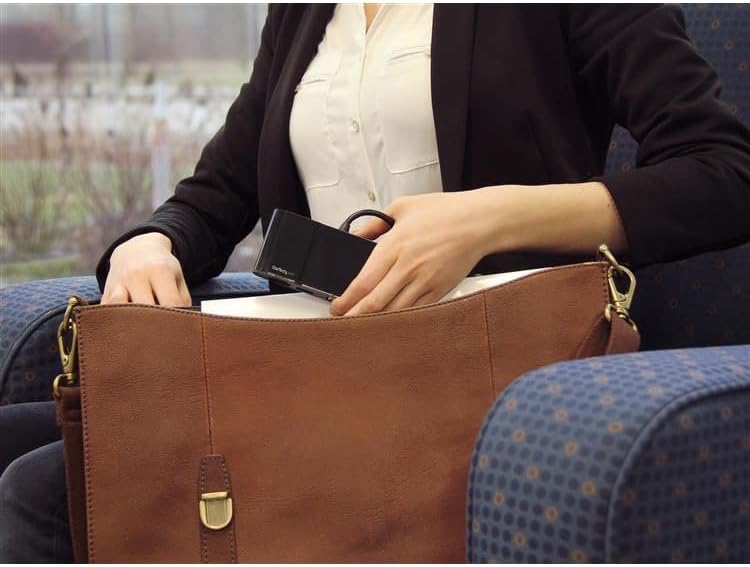
Image 3: The compact USB-C Multiport Adapter being stored in a bag, highlighting its portability.
4. Instruccions de funcionament
Once connected, the adapter functions as an extension of your host device's capabilities. Most operating systems provide native support, meaning drivers are often not required for basic functionality. However, for optimal performance, especially with the Gigabit Ethernet port, it is recommended to check the StarTech.com support weblloc for the latest drivers specific to your operating system.
Sortida de visualització:
The adapter supports either HDMI or VGA output, but not simultaneously. Your operating system should automatically detect the connected display. You can configure display settings (e.g., extended desktop, duplicate display) through your computer's display preferences.
Port USB 3.0:
The USB 3.0 port provides 5Gbps data transfer speeds for connecting peripherals. It is backward compatible with USB 2.0 devices.
Gigabit Ethernet:
The Gigabit Ethernet port provides a stable and fast wired network connection. Ensure the Ethernet cable is securely connected to both the adapter and your network device.
Video 1: An official StarTech.com video demonstrating the general benefits and ease of use of their docking stations and adapters for various professional scenarios.
5. Manteniment
To ensure the longevity and optimal performance of your StarTech.com USB-C Multiport Adapter, follow these maintenance guidelines:
- Neteja: Use a soft, dry cloth to clean the adapter. Avoid using harsh chemicals or abrasive cleaners.
- Emmagatzematge: Guardeu l'adaptador en un lloc fresc i sec, allunyat de la llum solar directa i de temperatures extremes.
- Manipulació: Handle the adapter with care. Avoid dropping it or subjecting it to strong impacts. Do not pull on the integrated cable forcefully.
6. Solució De Problemes
If you encounter issues with your USB-C Multiport Adapter, refer to the following common troubleshooting steps:
- Sense sortida de pantalla:
- Ensure your host laptop's USB-C port supports video (DisplayPort Alternate Mode). Not all USB-C ports have this capability.
- Verify that the video cable (HDMI or VGA) is securely connected to both the adapter and the display.
- Try connecting the display directly to your laptop (if possible) to rule out display or cable issues.
- Reinicieu el dispositiu amfitrió.
- No Network Connection (Gigabit Ethernet):
- Ensure the Ethernet cable is securely connected to both the adapter and your network device.
- Check your host device's network settings to ensure the Ethernet adapter is recognized and enabled.
- Visita el StarTech.com support weblloc to download and install the latest Ethernet drivers for your operating system, if necessary.
- USB Peripherals Not Recognized:
- Ensure the USB peripheral is properly connected to the adapter's USB 3.0 port.
- Try connecting the USB peripheral directly to your host device (if possible) to confirm it is functional.
- If connecting a high-power USB device, ensure your host device can provide sufficient power through its USB-C port. The DKT30CHV is bus-powered and does not support USB Power Delivery to charge other devices.
- Intermittent Connections or Performance Issues:
- Ensure all cables are firmly seated and not loose.
- Avoid excessive bending or strain on the integrated USB-C cable.
- Reduce the number of simultaneously active high-bandwidth devices if experiencing slowdowns, as all ports share the USB 3.0 bandwidth.
7. Especificacions

Image 4: Diagram showing the dimensions of the StarTech.com USB-C Multiport Adapter: 4.5 inches (11.4 cm) length, 2.1 inches (5.4 cm) width, and 0.7 inches (1.7 cm) height.
| Característica | Especificació |
|---|---|
| Marca | StarTech.com |
| Número de model | DKT30CHV |
| Color | Negre |
| Interfície del maquinari | Thunderbolt, USB, USB 2.0, USB 3.0, USB 3.1 Type C, USB Type C |
| Característica especial | Portàtil |
| Dispositius compatibles | Audio/Video Device, Chromebook, Docking Station, Monitors, Network Device, Notebook, Projectors, Workstation |
| Ports USB totals | 1 (USB-A 3.0) |
| Velocitat de transferència de dades | 5 gigabits per segon |
| Nombre de Ports | 4 (HDMI, VGA, USB-A 3.0, Gigabit Ethernet) |
| Sistema operatiu | Chrome OS, Linux, macOS, Windows |
| Material de tancament | Metall |
| Dimensions de l'article (L x A x A) | 11.4 cm de llargada x 5.4 cm d'amplada x 1.7 cm d'alçada |
| Pes de l'article | 0.16 lliures (72.57 g) |
| UPC | 662919087369, 065030864695 |
8. Garantia i Suport
The StarTech.com USB-C Multiport Adapter DKT30CHV is backed by a 3 any de garantia. StarTech.com also offers free lifetime technical support to assist you with any questions or issues you may encounter.
For technical assistance, product information, or to download drivers, please visit the official StarTech.com support weblloc: www.startech.com/support