
Contour Design BALANCE-US
Contour Design Balance Keyboard Wireless User Manual
Model: BALANCE-US
1. Introducció
The Contour Design Balance Keyboard is an ergonomic wireless keyboard designed to enhance your workstation setup, particularly when paired with a RollerMouse or SliderMouse. It aims to provide a comfortable and efficient typing experience by promoting a natural hand position and reducing strain. This manual provides detailed instructions for setting up, operating, maintaining, and troubleshooting your Balance Keyboard.
2. Característiques clau
- Disseny ergonòmic: Compact size to minimize reaching and support a healthier posture, reducing wrist and shoulder strain.
- Inclinació ajustable: Offers positive, neutral, and negative typing angles for personalized comfort.
- Funcionalitat completa: Includes shortcut and media keys, a numeric keypad, and easily accessible traditional function keys (F1-F12) via the Fn lock feature.
- Connectivitat sense fils: Connects via USB-A receiver (proprietary 2.4GHz Contour protocol) or Bluetooth, compatible with both PC and Mac computers.
- Integració perfecta: Designed to fit perfectly with Contour Design's RollerMouse Red, Red plus, Free2, and Free3 models.
3. Configuració
3.1 Desembalatge i contingut
Carefully unpack your Balance Keyboard. Ensure all components are present:
- Teclat d'equilibri
- Receptor sense fil USB
- 2 AAA batteries (pre-installed or included)
3.2 Instal·lació de la bateria
The Balance Keyboard operates on 2 AAA batteries. These are typically included and may be pre-installed. If not, locate the battery compartment on the underside of the keyboard, open it, and insert the batteries according to the polarity indicators. The keyboard features smart, power-saving technology and does not require a manual on/off switch.
3.3 Connexió del teclat
The Balance Keyboard offers two primary connection methods: USB Wireless Receiver or Bluetooth.
3.3.1 USB Wireless Receiver Connection
The USB wireless receiver is securely stored within the battery housing when not in use. Remove the receiver and plug it into an available USB-A port on your PC or Mac computer. The keyboard should automatically connect.
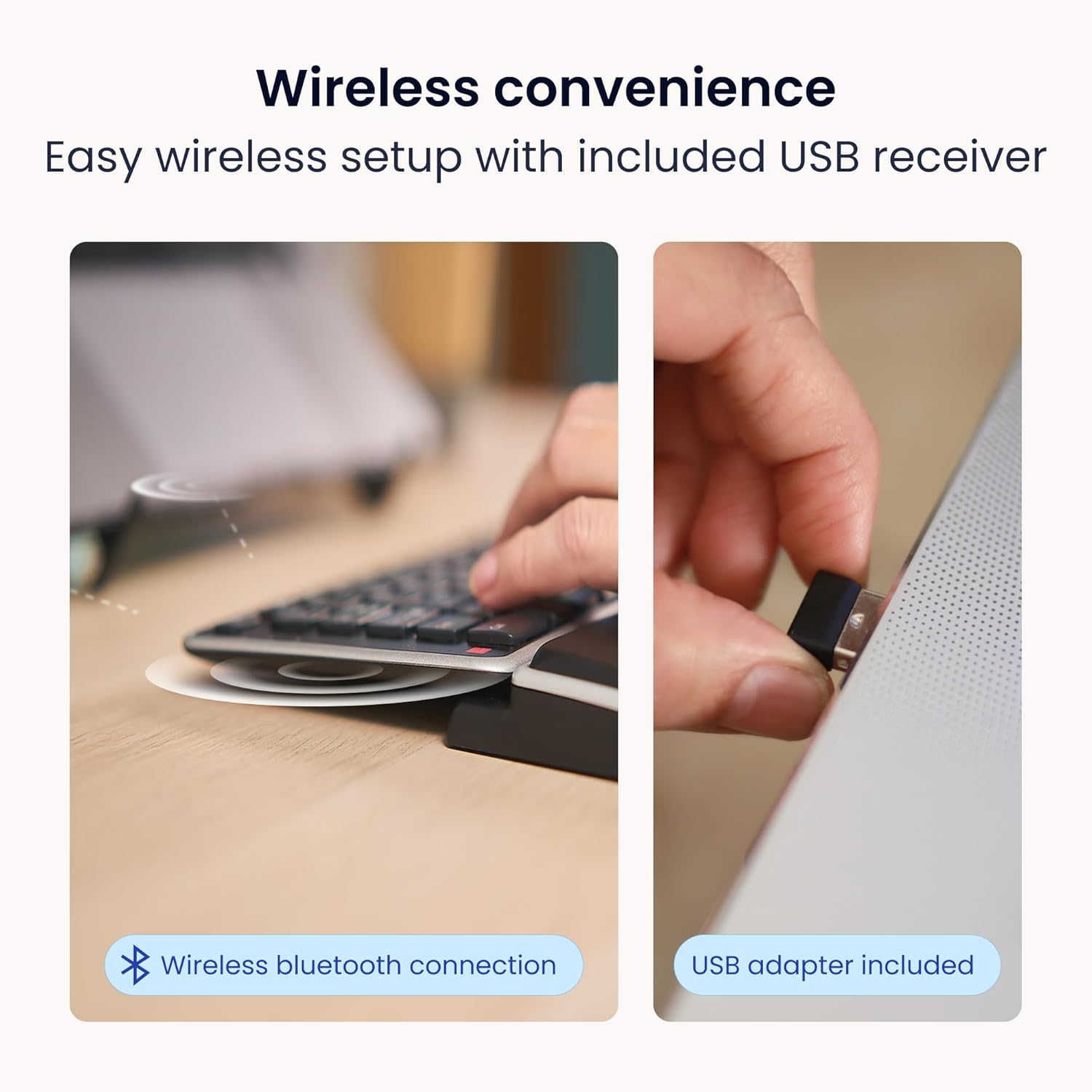
Image: Wireless convenience with USB adapter. The USB wireless receiver provides a stable 2.4GHz connection.
3.3.2 Connexió Bluetooth
For Bluetooth connection, ensure your computer's Bluetooth is enabled. Refer to your computer's operating system instructions for pairing new Bluetooth devices. The keyboard will appear as 'Contour Balance Keyboard' or similar in the list of discoverable devices.
3.4 Positioning and Ergonomics
The Balance Keyboard is designed to be used in conjunction with a RollerMouse or SliderMouse for optimal ergonomic benefits. Position the keyboard directly in front of you, with the RollerMouse/SliderMouse placed immediately below it.

Image: Seamless RollerMouse pairing. The keyboard is designed to fit perfectly with Contour Design RollerMouse and SliderMouse models.
This setup keeps your hands closer to the action, reducing reaching and promoting a natural, healthier posture.

Image: Natural hand position. Keeps hands close to the body for reduced reach and a healthier posture.
3.5 Ajust de la inclinació del teclat
The Balance Keyboard features adjustable legs and tilt options to allow you to set your preferred typing angle for comfort. You can adjust it to neutral, positive, or negative typing angles. Negative tilt can help angle your hands to an optimum position for typing.

Image: Adjustable tilt. Set your preferred typing angle for comfort by adjusting the keyboard's legs.
4. Funcionament del teclat
The Balance Keyboard provides a full range of keys for efficient operation on both Mac and Windows systems.
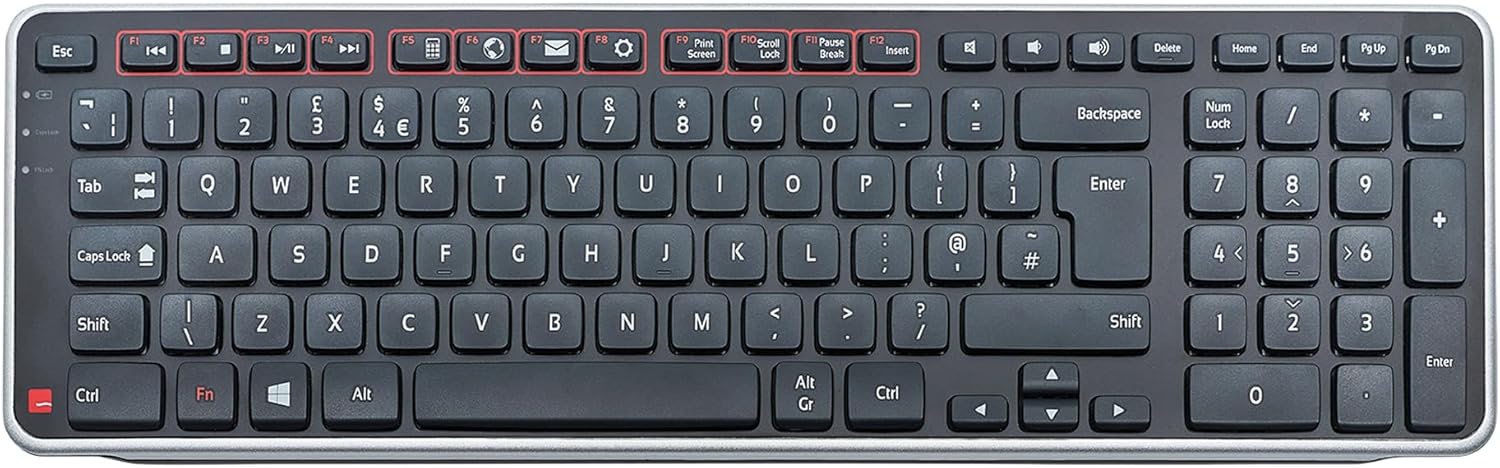
Image: Full keyboard layout. The Balance Keyboard features a standard QWERTY layout with a numeric keypad and dedicated function/media keys.
4.1 Function Keys (F1-F12) and Media Keys
The top row of keys includes both traditional function keys (F1-F12) and dedicated media keys. By default, the media keys perform useful everyday tasks such as volume control, play/pause, and browser functions. To access the traditional F1-F12 functions, use the Fn lock feature. Consult your operating system's settings for programming specific media keys to suit your needs.
4.2 Teclat numèric
The integrated numeric keypad on the right side of the keyboard allows for efficient data entry and calculations.
4.3 Compatibilitat
The Balance Keyboard is compatible with both Mac and PC operating systems, ensuring broad usability across different computing environments.

Image: Ergonomic Design and Compatibility. The keyboard works with both Mac and Windows operating systems.
5. Manteniment
5.1 Neteja
To maintain the cleanliness and functionality of your Balance Keyboard, regularly wipe the surface with a soft, damp cloth. Avoid using harsh chemicals or abrasive materials. For cleaning between keys, a can of compressed air can be used to dislodge dust and debris.
5.2 Substitució de la bateria
When the keyboard's performance diminishes or it loses connection frequently, it may be time to replace the AAA batteries. Follow the instructions in Section 3.2 for battery installation.
6. Solució De Problemes
If you encounter issues with your Balance Keyboard, try the following troubleshooting steps:
- El teclat no respon:
- Ensure the USB wireless receiver is securely plugged into a working USB port.
- Check the batteries. Replace them if they are low or depleted.
- If using Bluetooth, ensure Bluetooth is enabled on your computer and the keyboard is paired correctly. Try unpairing and re-pairing the device.
- Move the keyboard closer to the USB receiver or Bluetooth source to rule out range issues.
- Connexió intermitent:
- This can often be caused by low batteries. Replace them.
- Ensure there are no strong sources of interference (e.g., other wireless devices, large metal objects) between the keyboard and the receiver/computer.
- Proveu de connectar el receptor USB a un port USB diferent.
- Keys Not Working Correctly:
- Clean the keyboard to remove any debris that might be obstructing the keys (refer to Section 5.1).
- If specific keys are not responding, ensure no software conflicts are present. Try the keyboard on a different computer if possible.
- Fn Lock Feature:
- If your F-keys are performing media functions instead of traditional F1-F12, press the Fn key (usually located near the Ctrl key) in combination with the Esc key or a dedicated Fn Lock key to toggle the function.
Si aquests passos no resolen el problema, consulteu la secció d'assistència per obtenir més ajuda.
7. Especificacions
| Dimensions del producte | 8.66 x 3.15 x 1.18 polzades |
| Pes de l'article | 1.68 lliures |
| Número de model | BALANCE-US |
| Fabricant | Disseny de contorns |
| Bateries | Necessites 2 piles AAA (incloses) |
| Tecnologia de connectivitat | USB, Wireless (2.4GHz proprietary, Bluetooth) |
| Dispositius compatibles | Mac, PC, Windows |
| Color | Negre, plata |
| Nombre de claus | 102 |
| Primera data disponible | 28 d'abril de 2016 |
8. Informació de la garantia
The Contour Design Balance Keyboard is backed by a 2 any de garantia. This warranty covers defects in materials and workmanship under normal use. Please retain your proof of purchase for warranty claims. For detailed warranty terms and conditions, please visit the official Contour Design weblloc o contacteu amb el servei d'atenció al client.
9. Suport
For further assistance, technical support, or warranty inquiries, please contact Contour Design customer support. You can typically find contact information on the official Contour Design weblloc (www.contourdesign.com) or through the retailer where you purchased the product.
When contacting support, please have your product model number (BALANCE-US) and purchase details ready to facilitate a quicker resolution.
Ask a question about this manual
Ask about setup, troubleshooting, compatibility, parts, safety, or missing instructions. Manuals+ will review the question and use this page’s manual context to help answer it.