
DIGITNOW BR602
DigitNow Cassette Tape to MP3 Converter User Manual
Model: BR602 | Brand: DIGITNOW
Producte acabatview
The DigitNow Cassette Tape to MP3 Converter is a portable device designed to convert your old cassette tapes into digital MP3 format. This allows you to preserve your audio recordings and enjoy them on modern devices such as MP3 players, computers, or by burning them to a CD.
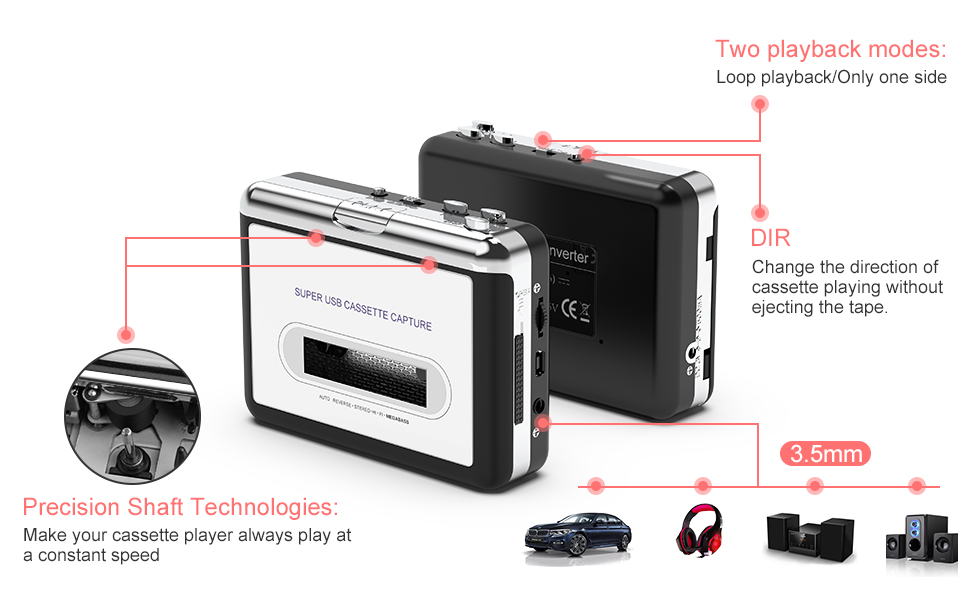
Image: The DigitNow Cassette Tape to MP3 Converter, a compact device for digitizing audio.
Contingut del paquet
Si us plau, verifiqueu que tots els elements que s'enumeren a continuació estiguin inclosos al vostre paquet:
- 1 x USB Cassette Capture Device
- 1 x cable USB
- 1 x Software CD (for Audacity)
- 1 x 3.5mm Jack Earphone
- 1 x Manual d'usuari

Image: All items included in the product package: the converter, USB cable, software CD, earphones, and user manual.
Característiques del producte
- Cassette Tape to MP3 Conversion: Easily convert old mix tapes and cassettes to digital MP3 files mitjançant un cable USB.
- Audacity Software Compatibility: Utilizes Audacity software for efficient digital audio conversion.
- Disseny portàtil: Compact size and lightweight for convenient use anywhere.
- Sortida d'àudio: Features a 3.5mm jack for listening through headphones or external speaker systems.
- Plug and Play: No special driver installation required for basic functionality.
- Opcions d'energia: Can be powered via USB or 2 x AA batteries (not included).
- Automatic Reverse Function: Allows continuous playback without manually flipping the cassette.
- Precision Shaft Technologies: Ensures stable and consistent playback speed.

Imatge: Detallada view of the internal components, highlighting the magnetic head and metal cassette deck mechanism.

Image: The device showcasing its standard 3.5mm audio jack for headphone or speaker connection.

Imatge: Part superior i lateral views of the converter, illustrating its compact form factor and control buttons.
Configuració
1. Alimentació del dispositiu
The DigitNow Cassette Tape to MP3 Converter can be powered in two ways:
- Potència USB: Connect the provided USB cable to the device and then to a USB port on your computer or a USB power adapter.
- Potència de la bateria: Insert 2 x AA batteries (not included) into the battery compartment. This option is for portable playback without computer connection.
2. Software Installation (Audacity)
To convert tapes to MP3, you will need audio recording software. The product includes a software CD with Audacity. If your computer does not have a CD drive or you prefer a newer version, Audacity can be downloaded from its official weblloc (www.audacityteam.org).
- Insert the software CD into your computer's CD drive or download Audacity from the official weblloc.
- Seguiu les instruccions a la pantalla per instal·lar el programari.

Image: Step 1 of setup, showing the software CD next to a laptop, indicating software installation.
3. Connexió a l'ordinador
Connect the USB cable from the cassette converter to an available USB port on your computer. The device is compatible with Windows XP, Vista, Windows 7, and Mac OS versions older than 10.5.

Image: Step 2 of setup, showing the USB cable connecting the cassette converter to a laptop.
Video: An official product video demonstrating the connection of the cassette player to a computer and the recording process using Audacity software.
Instruccions de funcionament
1. Inserting a Cassette
Open the cassette compartment cover and carefully insert your audio cassette. Ensure it is properly seated before closing the cover.

Image: Step 3 of operation, showing a finger pressing down to insert a cassette into the device.
2. Converting to MP3 using Audacity
Once the device is connected and Audacity is installed:
- Open Audacity on your computer.
- Ensure the correct input device is selected in Audacity (usually "USB Audio Device" or similar).
- Press the "Record" button in Audacity (red circle icon).
- Press the "Play" button on the DigitNow Cassette Tape to MP3 Converter to start playing the cassette.
- Audacity will begin recording the audio from the cassette.
- Once the desired audio has been recorded, press the "Stop" button in Audacity (yellow square icon) and on the cassette player.
- To save your recording, go to File > Export > Export as MP3 (or WAV, Ogg, etc.).
- Tria a file name and location on your computer, then click "Save".

Image: Step 4 of operation, displaying the Audacity software interface with audio waveforms, indicating a successful recording.

Image: A visual representation of the conversion process: cassette tape to the converter, connected via USB to a laptop, resulting in an MP3 file.
3. Listening to Cassettes (Portable Use)
For portable listening, ensure batteries are inserted. Plug the included 3.5mm earphones into the headphone jack on the device. Use the playback controls (Play, Stop, Fast Forward, Rewind) on the device to manage your audio.

Image: Collage showing individuals enjoying music with headphones, demonstrating the portable listening capability of the device.
Manteniment
- Mantingueu el dispositiu net i lliure de pols. Feu servir un drap suau i sec per netejar-lo.
- Eviteu exposar el dispositiu a temperatures extremes, humitat o llum solar directa.
- Quan no les feu servir durant períodes prolongats, traieu les piles per evitar fuites.
- Handle cassette tapes carefully to prevent damage to the tape or the device's magnetic head.
Resolució de problemes
| Problema | Causa possible | Solució |
|---|---|---|
| No audio output during playback. | Low batteries, headphones not connected properly, volume too low. | Replace batteries, ensure headphones are fully plugged in, increase volume. |
| No sound or poor quality sound during recording. | Incorrect input device selected in Audacity, loose USB connection, dirty magnetic head. | Verify Audacity input settings, ensure USB cable is securely connected, clean the magnetic head with a cassette head cleaner. Consider using a double-shielded USB cable if experiencing hum/interference. |
| Software CD not working or driver issues. | Incompatible CD drive, outdated software version. | Download the latest Audacity software directly from www.audacityteam.org. No specific drivers are typically needed for the device itself, as it functions as a standard USB audio input. |
| Cannot separate songs into individual tracks in Audacity. | Lack of familiarity with Audacity features. | Refer to the Audacity online manual or tutorials for advanced features like "Silence Finder" or "Label Tracks" to automatically or manually split recordings into individual songs. |
Especificacions
| Característica | Detall |
|---|---|
| Número de model | BR602 |
| Dimensions del producte (L x A x A) | 3.94 x 1.97 x 0.79 polzades |
| Pes de l'article | 7 unces |
| Font d'alimentació | USB or 2 x AA batteries (required) |
| Dispositius compatibles | Computer (PC or Mac) |
| Usos específics | PC audio capture |
| Tipus de connector | USB |
| Color | Plata |
Garantia i Suport
For warranty information and technical support, please refer to the documentation included with your product or visit the official DIGITNOW weblloc web. Els termes de garantia específics poden variar segons la regió i el distribuïdor.
You can also visit the DIGITNOW Store on Amazon for more information and contact options: DIGITNOW Store
Ask a question about this manual
Ask about setup, troubleshooting, compatibility, parts, safety, or missing instructions. Manuals+ will review the question and use this page’s manual context to help answer it.