
1. Introducció
The Nektar Impact LX61+ MIDI controller keyboard is designed for performers and producers seeking tactile instrument control. It offers comprehensive control and features for various computer music applications, including smart controller functionality. This manual provides essential information for setting up, operating, and maintaining your Impact LX61+.
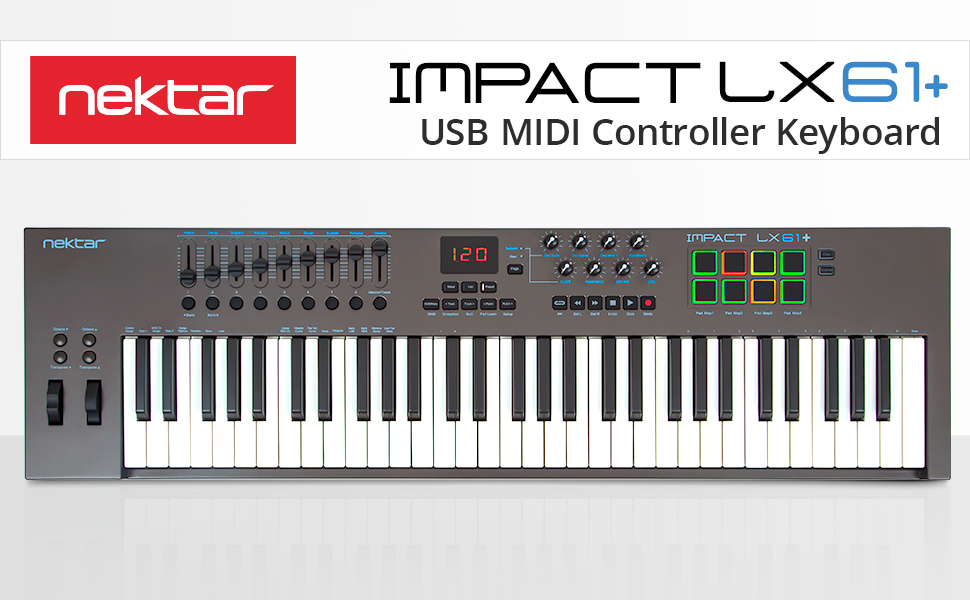
Image 1.1: Nektar Impact LX61+ Keyboard Controller overview.
2. Característiques clau
The Impact LX61+ is equipped with a range of features to enhance your music production workflow:
- 61 Full-Size Synth-Action Velocity-Sensitive Keys: Provides responsive and expressive playability.
- 8 Back-Lit Hyper-Sensitive Drum Pads: Ideal for beat production and triggering samples.
- 9 Faders and 8 Knobs: For hands-on control over mixer channels, instrument parameters, and effects.
- 6 Transport Buttons: Dedicated controls for DAW playback, recording, and navigation.
- Rodes de Pitch Bend i Modulació: For expressive performance.
- Botons d'octava i transposició: Easily shift the keyboard's range.
- Sustain Pedal Socket: For connecting an external sustain pedal (not included).
- Integració de Nektar DAW: Seamless integration with most popular Digital Audio Workstations (DAWs) for enhanced control.
- Comprehensive MIDI Functionality: Compatible with all MIDI music software applications.
- Compatibilitat multiplataforma: Works with Mac, PC, and iOS devices.

Image 2.1: Close-up of the Nektar Impact LX61+ keyboard layout.

Image 2.2: The powerful control center of the Nektar Impact LX61+.

Image 2.3: The 8 hyper-sensitive drum pads for beats and grooves.
3. Guia de configuració
Follow these steps to set up your Nektar Impact LX61+:
- Desembalar: Carefully remove the Impact LX61+ from its packaging. Ensure all components listed in the 'What's in the Box' section are present.
- Connectar USB: Connect the included USB cable from the Impact LX61+ to an available USB port on your computer (PC/Mac) or iOS device (requires Apple Camera Connection Kit, not included). The device is USB class compliant, meaning no special drivers are typically needed for basic functionality.
- Encès: The Impact LX61+ is powered via USB. Once connected, it should power on automatically.
- Instal·lació de programari (opcional però recomanada): For full Nektar DAW integration features, visit the Nektar Technology website to download and install any necessary drivers or integration files per al vostre DAW específic.
- Connect Sustain Pedal (Optional): If using a sustain pedal, connect it to the dedicated sustain pedal input on the rear of the keyboard.

Image 3.1: Rear panel showing USB and foot switch connections.
4. Instruccions de funcionament
The Impact LX61+ offers intuitive controls for various functions:
4.1. Reproducció bàsica
- Once connected to your computer and a DAW, the keyboard keys will trigger notes in your software instruments.
- Use the Pitch Bend and Modulation wheels on the left side for expressive control during performance.
4.2. Octave and Transpose
- Utilitzeu el dedicat Octava amunt/avall buttons to shift the keyboard's range by octaves.
- Utilitza el Transpose Up/Down buttons to shift the pitch in semitone increments.
4.3. Pads de bateria
- The 8 illuminated drum pads are velocity-sensitive. Press them to trigger drum sounds or samples in your DAW.
- The pads can be assigned to different MIDI notes or functions depending on your DAW and setup. Refer to your DAW's documentation for specific pad mapping instructions.
4.4. Faders and Knobs
- The 9 faders and 8 knobs provide real-time control. In DAW integration mode, these typically control mixer volume, pan, and send effects.
- In Instrument mode, they can control parameters of virtual instruments.
- The functionality of these controls is highly dependent on the active mode and your DAW's integration.

Image 4.1: Transport and navigation controls.
5. Integració amb DAW
The Nektar Impact LX61+ features deep integration with many popular DAWs, providing enhanced control over your music production environment. Supported DAWs include Bitwig, Cubase, Cakewalk, DP, FL Studio, GarageBand, Logic, Nuendo, Reaper, Reason, and Studio One.
5.1. Activating DAW Integration
- After connecting your Impact LX61+ and installing any necessary Nektar integration files (available on the Nektar website), open your DAW.
- Navigate to your DAW's preferences or settings menu, usually under 'MIDI' or 'Control Surfaces'.
- Select the Nektar Impact LX61+ as a control surface. Follow any on-screen prompts or refer to the Nektar documentation for your specific DAW.
5.2. Modes de control
The Impact LX61+ typically operates in different modes:
- Mode mesclador: Controls your DAW's mixer, allowing adjustment of track volumes, panning, and sends using the faders and knobs.
- Mode d'instrument: Maps the controls to parameters of the currently selected virtual instrument.
- Mode predefinit: Accesses user-defined presets for custom control mappings.

Image 5.1: Nektar DAW integration for various software.

Image 5.2: Mixer control functionality.

Image 5.3: Instrument control functionality.
6. Programari inclòs
The Nektar Impact LX61+ comes bundled with valuable software to get you started with music production:
- Bitwig Studio 8-Track DAW: A powerful Digital Audio Workstation that includes a sampler, polysynth, drum machine, FX, and more. It also comes with Bitwig Essentials Pack featuring a selection of presets, loops, clips, and samples.
- 5 Cherry Audio Full Version Plugins: Expand your sound palette with additional virtual instruments and effects.
Refer to the included license cards and instructions for downloading and activating your software.

Image 6.1: Nektar Impact LX61+ bundled with music production software.
7. Especificacions
| Característica | Detall |
|---|---|
| Pes de l'article | 9.02 lliures |
| Dimensions del producte | 38.03 x 10.51 x 3.03 polzades |
| Número de model de l'article | Impact LX61+ |
| Nom del color | Gris fosc |
| Dispositius compatibles | iOS; PC; Laptop running Windows, MacOS or Linux |
| Tipus de connector | USB |
| Interfície del maquinari | USB |
| Programari compatible | All MIDI software applications. |
| Tipus de material | Plàstic |
| Estil musical | Electrònica |
| Nombre de tecles del teclat | 61 |
| Quantitat de canal de mesclador | 8 |
| Plataforma de maquinari | PC/Mac/iOS/Linux |
| Característica especial | Nektar DAW integration for most popular DAWs |
8. Què hi ha a la caixa
Upon opening your Nektar Impact LX61+ package, you should find the following items:
- Impact LX61+ Keyboard
- Cable USB
- Manual del propietari
- Targeta de llicència de 8 pistes Bitwig Studio
- 5 Cherry Audio Full Version Plugins (License/Download Information)
9. Solució De Problemes
If you encounter issues with your Nektar Impact LX61+, consider the following common troubleshooting steps:
- Sense poder/No reconegut: Ensure the USB cable is securely connected to both the keyboard and your computer. Try a different USB port or cable. If using a USB hub, ensure it is powered.
- Sense so: Verify that your DAW is correctly configured to receive MIDI input from the Impact LX61+. Check that a software instrument is loaded and armed for recording on a track. Ensure your audio output is correctly set up and volume levels are adequate.
- Controls Not Working as Expected: Confirm that Nektar DAW integration files are installed and activated in your DAW's preferences. Check the mode of the Impact LX61+ (e.g., Mixer, Instrument) to ensure it aligns with your intended control.
- Connectivitat intermitent: Avoid connecting the keyboard through unpowered USB hubs or excessively long USB cables.
For more detailed troubleshooting or specific issues, please refer to the official Nektar Technology weblloc o poseu-vos en contacte amb el seu servei d'atenció al client.
10. Manteniment
To ensure the longevity and optimal performance of your Nektar Impact LX61+:
- Neteja: Use a soft, dry cloth to clean the surface of the keyboard. For stubborn dirt, a slightly damp es pot fer servir un drap, però assegureu-vos que no entri humitat al dispositiu. Eviteu netejadors o dissolvents abrasius.
- Emmagatzematge: Guardeu el teclat en un lloc fresc i sec, allunyat de la llum solar directa, de temperatures extremes i d'alta humitat.
- Manipulació: Eviteu deixar caure el dispositiu ni sotmetre'l a impactes forts. No col·loqueu objectes pesats a sobre del teclat.
- Protecció contra la pols: When not in use, consider covering the keyboard to protect it from dust accumulation.
11. Garantia i Suport
For information regarding the product warranty, technical support, and service, please visit the official Nektar Technology website. You will find detailed warranty terms, FAQs, and contact information for customer assistance.
Always register your product to receive updates and support.