
1. Introducció
This manual provides essential information for the safe and efficient operation of your Argox OX-330 Barcode Monochrome Printer. Please read this manual thoroughly before using the printer and retain it for future reference. The Argox OX-330 is designed for direct thermal and thermal transfer printing, offering a resolution of 203 dpi for clear and precise label output.
2. Informació de seguretat
- Font d'alimentació: Use only the power adapter supplied with the printer. Ensure the power outlet matches the voltage requisits.
- Col·locació: Col·loqueu la impressora sobre una superfície estable i plana. Eviteu llocs amb massa pols, humitat o llum solar directa.
- Ventilació: No bloquegeu les obertures de ventilació. Assegureu-vos que hi hagi un flux d'aire adequat al voltant de la impressora.
- Manipulació: Eviteu tocar el capçal d'impressió immediatament després d'imprimir, ja que pot estar calent.
- Neteja: Disconnect the power cord before cleaning the printer. Use a soft, dry cloth. Do not use liquid or aerosol cleaners.
- Reparacions: Do not attempt to repair the printer yourself. Refer all servicing to qualified service personnel.
3. Producte acabatview
The Argox OX-330 is a compact desktop thermal label printer capable of both direct thermal and thermal transfer printing. It features 8MB DRAM (5MB user available) and 4MB Flash ROM (2MB user available) for efficient data processing and storage.
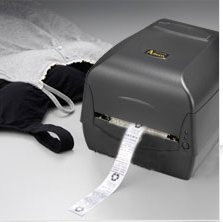
Figura 3.1: Argox OX-330 Barcode Monochrome Printer. This image shows the printer actively producing a label, demonstrating its primary function.
Components clau:
- Capçal d'impressió: Responsible for transferring the image onto the label.
- Media Guides: Ensure proper alignment of labels.
- Tauler de control: Includes buttons and indicator lights for printer status and basic operations.
- Port d'alimentació: Per connectar l'adaptador de corrent.
- Ports de dades: For connecting to a computer (e.g., USB, Wi-Fi).
- Media Compartment: Where label rolls and ribbons (for thermal transfer) are loaded.
4. Configuració
4.1 Desembalatge
- Traieu amb cura la impressora i tots els accessoris de l'embalatge.
- Verify that all components listed in the package contents are present.
- Remove any protective films or packing materials from the printer.
4.2 Connexió de potència
- Connecteu l'adaptador de corrent al port d'alimentació de la impressora.
- Connecteu el cable d'alimentació a una presa de corrent adequada.
- Do not power on the printer until all other connections are made.
4.3 Connexió a un ordinador
The Argox OX-330 supports Wi-Fi connectivity for seamless integration with your PC.
- Connexió Wi-Fi: Refer to the separate Wi-Fi setup guide for detailed instructions on connecting your printer to a wireless network. This typically involves installing the printer driver and utility software on your PC.
- USB Connection (if applicable): If using a USB cable, connect one end to the printer and the other to an available USB port on your PC.
4.4 Càrrega d'etiquetes i cinta
The OX-330 supports both Direct Thermal and Thermal Transfer printing methods. The loading procedure varies slightly depending on the method.
- Obriu la coberta superior de la impressora.
- Ajusteu les guies del suport a l'amplada del rotlle d'etiquetes.
- Place the label roll onto the media spindle, ensuring the labels feed correctly.
- Per Transferència tèrmica printing, also load the ribbon according to the diagrams inside the printer's media compartment. Ensure the ribbon is taut and correctly threaded.
- Tanqueu la coberta superior.
5. Instruccions de funcionament
5.1 Engegada/apagada
- Per encendre: Press the power button located on the printer. The indicator light will illuminate.
- Per apagar: Premeu i manteniu premut el botó d'engegada fins que la impressora s'apagui.
5.2 Instal·lació de controladors i programari
Before printing, install the appropriate printer drivers and label design software on your PC. These are typically provided on a CD with the printer or available for download from the Argox official weblloc. Seguiu les instruccions que apareixen a la pantalla per a la instal·lació.
5.3 Imprimir una etiqueta
- Ensure the printer is powered on and connected to your PC (via Wi-Fi or USB).
- Open your label design software or application from which you wish to print.
- Create or open your label design.
- Go to the 'Print' option in your software.
- Select the Argox OX-330 as your printer.
- Configure print settings such as label size, print quantity, and printing method (Direct Thermal or Thermal Transfer) if applicable. The printer supports a resolution of 203 dpi.
- Click 'Print'. The printer will begin printing your labels.
6. Manteniment
Regular maintenance ensures optimal performance and extends the life of your Argox OX-330 printer.
6.1 Neteja del capçal d'impressió
The print head is a critical component and should be cleaned regularly, especially if print quality degrades.
- Apagueu la impressora i desconnecteu el cable d'alimentació.
- Obriu la coberta superior per accedir al capçal d'impressió.
- Using a lint-free cloth moistened with isopropyl alcohol (99% pure), gently wipe the print head surface.
- Deixeu que el capçal d'impressió s'assequi completament abans de tancar la coberta i tornar a connectar l'alimentació.
6.2 Neteja general
- Netegeu l'exterior de la impressora amb un drap suau i sec.
- Use a soft brush or compressed air to remove dust and debris from inside the media compartment.
7. Solució De Problemes
This section addresses common issues you might encounter with your Argox OX-330 printer.
7.1 Sense poder
- Ensure the power cord is securely connected to both the printer and the electrical outlet.
- Verifiqueu que la presa de corrent funciona connectant-hi un altre dispositiu.
7.2 Mala qualitat d'impressió
- Netegeu el capçal d'impressió tal com es descriu a la secció 6.1.
- Ensure you are using the correct type of labels for your printing method (Direct Thermal or Thermal Transfer).
- Check if the ribbon (for thermal transfer) is correctly loaded and not depleted.
- Adjust print darkness settings in your printer driver.
7.3 La impressora no respon
- Check the connection between the printer and your PC (Wi-Fi or USB).
- Reinicieu tant la impressora com l'ordinador.
- Ensure the correct printer driver is installed and updated.
- Check the printer's status indicator lights for error messages.
7.4 Labels Not Feeding Correctly
- Assegureu-vos que les etiquetes estiguin carregades correctament i que les guies del suport estiguin ajustades a l'amplada de l'etiqueta.
- Check for any obstructions in the media path.
- Calibrate the printer for the label size if necessary (refer to printer utility software).
8. Especificacions
| Característica | Especificació |
|---|---|
| Marca | Argox |
| Nom del model | OX-330 |
| Tecnologia d'impressió | Tèrmica (Tèrmica Directa i Transferència Tèrmica) |
| Resolució d'impressió | 203 ppp |
| Sortida de la impressora | Monocrom |
| Tecnologia de connectivitat | Wi-Fi |
| Memòria | 8MB DRAM (5MB user available), 4MB Flash ROM (2MB user available) |
| Dispositius compatibles | PC |
| Printing Media Type | Etiquetes |
| Pes de l'article | 1800 grams |
| Dimensions del producte (P x A x A) | 16P x 6A x 10H centímetres |
| Característica especial | Compacte |
| Impressió a doble cara | Sí |
| Dúplex | Automàtic |
9. Garantia i Suport
9.1 Informació de la garantia
The Argox OX-330 Barcode Monochrome Printer comes with a 1 any de garantia from the date of purchase. This warranty covers manufacturing defects under normal use. It does not cover damage caused by misuse, accidents, unauthorized repairs, or consumables.
9.2 Suport tècnic
For technical assistance, troubleshooting beyond this manual, or warranty claims, please contact Argox customer support. Refer to the Argox official website or your purchase documentation for contact details and support resources.