
1. Introducció
The eero Pro WiFi System (2nd Generation) provides a whole-home mesh WiFi network, designed to replace traditional routers, WiFi extenders, and internet boosters. This system ensures fast, reliable internet coverage throughout your home by utilizing multiple wireless access points.
Què hi ha a la caixa
- 1 x eero Pro unit
- 1 x eero Beacon unit
- Adaptadors de corrent
- Cable Ethernet

Image 1.1: The eero Pro WiFi System, featuring the eero Pro unit and an eero Beacon, designed to blend seamlessly into your home environment.
2. Configuració
Setting up your eero Pro WiFi System is a quick and straightforward process, primarily guided by the eero mobile application. Ensure you have your internet service provider's modem ready and your smartphone or tablet with the eero app installed.
Instal·lació pas a pas
- Descarrega l'aplicació eero: Cerca "eero" in your device's app store and download the application.
- Connect the eero Pro: Disconnect your old router. Connect one eero Pro unit to your modem using the provided Ethernet cable. Plug the eero Pro into a power outlet.
- Segueix les instruccions de l'aplicació: Open the eero app and follow the on-screen prompts to create your eero account and set up your first eero Pro unit. The app will guide you through naming your network and setting a password.
- Add eero Beacons: Once your primary eero Pro is online, the app will instruct you to add eero Beacon units. Plug eero Beacons into standard wall outlets in areas needing extended coverage. The app will confirm when they are successfully added to your network.

Image 2.1: The eero app interface showing a successful network setup, indicating the network is up and running.

Image 2.2: Initial setup of the eero Pro unit, showing the connection of power and Ethernet cables.

Image 2.3: Plugging in an eero Beacon to extend WiFi coverage to another area of the home.
3. Operating the eero System
The eero Pro WiFi System operates using proprietary TrueMesh technology, which intelligently routes traffic to avoid congestion and ensures a strong, consistent signal across all connected devices. The eero app serves as your central control panel for managing your network.
Key Features and App Functions
- Cobertura de tota la llar: The eero Pro and eero Beacon units work together to eliminate dead spots and provide seamless WiFi coverage.
- Actualitzacions automàtiques: Your eero system automatically receives software updates to improve performance, add new features, and enhance security without manual intervention.
- Gestió de la xarxa: Use the eero app to view connected devices, check network usage, and manage guest access.
- Controls parentals: The app allows you to pause internet access for specific devices or profiles.
- Seguretat: eero provides automatic security updates to protect your network from threats.
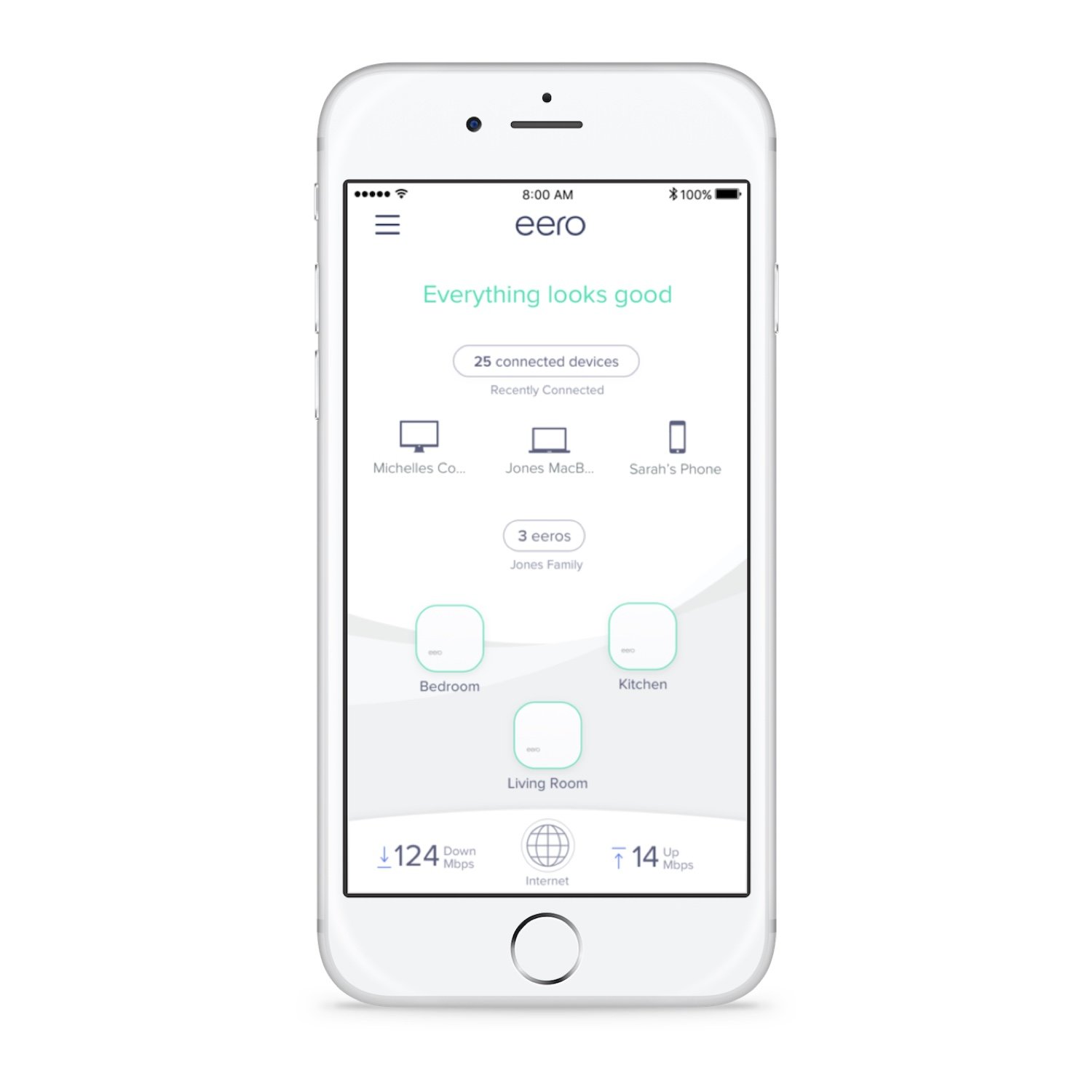
Image 3.1: The eero app showing a visual representation of the network, including connected devices and the placement of eero units.

Imatge 3.2: Un sobreview of the eero system's benefits, including comprehensive coverage, app-based control, automatic updates for peace of mind, and enhanced security.
4. Manteniment
The eero system is designed for minimal maintenance, thanks to its automatic update features. However, a few practices can help ensure optimal performance.
Consells generals de manteniment
- Keep Units Clear: Ensure eero units are not obstructed by furniture or other objects that could interfere with signal transmission.
- Netegeu suaument: If necessary, gently wipe the exterior of the eero units with a soft, dry cloth. Avoid using liquid cleaners or abrasive materials.
- Actualitzacions de firmware: eero automatically updates its firmware. Ensure your units are connected to the internet to receive these critical updates.
- Reinici d'unitats: If you experience minor connectivity issues, restarting individual eero units or the entire system via the app can often resolve them.
5. Solució De Problemes
If you encounter issues with your eero Pro WiFi System, consult the following common troubleshooting steps. The eero app also provides diagnostic tools and support options.
Problemes comuns i solucions
| Problema | Solució |
|---|---|
| Sense connexió a Internet | Check if your modem is working correctly. Ensure the primary eero Pro is connected to the modem and powered on. Restart your modem and primary eero. |
| Slow Speeds or Dead Spots | Verify eero units are optimally placed. Ensure eero Beacons are within range of another eero unit. Check for physical obstructions. Use the eero app to check signal strength between units. |
| Device Cannot Connect to WiFi | Ensure you are using the correct WiFi password. Restart the problematic device. If the issue persists, restart the nearest eero unit. |
| eero Unit Light Status | A solid white light indicates online status. A blinking white light indicates booting up. A solid red light indicates no internet connection. A blinking red light indicates a problem. Refer to the eero app for specific error messages. |
6. Especificacions
The eero Pro WiFi System (2nd Generation) is engineered for high performance and reliable whole-home connectivity.
Detalls tècnics
- Tecnologia: TrueMesh WiFi
- Velocitat: Up to 2x faster than the original eero WiFi system
- Cobertura: Designed for 1-2 bedroom homes (with 1 eero Pro + 1 eero Beacon)
- Compatibilitat: Backwards compatible with 1st generation eero devices
- Connectivitat: Dual auto-sensing Gigabit Ethernet ports on eero Pro
- Seguretat: WPA2 encryption, automatic security updates
- Control: Managed via eero mobile app (iOS/Android)

Image 6.1: The compact and minimalist design of the eero Pro unit.

Image 6.2: The eero Beacon, designed to plug directly into a wall outlet for easy extension of your WiFi network.

Image 6.3: The eero Beacon in operation, showing its integrated nightlight feature when plugged into a wall socket.
7. Garantia i Suport
For detailed warranty information and technical support, please refer to the official eero website or contact eero customer service.
Informació de contacte
- Assistència en línia: Visita eero.com/support
- Atenció al client: Refer to the eero app for direct contact options or call the number provided on the official eero support page.