
1. Introducció
This manual provides instructions for the ROCCAT KONE Aimo Gaming Mouse. The KONE Aimo features an Owl-Eye Optical Sensor, customizable RGB AIMO LED illumination, and 23 programmable keys. It is designed for precision and ergonomic comfort during extended use.
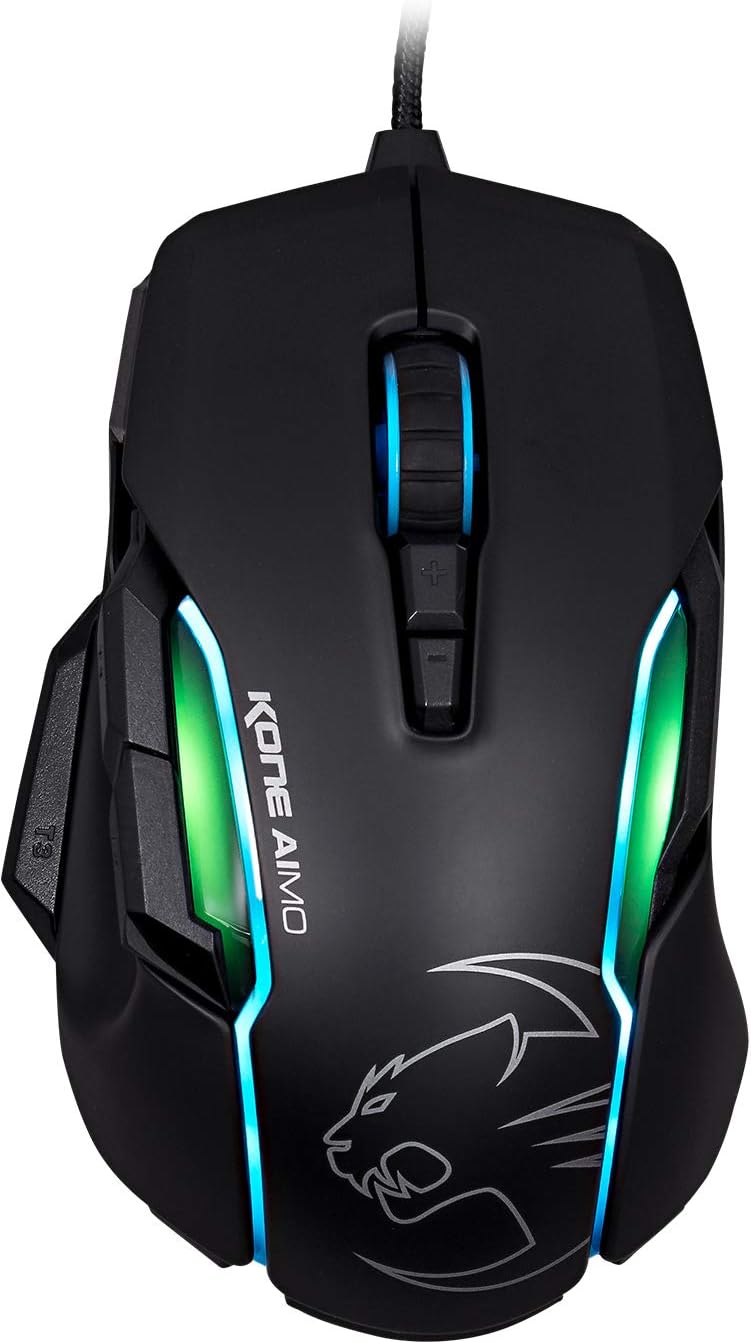
Figura 1: superior view of the ROCCAT KONE Aimo Gaming Mouse, showcasing its ergonomic shape and RGB lighting zones.
2. Contingut del paquet
Verifiqueu que tots els elements siguin presents al paquet:
- KONE AIMO Mouse with Attached Braided USB Cable
- Guia ràpida
- ROCCAT Stickers

Figure 2: Retail packaging of the ROCCAT KONE Aimo Gaming Mouse.
3. Configuració
- Connecteu el ratolí: Plug the USB cable of the ROCCAT KONE Aimo mouse into an available USB port on your computer.
- Instal·lació del controlador: Your operating system (Windows 7, 8, 8.1, 10) should automatically detect and install the necessary drivers.
- Install ROCCAT Swarm Software: For full customization of DPI settings, button assignments, and AIMO lighting, download and install the ROCCAT Swarm software from the official ROCCAT website. This software allows you to create and manage profiles.

Figure 3: The ROCCAT KONE Aimo mouse in use on a mouse pad, connected to a computer.
4. Instruccions de funcionament
4.1. Funcions del botó
The KONE Aimo features 23 programmable keys, including a tri-button thumb zone and a 4D tilting Titan wheel. These can be customized via the ROCCAT Swarm software.
- Clic esquerre/dret: Funcions estàndard del ratolí.
- Scroll Wheel (4D Titan Wheel): Scrolls vertically and can tilt horizontally for additional functions. Also acts as a clickable button.
- Botons d'ajust de DPI: Located above and below the scroll wheel, these buttons allow for on-the-fly DPI sensitivity changes. Settings are configured in the Swarm software.
- Thumb Buttons (T1, T2, T3): Three buttons located on the left side, easily accessible by the thumb. The bottom-most button (T3) is often defaulted to the Easy-Shift[+] function.
- Easy-Shift[+] Button: This exclusive ROCCAT feature doubles the number of programmable functions for other buttons when held down, effectively expanding the total programmable keys.

Figura 4: Detallada view of the programmable thumb buttons (T1, T2, T3) on the left side of the mouse.
4.2. AIMO Lighting System
The AIMO lighting system provides intelligent, reactive RGB illumination across four independently configurable LED light zones and the glowing mouse wheel. It can synchronize with other compatible ROCCAT devices and is programmable through the ROCCAT Swarm software.

Figure 5: The KONE Aimo mouse displaying its multi-zone RGB AIMO illumination.
4.3. Owl-Eye Optical Sensor
The mouse is equipped with the ROCCAT Owl-Eye Optical Sensor, a modified PixArt 3361 sensor, offering adjustable DPI from 100 to 12,000. This sensor provides precise tracking and responsiveness. A built-in tracking distance control unit monitors the lift-off distance for enhanced accuracy.

Figure 6: The bottom of the mouse, highlighting the Owl-Eye Optical Sensor.
4.4. Ergonomia
The KONE Aimo features refined ergonomics designed for comfort during extended use. Its shape provides a natural fit for the hand, with a dedicated thumb rest area.

Figure 7: A hand gripping the KONE Aimo mouse, illustrating its ergonomic design.
5. Manteniment
- Neteja: Feu servir un drap suau i sec per netejar la superfície del ratolí. Per a la brutícia persistent, feu un drap lleugerament sec.amp es pot utilitzar un drap, assegurant-se que no entri humitat als components interns.
- Cura del sensor: Keep the optical sensor on the underside of the mouse clean and free of dust or debris to ensure optimal tracking performance.
- Gestió de cables: Eviteu doblegar bruscament o estirar excessivament el cable USB trenat per evitar danys.
6. Solució De Problemes
- El ratolí no respon:
- Assegureu-vos que el cable USB estigui ben connectat a un port USB que funcioni.
- Try a different USB port or another computer to rule out port or system issues.
- Reinicieu l'ordinador.
- Tracking Issues / Inaccurate Movement:
- Netegeu el sensor òptic de la part inferior del ratolí.
- Ensure you are using the mouse on a clean, suitable mouse pad or surface.
- Check DPI settings in the ROCCAT Swarm software.
- RGB Lighting Not Working / Incorrect:
- Verify that the ROCCAT Swarm software is running and updated.
- Check lighting settings within the Swarm software.
- Ensure no conflicting software is controlling RGB lighting.
- Botons que no funcionen:
- Check button assignments in the ROCCAT Swarm software.
- Ensure the software is not experiencing issues (try restarting it).
7. Especificacions
| Característica | Detall |
|---|---|
| Marca | ROCCAT |
| Número de model | ROC-11-815-BK |
| Sensor | Owl-Eye Optical Sensor (modified PixArt 3361) |
| Rang de DPI | 100 to 12,000 DPI |
| Botons programables | 23 (amb Easy-Shift[+]) |
| Il·luminació | RGBA AIMO LED Illumination (4 independent zones + scroll wheel) |
| Connectivitat | USB (per cable) |
| Compatibilitat de sistemes operatius | Windows 7, Windows 8, Windows 8.1, Windows 10 (32-bit and 64-bit versions) |
| Pes de l'article | 11.2 unces (aproximadament 317.5 grams) |
| Dimensions del producte (LxWxH) | 5.12 x 2.95 x 1.57 polzades (aproximadament 13 x 7.5 x 4 cm) |
8. Garantia i assistència
For warranty information, technical support, and additional resources, please visit the official ROCCAT website or contact ROCCAT customer service. Keep your proof of purchase for warranty claims.
També podeu visitar el ROCCAT Store on Amazon per obtenir més informació sobre el producte.