
FIDECO Y842H
FIDECO Dual Bay USB 3.0 Hard Drive Docking Station User Manual
Model: Y842H
Introducció
Thank you for choosing the FIDECO Dual Bay USB 3.0 Hard Drive Docking Station. This device provides a convenient and efficient solution for accessing, managing, and cloning 2.5-inch and 3.5-inch SATA HDDs and SSDs. With its high-speed USB 3.0 interface and offline cloning capability, it is an ideal tool for data backup, recovery, and transfer.

Figura 1: FIDECO Dual Bay USB 3.0 Hard Drive Docking Station. This image shows the front and top view of the docking station, highlighting its two drive bays and three front-facing USB ports.
Contingut del paquet
Please verify that all items are present and in good condition upon opening the package. If any items are missing or damaged, please contact customer support.
- FIDECO Dual Bay USB 3.0 Hard Drive Docking Station (Model: Y842H)
- Cable de dades USB 3.0
- Adaptador d'alimentació
- Manual d'usuari (aquest document)

Figura 2: Contents of the FIDECO docking station package. This image displays the docking station, power adapter, USB cable, and user manual laid out next to the product box.
Guia de configuració
Follow these steps to set up your FIDECO Hard Drive Docking Station:
- Insert SATA HDD/SSD: Gently slide your 2.5-inch or 3.5-inch SATA HDD or SSD into one or both of the drive bays. Ensure the drive is fully seated in the connector.
- Connecteu el cable USB: Connect one end of the provided USB 3.0 data cable to the USB 3.0 port on the back of the docking station and the other end to an available USB 3.0 port on your computer.
- Connecteu l'adaptador d'alimentació: Plug the power adapter into the DC 12V input port on the back of the docking station, then plug the adapter into a standard electrical outlet.
- Encès: Flip the power switch located on the back of the docking station to the 'ON' position. The power indicator LED on the front of the unit should illuminate.

Figura 3: Step-by-step setup process. This image illustrates inserting a hard drive, connecting the USB cable to a laptop, connecting the power adapter, and the location of the power switch on the back of the unit.
Once connected, your operating system should automatically detect the drives. For new drives or drives that are not formatted, you may need to initialize and format them through Disk Management (Windows) or Disk Utility (Mac OS) before use.
Instruccions de funcionament
Transferència de dades
After successful setup, the inserted hard drives will appear as removable storage devices on your computer. You can drag and drop files, copiar, enganxar o utilitzar qualsevol file management software to transfer data between your computer and the drives, or between the two drives in the docking station (via your computer).
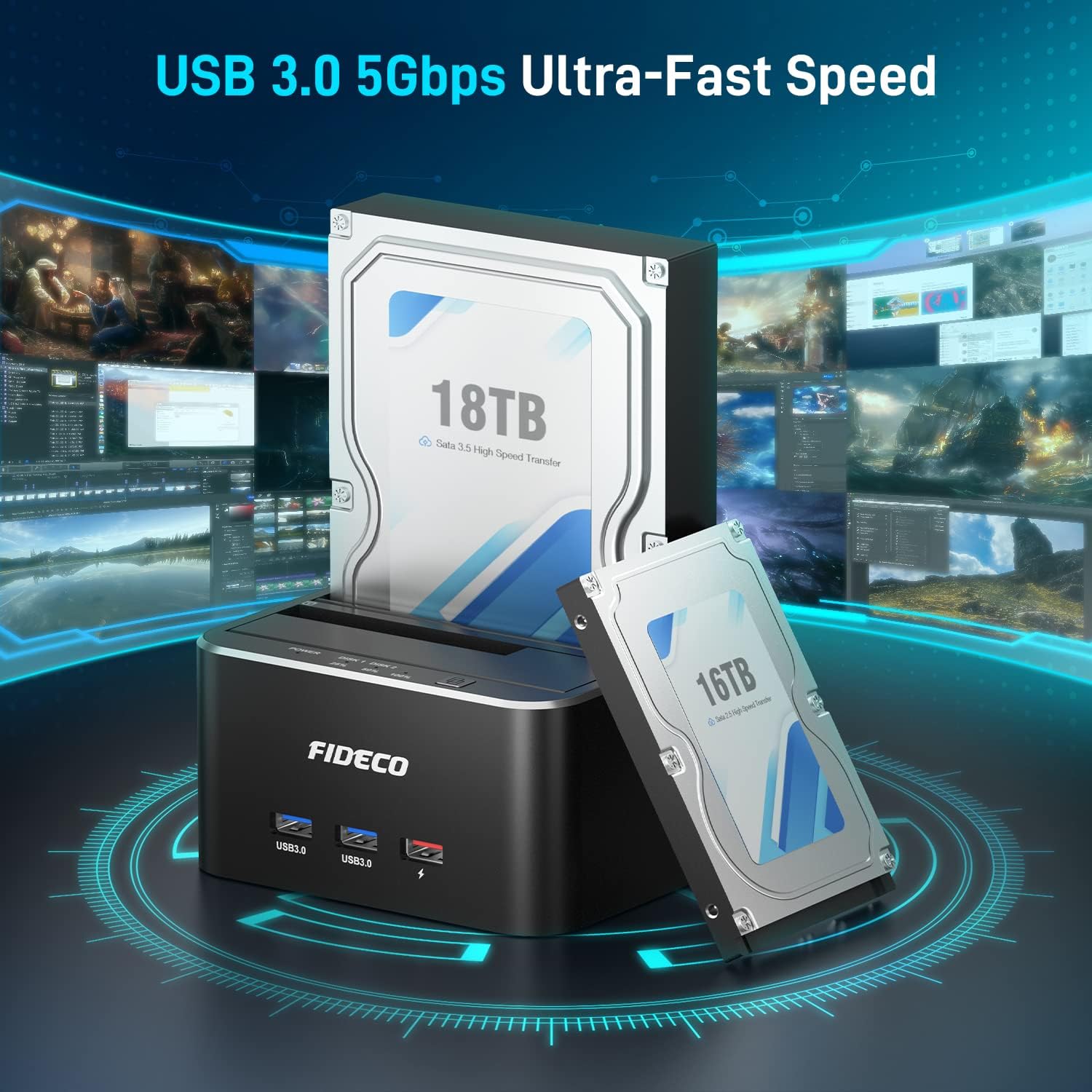
Figura 4: High-speed data transfer. This image visually represents the fast data transfer capabilities of the USB 3.0 interface, showing large hard drives connected to the docking station.
Funció de clonació fora de línia
The FIDECO docking station supports offline cloning, allowing you to duplicate a hard drive without connecting to a computer. This is useful for creating backups or upgrading drives.
- Preparar les unitats: Ensure the docking station is powered off. Insert the Disc d'origen (the drive you want to clone from) into Slot 1 (Disk 1). Insert the Disc objectiu (the drive you want to clone to) into Slot 2 (Disk 2). The target disk must be equal to or larger in capacity than the source disk.
- Desconnectar del PC: Ensure the USB data cable is disconnected from your computer. The cloning process is performed offline.
- Encès: Turn on the power switch of the docking station.
- Iniciar la clonació: Press and hold the "Clone" button on the front of the docking station for approximately 3 seconds until the blue indicator lights (25%, 50%, 75%, 100%) begin to flash.
- Supervisar el progrés: The blue indicator lights will progressively illuminate to show the cloning progress (25%, 50%, 75%, 100%).
- Cloning Complete: Once all four blue indicator lights remain solid, the cloning process is complete. You can then power off the docking station and remove the drives.

Figura 5: Offline cloning process. This image illustrates the setup for offline cloning, showing the source and target drives inserted and the clone button being pressed.

Figura 6: Detailed steps for offline cloning. This image provides a visual guide to the four main steps of the offline cloning process, from inserting drives to setting the target disk online after cloning.
Nota important: The offline cloning process will erase all data on the target disk. Please ensure you have backed up any important data from the target disk before initiating the clone.
Funcionalitat del concentrador USB
The docking station features three additional USB ports on the front: two USB 3.0 data ports and one dedicated charging port. These ports function as a USB hub when the docking station is connected to your computer via the USB data cable and powered on.
- USB 3.0 Data Ports: Connect USB flash drives, external hard drives, keyboards, mice, or other USB peripherals for data transfer or input.
- Port de càrrega: Use this port to charge smartphones, tablets, or other USB-powered devices. Note that this port provides standard charging speeds (e.g., 5V/1A) and does not support fast charging protocols.

Figura 7: Multifunctionality of the docking station. This image highlights the two USB 3.0 data ports and one charging port on the front, demonstrating their use with USB drives and a smartphone.
Manteniment
- Mantingueu l'estació d'acoblament neta i sense pols. Feu servir un drap suau i sec per netejar-la.
- Eviteu exposar el dispositiu a temperatures extremes, humitat o llum solar directa.
- Do not block the ventilation openings on the device.
- Always safely eject drives from your operating system before powering off the docking station or disconnecting the USB cable to prevent data corruption.
- Quan no l'utilitzeu durant períodes prolongats, desconnecteu l'adaptador de corrent de la presa de corrent.
Resolució de problemes
| Problema | Possible causa/solució |
|---|---|
| L'ordinador no ha detectat la unitat. |
|
| Offline cloning fails or does not start. |
|
| Velocitats de transferència de dades lentes. |
|
| USB hub ports not working. |
|
Especificacions
| Característica | Detall |
|---|---|
| Número de model | Y842H |
| Marca | FIDECO |
| Interfície | USB 3.0 (compatible enrere amb USB 2.0) |
| Velocitat de transferència de dades | Fins a 5 Gbps (USB 3.0 SuperSpeed) |
| Compatibilitat amb la unitat | Disc dur/SSD SATA I/II/III de 2.5 i 3.5 polzades |
| Capacitat màxima compatible | Fins a 20 TB per badia (40 TB en total) |
| Nombre de badies d'unitats | 2 |
| Ports del concentrador USB | 2 x USB 3.0 Data Ports, 1 x USB Charging Port |
| Clon fora de línia | Supported (No PC required) |
| Material | Aluminum (body), ABS Plastic (top) |
| Color | Negre |
| Compatibilitat de sistemes operatius | Windows XP/Vista/7/8/8.1/10, Mac OS, Linux |
| Font d'alimentació | External Power Adapter (DC 12V) |
| Pes de l'article | Aproximadament 1.7 lliures (0.77 kg) |
| UPC | 712492199598 |

Figura 8: Diagram showing the dimensions and port labels of the FIDECO docking station, including LED indicators, clone button, disk slots, USB 3.0 ports, charging port, DC input, and power switch.
Garantia i Suport
FIDECO products come with a standard manufacturer's warranty. For specific warranty terms and conditions, please refer to the warranty card included in your package or visit the official FIDECO weblloc.
For technical support, troubleshooting assistance, or any inquiries regarding your FIDECO product, please contact our customer support team. Contact information can typically be found on the FIDECO weblloc web o a l'embalatge del producte.
Recursos en línia:
- FIDECO Official Weblloc (Nota: Això és un marcador de posició) URL com que no hi ha suport específic URL was provided in the input. Users should refer to their product documentation for the exact URL.)
- Suport per correu electrònic (Please note: This is a placeholder email as no specific support email was provided in the input. Users should refer to their product documentation for the exact email.)
Ask a question about this manual
Ask about setup, troubleshooting, compatibility, parts, safety, or missing instructions. Manuals+ will review the question and use this page’s manual context to help answer it.