
1. Producte acabatview
1.1 Components
The Pruveeo 112GW Dash Cam package typically includes the following items:
- Main Dash Cam Unit (Front Camera with LCD screen)
- Càmera posterior
- Cable d'alimentació del carregador de cotxe
- Muntatge de la ventosa
- Muntatge adhesiu
- Cable de dades USB
- Manual d'usuari
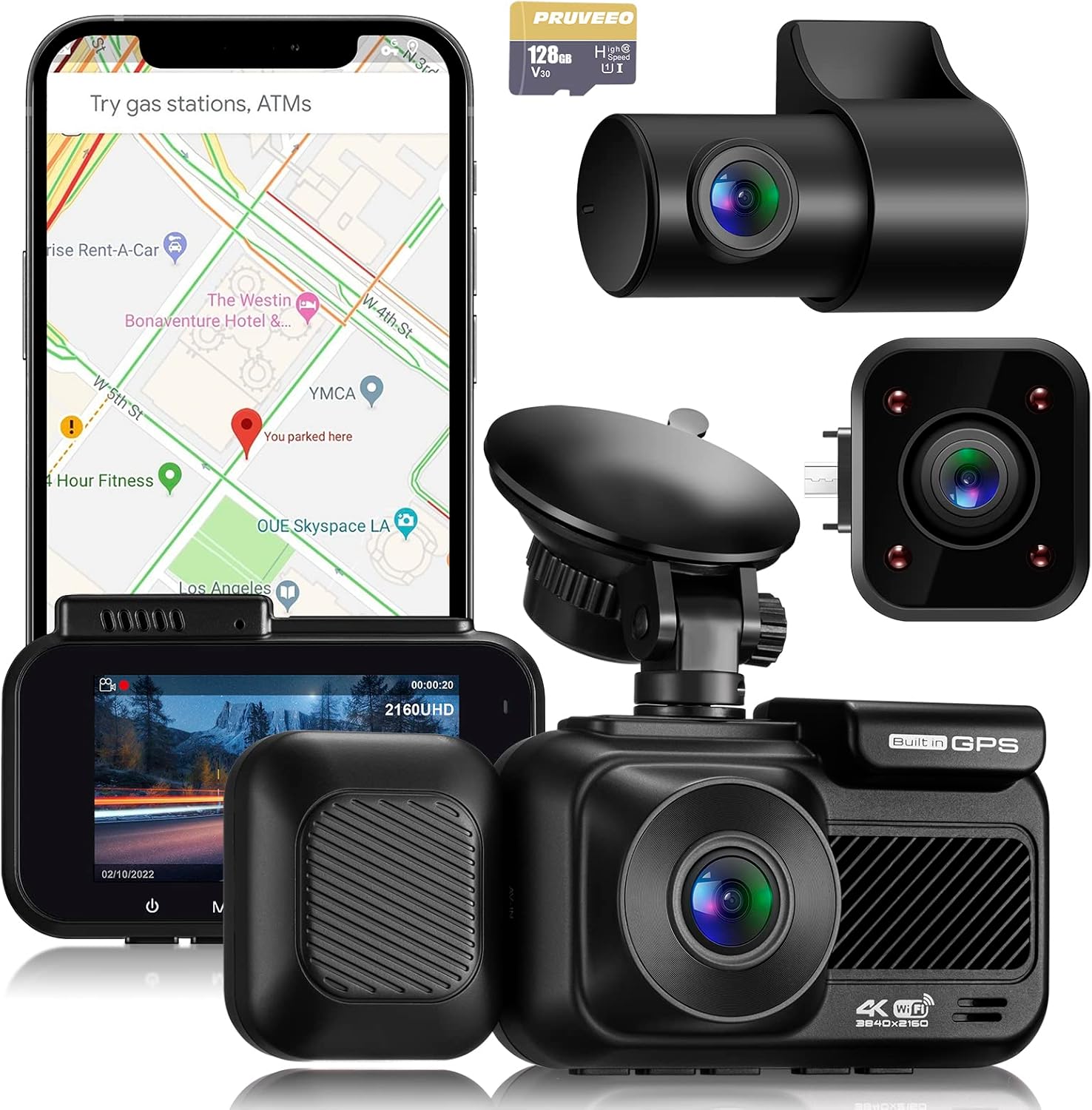
This image displays the primary components included with the Pruveeo 112GW Dash Cam: the main front camera unit with a 2.4-inch LCD screen, a separate rear camera, a GPS module, and the power cable. A 128GB microSD card is also shown, indicating storage capability.
1.2 Característiques clau
The Pruveeo 112GW Dash Cam offers a range of features designed for vehicle recording:
- Enregistrament Full HD 1080P: Captura vídeo nítidtage.
- Wi-Fi integrat: Allows connection to a mobile application for viewing, downloading, and sharing footage.
- GPS integrat: Records driving location and speed data, viewable via a dedicated player.
- Sony Sensor: Enhances image quality, particularly in low-light conditions.
- 170-degree Wide Angle Lens: Provides a broad view del camí per davant.
- Pantalla LCD d'2.4 polzades: En temps real viewi navegació per menús.
- Visió nocturna per infrarojos: For improved recording in dark environments.
- Control de veu: Hands-free operation for common functions like taking photos or starting/stopping video.
- Enregistrament en bucle: Sobreescriu automàticament el menjar més antictage quan la targeta de memòria estigui plena.
- Sensor G (detecció de col·lisions): Bloqueja automàticament el menjartage en l'impacte per evitar la sobreescriptura.
- Monitor d'aparcament: Records events when the vehicle is parked and detects motion or impact.
- Supercondensador: Provides enhanced durability and reliability in extreme temperatures compared to traditional batteries.

This diagram illustrates key functional advantages, including modular capability, ultra-wide angle, loop recording, Wi-Fi support, collision detection, internal GPS logger, parking monitor, super capacitor, and Sony IMX 335 sensor. Note: While the image mentions '4K', this manual pertains to the 1080P model.

This image shows the dash cam's display interface, indicating 2160UHD recording (note: this manual is for the 1080P model) and highlighting its super night vision feature, with a road scene at night.
2. Informació de seguretat
Please read and understand all safety instructions before using the Pruveeo 112GW Dash Cam. Failure to follow these instructions may result in injury or damage to the device.
- Instal·lació correcta: Assegureu-vos que la càmera del salpicader estigui instal·lada correctament i que no obstrueixi la vista del conductor. view of the road or interfere with vehicle safety features (e.g., airbags).
- Font d'alimentació: Use only the provided car charger and power cable. Using unauthorized chargers may damage the device or cause fire.
- Temperatura de funcionament: Avoid exposing the device to extreme temperatures (above 60°C / 140°F or below -10°C / 14°F) as this can affect performance and battery life.
- Aigua i humitat: Keep the device away from water, rain, and moisture. It is not waterproof.
- Neteja: Clean the lens and screen with a soft, dry cloth. Do not use abrasive cleaners or solvents.
- Compliment legal: Always adhere to local laws and regulations regarding dash cam usage and recording.
- Targeta de memòria: Use a high-quality, high-speed (Class 10 or higher) microSD card for optimal performance.
3. Configuració
3.1 Instal·lació
3.1.1 Muntatge de la càmera del salpicader
- Netegeu la zona del parabrisa on voleu muntar la càmera del salpicader.
- Attach the suction cup mount or adhesive mount to the main dash cam unit.
- Mount the dash cam on the windshield, ideally behind the rearview mirall, assegurant-vos que no us obstrueixi view. Press firmly to secure.
- Adjust the lens angle to capture the desired view de la carretera.

This image demonstrates the proper placement of the dash cam on the car's windshield, typically behind the rearview mirall, per garantir una visió sense obstacles view i fixació segura.
3.1.2 Connexió de potència
- Connect the car charger power cable to the dash cam's power input port.
- Connecteu l'altre extrem del carregador de cotxe a la presa de corrent de 12 V del vostre vehicle (endoll de l'encenedor de cigarrets).
- Route the cable neatly along the windshield and dashboard edges to avoid interference with driving.
3.1.3 Instal·lació de la càmera posterior (opcional)
- Connecteu el cable de la càmera posterior al port designat de la unitat principal de la càmera del salpicader.
- Munteu la càmera posterior al parabrisa posterior amb el seu adhesiu, assegurant una visió clara view.
- Route the cable discreetly from the front unit to the rear of the vehicle.
3.2 Configuració inicial
3.2.1 Inserció de la targeta de memòria
- Assegureu-vos que la càmera del salpicader estigui apagada.
- Insert a Class 10 or higher microSD card (up to 128GB recommended) into the memory card slot until it clicks into place.
- Power on the dash cam. It is recommended to format the memory card through the dash cam's menu settings before first use.
3.2.2 Primera encesa i configuració bàsica
- Once powered, the dash cam will typically turn on automatically and begin recording.
- Access the menu settings to configure date/time, video resolution, loop recording duration, G-sensor sensitivity, and other preferences.
3.2.3 Funcionalitat del GPS
The built-in GPS module automatically records your vehicle's location and speed. Ensure the dash cam has a clear view of the sky for optimal GPS signal reception. GPS data can be viewed using a dedicated player on a computer.
3.2.4 Connexió Wi-Fi i emparellament d'aplicacions
- Download the Pruveeo mobile application from your smartphone's app store.
- On the dash cam, enable Wi-Fi through the menu settings. The dash cam will broadcast a Wi-Fi network.
- Al telèfon intel·ligent, connecteu-vos a la xarxa Wi-Fi de la càmera del salpicader (l'SSID i la contrasenya es mostraran a la pantalla de la càmera del salpicader).
- Open the Pruveeo app to connect to the dash cam, view viu footage, access recordings, and adjust settings.
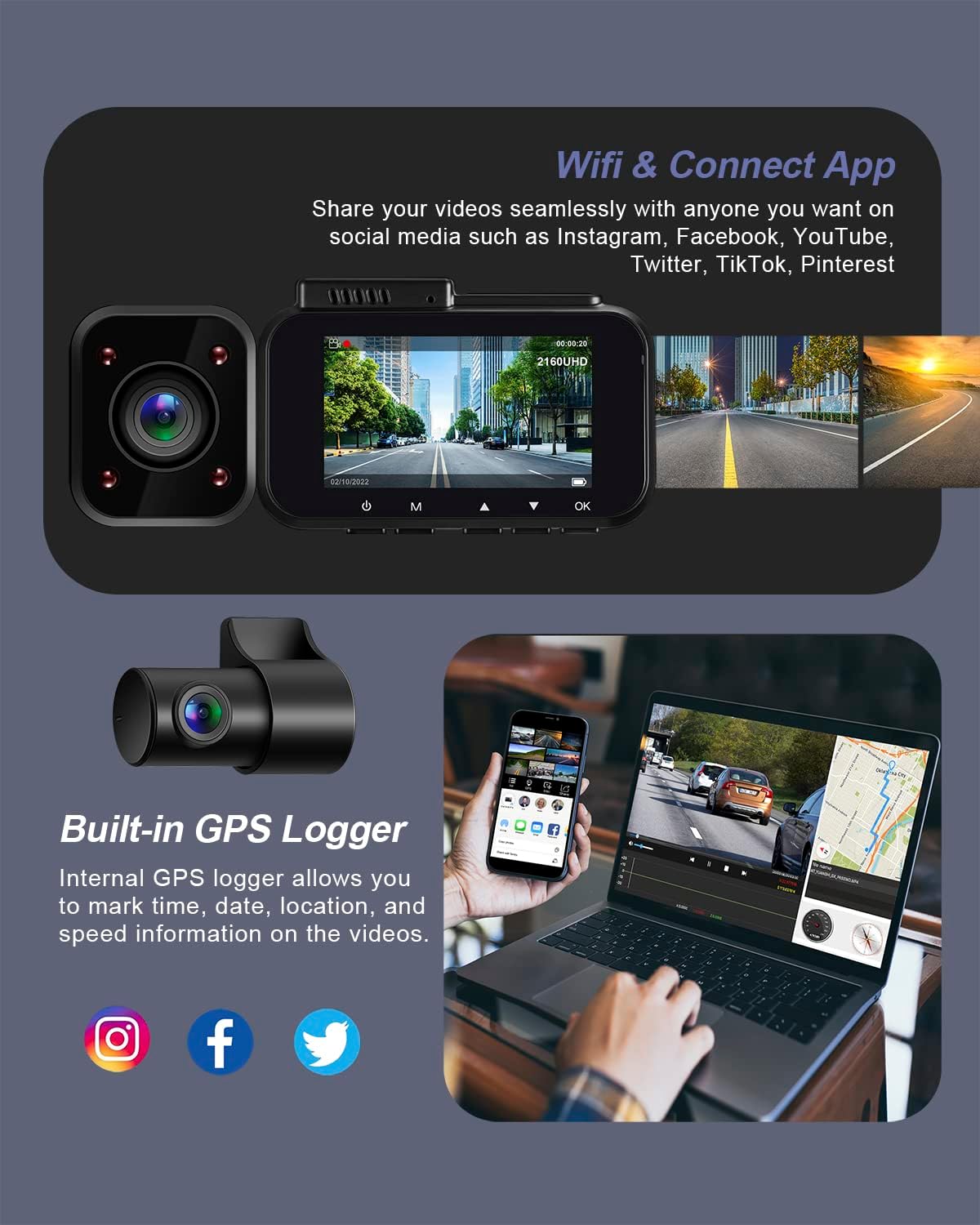
This image illustrates the dash cam's Wi-Fi connectivity for app integration and video sharing, alongside its built-in GPS logger feature which records location and speed data.
4. Instruccions de funcionament
4.1 Enregistrament bàsic
4.1.1 Enregistrament automàtic
The dash cam automatically starts recording when connected to power and the vehicle's ignition is turned on. It will stop recording and power off shortly after the ignition is turned off.
4.1.2 Enregistrament en bucle
Recordings are saved in segments (e.g., 1, 3, or 5 minutes). When the memory card is full, the oldest unlocked files are automatically overwritten by new recordings. Adjust loop recording duration in the settings.
4.1.3 Enregistrament d'emergència (sensor G)
The built-in G-sensor detects sudden impacts or collisions. When triggered, the current video segment is automatically locked and saved to a protected folder, preventing it from being overwritten by loop recording. Adjust G-sensor sensitivity in the settings.
4.2 Control de veu
The Pruveeo 112GW supports voice commands for hands-free operation. Speak clearly and directly to the dash cam to execute commands.
- "Lock the video": Protects the current recording from being overwritten.
- "Turn on screen": Activates the LCD display.
- "Turn off screen": Deactivates the LCD display.
- "Video start": Inicia l'enregistrament de vídeo.
- "Take photo": Captures a still image.

This image depicts a driver using voice commands such as 'Lock the video', 'Turn on screen', 'Turn off screen', 'Video start', and 'Take photo' to operate the dash cam hands-free.
4.3 Mode d'aparcament
When enabled, parking mode provides surveillance while your vehicle is parked. The dash cam will automatically record if it detects motion or an impact.
- Buffered Recording: If an event is detected, the dash cam saves 15 seconds of video before the event and 30 seconds after the event.
- Detecció automàtica d'esdeveniments: Automatically records when detecting moving objects or impact while the car is parked.
- Gravació de baixa taxa de bits: Records video at a lower bitrate to conserve storage space during extended parking surveillance.

This diagram illustrates the buffered parking mode, which records events leading up to and following an impact or detected motion while the vehicle is parked, saving 15 seconds before and 30 seconds after the event.
4.4 Viewing i gestió de Footage
4.4.1 On the Device
Use the dash cam's LCD screen and navigation buttons to browse and play back recorded videos directly on the device.
4.4.2 Via Mobile App
Connect your smartphone to the dash cam via Wi-Fi using the Pruveeo app. You can view viu footage, download recordings to your phone, and manage settings.
4.4.3 On a Computer
Remove the microSD card from the dash cam and insert it into a computer's card reader. You can then access and copy video files. For GPS data playback, use the dedicated GPS player software (usually available for download from the manufacturer's weblloc).
4.5 Wide Angle Camera Views
The Pruveeo 112GW Dash Cam system provides extensive coverage:
- Càmera frontal: 170-degree wide angle.
- Internal Camera: 160-degree wide angle (if applicable to the specific model variant).
- Càmera posterior: 140-degree wide angle.
This comprehensive coverage ensures a broad view of the road ahead, the vehicle's interior, and the rear, providing detailed surveillance.
5. Manteniment
5.1 Gestió de targetes de memòria
Regularly format the microSD card (at least once a month) through the dash cam's settings menu to ensure optimal performance and prevent data corruption. Back up any important footage abans de formatar.
5.2 Neteja del dispositiu
Use a soft, dry, lint-free cloth to clean the dash cam's lens and screen. Do not use liquid cleaners or abrasive materials, as they can damage the device.
5.3 actualitzacions de microprogramari
Periodically check the Pruveeo official website for available firmware updates. Firmware updates can improve performance, add new features, or fix bugs. Follow the instructions provided with the firmware update carefully.
6. Solució De Problemes
If you encounter issues with your Pruveeo 112GW Dash Cam, refer to the following common problems and solutions:
- La càmera del salpicader no s'encén:
Ensure the car charger is properly connected to both the dash cam and the vehicle's 12V outlet. Check if the vehicle's 12V outlet is functioning. Try a different power source if available. - Recording Issues (e.g., stops recording, corrupted files):
Format the microSD card regularly. Ensure you are using a high-speed (Class 10 or higher) microSD card from a reputable brand. Replace the memory card if issues persist. Check if loop recording is enabled. - GPS Signal Loss or Inaccuracy:
Assegureu-vos que la càmera del salpicader tingui una visió clara view of the sky, free from obstructions like tinted windows or metallic coatings. Move the dash cam to a different location on the windshield if necessary. - Problemes de connexió Wi-Fi:
Ensure Wi-Fi is enabled on the dash cam and your smartphone. Verify the Wi-Fi password. Try restarting both the dash cam and your smartphone. Ensure the Pruveeo app is up to date. - Botons que no responen:
Perform a soft reset by pressing and holding the power button for 10-15 seconds. If unresponsive, use a paperclip to press the reset button (if available). - Poca qualitat de vídeo:
Clean the dash cam lens. Ensure the protective film has been removed from the lens. Check video resolution settings in the menu.
7. Especificacions
The following are the technical specifications for the Pruveeo 112GW Dash Cam:
| Característica | Detall |
|---|---|
| Número de model | F8 |
| Tipus de visualització | LCD |
| Resolució de captura de vídeo | 1080p |
| Tecnologia de connectivitat | Wi-Fi |
| Tipus de muntatge | Muntatge adhesiu |
| Dimensions del producte | 5.08 x 2.54 x 10.16 cm |
| Pes de l'article | 581 g |
| Fabricant | Pruveeo |
8. Informació de la garantia
The Pruveeo 112GW Dash Cam comes with a limited manufacturer's warranty. The duration and terms of the warranty may vary by region and retailer. Please retain your proof of purchase for warranty claims.
For specific warranty details and to register your product, please refer to the official Pruveeo weblloc web o contacteu directament amb el seu servei d'atenció al client.
9. Atenció al client
If you require further assistance, have questions not covered in this manual, or need technical support, please contact Pruveeo customer service.
- Refer to the contact information provided on the official Pruveeo weblloc.
- Check the product packaging for support contact details.
When contacting support, please have your product model (112GW/F8) and purchase information ready.