
1. Introducció
The FIDECO SATA/IDE to USB 3.0 Adapter is a versatile tool designed to connect various types of hard drives and optical drives to your computer via a high-speed USB 3.0 interface. This adapter provides a convenient solution for data recovery, transfer, and backup from older or external storage devices without needing to install them internally.

Figure 1: FIDECO SATA/IDE to USB 3.0 Adapter. This image shows the main unit of the adapter with its USB 3.0 cable connected, ready for use.
2. Característiques clau
- Àmplia compatibilitat: Supports 2.5"/3.5" SATA/IDE hard drives and 5.25-inch DVD/CD drives.
- Connexions simultànies: Capable of connecting up to three hard drives concurrently: one 2.5" IDE, one 3.5" IDE, and one 2.5"/3.5" SATA drive.
- Transferència de dades d'alta velocitat: Equipped with a USB 3.0 port, offering data transfer speeds up to 5Gbps. Backward compatible with USB 2.0/1.1.
- Plug and Play: No driver or software installation required for Windows, Mac OS, and Linux operating systems.
- Doble font d'alimentació: Includes a DC 12V input and a 4-pin power cable for 3.5" IDE HDDs, ensuring stable power for various drive types.

Figure 2: Adapter Interfaces. This image illustrates the different interfaces available on the FIDECO adapter, including SATA, 2.5" IDE, and 3.5" IDE ports.
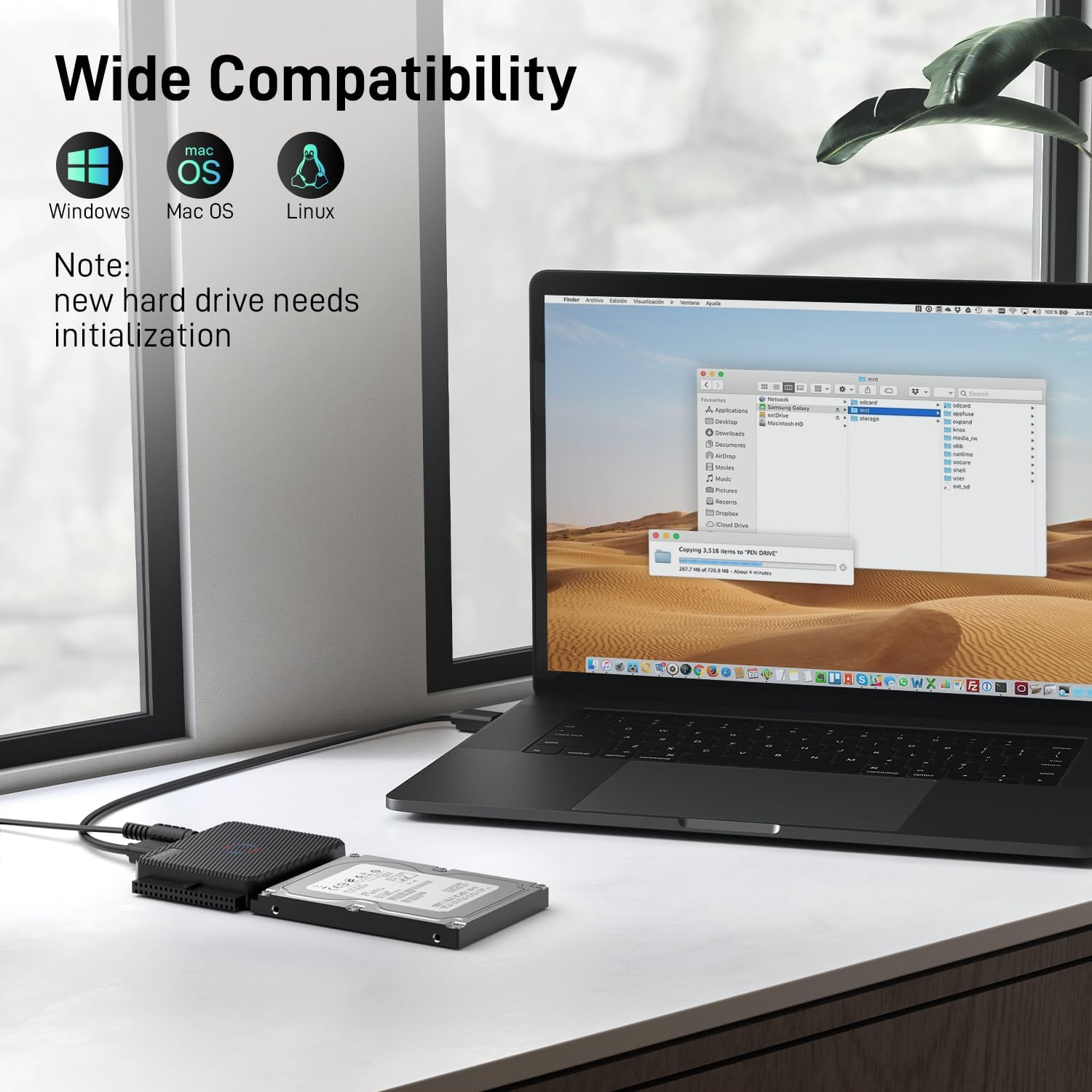
Figure 3: High-Speed Data Transfer. This image demonstrates the adapter connected to a laptop and a hard drive, highlighting its 5Gbps data transfer capability.
3. Especificacions
| Atribut | Valor |
|---|---|
| Marca | FIDECO |
| Número de model | S3G-PL03-1 |
| Tipus de connector | USB tipus A |
| Tipus de cable | USB |
| Dispositius compatibles | TV, PC, DVD Player, Xbox |
| Característica especial | Data Transfer, High Speed |
| Velocitat de transferència de dades | 5 gigabits per segon |
| Font d'alimentació | DC |
| Pes de l'article | 10.6 unces |
| Dimensions del producte | 2.3 x 0.43 x 1.44 polzades |
4. Instruccions de configuració
Follow these steps to connect your hard drive or optical drive to your computer using the FIDECO adapter:
- Prepare Your Drive: Ensure your hard drive or optical drive is clean and free of debris.
- Connect the Drive to the Adapter:
- Per SATA drives (2.5"/3.5" HDD/SSD): Align the SATA data and power connectors on your drive with the corresponding ports on the FIDECO adapter and firmly push the drive onto the adapter.
- Per 2.5" IDE HDDs: Connect the 44-pin IDE connector on your drive to the 2.5" IDE interface on the adapter.
- Per 3.5" IDE HDDs or 5.25" Optical Drives: Connect the 40-pin IDE connector on your drive to the 3.5" IDE interface on the adapter.
- Connectar l'alimentació:
- Per 2.5" SATA/IDE HDDs/SSDs: The adapter typically draws sufficient power from the USB connection.
- Per 3.5" SATA/IDE HDDs or 5.25" Optical Drives: Connect the provided power adapter to the DC 12V input on the FIDECO adapter. For 3.5" IDE HDDs, you will also need to connect the 4-pin power cable from the power adapter to the drive itself.
- Connexió a l'ordinador: Plug the USB 3.0 cable from the FIDECO adapter into an available USB port on your computer.
- Encès: If your adapter has a power switch, turn it on. Your computer should detect the connected drive automatically.

Figure 4: Easy Setup. This diagram illustrates the simple steps to connect a hard drive to the FIDECO adapter and then to a computer.
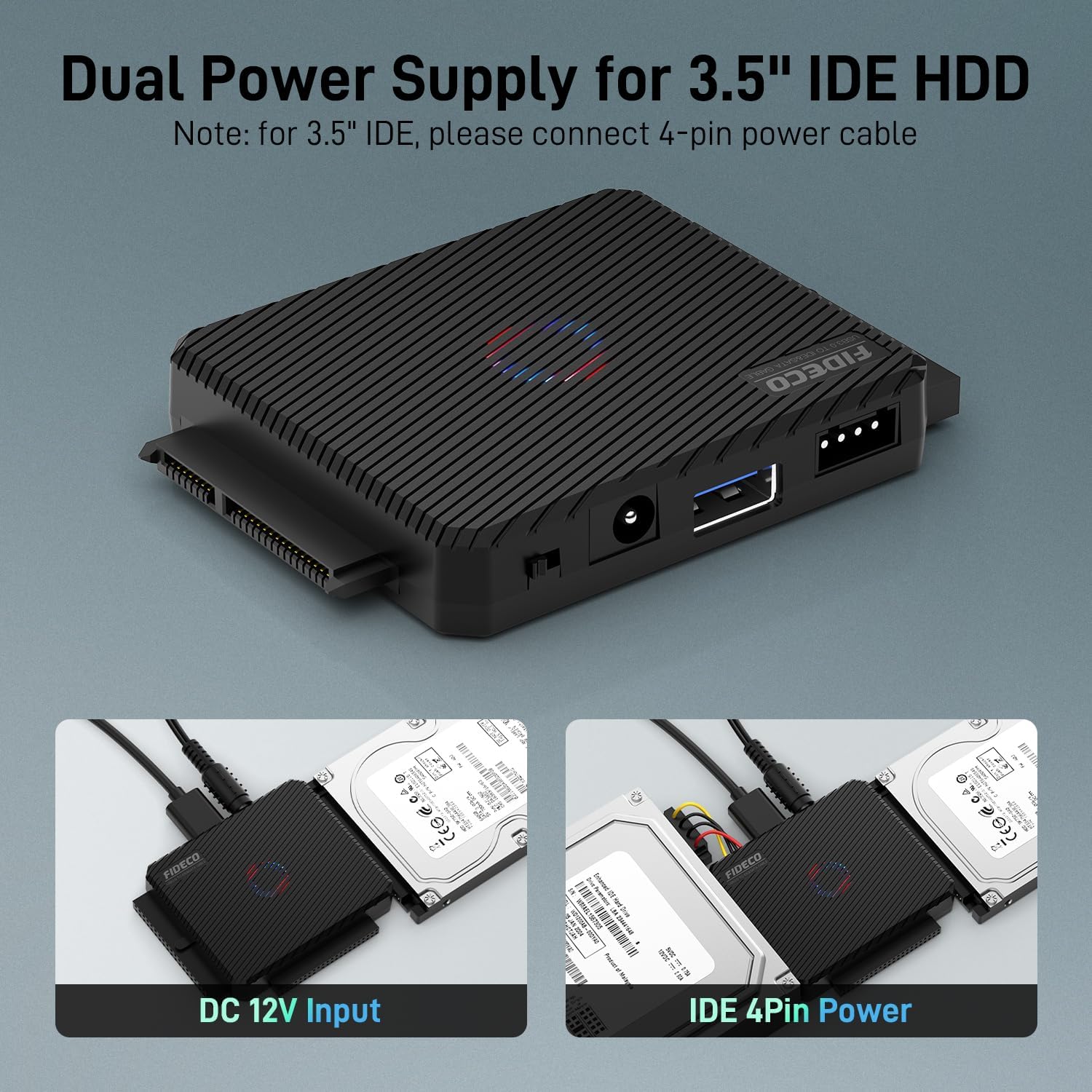
Figure 5: Dual Power Supply for 3.5" IDE HDD. This image highlights the necessary power connections for 3.5" IDE hard drives, including the DC 12V input and the 4-pin power cable.
5. Instruccions de funcionament
Once the FIDECO adapter and drive are connected and powered on, your computer should recognize the drive as an external storage device.
- Accés a les dades: The connected drive will appear in your computer's file explorer (e.g., 'This PC' on Windows, 'Finder' on Mac). You can then browse, copy, and transfer files as you would with any other external drive.
- New Hard Drives: For brand new hard drives that have not been initialized or formatted, they may not appear immediately in your file explorer. You will need to go to 'Disk Management' (Windows) or 'Disk Utility' (Mac OS) to initialize and format the drive before it can be used.
- Simultaneous Drive Use: The adapter supports simultaneous connection of one 2.5" IDE, one 3.5" IDE, and one 2.5"/3.5" SATA drive. Each connected drive will appear as a separate volume on your computer.

Figure 6: Simultaneous Connection of 3 Hard Drives. This image illustrates the capability of the adapter to connect and access three different types of hard drives at the same time.

Figure 7: Wide Compatibility. This image highlights the adapter's compatibility with major operating systems including Windows, Mac OS, and Linux.
6. Manteniment
To ensure the longevity and optimal performance of your FIDECO SATA/IDE to USB 3.0 Adapter, please follow these simple maintenance guidelines:
- Mantenir net: Netegeu l'adaptador regularment amb un drap suau i sec per eliminar la pols i les restes. Eviteu utilitzar netejadors líquids o dissolvents.
- Emmagatzema correctament: Quan no l'utilitzeu, emmagatzemeu l'adaptador en un lloc fresc i sec, lluny de la llum solar directa i de temperatures extremes.
- Manejar amb cura: Avoid dropping the adapter or subjecting it to strong impacts, which can damage internal components.
- Desconnecta amb seguretat: Always safely eject or unmount the drive from your operating system before physically disconnecting the adapter or turning off its power.
7. Solució De Problemes
If you encounter issues while using your FIDECO adapter, refer to the common questions and solutions below:

Figure 8: Q&A Section. This image provides quick answers to frequently asked questions regarding the adapter's functionality and common issues.
- P1: Necessita algun programari?
- A1: No, the FIDECO adapter is plug and play. No driver or additional software is needed for most operating systems.
- Q2: Why is my 3.5" IDE hard drive not recognized?
- A2: For 3.5" IDE hard drives, you must connect the 4-pin power cable in addition to the DC 12V power adapter. Ensure both power connections are secure.
- Q3: Why is my new HDD not recognized?
- A3: For new hard drives, you need to initialize and format them first. Go to 'Disk Management' (Windows) or 'Disk Utility' (Mac OS) to perform this action. After initialization, your hard drive should be recognized.
- Q4: Does the device support offline cloning?
- A4: The SATA or IDE adapter does not support offline cloning. You can insert your HDD/SSD and connect the entire device to your computer for file copying and transfer.
- Q5: Why is the hard drive not recognized by my Macbook Pro?
- A5: Please ensure there is a backup for your data. Then, format your HDD to exFAT. This format is widely compatible across different operating systems, including macOS.
- Consells generals per a la resolució de problemes:
- Comproveu les connexions: Ensure all cables (USB, power, data) are securely connected to both the adapter and the drive.
- Font d'alimentació: Verify that the power adapter is correctly plugged into a working power outlet and the adapter.
- Jumper Settings (for 2.5" and 3.5" IDE drives): If both 2.5" and 3.5" IDE hard drives are connected simultaneously, you may need to adjust the jumper settings on the 3.5" IDE hard drive to 'slave' mode. The 2.5" IDE hard drive is typically the default master.
- Prova un port USB diferent: Connect the adapter to a different USB port on your computer to rule out a faulty port.
- Reinicieu l'ordinador: De vegades, un simple reinici pot resoldre els problemes de detecció.
8. Garantia i Suport
FIDECO products are designed for reliability and performance. For warranty information, technical support, or any inquiries regarding your FIDECO SATA/IDE to USB 3.0 Adapter, please contact FIDECO customer service through their official weblloc web o la plataforma on vau comprar el producte.
Conserveu el vostre comprovant de compra per a reclamacions de garantia.