
Rollerhouse 5 channel remote Black
Instruction Manual for 5 Channel Blinds Remote RF 433.92 Replacement Controller
Brand: Rollerhouse | Model: 5 Channel Remote-Black
Producte acabatview
The Rollerhouse 5 Channel Blinds Remote is a replacement controller designed for motorized window shades and blinds operating on a 433.92 MHz RF frequency. This remote allows for convenient control of up to five individual channels, or a group control for all paired blinds simultaneously. It is engineered for ease of use and reliable operation within your smart home setup.
Please note: This remote is specifically compatible with Rollerhouse RF blinds shade motors or replacements with the same shape. It is not a universal remote control and may not work with other brands.
Característiques clau
- Control multicanal: Operate up to 5 individual blinds or shades, or control them all simultaneously using the group control feature.
- RF 433.92 MHz Frequency: Ensures strong and reliable signal transmission, even through walls, for uninterrupted operation.
- Maridatge fàcil: Designed for straightforward pairing with compatible Rollerhouse motors, often without complex programming.
- Limit Setting Capability: Allows for setting upper, lower, and favorite intermediate positions for precise shade control.
- Disseny durador: Compact and ergonomic, with a sleek black finish.
Configuració i instal·lació
1. Instal·lació de la bateria
The remote requires one Lithium Metal battery. To install, gently slide open the battery compartment cover on the back of the remote. Insert the battery, ensuring correct polarity, then close the cover.
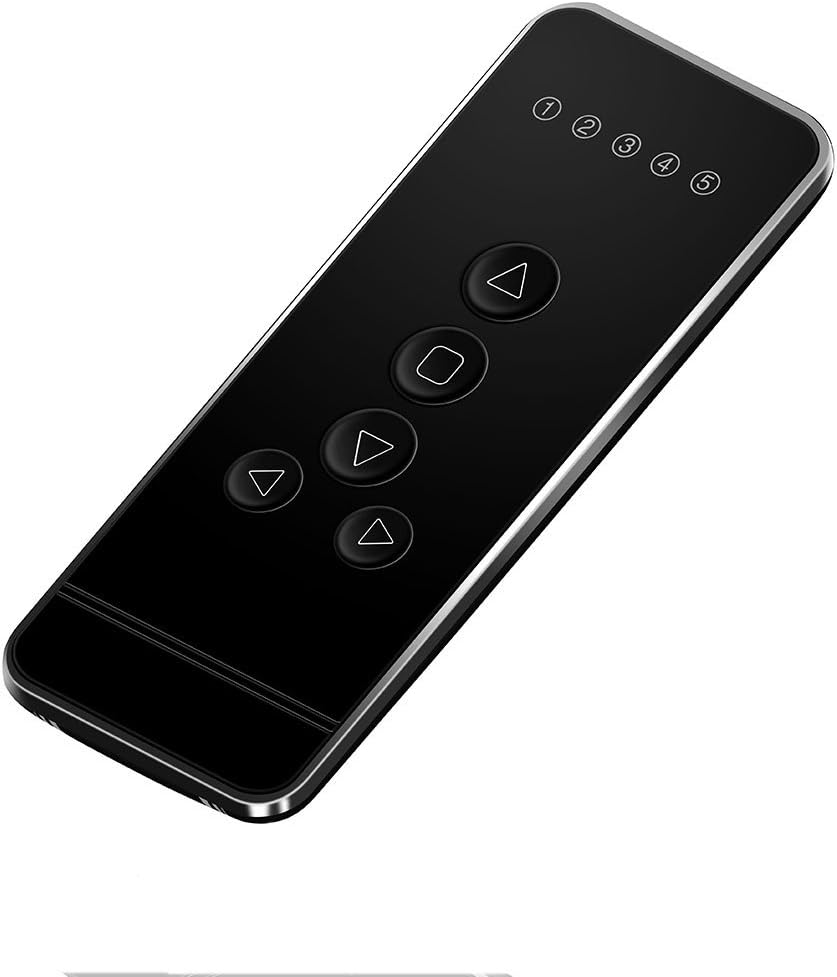
Figura 1: Frontal view of the 5 Channel Blinds Remote.
2. Factory Reset (Recommended)
It is recommended to perform a factory reset on the blind motor before pairing, especially if it has been previously programmed or is a new installation. This ensures all prior limits and settings are cleared, preventing conflicts during new programming.
- Locate the "C" (Confirm) button on the back of the remote control.
- Press the "C" button tres vegades. The motor should jog twice, indicating that previous limits have been deleted.
- After the reset, pressing any button on the remote should not cause the blind to move, confirming the limits are cleared.
Video 1: How To Program The Remote To Operate Motorized Blinds. This video demonstrates the factory reset process and initial pairing steps for Rollerhouse motorized blinds.
3. Pairing the Remote and Motor
Before pairing, select the desired channel on your remote (channels 1-5). Channel "RL" is reserved for group control and cannot be used for initial pairing or programming.
- On the motor head, press the small setting button (often recessed, requiring a small tool like a screwdriver). Release it when the blind jogs once.
- Immediately after the motor jogs, press the "C" (Confirm) button on the back of your remote control. Release it when the blind jogs once again.
- Test the pairing: Press any directional button (Up or Down) on the remote. If the blind moves, the remote is successfully paired with the motor on the selected channel.

Figure 2: Operating the motorized blinds with the 5-channel remote.
4. Establiment de límits superior i inferior
Setting limits defines the maximum upward and downward travel of your blinds.
- Estableix el límit superior:
- Use the Up/Down buttons to move the blind to your desired upper position.
- Once at the desired upper position, press the "C" (Confirm) button on the back of the remote. The motor will jog, confirming the upper limit is set.
- Estableix el límit inferior:
- Use the Up/Down buttons to move the blind to your desired lower position.
- Once at the desired lower position, press the "C" (Confirm) button on the back of the remote. The motor will jog, confirming the lower limit is set.

Figure 3: Remote control button layout and dimensions.
5. Checking Blind Direction
After setting limits, verify that the Up button moves the blind up and the Down button moves it down. If the direction is reversed, you need to change the rolling direction:
- Press and hold both the "Limit" button (often the "L" button on the back) and the "Stop" button on the remote simultaneously.
- Release both buttons when the blind jogs once. The rolling direction has now been changed.
- Test again to confirm correct operation.
Instruccions de funcionament
Once set up, operating your motorized blinds is simple:
- Selecció de canals: Use the Channel Up (▲) and Channel Down (▼) buttons to select the desired channel (1-5) for individual blind control. The display will show the active channel.
- Control de grup: Select the "RL" channel to control all paired blinds simultaneously.
- Raise Blind: Press the Up (▲) button to raise the blind to its upper limit.
- Lower Blind: Press the Down (▼) button to lower the blind to its lower limit.
- Stop Blind: Press the Stop (■) button to halt the blind at any desired intermediate position.
Video 2: Motorized Blinds & Shades - Remote Control Compatible. This video showcases the remote's functionality with motorized blinds.
Integrating with Smart Hubs (e.g., Broadlink)
This remote can be integrated with universal control hubs that support 433.92 MHz RF signals, such as Broadlink. This allows for advanced automation and control via smartphone apps or voice assistants.
Video 3: How to connect RF Shade Motor to an RF hub such as Broadlink. This video provides a step-by-step guide for connecting your RF shade motor to a Broadlink hub for smart control.
Manteniment
- Neteja: Wipe the remote with a soft, dry cloth. Avoid using abrasive cleaners or solvents.
- Substitució de la bateria: Replace the Lithium Metal battery when the remote's performance diminishes or the display becomes dim.
- Emmagatzematge: Guardeu el comandament a distància en un lloc sec, allunyat de temperatures extremes i de la llum solar directa.
Resolució de problemes
| Problema | Causa possible | Solució |
|---|---|---|
| El comandament a distància no respon. | Low or dead battery. Remote not paired. Out of range. | Replace battery. Re-pair the remote following setup instructions. Ensure remote is within 235 feet (indoor) of the motor. |
| Blind moves in the wrong direction. | Incorrect rolling direction set. | Follow "Checking Blind Direction" steps to reverse the direction. |
| Blind does not stop at desired limits. | Limits not set or incorrectly set. | Perform a factory reset and re-set the upper and lower limits. |
| Remote will not program to motor. | Incompatibility with motor. Previous settings interfering. | Ensure your motor is a Rollerhouse RF blind motor. Perform a factory reset on the motor before attempting to pair again. Contact Rollerhouse support if issues persist. |
Especificacions
- Dimensions del comandament a distància: Approximately 4.8" (Height) x 1.8" (Width)
- Pes de l'article: 2.39 unces
- Fabricant: Caseta de rodes
- Número de model: 5 channel remote Black
- Bateries: Necessita 1 bateria de metall de liti
- Freqüència de RF: 433.92 MHz (Fixed codes)
- Nombre màxim de dispositius admesos: 5 (individual channels)
- Gamma interior: Fins a 235 peus
Garantia i suport
For any issues with your Rollerhouse 5 Channel Blinds Remote, including setup difficulties, programming issues, or defects, please contact Rollerhouse customer support. They offer professional sales and technical solutions to assist you.
Refer to the product packaging or the official Rollerhouse weblloc web per obtenir detalls específics de la garantia i informació de contacte.

Figure 4: Rollerhouse customer support is available to assist with product inquiries.
Ask a question about this manual
Ask about setup, troubleshooting, compatibility, parts, safety, or missing instructions. Manuals+ will review the question and use this page’s manual context to help answer it.