
1. Introducció
This manual provides detailed instructions for the installation, operation, and troubleshooting of your Aigital US4605A AC1200 Dual Band USB WiFi Adapter. This device is designed to provide high-speed wireless connectivity for your desktop computer or laptop, supporting both 2.4GHz and 5GHz frequency bands.
2. Contingut del paquet
Si us plau, verifiqueu que tots els elements siguin presents al vostre paquet:
- Aigital US4605A AC1200 Dual Band USB WiFi Adapter
- Driver CD (if included, otherwise drivers are typically downloaded or plug-and-play)
- Quick Installation Guide (this document serves as a comprehensive guide)
3. Producte acabatview
The Aigital US4605A is a compact and powerful USB WiFi adapter featuring dual-band capabilities and high-gain antennas for enhanced signal reception.

Image 3.1: Aigital US4605A AC1200 Dual Band USB WiFi Adapter. The adapter features a USB 3.0 connector, a main body with an indicator light, and two adjustable external antennas for improved signal reception.
Les característiques clau inclouen:
- AC1200 Dual Band: Supports 867Mbps on the 5GHz band and 300Mbps on the 2.4GHz band for flexible and high-speed connections.
- Powerful 5dBi Antennas: Two high-gain antennas provide extended range and stable signal.
- Interfície USB 3.0: Offers up to 10 times faster data transfer speeds compared to USB 2.0, while remaining backward compatible.
- Àmplia compatibilitat: Supports Windows 11/10/8 and Mac OS 10.9~10.15, OS 11.0+.

Image 3.2: The adapter supports both 5GHz (up to 867Mbps for faster speed) and 2.4GHz (up to 300Mbps for longer range) bands, enhancing overall wireless performance.
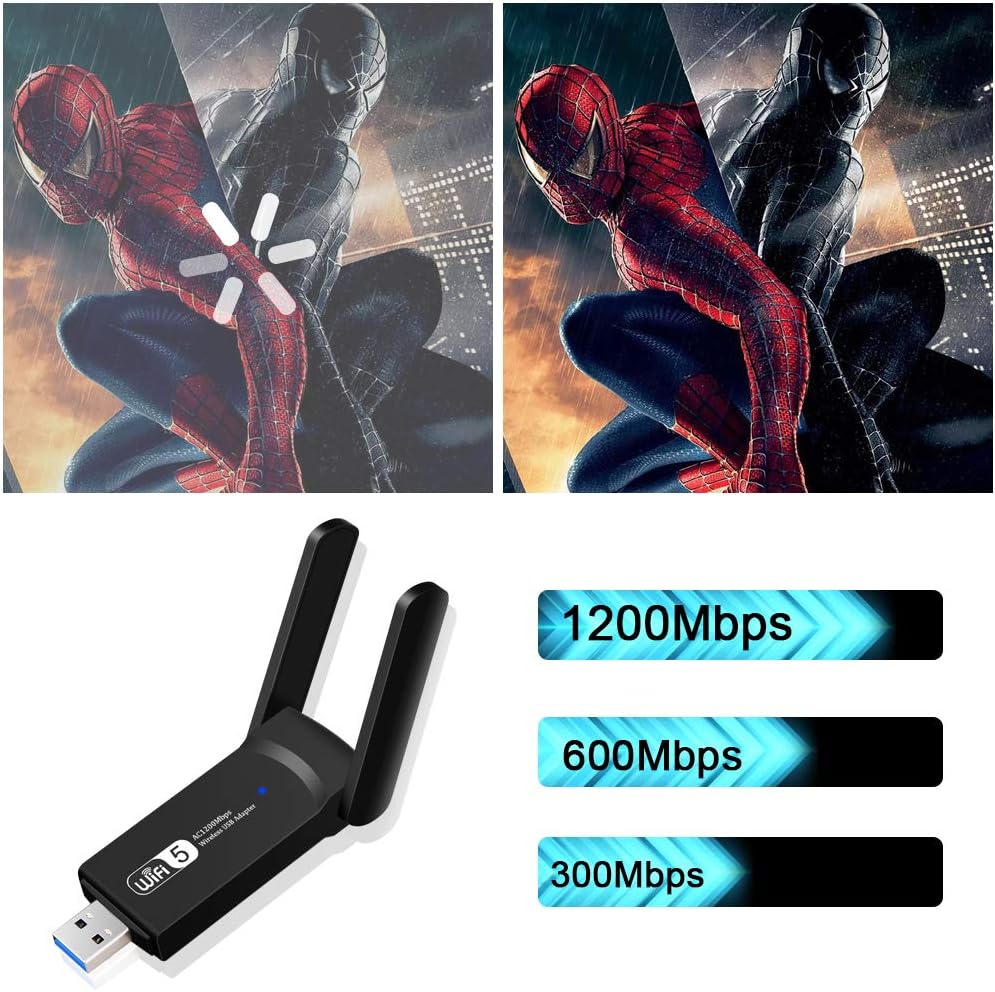
Image 3.3: The adapter supports a maximum combined speed of 1200Mbps, distributed across its dual bands.

Image 3.4: The USB 3.0 interface provides significantly faster data transfer rates compared to USB 2.0, ensuring optimal performance for the 1200Mbps WiFi adapter.
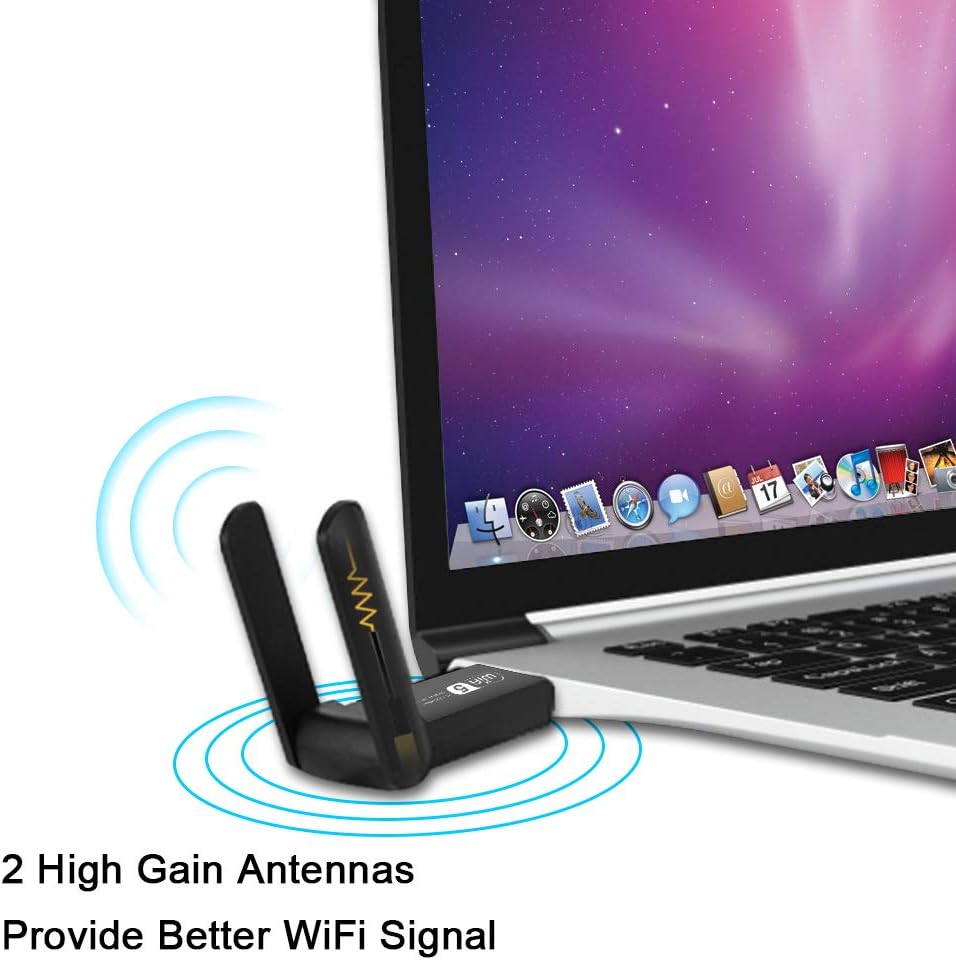
Image 3.5: The two external 5dBi high-gain antennas are designed to provide a stronger and more stable Wi-Fi signal.
4. Instal·lació i configuració
Follow these steps to install your Aigital US4605A USB WiFi Adapter.
4.1. Instal·lació del controlador
For optimal performance and full functionality, driver installation is required for most operating systems. For Windows 11/10, the adapter may be plug-and-play, but installing the latest drivers is recommended.
- NO connecteu l'adaptador encara.
- Descarrega els controladors: Visit the official Aigital support website or use the provided driver CD (if applicable) to obtain the latest drivers for your operating system.
- Instal·leu els controladors: Run the downloaded driver setup file and follow the on-screen instructions. Restart your computer if prompted.
- Adaptador de connexió: Once the drivers are installed, plug the Aigital US4605A USB WiFi Adapter into an available USB 3.0 port on your computer. While compatible with USB 2.0, a USB 3.0 port is recommended for maximum speed.
- Verifica la instal·lació: After connecting, the adapter's indicator light should illuminate, and your computer should recognize the device. You can verify this in Device Manager (Windows) or System Information (Mac).
Nota: For Windows 11/10, the system might automatically install a generic driver. If you experience connectivity issues or wish to utilize the full features, manually install the specific drivers from the manufacturer's weblloc.
5. Modes de funcionament
The Aigital US4605A USB WiFi Adapter supports two primary operating modes:
5.1. Station Mode (Signal Receiver)
In Station Mode, the adapter allows your desktop computer or laptop to connect to an existing wireless network (Wi-Fi router).
- Ensure the adapter is plugged into your computer.
- Open your computer's network settings (e.g., Wi-Fi icon in the taskbar for Windows, Wi-Fi menu in the menu bar for Mac).
- Seleccioneu la xarxa Wi-Fi desitjada de la llista de xarxes disponibles.
- Introduïu la contrasenya de xarxa (si cal) i feu clic a "Connecta".
- Un cop connectat, hauríeu de tenir accés a Internet.
5.2. AP Mode (Access Point / Hotspot)
In AP Mode, the adapter can create a wireless hotspot, allowing other devices (smartphones, tablets, other computers) to connect to your computer's internet connection (typically if your computer is connected via Ethernet).
- Ensure your computer has an active internet connection (e.g., via Ethernet cable).
- Plug in the Aigital US4605A adapter.
- Per a Windows: Go to Settings > Network & Internet > Mobile hotspot. Turn on "Mobile hotspot" and configure the network name (SSID) and password. Select your Ethernet connection as the source.
- Per a Mac: Go to System Settings > General > Sharing. Enable "Internet Sharing" and select your Ethernet connection as the source, then choose "Wi-Fi" for sharing with other computers. Configure Wi-Fi options (network name, security, password).
- Other devices can now search for and connect to the Wi-Fi hotspot created by your adapter.
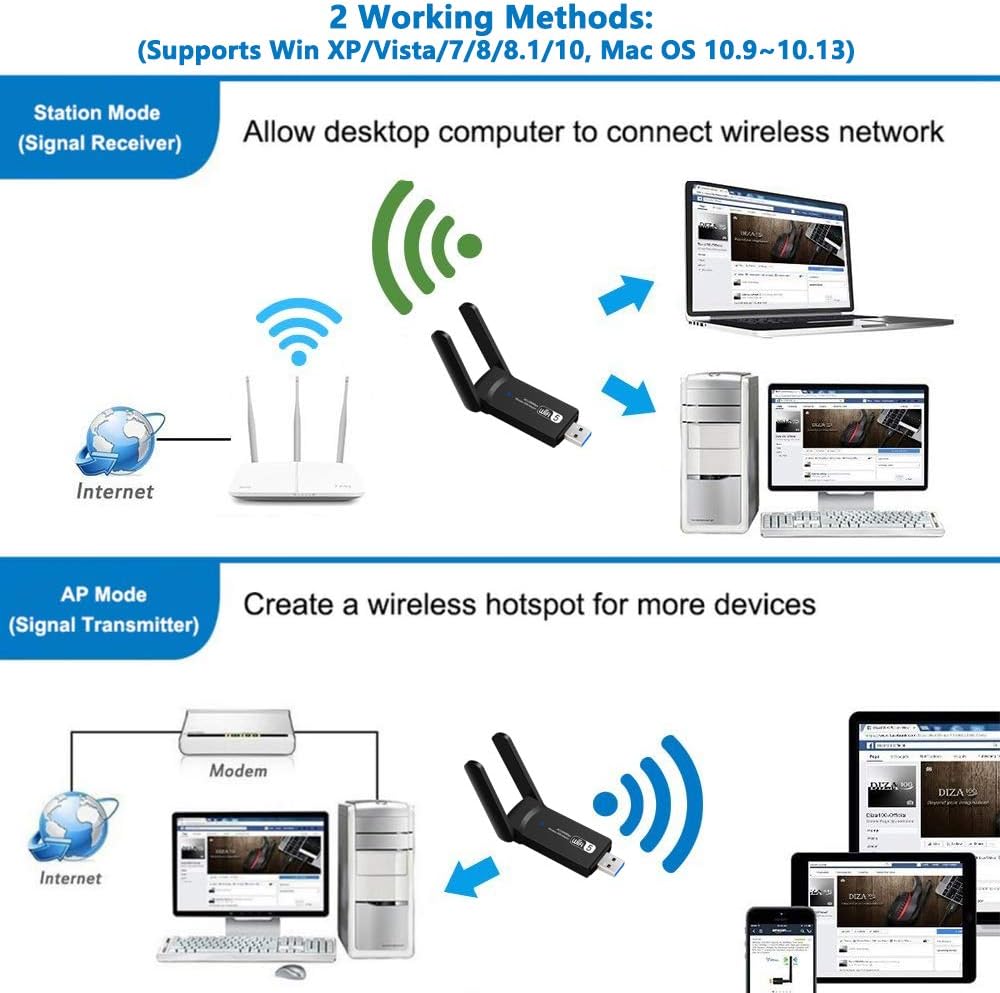
Image 5.1: Illustration of the two working methods: Station Mode (receiving Wi-Fi signal from a router) and AP Mode (creating a Wi-Fi hotspot from a wired connection).
6. Compatibilitat
The Aigital US4605A USB WiFi Adapter is compatible with a range of operating systems:
- Windows 11
- Windows 10
- Windows 8.1
- Windows 8
- Windows 7
- Windows Vista
- Windows XP
- Mac OS 10.9 to 10.15 (Catalina)
- Mac OS 11.0+ (Big Sur and later)
Nota: For Windows 11/10, the device may be plug-and-play. For other operating systems, driver installation is typically required. Always use the latest drivers from the manufacturer's website for best performance.
7. Especificacions
| Característica | Detall |
|---|---|
| Marca | Adigital |
| Número de model | EUA 4605A |
| Estàndard sense fils | IEEE 802.11ac/b/g/n |
| Velocitat de transferència de dades | Fins a 1200 Mbps (867 Mbps a 5 GHz, 300 Mbps a 2.4 GHz) |
| Bandes de freqüència | 2.4 GHz i 5 GHz (doble banda) |
| Antenes | 2x 5dBi High Gain Antennas |
| Interfície | USB 3.0 (Backward compatible with USB 2.0) |
| Sistemes operatius | Windows 11/10/8.1/8/7/Vista/XP, Mac OS 10.9~10.15, OS 11.0+ |
| Dimensions (LxWxH) | 2.56 x 1.1 x 0.39 polzades (aprox.) |
| Pes | 0.8 unces (aprox.) |
| UPC | 761780472738 |

Image 7.1: Physical dimensions of the Aigital US4605A adapter and icons indicating compatibility with Mac and Windows operating systems.
8. Solució De Problemes
If you encounter issues with your Aigital US4605A USB WiFi Adapter, please refer to the following common problems and solutions:
- No s'han detectat xarxes Wi-Fi:
- Assegureu-vos que l'adaptador estigui ben connectat a un port USB.
- Verify that drivers are correctly installed. Check Device Manager (Windows) or System Information (Mac) for any error indicators. Reinstall drivers if necessary.
- Check if your router's Wi-Fi is enabled and broadcasting.
- Prova de connectar l'adaptador a un port USB diferent.
- Velocitat de connexió lenta:
- Ensure the adapter is plugged into a USB 3.0 port for optimal performance.
- Confirm you are connected to the 5GHz band if your router supports it and you are within close range. The 5GHz band offers higher speeds but shorter range.
- Reduce interference by moving the adapter or computer away from other electronic devices (microwaves, cordless phones).
- Actualitza el firmware del teu encaminador.
- Assegureu-vos que el vostre proveïdor de serveis d'Internet (ISP) ofereix les velocitats esperades.
- Desconnexions freqüents:
- Check signal strength. If the signal is weak, try moving closer to the router or adjusting the adapter's antennas.
- Ensure power management settings are not turning off the USB device to save power. (Windows: Device Manager > USB Root Hub > Properties > Power Management > Uncheck "Allow the computer to turn off this device to save power").
- Actualitzeu els controladors a la darrera versió.
- Restart your router and computer.
- Adaptador no reconegut:
- Prova amb un port USB diferent.
- Reinicieu l'ordinador.
- Ensure drivers are installed correctly. If not, reinstall them.
- Check if the adapter is physically damaged.
9. Manteniment
To ensure the longevity and optimal performance of your Aigital US4605A USB WiFi Adapter, consider the following maintenance tips:
- Mantenir net: Gently wipe the adapter with a dry, soft cloth to remove dust. Avoid using liquid cleaners.
- Protegir de danys: Eviteu deixar caure l'adaptador ni exposar-lo a temperatures o humitat extremes.
- Emmagatzematge adequat: When not in use, store the adapter in a safe, dry place.
- Actualitzacions de controladors: Periodically check the Aigital support weblloc web per a controladors actualitzats per garantir la compatibilitat i les millores de rendiment.
10. Garantia i Suport
Aigital products typically come with a standard manufacturer's warranty. Please refer to the warranty card included with your product or visit the official Aigital weblloc web per obtenir informació detallada sobre els termes i condicions de la garantia.
For technical support, driver downloads, or further assistance, please visit the Aigital official support website or contact their customer service. Contact information can usually be found on the product packaging or the manufacturer's weblloc.
Nota: Conserveu el rebut de compra com a comprovant de compra per a reclamacions de garantia.
11. Video Information
No official product videos are available for embedding based on the provided product data.


