
Epson T902XL420
Epson DURABrite Ultra T902XL420 Yellow Ink Pack User Manual
Model: T902XL420
1. Introducció
This manual provides instructions for the proper installation, operation, and maintenance of the Epson DURABrite Ultra T902XL420 High Capacity Yellow Ink Pack. This ink pack is designed for high-volume print applications, delivering sharp text and vibrant colors for professional-quality results.
2. Continguts del producte
The package contains one Epson DURABrite Ultra T902XL420 High Capacity Yellow Ink Pack.
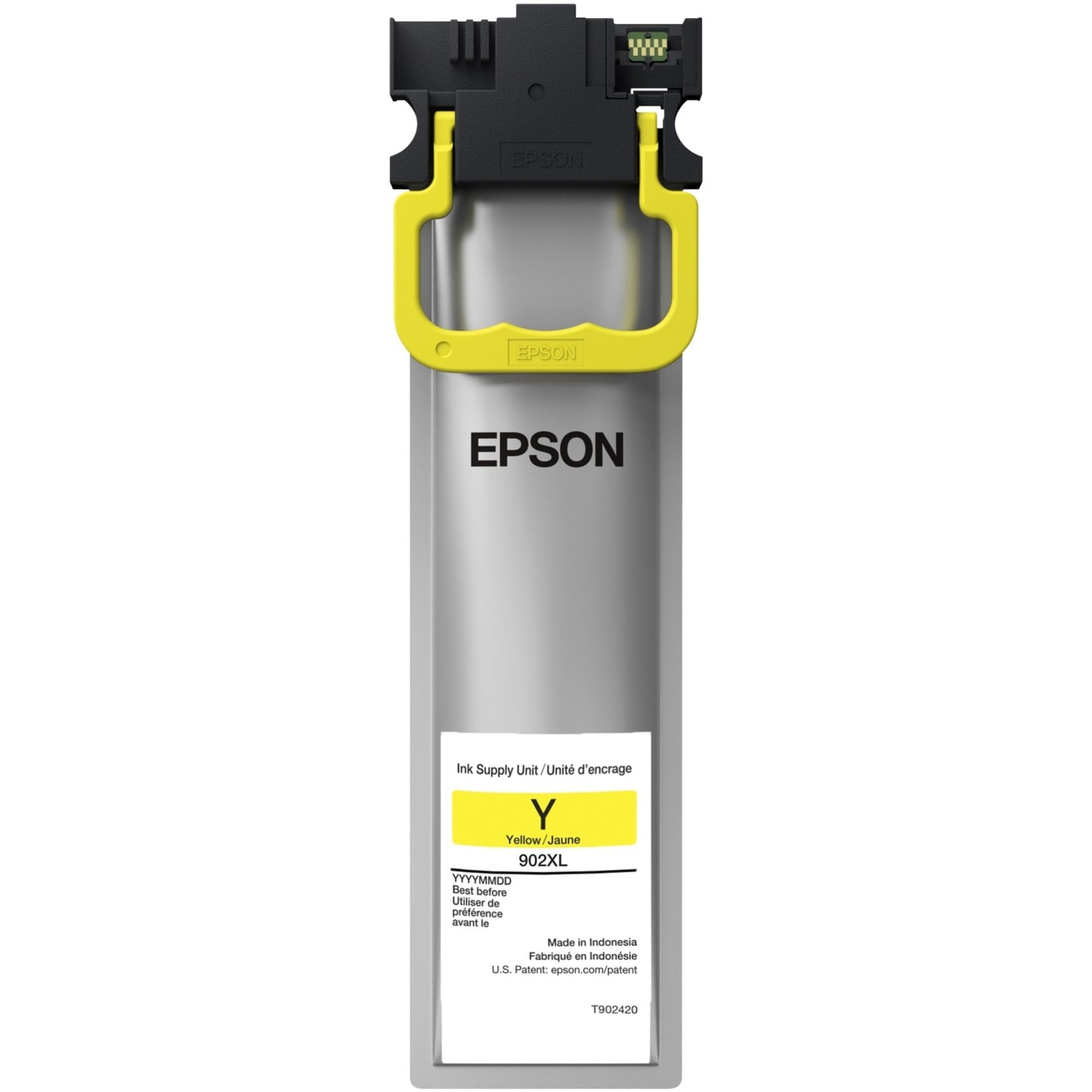
Image 1: Epson DURABrite Ultra T902XL420 High Capacity Yellow Ink Pack. This image displays the yellow ink pack in its packaging.
3. Models d'impressora compatibles
This ink pack is compatible with the following Epson WorkForce Pro printer models:
- WorkForce Pro WF-C5210
- WorkForce Pro WF-C5210DW
- WorkForce Pro WF-C5290
- WorkForce Pro WF-C5290DW
- WorkForce Pro WF-C5710
- WorkForce Pro WF-C5710DWF
- WorkForce Pro WF-C5790
- WorkForce Pro WF-C5790DWF
Refer to your printer's manual for specific instructions on ink pack replacement.
4. Instal·lació
Follow these general steps to install the ink pack. Always consult your specific printer model's user guide for detailed instructions.
- Prepareu la impressora: Ensure your printer is turned on. Open the ink pack cover or access door on your printer.
- Remove Used Ink Pack: If replacing an existing ink pack, carefully remove the empty pack by pressing the release tab (if present) and pulling it out. Dispose of the used ink pack responsibly according to local regulations.
- Unpack New Ink Pack: Remove the new Epson DURABrite Ultra T902XL420 Yellow Ink Pack from its sealed packaging. Avoid touching the green chip or electrical contacts on the ink pack.
- Insert New Ink Pack: Align the new ink pack with the correct slot in the printer. The yellow ink pack should be inserted into the yellow slot. Push the ink pack firmly until it clicks into place. Do not force it.
- Tanqueu la coberta de la impressora: Close the ink pack cover or access door. The printer will typically begin an initialization process to recognize the new ink pack.
- Confirma la instal·lació: Check the printer's display panel to confirm that the ink pack is recognized and the ink levels are updated.
5. Pautes d'ús
For optimal performance and print quality:
- Use genuine Epson ink packs to ensure compatibility and maintain print quality.
- Perform print head cleaning or nozzle checks through your printer's utility software if print quality declines.
- Assegureu-vos que el firmware de la impressora estigui actualitzat.
- Print regularly to prevent ink from drying out in the print head.
6. Emmagatzematge i manipulació
Proper storage and handling extend the life and performance of your ink pack:
- Store ink packs in their sealed packaging until ready for use.
- Keep ink packs in a cool, dry place, away from direct sunlight and extreme temperatures.
- Avoid shaking or dropping ink packs, as this can cause leaks or damage.
- Do not open the ink pack until immediately before installation to prevent ink from drying out.
7. Solució De Problemes
If you encounter issues with your ink pack, consider the following:
7.1 Printer Does Not Recognize Ink Pack
- Reinstall the Ink Pack: Remove the ink pack and reinsert it firmly until it clicks into place. Ensure it is seated correctly.
- Check for Genuine Product: Ensure you are using a genuine Epson ink pack. Non-genuine ink packs may not be recognized by the printer.
- Contactes nets: Gently wipe the electrical contacts on the ink pack (if accessible and safe to do so, refer to printer manual) with a lint-free cloth.
- Reinicia la impressora: Turn off your printer, wait a few moments, and then turn it back on.
- Update Printer Firmware: Check the Epson support website for your printer model to see if there are any firmware updates available.
7.2 Mala qualitat d'impressió
- Run Nozzle Check: Use your printer's utility software to perform a nozzle check to identify clogged nozzles.
- Perform Head Cleaning: If nozzles are clogged, perform a print head cleaning cycle through your printer's utility. You may need to run this several times.
- Comprova el tipus de paper: Ensure you are using the correct paper type settings in your printer driver for the media you are printing on.
- Verify Ink Levels: Confirm that the ink pack is not low or empty.
8. Especificacions
| Nom del model | T902 High Capacity Yellow |
| Marca | Epson |
| Color de tinta | groc |
| Rendiment de la pàgina | Fins a 1000 pàgines |
| Base de tinta | Water (Pigment Ink) |
| Tipus de cartutx | Genuí |
| Pes de l'article | 7.2 unces |
| Número de model | T902XL420 |
| UPC | 010343939769 |
9. Assistència i garantia
For technical support, warranty information, or to download the latest drivers and manuals for your printer, please visit the official Epson support weblloc:
Epson provides a limited warranty for its genuine ink products. Please refer to the warranty documentation included with your printer or available on the Epson weblloc per a termes i condicions específiques.
Ask a question about this manual
Ask about setup, troubleshooting, compatibility, parts, safety, or missing instructions. Manuals+ will review the question and use this page’s manual context to help answer it.