
1. Introducció
The i-tec BlueTouch 245 is an ergonomic wireless optical Bluetooth 4.0 mouse designed for comfortable and precise operation with your notebook, tablet, or PC. Its ergonomic design promotes a natural wrist position, reducing strain during extended use. This mouse features adjustable sensor sensitivity (DPI) and six buttons for enhanced usability.
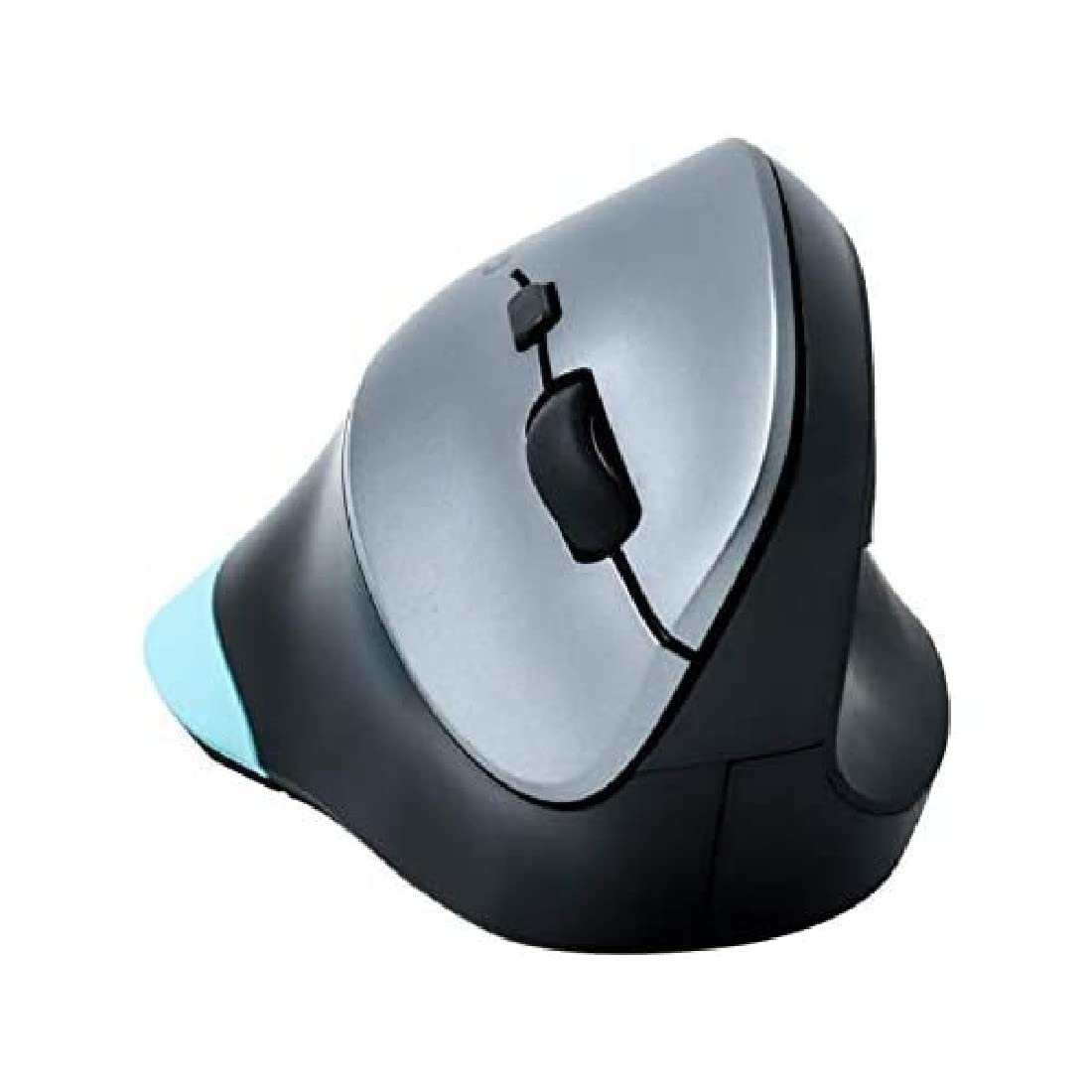
Figure 1: i-tec BlueTouch 245 Bluetooth Ergonomic Optical Mouse. This image displays the ergonomic design of the mouse, highlighting its contoured shape for comfortable hand placement.
2. Contingut del paquet
Si us plau, comproveu el contingut del paquet en desembalar-lo. Si falta algun article o hi ha algun malmès, poseu-vos en contacte amb el vostre distribuïdor.
- 1x i-tec BlueTouch 245 Bluetooth Ergonomic Optical Mouse
- 1x bateria AA
3. Configuració
3.1. Instal·lació de la bateria
- Localitzeu el compartiment de la bateria a la part inferior del ratolí.
- Obriu la tapa del compartiment de la bateria.
- Inseriu la pila AA inclosa, assegurant-vos de la polaritat correcta (+/-).
- Tanqueu bé la tapa del compartiment de la bateria.
3.2. Emparellament Bluetooth
The i-tec BlueTouch 245 mouse uses Bluetooth 4.0 technology. An external Bluetooth adapter is typically not required as most modern devices have built-in Bluetooth.
- Ensure the mouse is powered on. There may be a power switch on the underside.
- Activa el Bluetooth a l'ordinador, la tauleta o el telèfon intel·ligent.
- Put the mouse into pairing mode. This usually involves pressing a small button on the underside of the mouse, often labeled "Connect" or with a Bluetooth symbol, until an indicator light starts blinking.
- Al dispositiu, cerca nous dispositius Bluetooth.
- Select "i-tec BlueTouch 245" or a similar name from the list of available devices.
- Seguiu les indicacions de la pantalla per completar el procés de vinculació.
Once paired, the mouse is ready for use. The operating range is up to 10 meters.
3.3. Compatibilitat del sistema
The mouse is compatible with the following operating systems:
- Windows 8/8.1/10
- Mac OS X
- Android
4. Instruccions de funcionament
4.1. Funcions bàsiques
- Clic esquerre: Selecció i activació primàries.
- Clic dret: Obre menús contextuals.
- Roda de desplaçament: Scrolls content vertically. Can also be pressed for middle-click functionality (varies by application/OS).
4.2. Ajust de DPI
The mouse features a button to adjust the sensor sensitivity (DPI - Dots Per Inch). This allows you to change the cursor speed to suit your preference or task.
- Press the DPI button (usually located near the scroll wheel) to cycle between 1000 DPI and 1600 DPI.
- A higher DPI setting results in faster cursor movement across the screen for the same physical mouse movement.
4.3. Disseny ergonòmic
The vertical ergonomic design of the BlueTouch 245 mouse is intended to keep your wrist in a natural, handshake-like position. This design helps to reduce strain on the wrist, elbow, shoulder, and back, and may mitigate the risk of developing conditions like carpal tunnel syndrome. The mouse is designed for comfortable long-term use.
4.4. Additional Buttons
The mouse is equipped with 6 buttons. The functions of these additional buttons may vary depending on the operating system and specific software applications. Refer to your operating system's mouse settings or application documentation for customization options.
5. Manteniment
5.1. Neteja
Per mantenir un rendiment i una higiene òptims:
- Netegeu la superfície del ratolí amb un drap suauamp tela.
- Eviteu utilitzar productes químics agressius, netejadors abrasius o dissolvents.
- Assegureu-vos que no entri líquid als components interns del ratolí.
- Periodically clean the optical sensor on the underside with a dry cotton swab to remove dust or debris.
5.2. Substitució de la bateria
When the mouse's performance degrades or it stops responding, the AA battery may need replacement. Follow the battery installation steps in Section 3.1.
- Always use a fresh AA battery.
- Eliminar les bateries usades d'acord amb la normativa local.
6. Solució De Problemes
| Problema | Causa possible | Solució |
|---|---|---|
| Mouse not responding / Cursor not moving |
|
|
| Intermittent connection or lag |
|
|
| Cannot pair the mouse |
|
|
7. Especificacions
| Marca | i-tec |
| Nom del model | BlueTouch 245 (MWBT245) |
| Tecnologia de connectivitat | Bluetooth v4.0 (compatible with older versions) |
| Tecnologia de detecció de moviment | Òptic |
| Sensibilitat DPI | 1000 / 1600 DPI (selectable) |
| Nombre de botons | 6 |
| Interval d'operació | Fins a 10 metres |
| Compatibilitat de sistemes operatius | Windows 8/8.1/10, Mac OS X, Android |
| Font d'alimentació | 1 bateria AA (inclosa) |
| Dimensions del producte | 11 x 7.6 x 7 cm |
| Pes de l'article | 110 grams |
| Característiques especials | Disseny ergonòmic |
8. Garantia i Suport
For warranty information and technical support, please refer to the documentation provided with your purchase or visit the official i-tec weblloc web. Conserveu el comprovant de compra per a reclamacions de garantia.
If you encounter issues not covered in this manual, please contact i-tec customer support for assistance.