
1. Introducció
Gràcies per la compraasing the MACALLY Premium Wired Mac Keyboard (MLUXKEYA). This keyboard is designed to enhance your Mac experience with its full-size layout, integrated USB hub, and Mac-specific function keys. This manual provides detailed instructions for setup, operation, maintenance, and troubleshooting to ensure optimal performance and longevity of your device.
2. Contingut del paquet
Si us plau, verifiqueu que tots els elements siguin presents al vostre paquet:
- MACALLY Premium Wired Mac Keyboard (MLUXKEYA)
- Manual d'usuari (aquest document)
3. Configuració
Follow these steps to connect your keyboard to your Mac computer:
- Connecteu el teclat: Locate an available USB-A port on your Mac computer. Insert the USB-A connector of the keyboard's cable into this port. The keyboard features a 5-foot (approximately 1.5 meters) USB-A cable for a reliable wired connection.

Image: The keyboard's USB-A cable ready for connection to a computer.
- Reconeixement del sistema: Your Mac operating system should automatically detect and configure the keyboard. No additional drivers are typically required.
- Utilize the Integrated USB Hub: The keyboard includes two additional USB-A ports. These ports can be used to connect low-power USB-A peripherals such as a mouse, flash drive, or keyboard light.

Image: Two USB-A devices connected to the integrated USB hub on the keyboard.
The keyboard is compatible with Apple Mac Pro, Mac Mini, MacBook Pro, MacBook Air, and iMac models.
4. Instruccions de funcionament
4.1 Mecanografia estàndard
The MLUXKEYA keyboard features a standard 110-key US QWERTY layout. Keys are designed with scissor-flex switches for accurate and stable typing.

Imatge: Superior view of the MACALLY keyboard, showing the full US QWERTY layout.
4.2 Mac-Specific Shortcut Keys
The keyboard includes 21 dedicated macOS shortcut and media keys located on the top row. These keys provide quick access to various system functions and media controls.

Image: The keyboard layout with an illustration of the 21 macOS shortcut keys.
Common shortcut functions include:
- Ajust de brillantor
- Control de missió
- Launchpad
- Media playback controls (Play/Pause, Next/Previous Track)
- Volume control (Mute, Volume Up/Down)
- Expulsar
- Potència / son
- Cerca destacada
- Força la sortida

Image: Visual representation of some intelligent Apple shortcut keys and their functions.
5. Característiques clau
The MACALLY MLUXKEYA keyboard is engineered with several features for optimal user experience:
- Premium Aluminum Frame: Constructed with a stylish and durable silver metal frame that complements Mac computers and MacBooks.
- Stable Typing Experience: The keyboard's weight, combined with non-slip rubber pads on the base, ensures stability during typing.
- Ultra-Slim Ergonomic Design: With a thickness of less than 0.5 inches (11 mm), the keyboard features a subtle 10° ergonomic slope for comfortable and accurate typing.
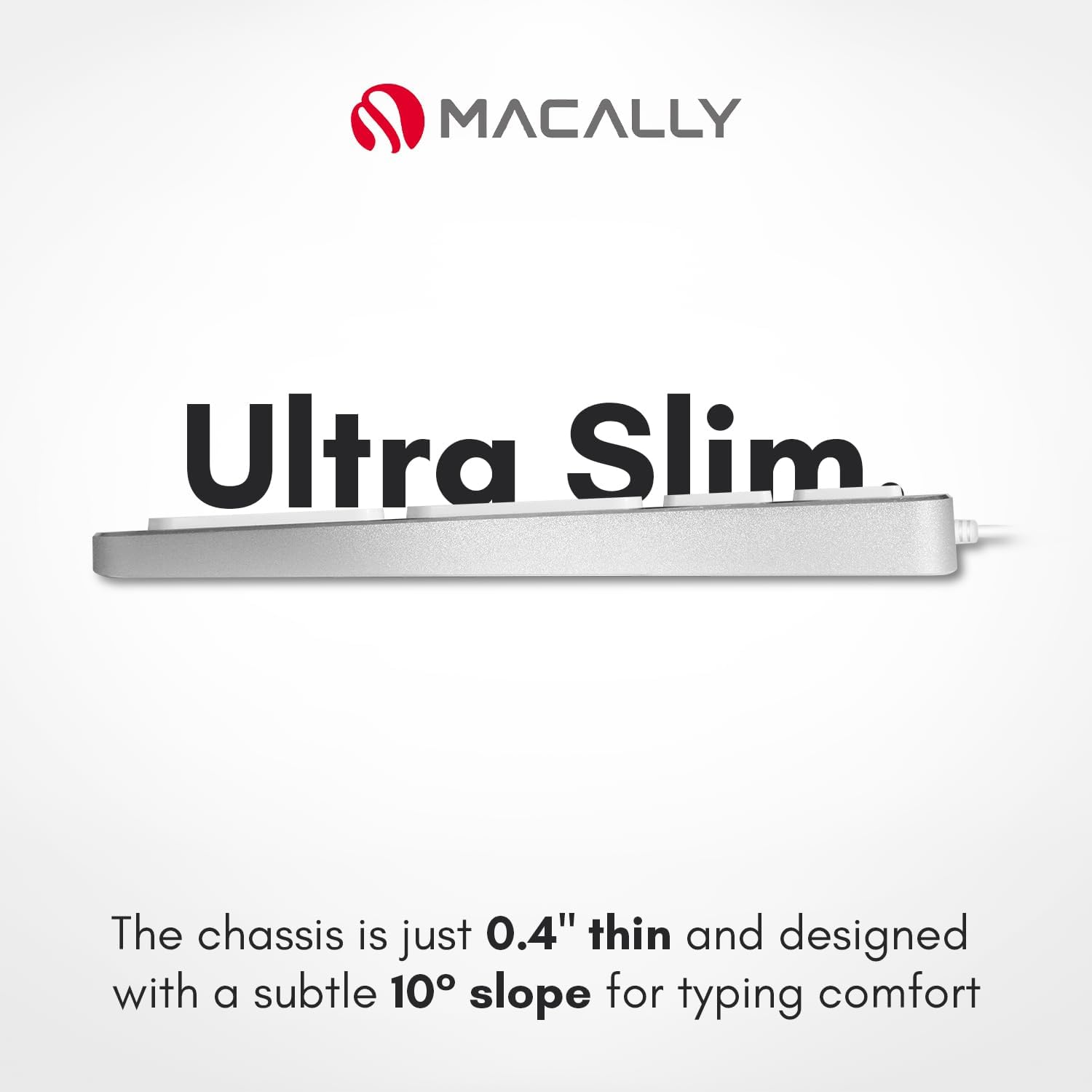
Imatge: Lateral view illustrating the keyboard's ultra-slim profile and ergonomic tilt.
- Scissor-Flex Switches: Provides precise typing with no lag, ghosting, or key skips. Supports up to 6 simultaneous keystrokes.

Image: Illustration demonstrating the quiet and efficient scissor-key switch mechanism.
- Integrated 2-Port USB-A Hub: Easily connect low-power USB-A devices directly to your keyboard.
- Indicadors LED: Includes LED indicators for Num Lock and Fn Lock status.

Image: Diagram highlighting the location of LED indicators for Num Lock and Fn Lock.

Image: An infographic summarizing the key features of the MACALLY MLUXKEYA keyboard.
6. Manteniment
Un manteniment adequat garanteix la longevitat i el rendiment del teclat:
- Neteja: Utilitzeu un drap suau i sense pelusa lleugerament dampNetegeu la superfície del teclat amb aigua o una solució de neteja suau. Eviteu productes químics agressius o materials abrasius.
- Eliminació de pols: Feu servir aire comprimit per eliminar la pols i les restes que hi ha entre les tecles.
- Vessaments de líquids: In case of a liquid spill, immediately disconnect the keyboard from your computer. Turn it upside down to drain any liquid and allow it to dry completely before reconnecting. Do not attempt to use the keyboard if it is still wet.
- Emmagatzematge: Store the keyboard in a clean, dry environment away from extreme temperatures and direct sunlight.
7. Solució De Problemes
If you encounter issues with your MACALLY keyboard, refer to the following common solutions:
| Problema | Solució |
|---|---|
| El teclat no respon. |
|
| Les tecles no s'escriuen correctament o són enganxoses. |
|
| Devices connected to the USB hub are not working. |
|
| Mac-specific function keys are not working. |
|
8. Especificacions
| Marca | Macally |
| Número de model | MLUXKEYA |
| Tecnologia de connectivitat | USB-A (amb cable) |
| Disposició del teclat | US QWERTY |
| Nombre de claus | 110 |
| Tipus de canvi | Interruptor de tisora |
| Ports USB integrats | 2 x USB-A 2.0 |
| Dispositius compatibles | Apple Mac Pro, Mac Mini, MacBook Pro, MacBook Air, iMac |
| Sistema operatiu compatible | macOS |
| Material | Aluminum (Keyboard Plate), Metal (Product Exterior) |
| Color | Plata |
| Dimensions (L x A x A) | 42 cm x 14 cm x 2 cm (17.1" x 4.7" x 0.4") Image: Diagram illustrating the length and width dimensions of the keyboard. |
| Longitud del cable | 5 peus (aprox. 1.5 metres) |
| Pes del producte | 1.11 lliures (aprox. 0.5 kg) |
| Origen | Xina |
9. Garantia i Suport
Garantia: This MACALLY product is covered by a 2-year warranty from the date of purchase. Please retain your proof of purchase for warranty claims.
Suport tècnic: For technical assistance or further inquiries, please visit the official Macally website or contact their customer support. Contact information can typically be found on the product packaging or the manufacturer's weblloc.