
DIGITNOW br120
DIGITNOW Video to Digital Converter User Manual
Model: br120
1. Introducció
The DIGITNOW Video to Digital Converter (Model: br120) is a standalone device designed to convert analog video sources into digital format. This manual provides comprehensive instructions for setting up, operating, and maintaining your converter, ensuring you can easily preserve your cherished video memories from VHS tapes, camcorders, and other analog sources.
Les característiques clau inclouen:
- Direct conversion of VHS, Camcorder, Hi8, DVD, TV Box, and Gaming Systems video to digital format.
- No computer or software required for recording; saves directly to a Micro SD card (4GB TF Micro SD card included).
- Portable and compact design with a built-in screen for real-time monitoring and playback.
- Supports transfer of digitized videos to PC, mobile phone, tablet, or web via TF card or USB cable.
2. Informació de seguretat
Please read and understand all safety instructions before using this device. Failure to follow these instructions may result in electric shock, fire, or damage to the device.
- Mantingueu el dispositiu allunyat de l'aigua i la humitat.
- No exposeu el dispositiu a temperatures extremes ni a la llum solar directa.
- Utilitzeu només l'adaptador d'alimentació i els cables subministrats.
- No intenteu desmuntar ni reparar el dispositiu vosaltres mateixos. Encarregueu tot el manteniment a personal qualificat.
- Assegureu-vos que hi hagi una ventilació adequada al voltant del dispositiu durant el funcionament.
3. Contingut del paquet
Verifiqueu que tots els elements que s'enumeren a continuació s'inclouen al vostre paquet:
- Video Converter Box x1
- SD Card x1 (4GB TF Micro SD card)
- Cable HDMI x1
- Adaptador d'alimentació x1
- USB cable x1
- 3.5mm RCA to AV Cable x1
- 3 Pins RCA Cable x1
- Manual d'instruccions x1

Figure 3.1: Included accessories and cables with the DIGITNOW Video to Digital Converter.
4. Producte acabatview
Familiarize yourself with the various components and ports of your DIGITNOW Video to Digital Converter.

Figura 4.1: Frontal view of the converter with RCA inputs.

Figura 4.2: superior view showing various input/output ports and the TF card slot.
4.1. Controls i indicadors
- Botó d'engegada/menú: Turns the device on/off and accesses the menu.
- Botó de mode: Switches between recording and playback modes.
- Botó REC: Inicia i atura la gravació de vídeo.
- Botons direccionals (amunt/avall/esquerra/dreta): Navigate menu options and control playback.
- Botó D'acord: Confirma les seleccions.
- Botons VOL+/VOL-: Adjust volume during playback.
- Pantalla LCD: Displays video input, recorded content, and menu.
4.2. Ports
- AV IN (RCA): Yellow (Video), White (Audio Left), Red (Audio Right) inputs for connecting analog video sources.
- AV OUT (3.5mm): Output for connecting to a TV or monitor for real-time viewing.
- SORTIDA HDMI: Output for connecting to an HDMI display for passthrough viewing.
- Port USB: For connecting to a computer to transfer files or for power.
- Ranura per a targetes TF: For inserting the Micro SD card (included) to store recorded videos.
5. Configuració
Follow these steps to set up your DIGITNOW Video to Digital Converter:
- Inseriu la targeta Micro SD: Locate the TF card slot on the side of the converter. Gently insert the included 4GB Micro SD card until it clicks into place. Ensure the card is inserted correctly to avoid damage.
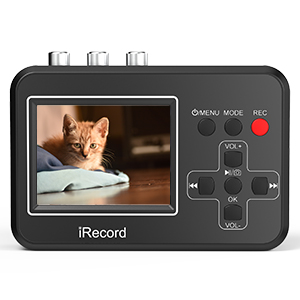
Figure 5.1: Inserting the Micro SD card.
- Connectar l'alimentació: Connect the provided power adapter to the USB port on the converter and plug it into a wall outlet. The device can also be powered via a USB connection to a computer.
- Connect Analog Video Source:
- Use the 3 Pins RCA Cable (Yellow, White, Red) to connect your analog video source (e.g., VCR, camcorder, DVD player) to the AV IN ports on the converter. Match the colors: Yellow for Video, White for Audio Left, Red for Audio Right.
- Ensure your video source device is in playback mode.

Figure 5.2: Connecting to various video source devices.
Figura 5.3: Detallada view of RCA connections to the converter.
- Connect to Display (Optional):
- En temps real viewing on a larger screen, connect the converter's AV OUT (3.5mm) port to your TV or monitor using the 3.5mm RCA to AV Cable.
- Alternatively, use an HDMI cable to connect the HDMI OUT port to an HDMI-enabled display for passthrough viewing.

Figure 5.4: Connecting the converter to a TV for viewing.
6. Instruccions de funcionament
6.1. Gravació de vídeo
- Encès: Press and hold the Power/Menu button to turn on the device. The LCD screen will light up.
- Selecciona el mode d'entrada: Ensure the device is in the correct input mode. The screen should display the live video feed from your connected analog source. If not, press the Mode button to cycle through modes until the video appears.
- Comença a gravar: Once the live video is displayed, press the REC button. A recording indicator (e.g., a red dot or "REC") will appear on the screen, indicating that recording has started.
- Monitor Recording: You can monitor the recording progress on the built-in LCD screen or on your connected TV/monitor.
- Atura la gravació: Press the REC button again to stop recording. The recording indicator will disappear, and the video file es desarà a la targeta Micro SD.
6.2. Reproducció
- Entra al mode de reproducció: Press the Mode button to switch to playback mode. You will see a list of recorded video files.
- Select Video: Use the directional buttons (Up/Down) to navigate through the list of recorded videos.
- Reprodueix el vídeo: Press the OK button to play the selected video.
- Control de reproducció: Use the directional buttons (Left/Right) to fast-forward or rewind, and the OK button to pause/resume. Use VOL+/VOL- to adjust volume.
- Exit Playback: Press the Mode button to return to the main menu or recording mode.
6.3. Transferring Recorded Videos to a Computer
There are two primary methods to transfer your recorded video files (AVI format) to a computer:
- Connexió directa:
- Connect the converter to your computer using the provided USB cable.
- The converter will appear as a removable storage device (like a USB drive).
- Open the device folder and copy the video files (.avi) to your computer.
- Using the Micro SD Card:
- Safely remove the Micro SD card from the converter.
- Insert the Micro SD card into a card reader connected to your computer.
- Access the card's contents and transfer the video files al vostre ordinador.

Figure 6.1: Methods for transferring video to a computer.
Note: Some users have reported audio/video sync issues when importing .avi files directly into certain video editing software. Converting the files to .mp4 format using a video converter tool (e.g., Handbrake, Shutter, Avidemux) after transfer may resolve these issues.
6.4. Official Product Videos (Seller Content)
For visual guidance, please refer to the following official product videos provided by the seller:
Convert Vhs Tapes to Digital Format
This video demonstrates the process of converting VHS tapes to digital format using the DIGITNOW converter, providing a step-by-step visual guide.
VHS to Digital Converter--Video Converter
This video offers another perspective on using the VHS to Digital Converter, showcasing its functionality and ease of use for digitizing old video content.
7. Manteniment
Proper maintenance will extend the life of your DIGITNOW Video to Digital Converter.
- Neteja: Feu servir un drap suau i sec per netejar l'exterior del dispositiu. No utilitzeu netejadors líquids ni aerosols.
- Emmagatzematge: Quan no l'utilitzeu, emmagatzemeu el dispositiu en un lloc fresc i sec, lluny de la llum solar directa i de temperatures extremes.
- Cura del cable: Handle cables gently. Avoid bending or crimping them excessively, as this can damage the internal wires.
- Targeta micro SD: Periodically back up your recorded files from the Micro SD card to a computer or other storage device. Format the Micro SD card occasionally to maintain optimal performance (ensure all important data is backed up first).
8. Solució De Problemes
If you encounter issues with your converter, refer to the following common problems and solutions:
| Problema | Causa possible | Solució |
|---|---|---|
| El dispositiu no s'encén. | No power, faulty cable, or internal issue. | Ensure power adapter is securely connected and plugged into a working outlet. Try a different USB cable or power source. If problem persists, contact support. |
| No hi ha senyal de vídeo a la pantalla. | Incorrect cable connection, wrong input mode, or video source not playing. | Check all RCA cable connections (Yellow, White, Red) are secure and matched. Press the Mode button to cycle through input modes. Ensure your analog video source (VCR, camcorder) is powered on and playing video. |
| Recording stops unexpectedly or fails. | Micro SD card full, card error, or power interruption. | Check available space on the Micro SD card. Try reformatting the card (after backing up data). Ensure stable power supply during recording. |
| Audio/Video sync issues after transfer to PC. | Compatibility issue with .avi format and certain editing software. | Convert the recorded .avi files to .mp4 format using a third-party video converter software (e.g., Handbrake, Avidemux) on your computer. |
| Poca qualitat de vídeo. | Poor quality of original analog source, dirty video heads on source device, or incorrect connections. | The converter digitizes the signal as it receives it; if the source is poor, the digital copy will also be poor. Clean video heads on your VCR/camcorder. Ensure all connections are firm. |
9. Especificacions
| Característica | Detall |
|---|---|
| Dimensions del producte | 4.13 x 2.91 x 0.94 polzades |
| Pes de l'article | 0.141 unces |
| Número de model | br120 |
| Fabricant | DIGITNOW |
| Dispositius compatibles | PC, Cellular Phones (for file transferència) |
| Usos específics per al producte | TV (for viewing), Video Conversion |
| Tipus de connector | RCA |
| Color | Negre |
| Mitjà d'emmagatzematge | Targeta Micro SD (targeta TF) |
| Format de sortida de vídeo | AVI |
10. Garantia i Suport
The DIGITNOW Video to Digital Converter comes with a standard manufacturer's warranty. For detailed warranty information, please refer to the warranty card included in your package or visit the official DIGITNOW weblloc.
For technical support, troubleshooting assistance, or inquiries about your product, please contact DIGITNOW customer service through their official channels. Contact information can typically be found on the product packaging, the included manual, or the brand's official weblloc.
Ask a question about this manual
Ask about setup, troubleshooting, compatibility, parts, safety, or missing instructions. Manuals+ will review the question and use this page’s manual context to help answer it.