
PIX-LINK LV-WR07
PIX-LINK LV-WR07 Wireless Router User Manual
Model: LV-WR07
1. Introducció
Thank you for choosing the PIX-LINK LV-WR07 Wireless Router. This device is designed to provide a high-speed wireless network connection for your home or small office. With 300Mbps wireless speed and two external antennas, it ensures stable and wide-ranging Wi-Fi coverage. This manual will guide you through the setup, operation, and maintenance of your new router.

Image 1.1: The PIX-LINK LV-WR07 Wireless Router, showcasing its compact design and two external antennas.
2. Característiques del producte
- Sense fil d'alta velocitat: Up to 300Mbps data transmission rate, ideal for smooth HD streaming, online gaming, and fast web navegació.
- Cobertura millorada: Equipped with two external antennas to ensure a strong and stable Wi-Fi signal across your space.
- Ports múltiples: Features 5 LAN ports for reliable wired connections to devices like desktop computers, smart TVs, and gaming consoles.
- Funcionalitat WPS: Supports Wi-Fi Protected Setup (WPS) for easy and secure wireless connection setup.
- Àmplia compatibilitat: Connects seamlessly with various devices including gaming consoles, tablets, and smart televisions.

Image 2.1: Illustration of the router's network coverage and compatibility with various devices, including laptops, smartphones, and PCs.
3. Contingut del paquet
Si us plau, verifiqueu que tots els elements siguin presents al vostre paquet:
- PIX-LINK LV-WR07 Wireless Router
- Adaptador d'alimentació
- Cable Ethernet
- Guia d'instal·lació ràpida (aquest manual)
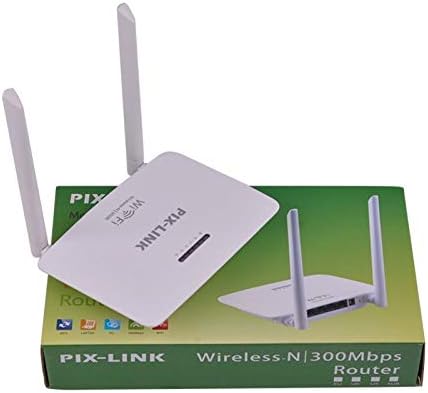
Image 3.1: The PIX-LINK LV-WR07 Wireless Router shown with its retail packaging, indicating the product as it appears in the box.

Image 3.2: The essential accessories included with the router: the power adapter for electrical connection and an Ethernet cable for wired network setup.
4. Guia de configuració
4.1 Connexió de maquinari
- Encès: Connect the power adapter to the router's power port and then plug the adapter into a standard electrical outlet. The power indicator light on the router should illuminate.
- Connecta't a la font d'Internet: Connect one end of the provided Ethernet cable to your modem's LAN port or your internet service provider's (ISP) Ethernet wall jack. Connect the other end of the Ethernet cable to the WAN port (usually labeled differently or colored) on your PIX-LINK LV-WR07 router.
- Connecteu el vostre dispositiu:
- Connexió per cable: For initial setup or stable connection, connect your computer to one of the router's LAN ports (usually yellow) using another Ethernet cable.
- Connexió sense fil: Locate the default Wi-Fi network name (SSID) and password printed on a label on the bottom or back of your router. Connect your wireless device (laptop, smartphone, tablet) to this network.
4.2 Configuració inicial (Web Interfície)
After connecting the hardware, you can configure your router via a web navegador.
- Accediu a la configuració de l'encaminador: Obre a web browser (e.g., Chrome, Firefox, Edge) on a device connected to the router. In the address bar, type the default IP address (e.g.,
192.168.1.1or192.168.0.1) and press Enter. This IP address is usually found on the router's label. - Inici de sessió: A login window will appear. Enter the default username and password (commonly
adminper a tots dos, o tal com s'especifica a l'etiqueta del router). - Executa l'assistent de configuració: Most routers have a Quick Setup Wizard. Follow the on-screen instructions to configure your internet connection type (e.g., DHCP, Static IP, PPPoE) and set up your new Wi-Fi network name (SSID) and a strong password.
- Desa la configuració: Després de configurar-ho, deseu els paràmetres i reinicieu el router si se us demana.
5. Funcionament del router
5.1 Connexió de dispositius a la Wi-Fi
Per connectar un dispositiu a la xarxa Wi-Fi:
- Al dispositiu, vés a la configuració del Wi-Fi.
- Seleccioneu el nom de la vostra xarxa Wi-Fi (SSID) de la llista.
- Enter the Wi-Fi password you set during configuration.
- El dispositiu ara hauria d'estar connectat a Internet.
5.2 Ús de WPS (configuració protegida Wi-Fi)
WPS allows you to connect devices to your Wi-Fi network without entering the password manually.
- Press the WPS button on your router (usually located on the back or side, labeled 'WPS'). The WPS LED indicator will start blinking.
- Within two minutes, activate WPS on your client device (e.g., a wireless adapter, smartphone, or printer). Refer to your device's manual for specific instructions on activating WPS.
- The device will automatically connect to your Wi-Fi network.
5.3 Wired Connections (LAN Ports)
The router provides multiple LAN ports for wired connections, offering stable and fast connectivity for devices like desktop computers, gaming consoles, and smart TVs.
- Simply connect an Ethernet cable from the device's Ethernet port to any available LAN port on the router.
- The corresponding LAN indicator light on the router should illuminate, indicating a successful connection.
6. Manteniment
- Col·locació òptima: Place the router in a central location, away from obstructions (thick walls, metal objects) and interference sources (microwaves, cordless phones) to maximize Wi-Fi coverage.
- Mantenir net: Regularly clean the router's exterior with a soft, dry cloth. Ensure ventilation holes are not blocked to prevent overheating.
- Actualitzacions de firmware: Periodically check the PIX-LINK official website for firmware updates. Updating firmware can improve performance, add new features, and fix bugs. Follow the instructions provided on the weblloc amb cura.
- Reiniciar periòdicament: Restarting your router every few weeks can help clear its memory and resolve minor network issues, improving overall performance.
7. Solució De Problemes
7.1 Sense connexió a Internet
- Check if the power adapter is securely connected and the router is powered on.
- Ensure the Ethernet cable from your modem/ISP is securely connected to the router's WAN port.
- Restart your modem and then your router. Wait a few minutes for them to fully boot up.
- Verify your internet connection type settings in the router's web interface (e.g., DHCP, Static IP, PPPoE).
- Poseu-vos en contacte amb el vostre proveïdor de serveis d'Internet (ISP) per confirmar que no hi ha cap servei fora de servei.tagés a la teva zona.
7.2 Slow Wi-Fi Speed or Intermittent Connection
- Recol·loca el router a una posició més central, allunyada d'obstacles i interferències.
- Assegureu-vos que el firmware del vostre encaminador estigui actualitzat.
- Reduce the number of devices connected to the network, especially those performing high-bandwidth activities.
- Try changing the Wi-Fi channel in the router's settings to avoid interference from neighboring networks.
7.3 No es pot accedir als encaminadors Web Interfície
- Ensure your device is connected to the router (either via Ethernet cable or Wi-Fi).
- Verify that you are typing the correct IP address (e.g.,
192.168.1.1) in the browser's address bar. - Esborra la memòria cau i les galetes del navegador o prova'n un altre web navegador.
- If you forgot the login credentials, you may need to perform a factory reset (see section 7.4).
7.4 How to Perform a Factory Reset
A factory reset will restore the router to its default settings, including the default Wi-Fi name and password, and login credentials.
- With the router powered on, locate the Reset button (often a small pinhole) on the back or bottom of the router.
- Use a paperclip or a thin object to press and hold the Reset button for about 5-10 seconds until the router's lights flash or change behavior.
- Release the button and wait for the router to restart. You will then need to reconfigure it using the initial setup steps.
8. Especificacions tècniques
| Característica | Descripció |
|---|---|
| Marca | PIX-LINK |
| Model | LV-WR07 |
| Velocitat sense fil | 300 megabits per segon (Mbps) |
| Antenes | 2 antenes externes |
| Nombre de Ports | 5 (1 WAN, 4 LAN) |
| Tecnologia de connectivitat | Wi-Fi, LAN |
| Característiques especials | WPS (configuració protegida per Wi-Fi) |
| Dispositius compatibles | Gaming Consoles, Tablets, Smart Televisions |
9. Informació de la garantia
PIX-LINK products are designed for reliability and performance. For specific warranty terms and conditions, please refer to the warranty card included with your product or visit the official PIX-LINK weblloc web. Conserveu el rebut de compra com a comprovant de compra per a reclamacions de garantia.
10. Atenció al client
If you encounter any issues that are not covered in this manual or require further assistance, please contact PIX-LINK customer support. You can usually find contact information (phone number, email, or support portal) on the official PIX-LINK weblloc web o a l'embalatge del producte.
Abans de contactar amb el servei d'assistència, tingueu a mà la informació següent:
- Product Model: LV-WR07
- Serial Number (found on the product label)
- Una descripció detallada del problema que esteu experimentant
- Steps you have already taken to troubleshoot
Documents relacionatsLV-WR07


Ask a question about this manual
Ask about setup, troubleshooting, compatibility, parts, safety, or missing instructions. Manuals+ will review the question and use this page’s manual context to help answer it.