
1. Introducció
Welcome to the user manual for your BOOX Note Pro 10.3" eReader. This guide provides essential information to help you set up, operate, maintain, and troubleshoot your device, ensuring you get the most out of its advanced features. Please read this manual thoroughly before using your device.
2. Producte acabatview
2.1 Característiques clau
- 10.3" flush glass-based E-ink screen for comfortable reading.
- Dual touch functionality supporting both finger and stylus input.
- Integrated front light for enhanced readability in various lighting conditions.
- Android 6.0 operating system for versatile app compatibility.
- Generous 4GB RAM and 64GB internal storage for efficient performance and ampl'espai.
- Stylus Pen Holder for convenient storage.
2.2 Components
Your BOOX Note Pro package includes the following items:
- BOOX Note Pro eReader
- Bolígraf
- Cable de càrrega (USB-C)
- Manual d'usuari (aquest document)

Figure 2.2.1: The BOOX Note Pro eReader with its included stylus pen.
3. Configuració
3.1 Càrrega inicial
Before first use, fully charge your BOOX Note Pro. Connect the provided USB-C charging cable to the device and a suitable power adapter (5V=2A recommended). The charging indicator will show the charging status.
3.2 Engegada/apagada
To power on, press and hold the power button located on the side of the device until the screen illuminates. To power off, press and hold the power button, then select 'Power Off' from the options.
3.3 Configuració inicial
Upon first power-on, you will be guided through an initial setup process. This includes selecting your preferred language, connecting to a Wi-Fi network, and setting the time zone. Follow the on-screen prompts to complete these steps.

Figure 3.3.1: The initial setup screen of the BOOX Note Pro, displaying options for front light adjustment and system settings.
4. Instruccions de funcionament
4.1 Navegació
The BOOX Note Pro features a responsive touchscreen. You can navigate the interface by tapping, swiping, and pinching. The included stylus provides precise input for writing and drawing.
4.2 Reading Documents
The device supports various document formats, including PDF, EPUB, MOBI, and more. Open documents from your library. While reading, you can adjust font size, contrast, and utilize the front light for optimal viewing.

Figure 4.2.1: Reading experience on the BOOX Note Pro, showing text and the ability to add notes with the stylus.

Figure 4.2.2: User reading the BOOX Note Pro in a dimly lit environment, showcasing the front light feature.
4.3 Note Taking and Annotation
Utilize the stylus to take notes directly on documents or in dedicated note-taking applications. The dual-touch functionality allows for precise writing and drawing, mimicking a natural pen-on-paper feel.

Figure 4.3.1: The BOOX Note Pro displaying a document alongside a separate note-taking area, highlighting its multitasking capability.
4.4 Connectivitat
The BOOX Note Pro supports Wi-Fi connectivity for downloading content and syncing. You can transfer files to and from the device using the USB-C cable connected to a computer. Cloud services can also be integrated for seamless file gestió.
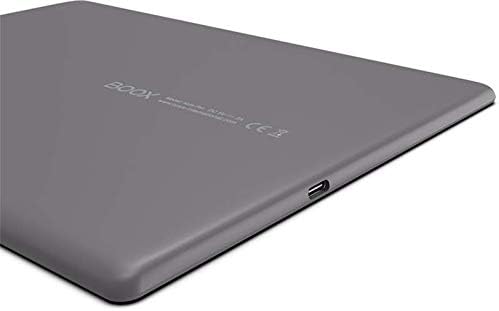
Figura 4.4.1: Primer pla view of the USB-C port on the BOOX Note Pro, used for charging and data transfer.
5. Manteniment
5.1 Neteja
To clean the screen, use a soft, lint-free cloth. For stubborn smudges, slightly dampen the cloth with water or a screen cleaner designed for electronics. Avoid using harsh chemicals or abrasive materials. Clean the device body with a dry, soft cloth.
5.2 Cura de la bateria
To prolong battery life, avoid exposing the device to extreme temperatures. It is recommended to fully charge the device before it completely drains. If storing the device for an extended period, charge it to about 50% and power it off.
6. Solució De Problemes
6.1 Problemes comuns i solucions
- El dispositiu no s'encén: Ensure the device is sufficiently charged. Connect it to the charger and wait a few minutes before attempting to power on again.
- La pantalla no respon: Try restarting the device by holding the power button until it powers off, then power it back on. If unresponsive, perform a hard reset (refer to manufacturer's website for specific instructions if power button reset fails).
- Problemes de connexió Wi-Fi: Check if Wi-Fi is enabled in settings. Ensure you are within range of a known network and that the password is correct. Note that this device does no feature 5G Wi-Fi.
- Rendiment lent: Close unused applications. Clear cache if necessary. Ensure sufficient storage space is available.
- Stylus not working: Ensure the stylus tip is clean and undamaged. If the issue persists, try restarting the device.
- USB-C port functionality: The USB-C interface on this device només supports USB drive connection and charging. It does not support video output or other data transfer modes.
7. Especificacions
7.1 Especificacions tècniques
| Dimensions del producte | 24.9 x 17.8 x 0.68 cm |
| Pes de l'article | 390 grams |
| Nom del model | BOOX Note PRO |
| Tecnologia de visualització | Tinta electrònica |
| Mida de la pantalla | 10.3 polzades |
| Resolució de visualització | 1440 x 1920 |
| Capacitat d'emmagatzematge de memòria | 64 GB |
| Tecnologia de connectivitat | Wi-Fi |
| Color | Gris |
8. Garantia i Suport
8.1 Informació de la garantia
Your BOOX Note Pro is covered by a manufacturer's warranty. Please refer to the warranty card included with your product or visit the official BOOX weblloc web per obtenir informació detallada sobre els termes i condicions de la cobertura i la durada de la garantia.
8.2 Atenció al client
For technical assistance, troubleshooting beyond this manual, or warranty claims, please contact BOOX customer support through their official website. You may also find additional resources and FAQs on the BOOX Store on Amazon.