
1. Introducció
The Hohem iSteady X is a lightweight, foldable 3-axis smartphone gimbal stabilizer designed to capture smooth and stable video footage with your mobile device. This manual provides detailed instructions for setup, operation, maintenance, and troubleshooting to ensure optimal performance.
2. Què hi ha a la caixa
Upon unboxing your Hohem iSteady X, verify that all components are present:
- Hohem iSteady X Gimbal Stabilizer
- Mini suport de trípode
- Cable de càrrega (USB-C)
- Corretja de canell
- Bossa d'emmagatzematge
- Guia d'inici ràpid
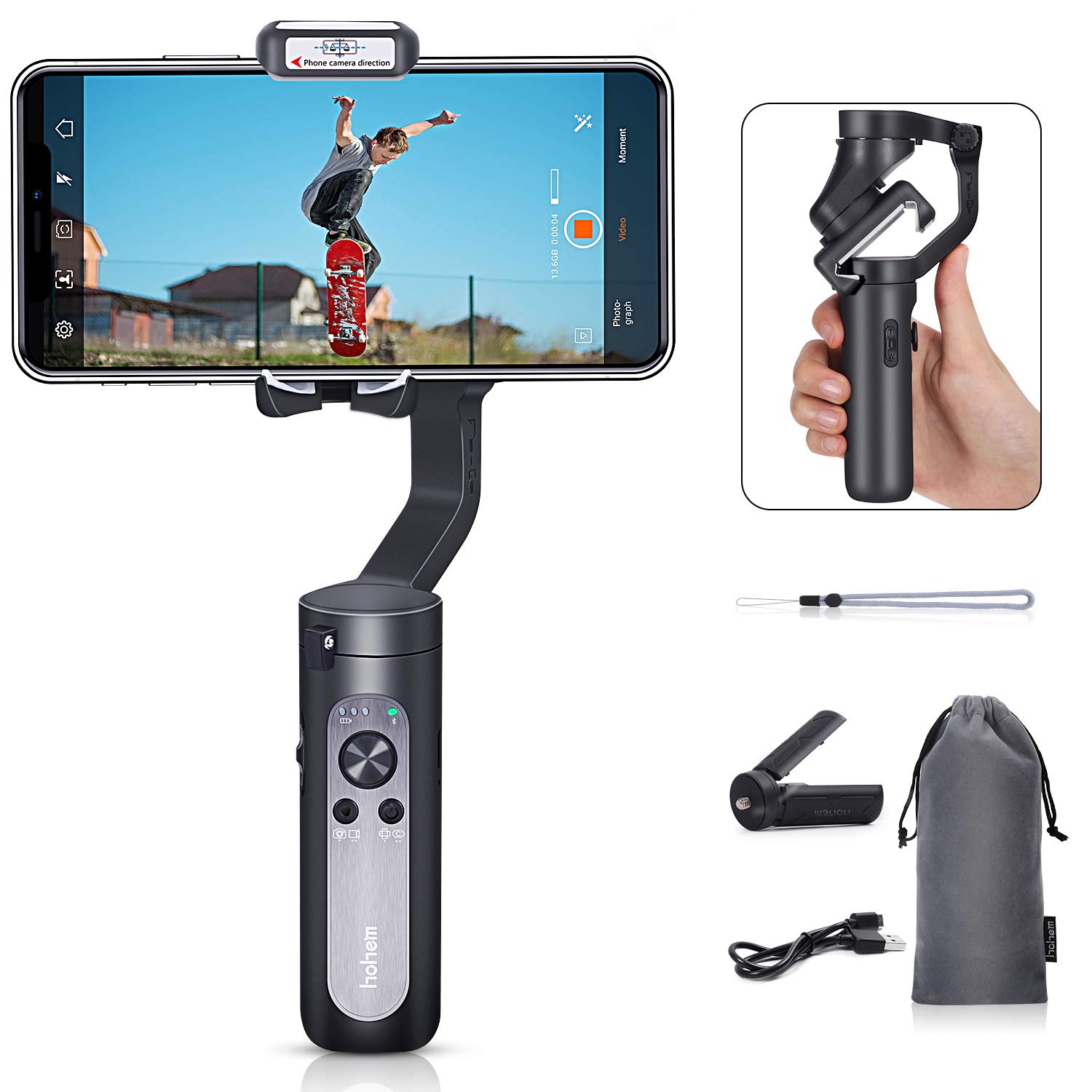
Figure 2.1: Contents of the Hohem iSteady X package, including the gimbal, mini tripod, charging cable, wrist strap, and storage pouch.
3. Configuració
3.1 Desplegament del cardan
The iSteady X is designed to be compact when folded. To unfold, gently extend the gimbal arm until it locks into its operational position. Ensure all motor buckles are unlocked before powering on.

Figure 3.1: Visual guide for unfolding the gimbal, securing the smartphone, and unlocking the motor axes.
3.2 Mounting and Balancing Your Smartphone
- Ensure your smartphone is removed from its case for proper balancing.
- Place your smartphone securely in the phone clamp.
- Adjust the phone's position within the clamp to achieve a balanced state. The phone should remain level when the gimbal is powered off.
3.3 App Download and Activation
Before first use, the iSteady X requires activation via the Hohem Pro app. Download the app from your smartphone's app store (iOS App Store or Google Play Store).
- Activa el Bluetooth al teu telèfon intel·ligent.
- Launch the Hohem Pro app.
- The app will detect the iSteady X. Tap 'Connect' and then 'Pair' when prompted for Bluetooth pairing.
- Follow the on-screen instructions to complete the activation process. Do not turn off the phone or gimbal during activation.
4. Instruccions de funcionament
4.1 Controls bàsics
The gimbal features intuitive controls on its handle:
- Botó d'encesa: Long press to power on/off. Single press to switch between photo/video mode. Double press to switch between horizontal/vertical shooting.
- Palanca de control: Controls pan and tilt movements.
- Zoom Slider (T/W): Controls digital zoom within the Hohem Pro app.
- Botó d'activació: Press and hold to enter All Lock mode. Double press to recenter the gimbal. Triple press to enter Inception mode.
4.2 Modes de tret
The Hohem Pro app offers various shooting modes to enhance your video creation:
- Standard Follow Mode (Tilt/Pan Follow): The camera follows your hand movements on both tilt and pan axes, maintaining a steady horizon.
- Mode de seguiment panoràmic: The camera only follows your pan (horizontal) movements.
- All Lock Mode: The camera remains fixed in its current orientation, ignoring all movements.
- POV (Point of View) Mode: The camera follows all three axes (pan, tilt, roll) for dynamic first-person perspective shots.
- Horizontal & Vertical Switch: Easily switch between landscape and portrait orientations for different platforms.

Figure 4.1: The gimbal supports smart switching between horizontal and vertical shooting modes.
- Seguiment facial: The gimbal automatically tracks a detected face, keeping it centered in the frame.

Figure 4.2: The Hohem Pro app enables smart face-tracking for hands-free recording.
- Motion Timelapse: Capture time-lapse videos with dynamic camera movement.

Figure 4.3: The Motion Timelapse feature allows for creative time-lapse videos with programmed movements.
- Auto Low-Angle Shots: The gimbal can automatically adjust to capture stable low-angle footage.

Figure 4.4: The gimbal facilitates smooth auto low-angle shots.
- Auto Inception Mode (270° Roll): Create cinematic spinning shots with a 270-degree roll.

Figure 4.5: Auto Inception Mode allows for dynamic 270-degree rotating video effects.
- Mode de pal de selfie: The gimbal can be used as an extended selfie stick for wider shots.

Figure 4.6: The gimbal can be quickly switched to selfie stick mode for convenient self-portraits or group shots.
5. Manteniment
- Mantingueu el cardan net i lliure de pols i deixalles. Feu servir un drap suau i sec per netejar-lo.
- Avoid exposing the gimbal to extreme temperatures or moisture.
- Store the gimbal in its provided pouch when not in use to prevent damage.
- Carregueu la bateria regularment, fins i tot si no l'utilitzeu amb freqüència, per mantenir-la en bon estat.
6. Solució De Problemes
- El gimbal no s'encén: Ensure the battery is charged. Connect to the charging cable and try again.
- Gimbal not balancing: Remove the smartphone case. Re-center the smartphone in the clamp.
- Problemes de connexió Bluetooth: Ensure Bluetooth is enabled on your phone. Restart the Hohem Pro app and try connecting again. If issues persist, restart both the phone and the gimbal.
- Menjar inestabletage: Ensure the smartphone is properly balanced. Check for any obstructions to the gimbal's movement.
7. Especificacions
| Característica | Especificació |
|---|---|
| Dimensions del producte | 7.04 x 3.11 x 1.53 inches (folded: 179mm x 79mm x 39mm) |
| Pes de l'article | 8 unces (227 grams) |
| Bateries | Necessites 2 piles de ions de liti (incloses) |
| Dispositius compatibles | Telèfon mòbil |
| Color | Negre |
| ASIN | B07R2J372X |
| UPC | 749390448534 |
8. Garantia i Suport
For warranty information and customer support, please refer to the official Hohem weblloc web o contacteu directament amb el seu servei d'atenció al client. Conserveu el rebut de compra com a comprovant de compra.