
1. Introducció
This manual provides instructions for the ASHATA 480P HD Webcam, designed for use with laptops and desktops. This device features a built-in microphone, 360-degree rotation, and plug-and-play functionality for easy setup and use in video calls and broadcasting.
2. Contingut del paquet
Si us plau, verifiqueu que tots els elements siguin presents al vostre paquet:
- ASHATA 480P HD Webcam (Camera Body)
3. Especificacions
| Característica | Detall |
|---|---|
| Número de model | ASHATAnds5wyfcig-02 |
| Resolució de captura de vídeo | 480p (640 x 480 píxels) |
| Resolució de fixes efectius | 12.0 megapíxels |
| Tecnologia del sensor fotogràfic | CMOS |
| Tecnologia de connectivitat | USB |
| Micròfon incorporat | Yes, sound absorption, up to 10 meters range |
| Angle de rotació | 360 degrees left & right, 30 degrees up & down |
| Tipus de lent | Optical Lens, Zoom |
| Tipus d'enfocament | Enfocament manual |
| Balanç de blancs | Automàtic |
| Correcció de color | Automàtic |
| Compatibilitat de sistemes operatius | Windows (Windows 10, XP, 2003, 7, 8, Vista 32bit) |
| Dispositius compatibles | Ordinador portàtil, escriptori |
| Pes de l'article | 0.07 quilos |
4. Configuració
4.1 Connexió del Weblleva
The ASHATA 480P HD Webcam is a plug-and-play device, requiring no additional driver installation for most operating systems.
- Connecteu el cable USB de la webcam to an available USB port on your computer (laptop or desktop).
- El sistema operatiu detectarà i instal·larà automàticament els controladors necessaris. Aquest procés pot trigar uns instants.
- Un cop instal·lat, el webcam is ready for use with compatible applications.

Image: The ASHATA 480P HD Webcam connected via its USB cable.
4.2 Muntatge del Weblleva
El webcam features a versatile clip-on base designed for various placements:
- En una pantalla de monitor/ordinador portàtil: Open the clip and securely attach it to the top edge of your screen. Adjust the angle for optimal viewing.
- En un escriptori: Col·loca el webcam on a flat surface. The clip base can be folded to provide a stable stand.

Image: Illustration of the webcam being placed on a desktop and clamped onto a PC screen.
4.3 Compatibilitat del sistema
El webcam supports various Windows operating systems, ensuring broad compatibility for most users.

Imatge: Representació visual de la webcam's compatibility with various Windows operating systems.
5. Instruccions de funcionament
5.1 Utilitzant el Webcam for Video Calls and Recording
Once connected and recognized by your computer, the webcam can be used with various video communication and recording applications.
- Open your preferred video conferencing software (e.g., Skype, Zoom, Microsoft Teams) or video recording application.
- In the application's settings, select the ASHATA 480P HD Webcàmera com a dispositiu d'entrada de vídeo.
- Ensure the built-in microphone is also selected as your audio input device if you wish to use it.
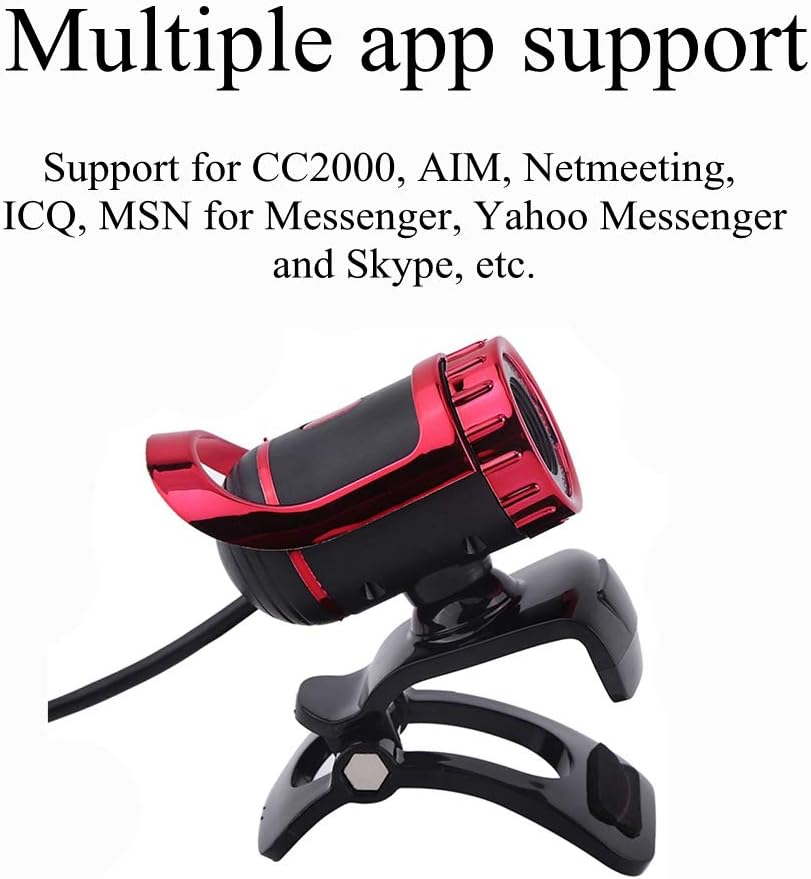
Imatge: El/La webcam is compatible with a range of communication applications.
5.2 Ajust de WebAngle de la càmera
El webcam offers flexible positioning to achieve the best viewangle de ing:
- The camera head can rotate 360 degrees horizontally (left and right).
- The camera head can tilt 30 degrees vertically (up and down).
- Manually adjust the lens for focus if needed.

Image: Diagram illustrating the 360-degree horizontal and 30-degree vertical rotation capabilities of the weblleva.
5.3 Ús del micròfon integrat
The integrated microphone features sound absorption technology, allowing your voice to be heard clearly up to 10 meters away.
- Ensure the microphone is selected as the default audio input in your computer's sound settings and within your communication application.
- For optimal audio quality, speak clearly and avoid placing the webcam too far from your position.

Image: Visual representation highlighting the webcam's built-in sound-absorbing microphone.
6. Manteniment
- Neteja: Utilitzeu un drap suau i sec per netejar-lo webcam lens and body. Avoid abrasive cleaners or solvents.
- Emmagatzematge: Quan no s’utilitzi, emmagatzemeu el fitxer webguardeu-ho en un lloc net i sec, allunyat de temperatures extremes i de la llum solar directa.
- Cura del cable: Do not bend or crimp the USB cable excessively to prevent damage.
7. Solució De Problemes
- Sense imatge/vídeo:
- Assegureu-vos que el cable USB estigui connectat correctament a tots dos webcàmera i l'ordinador.
- Intenta connectar el webcàmera a un port USB diferent.
- Reinicieu l'ordinador.
- Comproveu que el webLa càmera està seleccionada com a dispositiu d'entrada de vídeo a la configuració de l'aplicació.
- Sense so/Mala qualitat d'àudio:
- Confirm that the built-in microphone is selected as the audio input device in your computer's sound settings and your application.
- Check your computer's volume settings and ensure the microphone is not muted.
- Ensure you are within the 10-meter effective range of the microphone.
- Imatge borrosa:
- Netegeu el weblent de la càmera amb un drap suau i sec.
- Adjust the manual focus ring on the lens until the image is clear.
- Assegureu-vos que hi hagi una il·luminació adequada al vostre entorn.
- Webcàmera no detectada:
- Desconnecteu i torneu a connectar weblleva.
- Prova amb un port USB diferent.
- Consulteu el Gestor de dispositius de l'ordinador (Windows) per veure si el webcàmera apareix a la llista i si hi ha algun problema amb el controlador.
- Ensure your operating system is compatible (Windows 7/8/10/XP/2003/Vista 32bit).
8. Garantia i Suport
For warranty information or technical support, please refer to the documentation included with your purchase or contact ASHATA customer service directly. Contact details can typically be found on the manufacturer's official weblloc web o a través del vostre distribuïdor.