
DIGITNOW BR605-111
DIGITNOW! USB 2.0 Digital Audio Capture Card (Model BR605-111) User Manual
Convert your analog audio to digital format with ease.
1. Introducció
The DIGITNOW! USB 2.0 Digital Audio Capture Card is designed to convert analog audio sources into digital formats such as MP3 or WAV. This device allows you to preserve your old vinyl records, cassette tapes, and other audio media by digitizing them on your computer. It is compatible with Windows and Mac operating systems.

Image 1: The DIGITNOW! USB 2.0 Digital Audio Capture Card, including the main unit, RCA cables, 3.5mm audio cable, and software installation CD.
2. Informació de seguretat
- Mantingueu el dispositiu allunyat de l'aigua i la humitat.
- No intenteu obrir ni modificar el dispositiu.
- Use only with compatible audio sources and computer systems.
- Eviteu les temperatures extremes i la llum solar directa.
- Disconnect the device from your computer when not in use.
3. Contingut del paquet
Verifiqueu que tots els elements siguin presents al vostre paquet:
- DIGITNOW! USB 2.0 Digital Audio Capture Card
- Cable USB (integrat)
- RCA Audio Cables (Red/White)
- Cable d'àudio de 3.5 mm
- Guia d'instal·lació ràpida
- Software Installation CD (Audacity)
- Additional Adapters (e.g., RCA to 3.5mm, 3.5mm to 3.5mm)
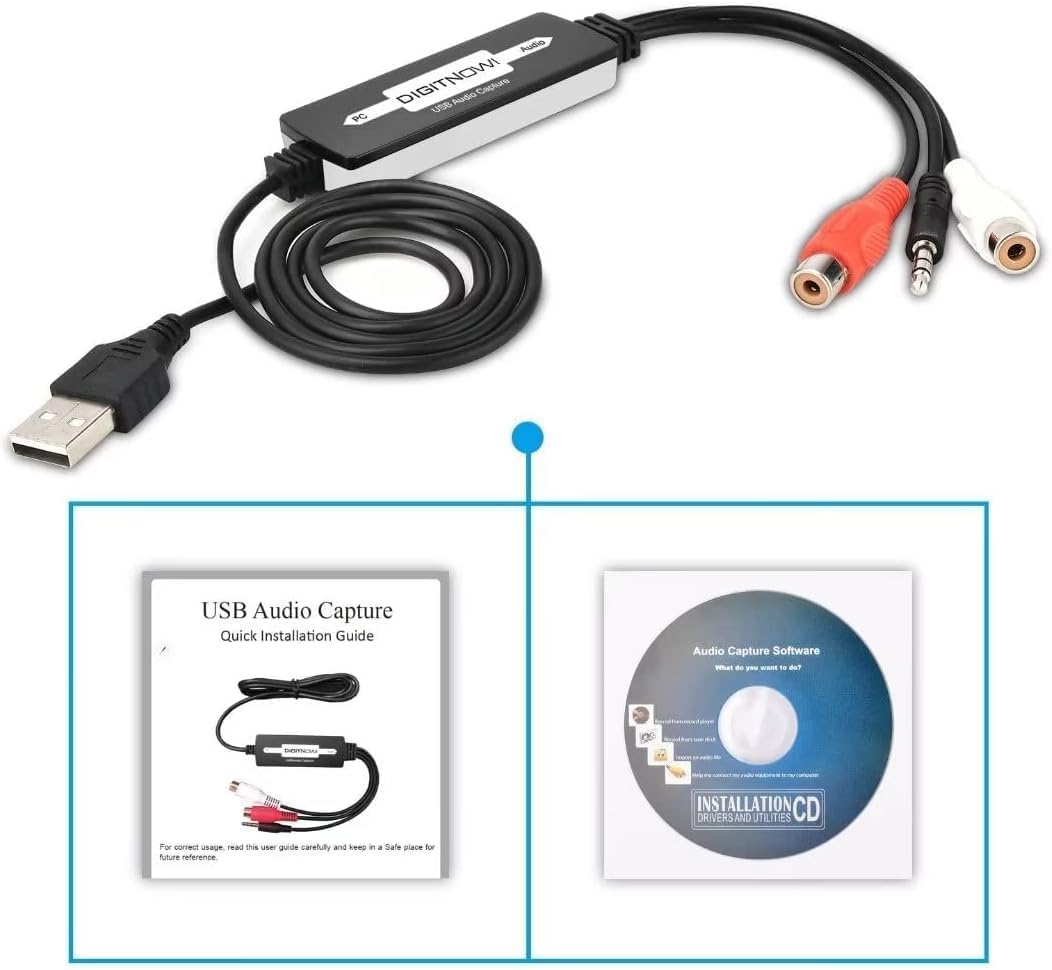
Image 2: The Quick Installation Guide and the included software installation CD.
4. Producte acabatview
The audio capture card features a USB connector for your computer and various audio input options for your analog devices. It is a compact, plug-and-play device designed for ease of use.
4.1 Components del dispositiu
- Connector USB: Connects to your computer's USB port.
- RCA Input (Red/White): For connecting audio sources with RCA output (e.g., record players, CD players).
- Entrada d'àudio de 3.5 mm: For connecting audio sources with a 3.5mm jack (e.g., cassette players, MP3 players).
5. Guia de configuració
5.1 Instal·lació del programari
- Insert the provided software installation CD into your computer's CD/DVD drive.
- Follow the on-screen instructions to install the Audacity audio capture and editing software.
- Alternatively, you can download the latest version of Audacity from its official website for updated features and compatibility.
5.2 Connexió a l'ordinador
- Localitza un port USB disponible al teu ordinador (de sobretaula o portàtil).
- Plug the USB connector of the audio capture card into the USB port. Your computer should automatically detect the device.

Image 3: Illustration of connecting various audio sources like a radio, cassette player, or record player to the DIGITNOW! audio capture card, which then connects to a computer.
5.3 Connexió de fonts d'àudio
The audio capture card supports various analog audio devices. Choose the appropriate connection method for your source:
- For devices with RCA output (e.g., Record Players, CD Players, Receivers):
- Connect the red RCA plug from your audio source to the red RCA input on the capture card.
- Connect the white RCA plug from your audio source to the white RCA input on the capture card.
- Ensure your record player has a built-in pre-amplifier or is connected to a receiver with a phono input, as the capture card does not provide phono pre-amplificació.
- For devices with 3.5mm audio output (e.g., Cassette Players, MP3 Players, Portable Radios):
- Connect the 3.5mm audio cable from your audio source's headphone or line-out jack to the 3.5mm input on the capture card.
- Use the provided adapters if necessary (e.g., a 3.5mm female to female adapter if your source has a male 3.5mm plug).

Image 4: A record player connected to a laptop using the DIGITNOW! USB audio capture card.

Image 5: Detailed diagram illustrating both 3.5mm audio cable and RCA (left and right channel) cable connections from various audio devices to a laptop via the USB audio capture card.
6. Instruccions de funcionament
6.1 Recording Audio with Audacity
- Open the Audacity software on your computer.
- In Audacity, go to Edit > Preferences (o Audacity > Preferences on Mac).
- Sota el Dispositius tab, select the DIGITNOW! USB Audio Capture Card as your recording device.
- Adjust the recording volume levels within Audacity to prevent clipping or distortion. Start with a lower volume and gradually increase it while monitoring the input levels.
- Start playback on your analog audio source (e.g., play a record or cassette).
- Feu clic a Registre button (red circle) in Audacity to begin capturing the audio.
- Once the audio has finished playing, click the Atureu-vos button (yellow square) in Audacity.
6.2 Editing and Exporting Audio
- Use Audacity's editing tools to trim silence, remove noise, or split tracks as needed.
- To save your recording, go to File > Export.
- Choose your desired format (e.g., MP3, WAV) and select a destination folder on your computer.
- Fill in any metadata (artist, title, etc.) if prompted, then click Desa.
Video 1: An instructional video demonstrating the setup and basic operation of the DIGITNOW! USB 2.0 Digital Audio Capture Card.
7. Manteniment
- Netegeu el dispositiu amb un drap suau i sec. No utilitzeu netejadors líquids.
- Guardeu el dispositiu en un lloc fresc i sec quan no l'utilitzeu.
- Regularly check for and install updates for the Audacity software to ensure optimal performance and compatibility.
8. Solució De Problemes
| Problema | Causa possible | Solució |
|---|---|---|
| No audio input detected by computer/software. | Incorrect device selection in software; loose connections; faulty cable; audio source not playing. |
|
| Low recording volume. | Input volume too low in software; audio source volume too low; no pre-amplifier for phono. |
|
| Distorted or clipped audio. | Input volume too high in software or on source. |
|
| Software CD not readable. | Mini CD incompatibility; drive issue. |
|
9. Especificacions
| Característica | Detall |
|---|---|
| Número de model | BR605-111 |
| Interfície del maquinari | USB 2.0, 3.5mm Audio, RCA Audio (L/R) |
| Compatibilitat de sistemes operatius | Windows 10 / 8.1 / 8 / 7 / Vista / XP, Mac OS 10.7-10.14 (Not compatible with Mac OS 10.15 and above) |
| Ús recomanat | Audio Recording (Analog to Digital Conversion) |
| Dimensions del producte | 3.54 x 0.98 x 0.43 polzades |
| Pes de l'article | 1.92 unces |
| Característica especial | Analog-to-digital audio conversion and broad operating system compatibility |

Image 6: Technical diagram illustrating the dimensions of the audio capture card and its cable, along with icons indicating compatibility with Linux, Windows, and Mac OS systems.
10. Garantia i Suport
For warranty information and technical support, please refer to the DIGITNOW! official weblloc web o contacteu directament amb el servei d'atenció al client. Conserveu el rebut de compra per a reclamacions de garantia.
For software-related issues with Audacity, please visit the official Audacity support forums or documentation.
Ask a question about this manual
Ask about setup, troubleshooting, compatibility, parts, safety, or missing instructions. Manuals+ will review the question and use this page’s manual context to help answer it.