
Introducció
Gràcies per la compraasing the Retro-Bit Official SEGA Mega Drive USB 6-Button Controller. This controller is designed to provide an authentic classic gaming experience with modern compatibility. It features a classic 6-button layout, a durable 3-meter cable, and is officially licensed by SEGA.
This manual provides essential information for setting up, operating, maintaining, and troubleshooting your controller. Please read it thoroughly before use.

Imatge: Anglesa view of the Retro-Bit Official SEGA Mega Drive USB 6-Button Controller in clear blue.
Configuració
Contingut del paquet
- 1 x Retro-Bit Official SEGA Mega Drive USB 6-Button Controller
Connexió del controlador
- Locate an available USB port on your compatible device (SEGA Mega Drive Mini, PC, Mac, Steam, PS3, or Nintendo Switch).
- Insert the USB connector of the controller firmly into the USB port.
- For most systems (e.g., Windows 10), the controller will be automatically detected as a 'USB Gamepad' without requiring additional drivers.
- Once detected, the controller is ready for use.

Image: Close-up of the USB connector for the controller.
Compatibilitat
The Retro-Bit Official SEGA Mega Drive USB 6-Button Controller is compatible with the following platforms:
- SEGA Mega Drive Mini
- PC (Windows)
- Mac
- Vapor
- PlayStation 3 (PS3)
- Nintendo Switch
- RetroPie
- Raspberry Pi
Instruccions de funcionament
Disseny del controlador

Imatge: Superior view of the controller, highlighting the D-pad, Start button, and six action buttons.
- Coixinet direccional (D-Pad): Located on the left, used for movement and menu navigation.
- Botó d'inici: Red button in the center, typically used to pause games or confirm selections.
- Action Buttons (A, B, C, X, Y, Z): Six buttons on the right side for in-game actions.
- Botó MODE: Located on the top right edge of the controller. This button is specifically designed for the SEGA Mega Drive Mini to return to the system menu.
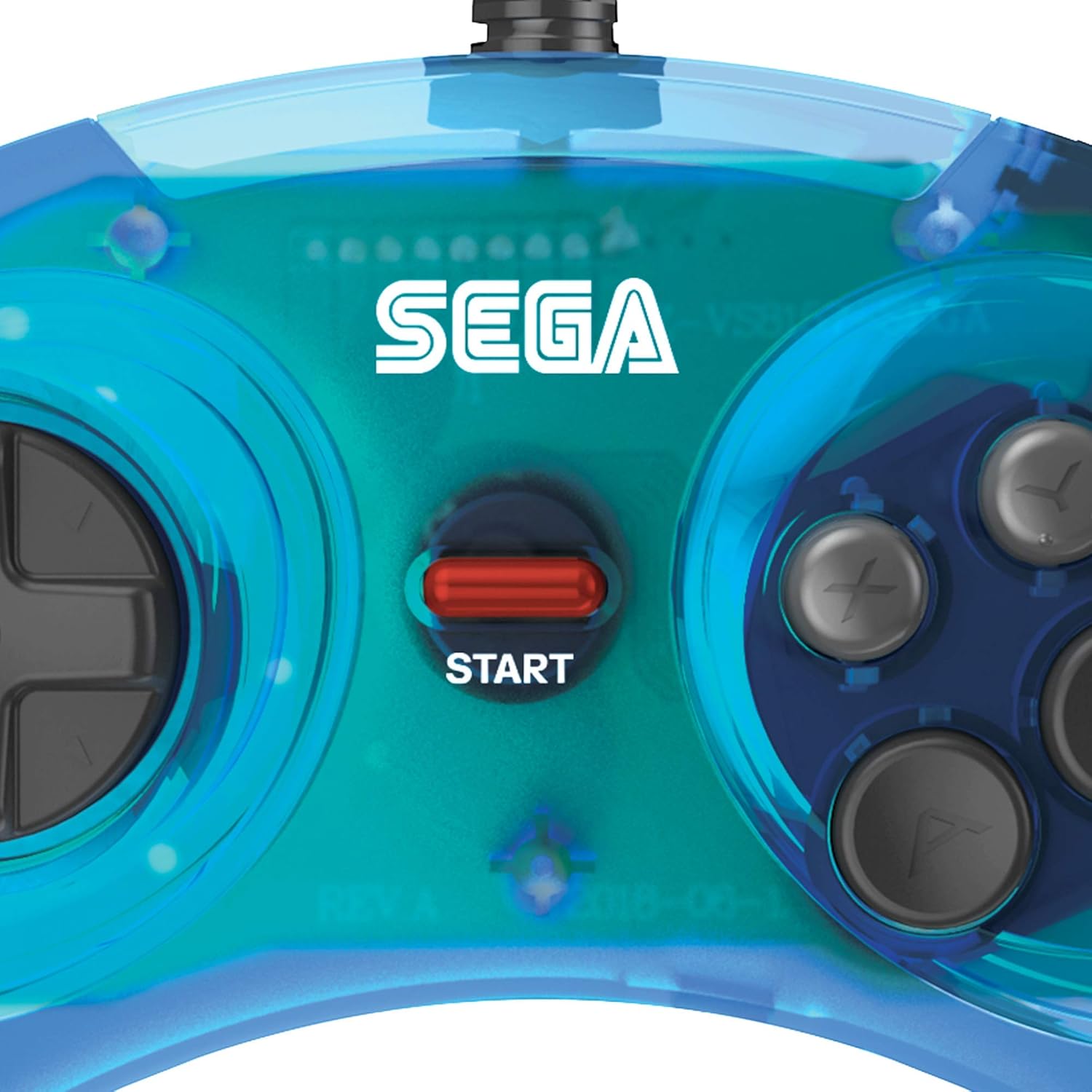
Image: Close-up of the SEGA logo and the red Start button.

Image: Close-up of the directional pad (D-pad).

Image: Close-up of the six action buttons (A, B, C, X, Y, Z).
Ús general
- Ensure the controller is securely connected to your device's USB port.
- For PC and Mac, you may need to configure controller settings within your game or emulator software.
- The controller is designed for optimal performance with classic 2D games that utilize a 6-button layout.
- The 3-meter cable provides ample length for comfortable gaming distances.
Manteniment
Neteja
- To clean the controller, use a soft, dry cloth.
- Per a la brutícia persistent, lleugerament dampRenta el drap amb aigua. Evita utilitzar productes químics agressius o netejadors abrasius.
- Assegureu-vos que no entri líquid als components interns del controlador.
Emmagatzematge
- Guardeu el controlador en un lloc fresc i sec, allunyat de la llum solar directa i de temperatures extremes.
- Avoid wrapping the cable too tightly around the controller to prevent damage.
Resolució de problemes
Controlador no reconegut
- Comprova la connexió USB: Ensure the USB cable is fully inserted into the port on both the controller and the device. Try a different USB port.
- Reinicieu el dispositiu: Sometimes, restarting your PC, Mac, or console can resolve recognition issues.
- Prova en un altre dispositiu: If possible, test the controller on another compatible device to determine if the issue is with the controller or the original device.
- Check Device Manager (PC): On Windows, open Device Manager and look under 'Human Interface Devices' or 'Game Controllers' to see if the controller is listed. If there's a yellow exclamation mark, try updating or reinstalling the driver (though typically not required for this plug-and-play device).
Buttons Not Responding Correctly
- Configuració del joc: Verify that the controller is properly configured within the game or emulator settings. Some games may require manual button mapping.
- Calibració: On PC, you can often calibrate game controllers through the operating system's control panel or settings.
- Inspecció física: Check for any visible debris or damage around the buttons.
Issues with Specific Game Platforms (e.g., Steam)
- Steam Big Picture Mode: For Steam, try launching games through Big Picture Mode and ensure controller support is enabled and configured.
- Emulator Configuration: When using emulators like Kega Fusion, ensure the controller's buttons are correctly mapped within the emulator's input settings.
Especificacions
| Número de model | RET00158 |
| Tipus de controlador | Gamepad |
| Tecnologia de connectivitat | USB |
| Quantitat de botons | 6 |
| Longitud del cable | 3 metres (aprox. 9.8 peus) |
| Dispositius compatibles | SEGA Mega Drive Mini, PC, Mac, Steam, PS3, Nintendo Switch, RetroPie, Raspberry Pi |
| Pes de l'article | 200 grams |
| Dimensions de l'article (L x A x A) | 6.18 x 3.86 x 1.57 polzades |
Garantia i Suport
Informació de la garantia
Retro-Bit products typically come with a limited warranty. For specific details regarding the warranty period and terms for your controller, please refer to the warranty card included with your product or visit the official Retro-Bit weblloc.
Atenció al client
If you encounter any issues or have questions not covered in this manual, please contact Retro-Bit customer support. You can find contact information and additional resources on the official Retro-Bit weblloc: