
1. Introducció
The Norwii N29 is a multifunctional wireless presentation remote designed to enhance your presentations. It features a bright laser pointer, long control range, and customizable buttons for seamless navigation through slides, controlling volume, and managing hyperlinks. Its plug-and-play design ensures easy setup across various operating systems and presentation software.

Image 1.1: Norwii N29 Wireless Presentation Remote
2. Contingut del paquet
Si us plau, comproveu el paquet per veure si hi ha els elements següents:
- 1 x Norwii N29 Wireless Presenter
- 1 x Receptor USB
- 1 x Manual d'usuari
- 1 x Bossa
3. Producte acabatview
Familiarize yourself with the buttons and features of your Norwii N29 Wireless Presentation Remote:

Image 3.1: Detailed button functions of the Norwii N29 remote.
- Indicador LED: Shows connection status and low power alert.
- Interruptor d'encesa/apagada: Located on the side to conserve battery.
- Pujar/baixar el volum: Side buttons for system volume control.
- Top Key (Square icon): Single click for Tab, Long press for Alt+Tab (switch windows). Double click to open hyperlinks.
- Page Up (Left Arrow): Single click for Page Up.
- Page Down (Right Arrow): Single click for Page Down.
- Laser Key (Yellow button): Activates the red laser pointer.
- Integrated USB Receiver: Stored securely in the tail of the presenter.

Image 3.2: The USB receiver is stored in the tail of the presenter for convenience.

Image 3.3: The bumped design on the 'Page Down' key allows for tactile navigation without looking.
4. Configuració
The Norwii N29 is a plug-and-play device, requiring no driver installation for basic functionality.
- Insereix la bateria: Open the battery cover and insert one AAA battery (not included) into the presenter, ensuring correct polarity.
- Recuperar receptor USB: Gently pull out the USB receiver from the tail of the presenter.
- Connexió a l'ordinador: Plug the USB receiver into an available USB-A port on your computer (Laptop, Mac, Personal Computer).
- Encès: Slide the Power On/Off switch on the side of the presenter to the 'ON' position.
- A punt per al seu ús: Your computer should automatically detect the device. You are now ready to use the presenter.
For a visual guide on setup, please refer to the video below:
Video 4.1: Official Norwii N29 'How to Use' video, demonstrating initial setup and basic functions.
5. Instruccions de funcionament
5.1. Slide Navigation
- Premeu el botó Page Up (Left Arrow) key to move to the previous slide.
- Premeu el botó Page Down (Right Arrow) key to move to the next slide.
5.2. Punter làser
- Manteniu premut el botó Yellow Laser Key to activate the red laser pointer. Release to turn off.
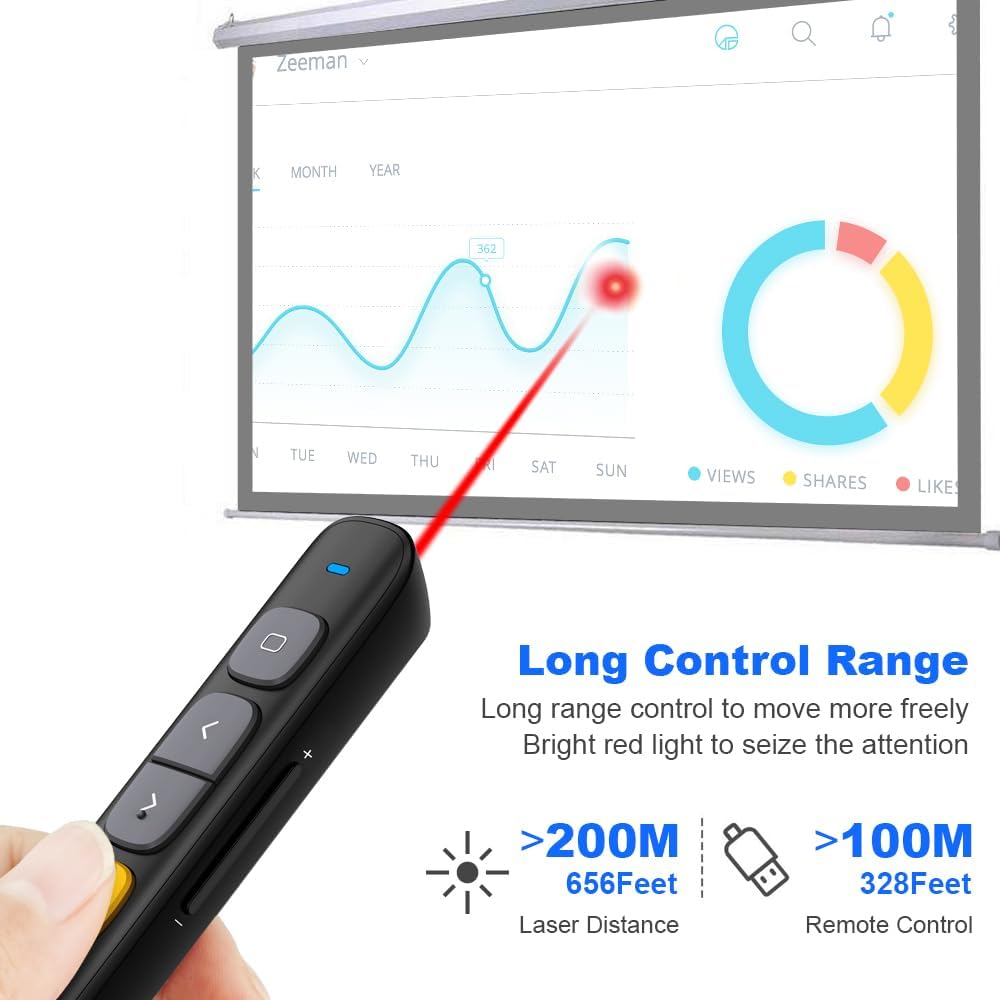
Image 5.1: The Norwii N29 offers a long control range for both the remote and the laser pointer.
5.3. Full Screen / Black Screen
- Pantalla completa: Premeu llargament el botó Page Up (Left Arrow) key to enter full screen mode in presentation software.
- Pantalla negra: Premeu llargament el botó Page Down (Right Arrow) key to turn the screen black during a presentation. Press any page turning key to exit black screen.
5.4. Hyperlink Control
- Select Hyperlink: Feu un sol clic a Top Key (Square icon) to select a hyperlink on your slide. A dashed box will appear around the selected hyperlink.
- Open Hyperlink: Feu doble clic a Top Key (Square icon) to open the selected hyperlink.

Image 5.2: The top key allows for selection and activation of hyperlinks within presentations.
5.5. Control de volum
- Premeu llargament el botó Puja el volum (+) key on the side to increase system volume.
- Premeu llargament el botó Baixar el volum (-) key on the side to decrease system volume.

Image 5.3: Side buttons provide convenient control over system volume.
5.6. Switching Active Windows
- Premeu llargament el botó Top Key (Square icon) to switch between active windows (equivalent to Alt+Tab).
6. Modes Switching
The Norwii N29 supports three different modes for its page navigation keys, allowing compatibility with various presentation software. You can switch between these modes by long pressing the '<' and '>' keys simultaneously for 1-3 seconds. The device automatically remembers the last used mode.

Image 6.1: Visual representation of the three operating modes for page navigation.
- Mode 1: Up/Down Keys (Default) - Usually used in PowerPoint, Keynote.
- Mode 2: Left/Right Keys - Usually used in Prezi.
- Mode 3: PgUp/PgDn Keys - Usually used in browser or photo viewel programari.
7. Botons personalitzables
The Norwii N29 allows you to reprogram button functions using the Norwii Presenter software. This software can be downloaded from the official Norwii weblloc.
- Download and install the Norwii Presenter software.
- Ensure the USB receiver is plugged into your computer and the presenter is turned on.
- Open the Norwii Presenter software.
- Navigate to the 'Customize' tab.
- Select the key you wish to customize.
- Choose the desired function from the available options for short press, long press, or double click.
- Deseu els vostres canvis.

Image 7.1: Screenshot of the Norwii Presenter software interface for customizing key functions.
8. Compatibilitat
The Norwii N29 Wireless Presentation Remote offers broad compatibility with various operating systems and presentation software.
8.1. Sistemes operatius
- Windows
- macOS
- Android
- Linux
8.2. Presentation Software
- PowerPoint
- Prezi
- Conferència magistral
- Presentacions de Google
- Propresenter
- MediaShout
- Word, Excel, ACD See, OneNote, Pages, Numbers, Photos (for PgUp/PgDn mode)

Image 8.1: The Norwii N29 is compatible with major operating systems and presentation applications.
9. Solució De Problemes
If you encounter issues with your Norwii N29, please refer to the following common problems and solutions:

Image 9.1: Troubleshooting steps for common issues with the Norwii N29.
9.1. Weak Laser
- Ensure the battery has sufficient power. Replace if necessary.
- Note: Laser may appear weak on TV screens due to prohibitive regulations. For TV screens, consider Norwii N95s Pro or N97s models.
9.2. Short Control Range
- Assegureu-vos que la bateria tingui prou potència.
- An obstruction between the wireless presenter and the USB receiver may shorten the control distance. Ensure a clear line of sight or reduce distance.
9.3. Laser Works, But Page Turn Does Not Respond
- Ensure that the presentation window is the currently active window on your computer.
- Long press the '<' and '>' keys for 3 seconds to switch among the 3 or 4 working modes (Up & Down, Left & Right, Scroll, PgUp & PgDn). Ensure the correct mode is selected for your software.
- For the first time on macOS, set the keyboard type to ANSI after plugging the USB receiver into your computer.
If these steps do not resolve your issue, please contact technical support.
10. Especificacions
| Característica | Detall |
|---|---|
| Nom del model | N29 |
| Tecnologia de connectivitat | Radio Frequency (2.4GHz RF) |
| Interval de control | Fins a 328 peus (100 metres) |
| Distància làser | Fins a 656 peus (200 metres) |
| Tipus làser | Class II, Red |
| Potència de sortida | <1 mW |
| Tipus de bateria | 1 x bateria AAA (no inclosa) |
| Dimensions | 139.2 x 19.2 x 15.4 mm |
| Pes de l'article | 26.9 grams |
| Dispositius compatibles | Laptop, Mac, Personal Computer |
| Característiques especials | Reprogrammable buttons, Hyperlink & Volume Control, Integrated USB receiver storage, Bumped design for tactile feedback |
11. Garantia i Suport
11.1. Informació de la garantia
The Norwii N29 Wireless Presentation Remote comes with a 1 any de garantia des de la data de compra. Aquesta garantia cobreix defectes de fabricació i avaries en condicions d'ús normal. Conserveu el comprovant de compra per a reclamacions de garantia.
11.2. Suport tècnic
For technical assistance or further inquiries, please contact Norwii customer support. You can find contact information on the official Norwii weblloc web o a través del vostre distribuïdor.