
Introducció
This manual provides instructions for the setup, operation, and maintenance of your Cimetech 2.4GHz Wireless Ergonomic Optical Mouse. This device offers reliable wireless connectivity, ease of use, and a comfortable design for various computing tasks.
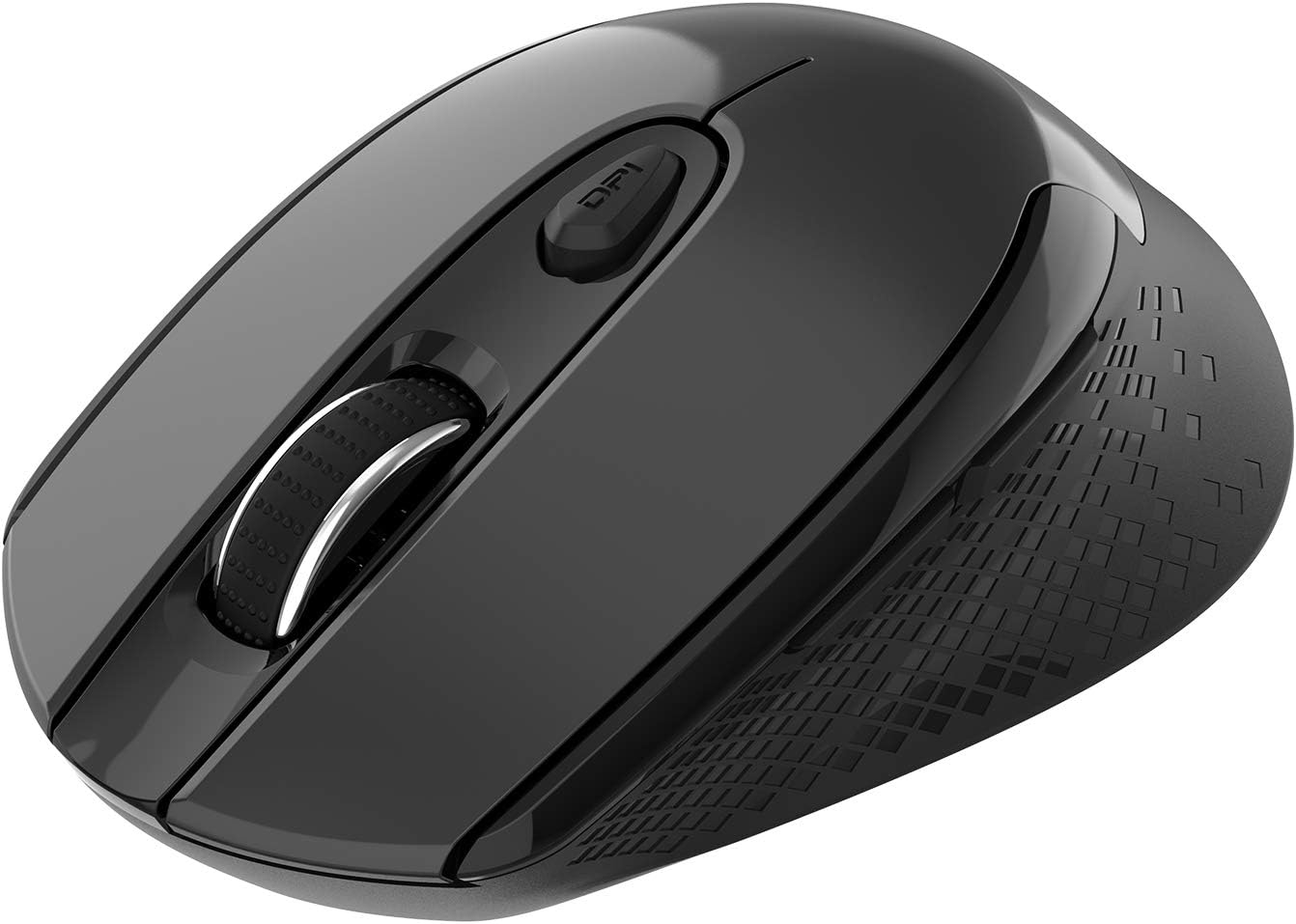
Imatge: De dalt a baix view of the Cimetech Wireless Ergonomic Optical Mouse.

Image: The mouse connected via 2.4G wireless technology, showing the USB receiver plugged into a laptop.
Contingut del paquet
Verifiqueu que tots els elements siguin presents al paquet:
- 1 x Cimetech Cordless Mouse
- 1 x USB Receiver (stored in the battery compartment of the mouse)
- 1 x Manual d'usuari
Configuració
1. Instal·lació de la bateria
- Localitzeu la tapa del compartiment de la bateria a la part inferior del ratolí.
- Feu lliscar o aixequeu suaument la tapa per obrir el compartiment.
- Introduïu una pila AA (no inclosa) al compartiment, assegurant-vos de la polaritat correcta (+/-).
- Substituïu la tapa del compartiment de la bateria.
2. Connexió del receptor USB
- Open the battery compartment cover and carefully remove the USB receiver.
- Plug the USB receiver into an available USB port on your computer (laptop, desktop, Mac, or PC).
- El ratolí s'hauria de connectar automàticament al dispositiu. Normalment no calen controladors addicionals.

Image: Visual guide for installing the AA battery and connecting the USB receiver.
Instruccions de funcionament
Funcions del botó
The Cimetech Wireless Mouse features 6 buttons for enhanced functionality:
- Botó esquerre de clic: Funció de clic principal estàndard.
- Botó dret: Funció de clic secundari estàndard.
- Roda de desplaçament: Per a desplaçament vertical. També es pot prémer per a la funcionalitat de clic central.
- Botó de commutació de DPI: Ajusta la sensibilitat del ratolí (DPI).
- Botó Endavant: Navega cap endavant web navegadors o file exploradors.
- Botó enrere: Navega cap enrere web navegadors o file exploradors.

Image: Labeled diagram showing the location of the Left Click, Right Click, Scroll Wheel, DPI Switch, Forward, and Backward buttons, along with mouse dimensions.
Ajust de DPI
The mouse offers three adjustable DPI (Dots Per Inch) levels to control cursor speed and sensitivity. To change the DPI setting:
- Premeu el botó Botó DPI once: DPI is set to 800.
- Premeu el botó Botó DPI a second time: DPI is set to 1200 (default setting).
- Premeu el botó Botó DPI a third time: DPI is set to 1600.
The mouse retains the last selected DPI setting even after being turned off and on.
Intelligent Power-Saving Modes
The mouse is designed with three power-saving stages to conserve battery life:
- Stage 1 (Standby): Enters after 3 seconds of inactivity. Move the mouse to wake it up.
- Stage 2 (Auto Shut-off): Enters after 60 seconds of inactivity. Move the mouse to wake it up.
- Stage 3 (Deep Sleep): Enters after 15 minutes of inactivity. Move the mouse to wake it up.
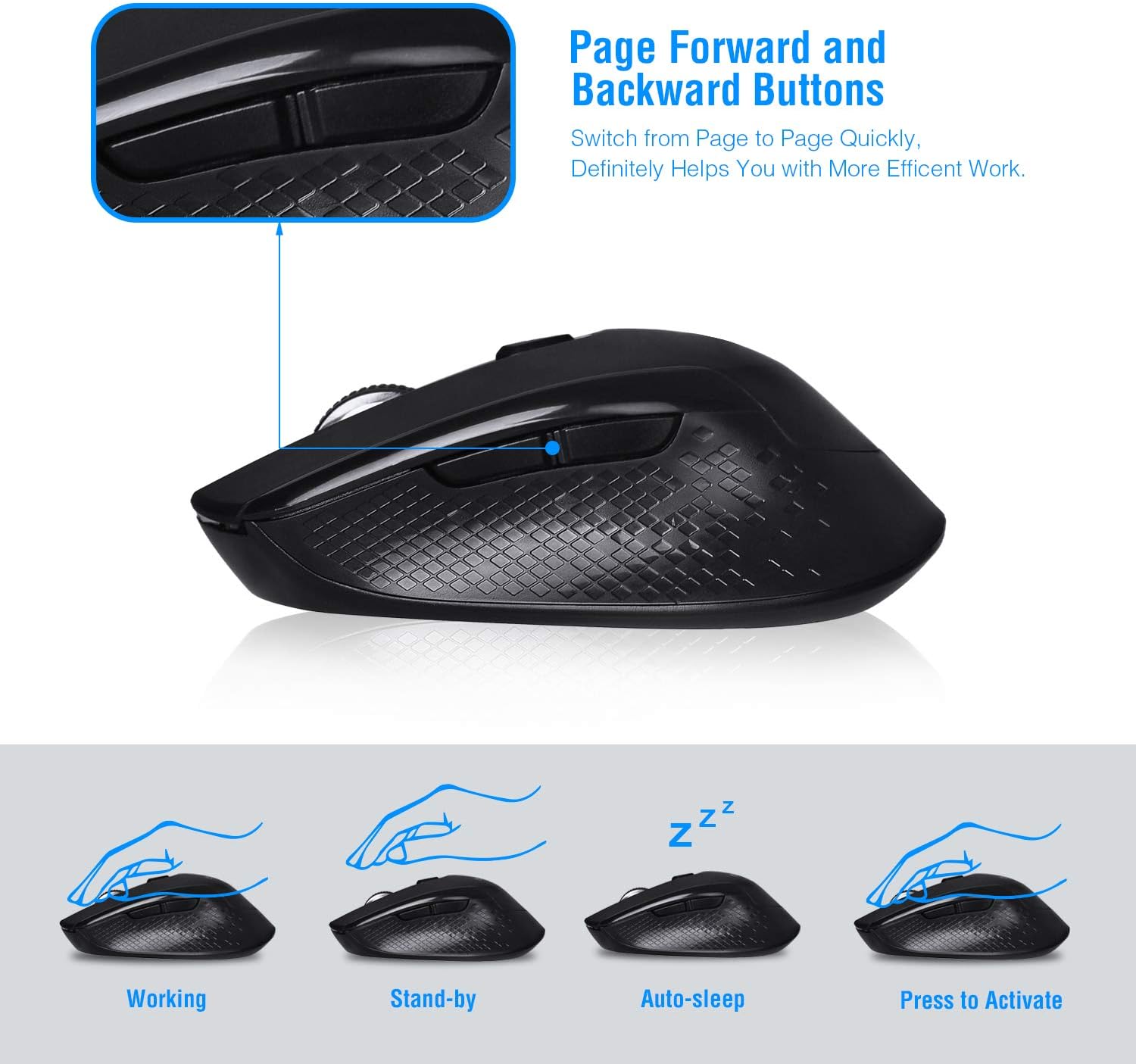
Image: Visual representation of the mouse's working, standby, auto-sleep, and activation states.
Manteniment
- Mantingueu el ratolí net netejant-lo amb un drap suau i sec.
- Avoid exposing the mouse to extreme temperatures, direct sunlight, or liquids.
- When not in use for extended periods, consider removing the battery to prevent leakage.
- Store the USB receiver inside the mouse's battery compartment when traveling to prevent loss.
Resolució de problemes
| Problema | Solució |
|---|---|
| El ratolí no respon |
|
| Cursor movement is erratic or imprecise |
|
| Els botons Endavant/Enrere no funcionen |
|
Especificacions
| Número de model | CQ-TM004 |
| Nivells de DPI | 800/1200 (per defecte)/1600 |
| Taxa de votació | 125 Hz |
| Interval d'operació | Fins a 50 peus (aproximadament 15 metres) |
| Connectivitat | 2.4GHz Wireless via USB Receiver |
| Tipus de bateria | 1 x piles AA (no incloses) |
| Compatibilitat | Windows 2000/ME/XP/7/8/10, VISTA, Mac OS |
| Dimensions del producte | 4.13 x 2.64 x 0.1 polzades (10.5 x 6.7 x 0.25 cm) |
| Pes de l'article | 2.82 unces (80 grams) |
Compatibilitat
The Cimetech Wireless Mouse is compatible with a wide range of operating systems, including:
- Windows 2000
- Windows ME
- Windows XP
- Windows Vista
- Windows 7
- Windows 8
- Windows 10
- Mac OS
It is suitable for use with desktops, laptops, PCs, and MacBooks.
Garantia i Suport
Specific warranty information is not provided in this manual. For warranty details, technical support, or further assistance, please refer to the official Cimetech weblloc web o contacteu directament amb el seu servei d'atenció al client.
You can often find support resources, FAQs, and contact information on the manufacturer's product support page.