
Introducció
The Razer Tetra Streaming Headset is designed for clear communication across multiple gaming platforms. This manual provides essential information for setting up, operating, maintaining, and troubleshooting your headset.
Instruccions de configuració
The Razer Tetra headset connects via a standard 3.5mm jack, offering broad compatibility.
Connecting to Consoles (Xbox, PS4, Nintendo Switch)
- Locate the 3.5mm audio jack on your console controller or Nintendo Switch console.
- Plug the 3.5mm connector from the Razer Tetra headset firmly into the audio jack.
- Adjust the volume using the in-line controls on the headset and your console's audio settings.

Image: The Razer Tetra headset connected to a game controller, demonstrating its compatibility with various gaming consoles.
Connexió al PC
For PC use, ensure your computer has a combined 3.5mm audio jack (headphone and microphone). If your PC has separate jacks for microphone (pink) and headphones (green), you may require a 3.5mm audio splitter (not included) to utilize both audio and microphone functions.
- Plug the 3.5mm connector into your PC's combined audio jack.
- If using a splitter, connect the headset to the splitter, then connect the splitter to the appropriate microphone and headphone jacks on your PC.
- Verify audio input and output settings in your operating system to ensure the Razer Tetra is selected as the default device.
Instruccions de funcionament
Disseny reversible
The Razer Tetra features a reversible design, allowing you to wear the headset on either your left or right ear. The microphone boom can be rotated to accommodate your preferred orientation.

Image: Two individuals wearing the Razer Tetra headset, one on the left ear and one on the right, showcasing the reversible design.
Ús del micròfon
The headset is equipped with a bendable cardioid microphone designed to suppress noise from the back and sides, focusing on your voice for clear communication.

Image: A person wearing the Razer Tetra headset, with a clear view of the rotatable cardioid microphone positioned for optimal voice capture.
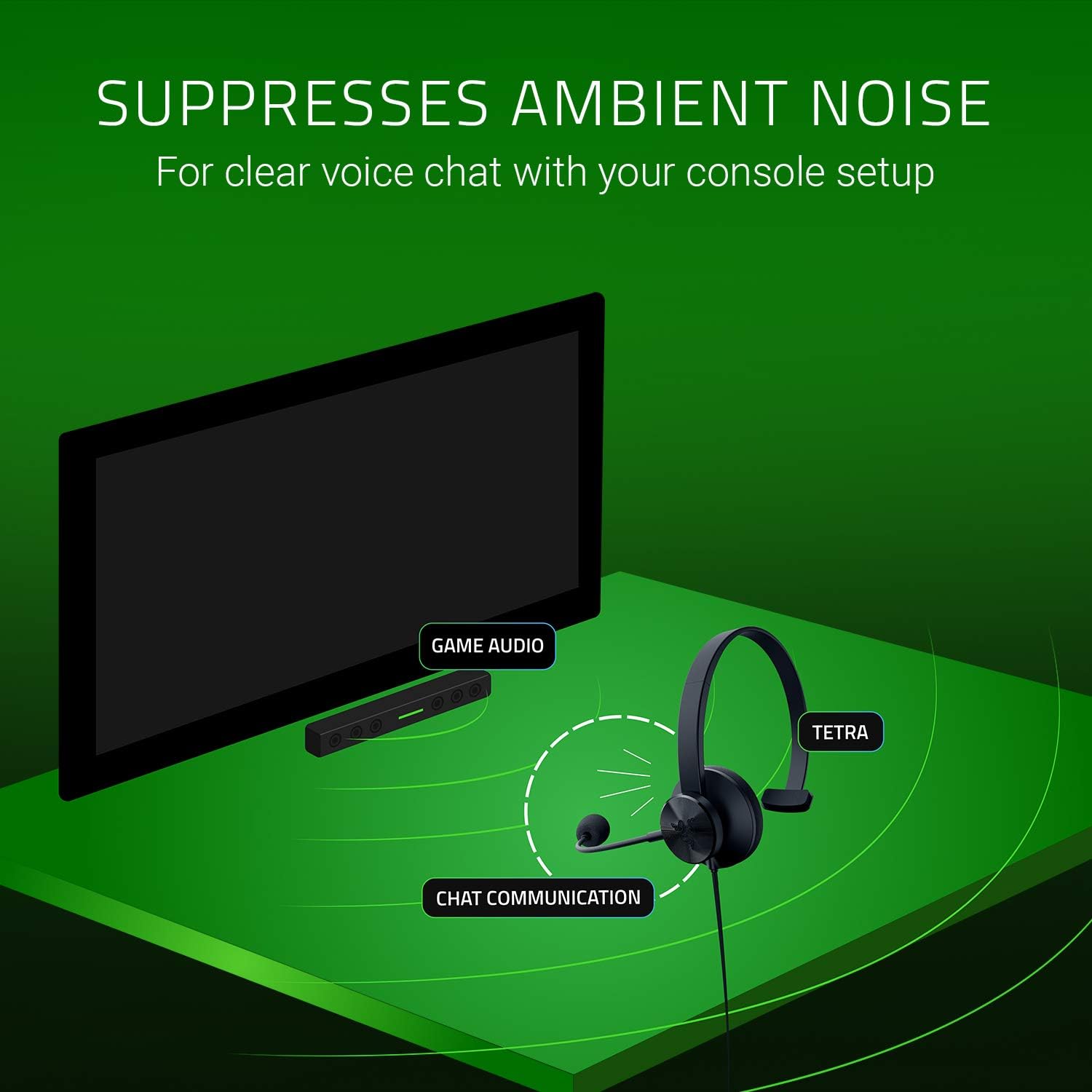
Image: A diagram showing the Razer Tetra headset's microphone suppressing ambient noise to provide clear chat communication separate from game audio.
In-Line Audio Controls
The headset features convenient in-line controls for quick adjustments:
- Roda de control de volum: Rotate the wheel to increase or decrease the audio volume.
- Interruptor de silenci del micròfon: Slide the switch to mute or unmute your microphone.
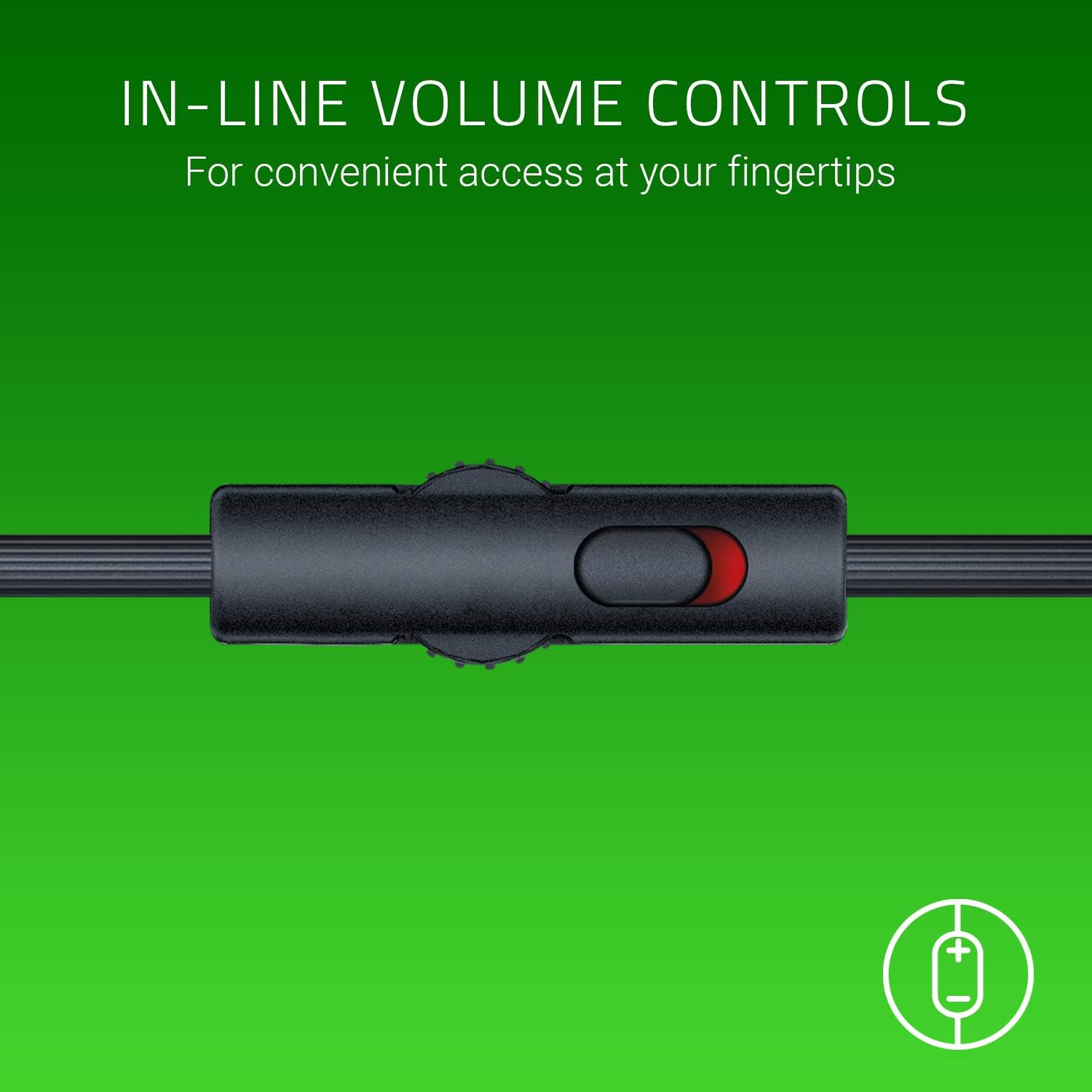
Imatge: Un primer pla view of the in-line controls, showing the volume wheel and microphone mute switch for easy access.
Manteniment
Proper care ensures the longevity and performance of your Razer Tetra headset.
- Neteja: Feu servir un drap suau i sec per netejar els auriculars. Per als coixins de les orelles, una mica deamp es pot fer servir un drap, però eviteu la humitat excessiva. No utilitzeu productes químics agressius ni netejadors abrasius.
- Emmagatzematge: Guardeu els auriculars en un lloc fresc i sec, allunyat de la llum solar directa i de temperatures extremes. Eviteu enredar el cable.
- Cura del cable: Do not pull on the cable to disconnect the headset. Always grasp the plug. Avoid sharp bends or kinks in the cable.
Resolució de problemes
No Audio or Microphone Function
- Comprova la connexió: Assegureu-vos que el connector de 3.5 mm estigui completament inserit al dispositiu.
- Nivells de volum: Verify that the in-line volume control is not at its minimum setting and that your device's volume is turned up.
- Silència del micròfon: Confirm the microphone mute switch on the in-line control is in the 'unmuted' position.
- Configuració del dispositiu: On PC, check your sound settings to ensure the Razer Tetra is selected as the default playback and recording device. On consoles, verify audio output and input settings.
- PC Splitter: If using a PC with separate audio jacks, ensure you are using a 3.5mm splitter and it is correctly connected.
Static or Unclear Audio/Microphone
- Interferència: Allunyeu-vos d'altres dispositius electrònics que puguin causar interferències.
- Estat del cable: Inspeccioneu el cable per detectar qualsevol dany o doblec.
- Comprovació de ports: Try plugging the headset into a different audio port on your device or another compatible device to rule out a faulty port.
- Posició del micròfon: Ensure the microphone is positioned correctly near your mouth and not obstructed.
Especificacions
| Característica | Detall |
|---|---|
| Número de model | RZ04-02920100-R3U1 |
| Connectivitat | Cablejat (connector de 3.5 mm) |
| Conductors | Custom-Tuned 32mm Dynamic Drivers |
| Micròfon | Bendable Cardioid, Noise-Cancelling |
| Controls | In-line Volume Control Wheel, Mic Mute Switch |
| Col·locació de l'orella | Sobre l'orella |
| Impedància | 32 ohms |
| Interval de freqüència | 20 Hz - 20 kHz |
| Pes | 70.02 g (2.47 unces) |
| Dimensions (L x A x A) | 15.52 x 17.53 x 5.99 cm |
| Material | Leather, Foam |
| Característiques addicionals | Lightweight, Reversible Left/Right Design |
Garantia i Suport
Informació de la garantia
The Razer Tetra Streaming Headset comes with a Garantia del fabricant de 2 anys des de la data de compra. Si us plau, conserveu el comprovant de compra per a reclamacions de garantia. La garantia cobreix defectes de materials i fabricació en condicions d'ús normal.
Atenció al client
For technical assistance, troubleshooting beyond this manual, or warranty inquiries, please visit the official Razer support website or contact their customer service. Manufacturer contact information: IRVINE, CA, 92618 US.
You can find further support resources and contact details on the Razer Support Page.