
1. Introducció i finalview
This manual provides detailed instructions for the installation, operation, and maintenance of your Dasaita 10.2-inch Android 10.0 Car Stereo Receiver, Model 25-CP. This unit is specifically designed for Nissan X-Trail and Qashqai J11 models manufactured between 2014 and 2018, replacing the original car radio with a 7-inch screen. It integrates advanced features such as Carplay, Android Auto, Bluetooth, GPS, WiFi, FM/AM radio, steering wheel control, DSP, and support for 360-degree cameras.
Please read this manual thoroughly before installation and use to ensure proper function and to maximize your driving experience.
2. Configuració i instal·lació
2.1. Comprovació de compatibilitat
Ensure your vehicle's AC part matches the compatible models. This unit is designed for Nissan X-Trail Qashqai J11 (2014-2018) with an original 7-inch screen. If your vehicle has a 4.3-inch screen or no screen, or if it is a 2019-2020 model, a different unit may be required.
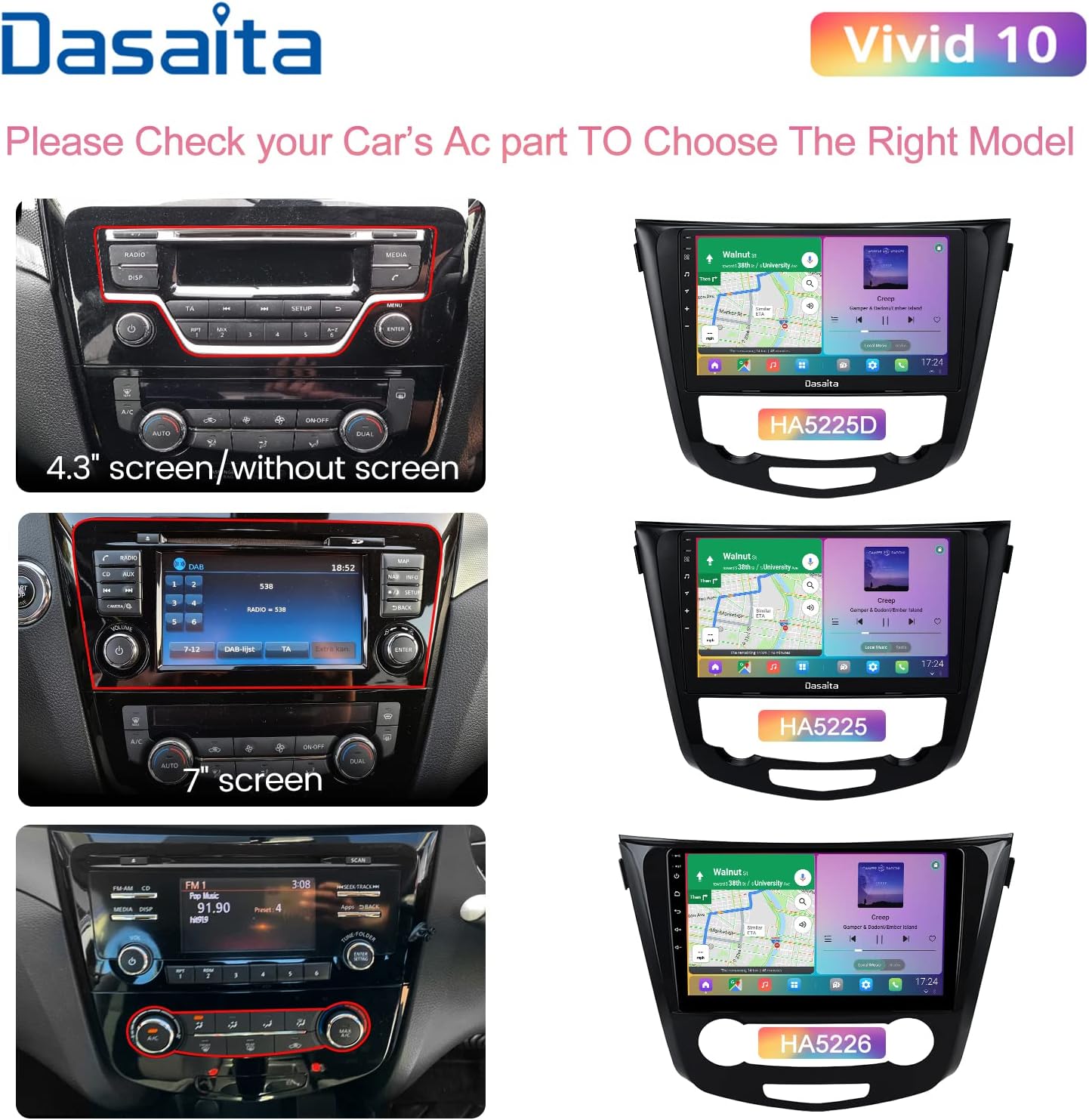
Figure 1: Vehicle AC Part Compatibility Guide
2.2. Contingut del paquet
Abans de la instal·lació, comproveu que tots els components siguin presents a la caixa:
- Unitat principal
- Audio Output Cables
- AUX In & Camera In Cables
- Single USB Cable
- Dual USB Cable
- Antena GPS
- Micròfon
- Antena WiFi
- Cable d'alimentació
- Descodificador Canbus
- Adaptador USB

Figure 2: Contents of the Product Box
2.3. Dimensions
The head unit has a 10.2-inch display. Refer to the dimension diagram for precise measurements to ensure fitment in your vehicle's dashboard.
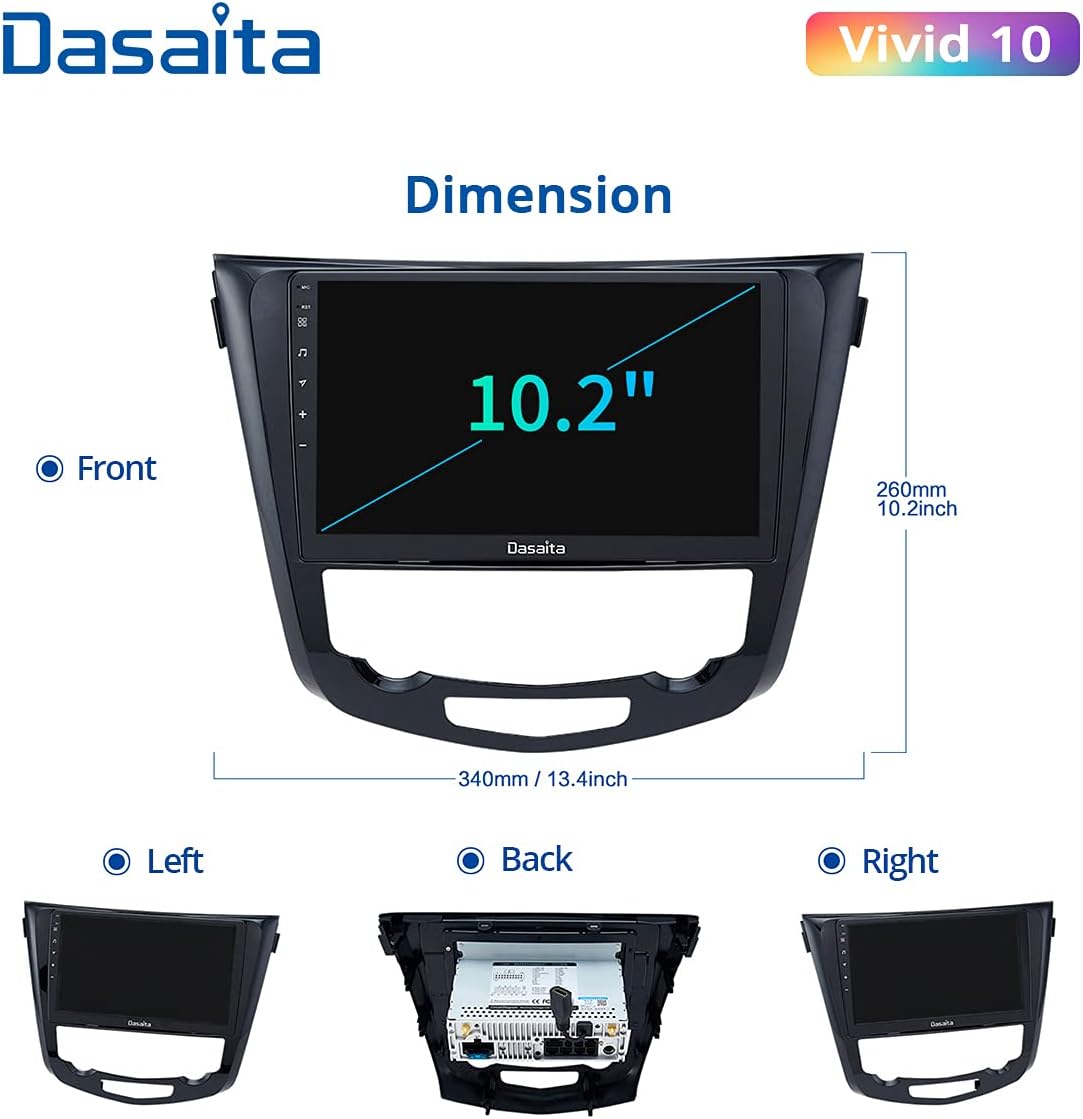
Figure 3: Head Unit Dimensions
2.4. Procés d'instal·lació
Installation typically involves removing the original car stereo and connecting the new Dasaita unit using the provided wiring harnesses. Most connections are plug-and-play. It is recommended to consult vehicle-specific installation guides or professional assistance if you are unfamiliar with car audio installations. Online video tutorials can also provide visual guidance.

Figure 4: Appearance After Installation
3. Instruccions de funcionament
3.1. Funcions bàsiques
- Encès/apagat: Premeu i manteniu premut el botó d'engegada de la unitat o feu servir el contacte del vehicle.
- Control de volum: Adjust using the physical knobs/buttons or on-screen controls.
- Interfície de pantalla tàctil: Navigate through menus and applications by tapping and swiping on the 10.2-inch HD capacitive touchscreen.
3.2. CarPlay i Android Auto
The unit supports both wired and wireless Apple CarPlay and wired Android Auto. Connect your compatible smartphone via USB for wired connection or enable Bluetooth and Wi-Fi for wireless CarPlay.
- Connexió per cable: Connect your smartphone to the unit's USB port using a high-quality USB cable. The Z-Link app will launch automatically.
- CarPlay sense fil: Ensure Bluetooth is enabled on your iPhone and the head unit. Connect to the head unit's Wi-Fi hotspot. The Z-Link app will then facilitate the wireless connection.
This feature allows you to access navigation (Google Maps, Waze), music, calls, and messages directly from your car stereo display, enhancing focus on the road.

Figura 5: Interfície de CarPlay i Android Auto
3.3. Connectivitat Bluetooth
Vincula el teu telèfon intel·ligent mitjançant Bluetooth per a trucades mans lliures i reproducció d'àudio.
- Trucades mans lliures: Make and receive calls directly from the head unit. The built-in and external microphones ensure clear communication.
- Música Bluetooth: Reprodueix àudio en streaming des del telèfon als altaveus del cotxe.

Figure 6: Hands-Free Calling Interface
3.4. Navegació GPS
The unit supports various navigation applications like Google Maps and Waze. Download your preferred navigation app from the Google Play Store.
3.5. Radio (FM/AM)
Access FM and AM radio stations. The integrated RDS receiver provides station information where available.
3.6. Digital Sound Processor (DSP) and Equalizer
Utilize the integrated DSP and 15-band equalizer to customize your audio experience. Adjust sound settings for various music genres (Pop, Rock, Jazz, Classical, Flat, User, Voice) to match your preferences.
3.7. Google Play Store and Apps
As an Android-based unit, you can download and install a wide range of applications from the Google Play Store, including streaming services, social media, and utility apps.

Figure 7: Google Play Store Access
3.8. Comandaments del volant
The unit supports original steering wheel controls, allowing you to manage audio, calls, and other functions without taking your hands off the wheel.
4. Manteniment
4.1. Neteja de la pantalla
Feu servir un drap suau i sense borrissol per netejar suaument la pantalla tàctil. Per a taques difícils, fregueu lleugeramentampNetegeu el drap amb aigua o un netejador de pantalles. Eviteu materials abrasius o productes químics agressius.
4.2. Actualitzacions de programari
Periodically check for software updates to ensure optimal performance and access to new features. Updates can typically be performed via Wi-Fi connection through the unit's system settings.
5. Solució De Problemes
5.1. Problemes comuns i solucions
- La unitat no s'encén: Check all power connections. Ensure the vehicle's ignition is on. Verify fuses.
- Sense so: Check speaker connections. Verify volume levels and DSP settings. Ensure the correct audio source is selected.
- CarPlay/Android Auto no es connecta:
- For wired connection, try a different, high-quality USB cable.
- For wireless CarPlay, ensure Bluetooth and Wi-Fi are active on both the phone and the head unit. Confirm the phone is connected to the head unit's Wi-Fi hotspot.
- Restart both the phone and the head unit.
- Pèrdua de senyal GPS: Assegureu-vos que l'antena GPS estigui instal·lada correctament i que tingui una vista clara view del cel.
- Hotspot connection issues (iPhone): If experiencing difficulty connecting to an iPhone hotspot, try changing the hotspot password to a numeric one and manually adding the network on the Dasaita unit. This can sometimes resolve issues related to WPA3 encryption.
- Els comandaments del volant no funcionen: Verify the Canbus decoder is correctly connected and configured in the unit's settings.
5.2. Restabliment de fàbrica
If persistent issues occur, a factory reset may resolve them. Be aware that a factory reset will erase all user data and settings. Consult the unit's system settings for the factory reset option.
6. Especificacions
| Característica | Especificació |
|---|---|
| Número de model | 25-CP |
| Sistema operatiu | Android 10.0 PIE |
| Processador | Rockchip PX6 64-bit Quad-core 1.4GHz + Dual-core 1.8GHz |
| RAM | 4 GB DDR3 |
| ROM | 64 GB |
| Mida de la pantalla | 10.2 polzades |
| Tipus de pantalla | Pantalla tàctil capacitiva IPS |
| Resolució | 1280 x 720 (HD) |
| Potència de sortida d'àudio | 4 x 50W Max (TDA 7850 Sound Chip) |
| Canals d’àudio | 4.1 Surround Sound Configuration |
| Connectivitat | Auxiliary, Bluetooth, Wi-Fi, 3G/4G Network Support |
| Característiques especials | DAB, 15-band Equalizer (DSP), RDS Radio, Mirror Link, Steering Wheel Control, JBL Amplifier Support, Front Camera Support, 360 Camera Support |
| Ports USB | 3 |
| Sortida HDMI | 1 |
| Sortida de subwoofer | 1 RCA |
| Dispositius compatibles | Smartphone |
| Supported Video Encoding | H.264, H.265/HEVC |
7. Garantia i Suport
Specific warranty information for the Dasaita Car Stereo Receiver Model 25-CP is not provided in the product details. For warranty claims, technical support, or further assistance, please contact Dasaita customer service directly or refer to the documentation included with your purchase.