
1. Introducció
Welcome to the user manual for your ROCCAT Kone AIMO Gaming Mouse, model ROC-11-820-BK. This document provides essential information to help you set up, operate, and maintain your gaming mouse, ensuring optimal performance and longevity. Please read these instructions carefully before using the device.
2. Producte acabatview
2.1 Característiques clau
- High-precision optical Owl-Eye sensor with adjustable DPI from 100 to 16,000.
- Ergonomic design for comfortable right-handed use.
- Customizable AIMO RGB illumination system.
- 8 standard buttons with additional programmable inputs, allowing for up to 23 assignable functions.
- Durable performance coating for enhanced grip.
- 4D Titan Wheel for versatile scrolling.
2.2 Components
The ROCCAT Kone AIMO Gaming Mouse features a standard layout with several programmable buttons and an advanced optical sensor.
- Botons de clic esquerre i dret
- 4D Titan Scroll Wheel (with left/right tilt)
- DPI Cycle Buttons (+/-)
- Thumb Buttons (forward/back, Easy-Shift[+] button)
- Optical Sensor (located on the underside)
- Braided USB Cable

Figura 1: En angle view of the ROCCAT Kone AIMO Gaming Mouse. This image displays the mouse from an angled perspective, showcasing its contoured shape designed for right-handed users. The illuminated scroll wheel and side light strips are visible, indicating the customizable RGB lighting features.
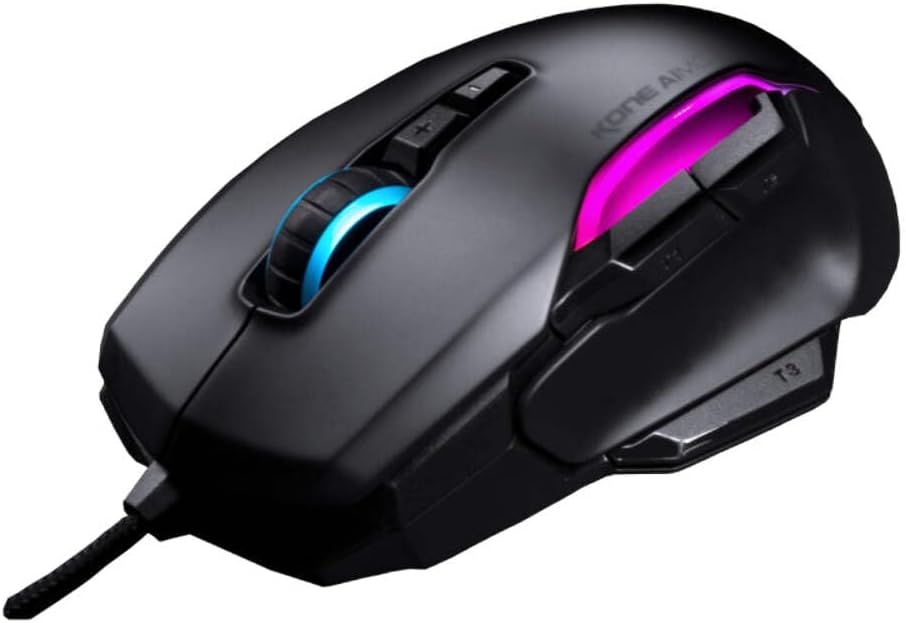
Figura 2: De dalt a baix view of the ROCCAT Kone AIMO Gaming Mouse. This view illustrates the placement of its primary buttons, scroll wheel, and the dynamic RGB lighting zones along the body and scroll wheel. The 'KONE AIMO' branding is also visible.
3. Configuració
3.1 Connexió del ratolí
- Localitzeu un port USB disponible al vostre ordinador.
- Plug the USB connector of the ROCCAT Kone AIMO mouse into the USB port.
- Your operating system (Windows or macOS) will typically detect the device automatically and install basic drivers.
3.2 Software Installation (ROCCAT Swarm)
To unlock the full customization potential of your ROCCAT Kone AIMO mouse, including DPI adjustments, button remapping, macro creation, and RGB lighting effects, it is recommended to install the ROCCAT Swarm software.
- Visit the official ROCCAT weblloc: www.roccat.com/pages/swarm
- Download the latest version of the ROCCAT Swarm software.
- Seguiu les instruccions a la pantalla per instal·lar el programari.
- Once installed, launch ROCCAT Swarm to configure your mouse settings.
4. Instruccions de funcionament
4.1 Ús bàsic
- Moviment: Move the mouse across a flat surface to control the cursor on your screen.
- Clic esquerre: Acció primària, selecció.
- Clic dret: Menú contextual, acció secundària.
- Roda de desplaçament: Desplaça't amunt o avall pels documents i web pages. The 4D Titan Wheel also allows for horizontal scrolling (tilt left/right) in supported applications.
- DPI Buttons: Use the '+' and '-' buttons located behind the scroll wheel to cycle through pre-set DPI sensitivity levels. These can be customized in the Swarm software.
4.2 Customization with ROCCAT Swarm
The ROCCAT Swarm software provides extensive options for personalizing your Kone AIMO mouse:
- Configuració de DPI: Adjust the sensor sensitivity in 1 DPI increments.
- Assignació de botons: Remap any of the 8 standard buttons and utilize the Easy-Shift[+] button to assign secondary functions, effectively expanding the number of programmable inputs to 23.
- Gestor de macros: Create and assign complex macro sequences to buttons.
- AIMO Illumination: Customize the RGB lighting effects, colors, and brightness. Synchronize lighting with other AIMO-compatible ROCCAT devices.
- Taxa de votació: Adjust the mouse's reporting rate to your computer.
- Profile Gestió: Crea i desa diversos professionalsfiles for different applications or games, and switch between them easily.
5. Manteniment
5.1 Neteja
- Desconnecteu el ratolí de l'ordinador abans de netejar-lo.
- Utilitzeu un drap suau i sense pelusa lleugerament dampEsbandiu amb aigua o una solució netejadora suau per netejar la superfície del ratolí.
- For crevices and around buttons, use a cotton swab or compressed air to remove dust and debris.
- Eviteu utilitzar productes químics agressius, netejadors abrasius o humitat excessiva, ja que poden danyar el ratolí.
- Ensure the optical sensor on the underside is clean and free of obstructions for optimal tracking performance.
5.2 Emmagatzematge
Quan no l'utilitzeu, guardeu el ratolí en un entorn net i sec, allunyat de temperatures extremes i de la llum solar directa. Eviteu enrotllar el cable massa fort per evitar danys.
6. Solució De Problemes
If you encounter issues with your ROCCAT Kone AIMO Gaming Mouse, please refer to the following common troubleshooting steps:
- El ratolí no respon:
- Assegureu-vos que el cable USB estigui ben connectat a un port USB que funcioni de l'ordinador.
- Prova de connectar el ratolí a un port USB diferent.
- Reinicieu l'ordinador.
- Comproveu si el ratolí funciona en un altre ordinador per descartar un problema específic del sistema.
- Tracking Issues / Cursor Jumps:
- Netegeu el sensor òptic de la part inferior del ratolí.
- Ensure you are using the mouse on a suitable surface (e.g., a mouse pad). Avoid highly reflective or uneven surfaces.
- Check the DPI settings in ROCCAT Swarm; reset to default if necessary.
- Buttons Not Working / Incorrect Functions:
- Verify button assignments within the ROCCAT Swarm software.
- Ensure you are using the correct profile for your application or game.
- Update ROCCAT Swarm to the latest version.
- La il·luminació RGB no funciona:
- Ensure ROCCAT Swarm is installed and running.
- Check the illumination settings within Swarm.
- Update the mouse firmware via ROCCAT Swarm.
If these steps do not resolve your issue, please visit the ROCCAT support weblloc per obtenir més ajuda.
7. Especificacions
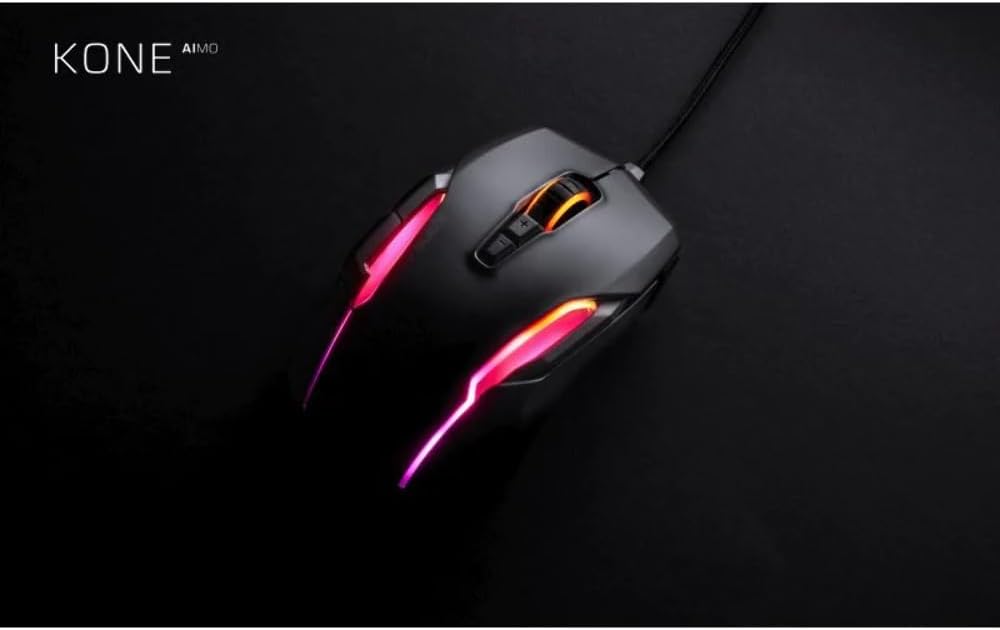
Figura 3: Dimensions of the ROCCAT Kone AIMO Gaming Mouse. This image provides a top-down view of the mouse, overlaid with its approximate dimensions: 12.5 cm in length and 8.51 cm in width. This helps users understand the physical size of the mouse.
| Característica | Detall |
|---|---|
| Marca | ROCCAT |
| Número de model | ROC-11-820-BK |
| Connectivitat | USB (amb cable) |
| Tipus de sensor | Optical (Owl-Eye) |
| Rang de DPI | 100 - 16,000 DPI (adjustable in 1 DPI increments) |
| Nombre de botons | 8 standard buttons, up to 23 programmable functions with Easy-Shift[+] |
| Orientació de la mà | Destra |
| Compatibilitat de sistemes operatius | Windows, macOS |
| Dimensions (L x A x A) | 12.5 x 8.51 x 3.99 cm (aprox. 4.92 x 3.35 x 1.57 polzades) |
| Pes | 131.54 g (aprox. 0.29 lliures) |
| Característiques especials | Ergonomic Design, AIMO RGB Illumination, Performance Coating, 4D Titan Wheel |
8. Garantia i Suport
Your ROCCAT Kone AIMO Gaming Mouse is covered by a manufacturer's warranty. For detailed information regarding warranty terms, conditions, and duration, please refer to the warranty card included with your product or visit the official ROCCAT support weblloc.
For technical support, driver downloads, firmware updates, and frequently asked questions, please visit: support.roccat.com
Always ensure you have the latest drivers and firmware installed for optimal performance and compatibility.