
Introducció
This manual provides essential information for the proper setup, operation, and maintenance of your Philips 346B1C Curved Monitor. This 34-inch WQHD (3440 x 1440) display features a 100 Hz refresh rate, 5ms response time, and a curved VA panel for an immersive viewing experience. Key features include USB-C docking, MultiView functionality, FreeSync technology, LowBlue Mode, and FlickerFree technology for enhanced user comfort and productivity.

Imatge: Frontal view of the Philips 346B1C curved monitor, showcasing its ultrawide display and key features like WQHD, USB-C Docking, and MultiView.
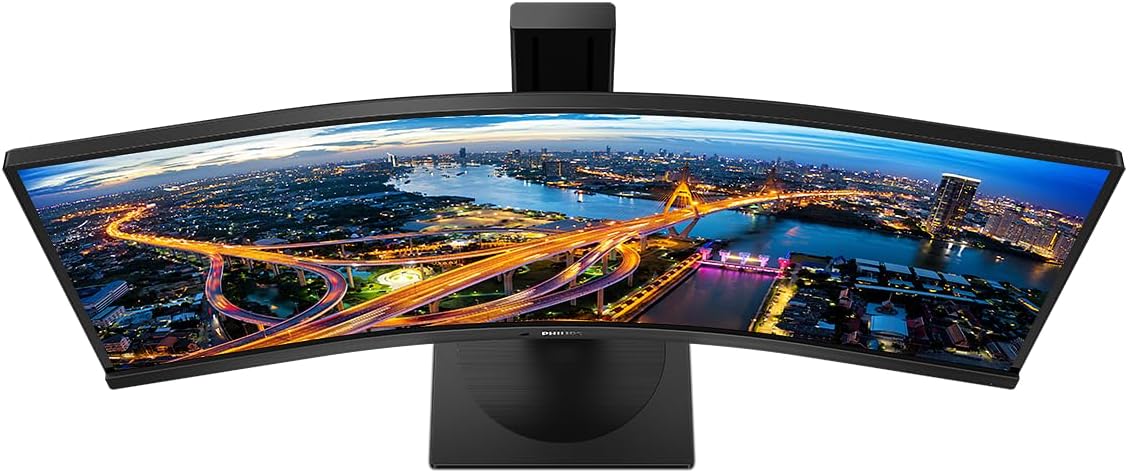
Imatge: De dalt a baix view of the Philips 346B1C curved monitor, emphasizing the curvature of the screen.
Què hi ha a la caixa
Verifiqueu que tots els components siguin presents abans de continuar amb la configuració.
- Philips 346B1C Curved Monitor
- Suport de monitor (base i coll)
- Cable d'alimentació
- Cable HDMI
- Cable DisplayPort
- Cable USB-C a USB-C
- USB-A to USB-B Cable (Upstream)
- Documentation (Quick Start Guide, User Manual CD)
Instruccions de configuració
1. Muntatge del suport
- Col·loqueu el monitor cara avall sobre una superfície suau i neta per evitar ratllades.
- Fixeu el coll del suport al panell del monitor. Assegureu-vos que encaixi correctament al seu lloc o que estigui fixat amb cargols si n'hi ha.
- Attach the stand base to the stand neck. Tighten the thumb screw or screws from the bottom of the base.

Imatge: Part posterior view of the Philips 346B1C monitor, showing the stand attachment point and VESA mounting holes.
2. Connexió a l'ordinador
Connect the monitor to your computer using one of the following methods:
- Connexió HDMI: Connecteu un extrem del cable HDMI al port HDMI del monitor i l'altre extrem a la sortida HDMI de l'ordinador.
- Connexió DisplayPort: Connect one end of the DisplayPort cable to the monitor's DisplayPort and the other end to your computer's DisplayPort output.
- Connexió USB-C: Connect one end of the USB-C cable to the monitor's USB-C port and the other end to your computer's USB-C port. This connection supports video, data, and power delivery (up to 90W) to your laptop.
For USB hub functionality, connect the USB-A to USB-B upstream cable from your computer to the monitor's USB-B upstream port.
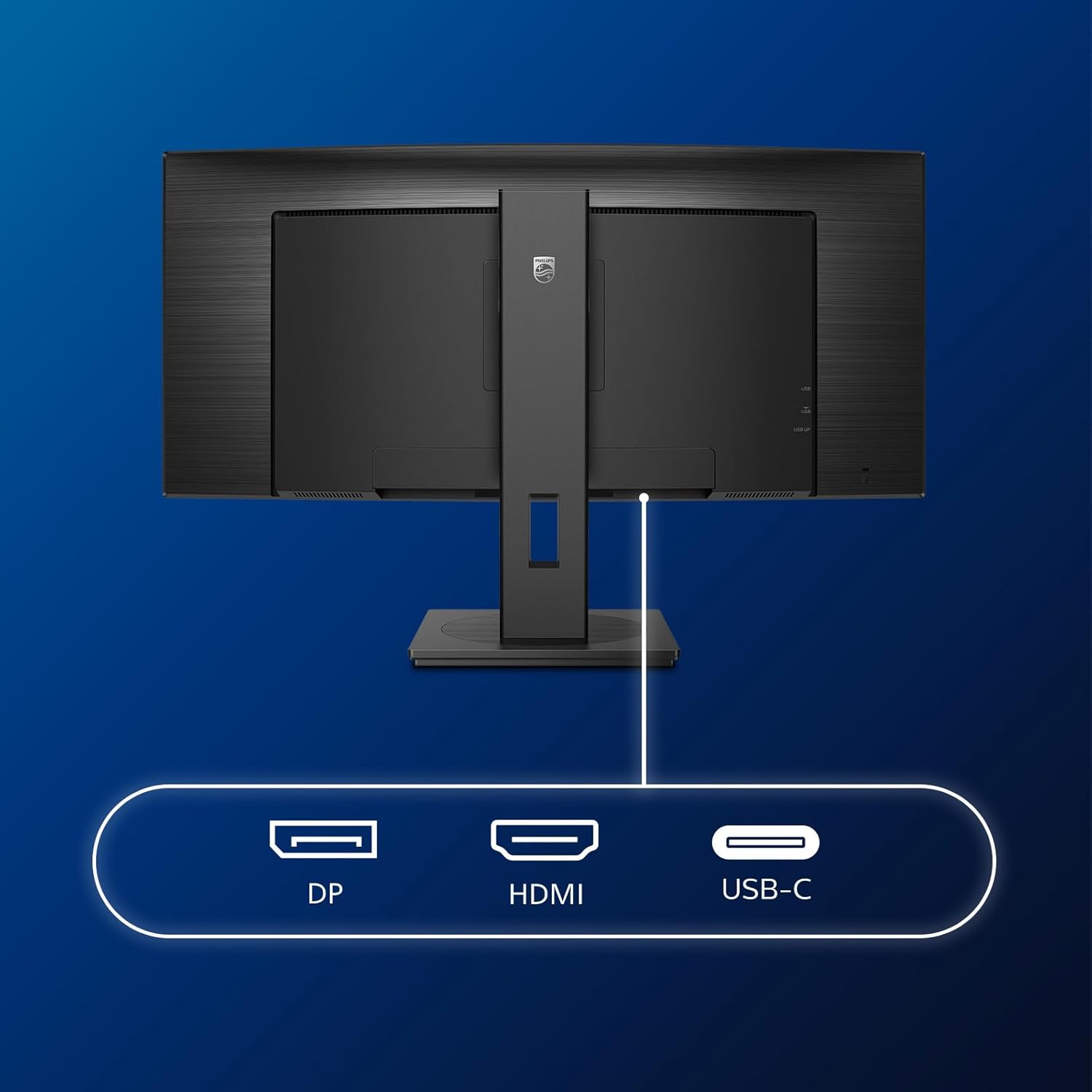
Imatge: Detallada view of the monitor's input ports, including DisplayPort (DP), HDMI, and USB-C, for connecting to various devices.
3. Connexió d'alimentació
Connecteu el cable d'alimentació a l'entrada d'alimentació del monitor i després a una presa de corrent amb connexió a terra.
4. Engegada inicial
Press the power button located on the monitor to turn it on. The monitor should automatically detect the input signal. If not, use the On-Screen Display (OSD) menu to select the correct input source.
Instruccions de funcionament
Menú de visualització en pantalla (OSD).
The OSD menu allows you to adjust various monitor settings. Use the joystick control located on the back or bottom of the monitor to navigate the menu.
- Brillantor/Contrast: Ajusta la luminància i el contrast generals de la pantalla.
- Configuració de color: Ajusta amb precisió la temperatura de color, la gamma i l'espai de color.
- Selecció d'entrada: Manually switch between HDMI, DisplayPort, and USB-C inputs.
- Àudio: Adjust volume or mute the built-in speakers.
- Mode d'imatge: Select from preset picture modes (e.g., Standard, Gaming, Text).
MultiView Funcionalitat
El MultiView feature allows you to connect and view content from two different sources simultaneously on the screen. Access this feature through the OSD menu to select Picture-by-Picture (PbP) or Picture-in-Picture (PiP) modes and configure input sources.
Acoblament USB-C
When connected via USB-C, the monitor acts as a docking station, providing video, data transfer through its integrated USB hub, and power delivery to charge your connected laptop (up to 90W).
SmartErgoBase and Adjustability
The monitor's SmartErgoBase allows for ergonomic adjustments including height, swivel, and tilt to optimize your viewcomoditat.

Image: Illustrations demonstrating the monitor's adjustable features, including height adjustment, tilt, and swivel capabilities for ergonomic positioning.
Característiques de confort ocular
- Mode LowBlue: Reduces harmful shortwave blue light emissions to prevent eye strain. Activate this mode via the OSD menu.
- FlickerFree Technology: Regulates brightness and reduces flicker for more comfortable viewing. This feature is always active.
- PowerSensor & LightSensor: These sensors automatically adjust monitor brightness based on ambient light conditions and user presence, saving energy and reducing eye strain.
Manteniment
Neteja del monitor
- Desconnecteu sempre el monitor abans de netejar-lo.
- Utilitzeu un drap suau i sense pelusa dampesbandida amb aigua o un netejador de pantalles suau i no abrasiu.
- Do not use alcohol, solvents, or ammonia-based cleaners, as these can damage the screen surface.
- Netegeu la pantalla suaument per eliminar la pols i les taques.
- Clean the monitor casinamb un drap suau i sec.
Atenció General
- Eviteu col·locar objectes pesats sobre el monitor o els seus cables.
- No exposeu el monitor a la llum solar directa, a la calor excessiva o al fred extrem.
- Assegureu-vos una ventilació adequada al voltant del monitor.
Resolució de problemes
Si teniu problemes amb el monitor, consulteu els passos habituals següents per a la resolució de problemes:
| Problema | Causa possible | Solució |
|---|---|---|
| No hi ha imatge a la pantalla | Cable d'alimentació desconnectat; cable de vídeo desconnectat; font d'entrada incorrecta seleccionada. | Ensure power cable is securely connected; Check video cable connections (HDMI, DP, USB-C); Select correct input source via OSD menu. |
| La imatge és borrosa o distorsionada | Resolució incorrecta; Problema amb el controlador de gràfics. | Set display resolution to 3440 x 1440; Update graphics card drivers. |
| No hi ha so dels altaveus | Volume muted or too low; Incorrect audio output selected on computer. | Adjust monitor volume via OSD; Check computer's audio output settings. |
| Els ports USB no funcionen | Cable USB de pujada no connectat. | Ensure the USB-A to USB-B upstream cable is connected from the monitor to your computer. |
For further assistance, please refer to the support section or contact Philips customer service.
Especificacions
| Característica | Detall |
|---|---|
| Marca | Philips |
| Número de model | 346B1C |
| Mida de la pantalla | 34 polzades (86 cm) |
| Resolució | 3440 x 1440 (WQHD) |
| Relació d'aspecte | 21:9 |
| Superfície de la pantalla | Curved VA Panel |
| Freqüència d'actualització | 100 Hz |
| Temps de resposta | 5 Milliseconds (GtG) |
| Relació de contrast | 3000:1 (típic) |
| Brillantor | 300 cd/m² |
| Viewangle ing | 178° (H) / 178° (V) |
| Connectivitat | 1x HDMI 2.0, 1x DisplayPort 1.2, 1x USB-C 3.2 Gen 1 (upstream, power up to 90W), 1x USB-B (upstream), 4x USB 3.2 (downstream), RJ45 (Ethernet) |
| Sincronització adaptativa | FreeSync |
| Altaveus incorporats | 2 x 5 W |
| Consum d'energia | 5 Watts (Eco mode) |
| Pes | 7.8 Kilograms (with stand) |
Garantia i Suport
Informació de la garantia
This Philips monitor comes with a Garantia del fabricant de 2 anys. The specific terms and conditions of the warranty can be found in the detailed documentation provided with your product or on the official Philips support website. Your statutory rights as a consumer are not affected by this warranty.
Atenció al client
For technical assistance, product inquiries, or warranty claims, please visit the official Philips support website or contact their customer service department. You may need your monitor's model number (346B1C) and serial number (found on the back of the monitor) when contacting support.
Assistència de Philips Weblloc: www.philips.com/support