
1. Introducció
Thank you for choosing the AZDome BN03 QuadHD Wifi GPS Dashcam. This device is designed to provide reliable video recording of your journeys, enhancing safety and providing crucial evidence in case of incidents. Featuring high-resolution recording, advanced night vision, integrated GPS, and Wi-Fi connectivity, the BN03 offers a comprehensive solution for your in-car surveillance needs. Please read this manual thoroughly before operating the device to ensure proper usage and optimal performance.
2. Característiques del producte
- Sony Starvis Night Vision: Records in high-quality 2K 1440p at 30fps or Full HD 1080p at 30fps, delivering excellent performance even in low-light conditions thanks to the 3.0 Megapixel Sony Starvis sensor.
- Dual-Band Wi-Fi (2.4 & 5.0 GHz): Fàcilment view i descarregar footage directly to your smartphone or tablet via the AZDome app (available for iOS and Android). The Wi-Fi has a range of approximately 10 meters.
- Automatic Time Lapse Parking Mode: Secures your vehicle when parked by recording a photo every second, which is then played back as a video. This conserves storage space on the SD card, allowing for extended recording periods.
- Suport opcional de la càmera posterior: Can be expanded with an optional BN03 rear camera (with IMX307 sensor) for Full HD 1080p 30fps recording of the rear view. The rear camera connects directly to the front dashcam via a 6-meter cable.
- Mòdul GPS integrat: Displays speed on the recording and tracks coordinates, allowing you to review exact locations of recordings using the provided software.
3. Contingut del paquet
Si us plau, comproveu el contingut del paquet en desempaquetar-lo:
- AZDome BN03 Dashcam Unit
- Carregador de cotxe
- Cable micro USB
- Windshield Mount (with 3M adhesive pad)
- Adhesius electrostàtics
- Cable Clips & Pry Tool
- Manual d'usuari
4. Producte acabatview

Figure 4.1: AZDome BN03 Dashcam with its companion mobile application interface.

Figura 4.2: Frontal view of the AZDome BN03 dashcam, showing the main camera lens.
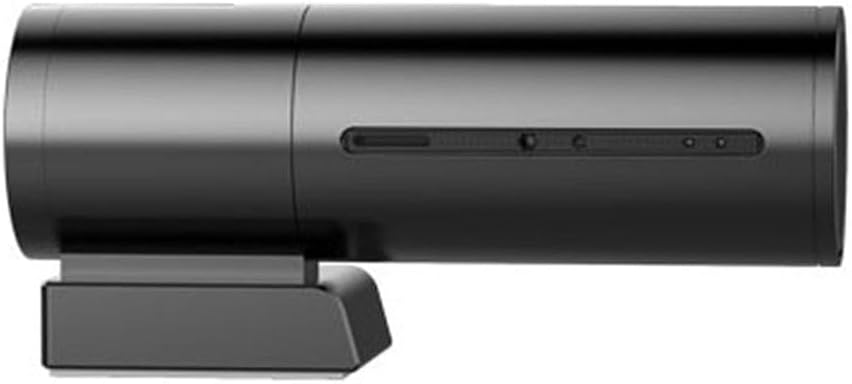
Figura 4.3: lateral view of the AZDome BN03 dashcam, highlighting its cylindrical design.
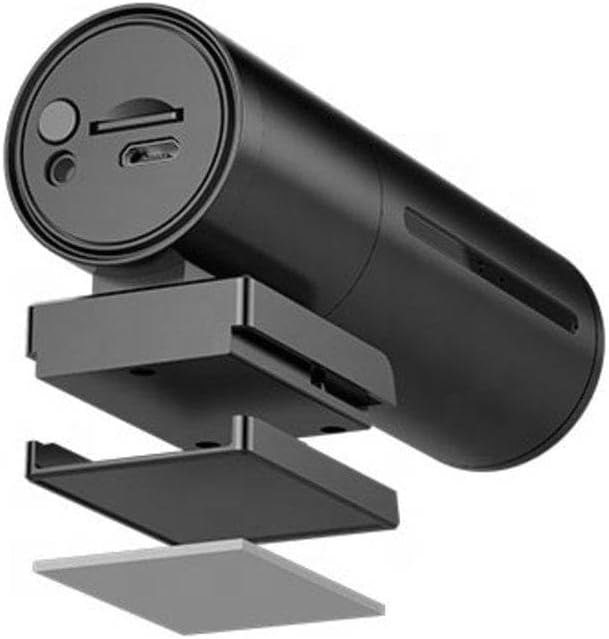
Figura 4.4: Explotat view illustrating the components of the dashcam's mounting bracket.

Figure 4.5: The AZDome BN03 dashcam showing the connection point for the optional rear camera.
The AZDome BN03 dashcam features a compact, cylindrical design. The main camera lens is located at one end, while the other end typically houses the power input, memory card slot, and possibly a reset button. The device attaches to your windshield via a discreet mounting bracket.
5. Guia de configuració
5.1 Instal·lació de la targeta Micro SD
- Assegureu-vos que la càmera del salpicader estigui apagada.
- Locate the Micro SD card slot on the dashcam.
- Insert a high-speed (Class 10 or higher, U1/U3 recommended) Micro SD card into the slot until it clicks into place.
- Per treure-la, premeu suaument la targeta fins que surti.
5.2 Muntatge de la càmera del salpicader
- Netegeu a fons la zona escollida del parabrisa.
- Apply the electrostatic sticker to the windshield first, then attach the 3M adhesive pad of the mount to the sticker. This allows for easier repositioning without leaving residue.
- Attach the dashcam to the mounting bracket.
- Ajusta l'angle de la càmera per garantir una visió clara view del camí per davant.
5.3 Connexió d'alimentació
- Connect the Micro USB cable to the dashcam's power input port.
- Plug the other end of the USB cable into the car charger, and then insert the car charger into your vehicle's 12V power outlet (cigarette lighter socket).
- Route the power cable neatly along the windshield and dashboard using the provided cable clips to avoid obstructing your view o interferir en la conducció.
5.4 Installing the AZDome App
The AZDome app allows you to control your dashcam, view viu footage, and download recordings. Cerca "AZDome" in your device's app store or use the links below:
- Per a dispositius iOS: https://apps.apple.com/nl/app/azdome/id1449342214
- Per a dispositius Android: https://play.google.com/store/apps/details?id=cn.com.blackview.azdome
6. Operating the Dashcam
6.1 Enregistrament bàsic
Once connected to power, the dashcam will automatically power on and begin recording when your vehicle starts. Recording will stop when the vehicle is turned off and power is disconnected.
6.2 Connexió Wi-Fi i ús de l'aplicació
- Enceneu la càmera de tauler.
- On your smartphone, go to Wi-Fi settings and connect to the AZDome dashcam's Wi-Fi network (SSID typically starts with AZDome_BN03_XXXX). The default password is usually 12345678 or 88888888.
- Open the AZDome app. You should now see a live view from the dashcam.
- Des de l'aplicació, podeu view recorded videos, download them to your phone, change settings, and manage the SD card.
Important Note: It is not recommended to change the default Wi-Fi name and password as this may cause connection issues.
6.3 Automatic Time Lapse Parking Mode
The dashcam automatically enters Time Lapse parking mode when the vehicle is turned off and the dashcam detects no motion for a period (requires continuous power supply, e.g., via a hardwire kit, not included). In this mode, the camera captures still images at set intervals (e.g., one frame per second) and compiles them into a time-lapse video, efficiently monitoring your parked vehicle.
6.4 Funcionalitat del GPS
The built-in GPS module automatically records your driving speed and location data. This information is embedded in the video files i pot ser viewed using the dedicated PC viewer software (usually available for download from the AZDome website) or within the mobile app.
7. Manteniment
7.1 Gestió de targetes SD
- It is recommended to format the Micro SD card regularly (e.g., once a month) to maintain optimal recording performance and prevent data corruption. This can usually be done via the dashcam's settings menu or through the AZDome app.
- Use only high-quality, reputable brand Micro SD cards designed for dashcam use (high endurance).
7.2 Neteja del dispositiu
- Wipe the dashcam lens and body with a soft, dry cloth.
- No utilitzeu productes de neteja abrasius ni dissolvents, ja que poden danyar el dispositiu.
8. Solució De Problemes
| Problema | Causa possible | Solució |
|---|---|---|
| La càmera del salpicader no s'encén. | No power supply; faulty cable/charger; dead car outlet. | Check power connection; try a different USB cable/charger; test car outlet with another device. |
| L'enregistrament s'atura o es congela. | SD card error; full SD card; low-quality SD card. | Format the SD card; replace with a high-endurance SD card. |
| Problemes de connexió Wi-Fi. | Incorrect password; changed SSID/password; interference. | Ensure correct password; reset dashcam to factory settings if SSID/password were changed; move away from other Wi-Fi sources. |
| El GPS no funciona. | No clear sky view; GPS module error. | Ensure dashcam has clear view of sky; restart device. |
| Mala qualitat de vídeo a la nit. | Dirty lens; extreme low light conditions. | Clean the lens; ensure no obstructions on windshield. |
9. Especificacions
| Característica | Detall |
|---|---|
| Marca | AZDOME |
| Número de model | 6923788073483 (AZDome BN03 2K Wifi GPS) |
| Resolució de gravació de vídeo | 1080p, 1440p |
| Sensor d'imatge | Sony Starvis (3.0 Megapixel) |
| Mida de la pantalla | 2.4 polzades |
| Connectivitat | USB, Dual-Band Wi-Fi (2.4 & 5.0 GHz) |
| GPS | Built-in GPS Module |
| Font d'alimentació | Battery, Car Charger |
| Tipus de muntatge | Muntatge del parabrisa |
| Ranura de memòria | 1 (Secure Digital Card) |
| Pes de l'article | 228 g |
| Primera data disponible | 24 de febrer de 2020 |
10. Garantia i Suport
For warranty information, please refer to the specific terms and conditions provided at the time of purchase or visit the official AZDome website. Support resources, including firmware updates and frequently asked questions, are typically available on the manufacturer's website. For technical assistance, please contact AZDome customer support through their official channels.