
1. Introducció i finalview
The ESX INFOTAINMENT VN1015-MA-DAB-4G is an advanced Android-based naviceiver designed for vehicle integration, offering a comprehensive multimedia and navigation experience. This unit features a 10.1-inch anti-glare multi-angle touchscreen, Android operating system, 4G/LTE connectivity, DAB+ digital radio, and Google Maps navigation. It supports Bluetooth hands-free calling and audio streaming, USB and MicroSD media playback, and includes inputs for rearview cameras and auxiliary devices.
Les característiques clau inclouen:
- 10.1-inch high-resolution, anti-glare multi-angle touchscreen.
- Android Operating System for versatile app usage.
- Integrated 4G/LTE dongle for mobile internet (requires optional SIM card).
- DAB+ digital radio reception with station logos and AM/FM radio with RDS.
- Google Maps navigation (online and offline capabilities).
- Bluetooth hands-free system with audio streaming.
- Multiple connectivity options: 2x USB ports, 1x MicroSD slot, 1x camera input, 2x video outputs, 1x AUX/video input, 1x AUX/audio input.
- Support for steering wheel controls (optional adapter may be required).
2. Configuració i instal·lació
Proper installation is crucial for the optimal performance of your ESX VN1015-MA-DAB-4G naviceiver. It is highly recommended that installation be performed by a qualified professional to ensure correct wiring and vehicle compatibility.
2.1. Identificació de components
Familiarize yourself with the various ports and connections on the rear of the unit before installation.
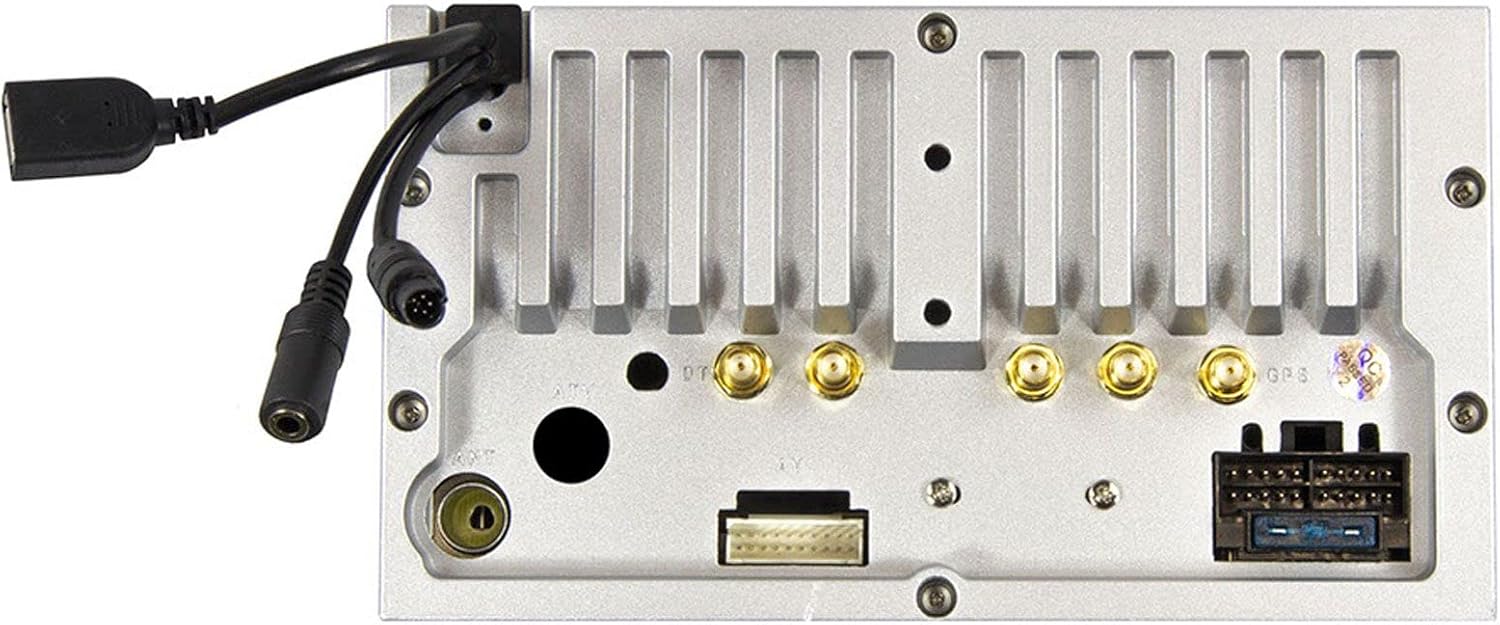
Figura 2.1: posterior view of the ESX VN1015-MA-DAB-4G unit, illustrating the power harness, antenna inputs, USB ports, and auxiliary connections.
2.2. Connexions de cablejat
- Font d'alimentació: Connect the main power harness to your vehicle's electrical system, ensuring correct positive, negative, and accessory (ACC) connections.
- Sortides dels altaveus: Connect your vehicle's speakers to the corresponding outputs on the naviceiver.
- Connexions d'antena: Connect the FM/AM antenna. For DAB+ digital radio, connect the included DAB+ antenna to the designated port.
- Antena GPS: Connecteu l'antena GPS i munteu-la en un lloc amb llum clara view del cel per a una recepció òptima del senyal.
- Ports USB: Connect external USB devices for media playback or smartphone connectivity.
- Micròfon: Connect the external microphone (VNA-MIC-AND, optional) for improved hands-free call quality.
- posteriorview Càmera: Connecteu una part posteriorview camera to the dedicated camera input. Ensure the reverse trigger wire is correctly connected for automatic display switching.
- Sortides de vídeo: Utilize the two video outputs for connecting external monitors.
- Entrades AUX: Connect external audio/video sources to the AUX/video and AUX/audio inputs.
- 4G/LTE Dongle: If using mobile internet via 4G/LTE, insert a compatible SIM card into the optional 4G/LTE dongle and connect it to a USB port.
- Control del volant: If your vehicle supports steering wheel controls, an optional adapter may be required to integrate this functionality.
2.3. Engegada inicial
After all connections are secure, turn on your vehicle's ignition. The naviceiver should power on. Follow any on-screen prompts for initial setup, such as language selection and time zone.
3. Instruccions de funcionament
This section details the primary functions and operations of your ESX VN1015-MA-DAB-4G naviceiver.
3.1. Controls bàsics i interfície
The unit features a responsive touchscreen and physical buttons for common functions.

Figura 3.1: The main screen showing the radio interface with frequency display and control buttons.
- Botó d'encesa: Press and hold to turn the unit on/off. A short press may mute audio or put the unit into standby.
- Control de volum: Ajusta el nivell de sortida d'àudio.
- Botó d'inici: Torna a la pantalla d'inici principal d'Android.
- Botó enrere: Navigates back one step in menus or applications.
- Botó de la càmera: Direct access to the camera input display (e.g., rearview càmera).
3.2. Android Operating System
The naviceiver runs on an Android operating system, allowing access to various applications and customization options.
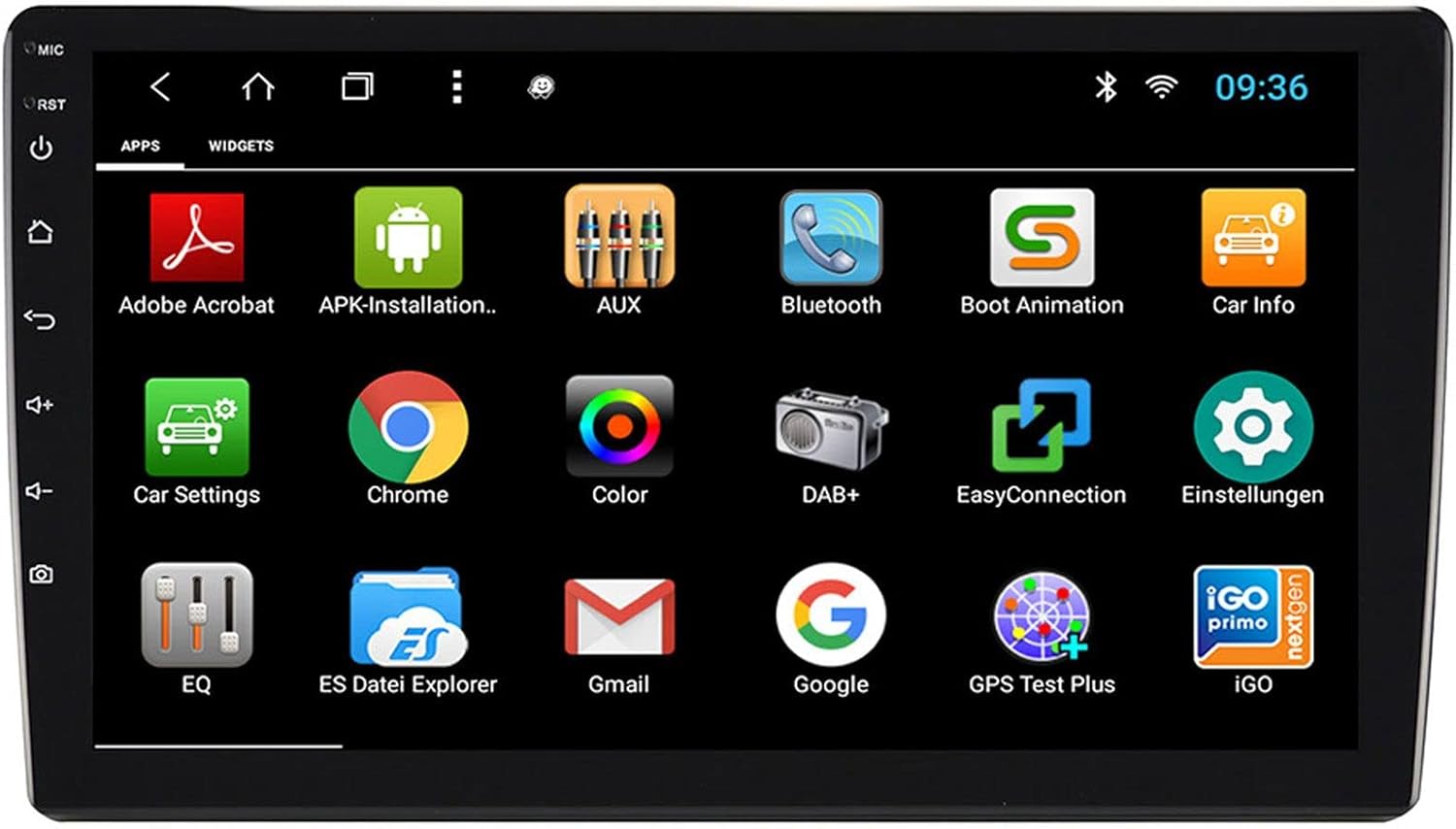
Figura 3.2: The applications screen, displaying various pre-installed and user-installed Android apps.
- App Launcher: Access all installed applications from the app drawer.
- Ginys: Customize your home screen with widgets for quick access to information or functions.
- Configuració: Adjust system settings, network connections, display, audio, and more.
- Connectivitat a Internet: Connect to the internet via a WiFi hotspot (from a compatible smartphone) or by inserting a SIM card into the 4G/LTE dongle.
3.3. Radio Functions (AM/FM/DAB+)
The unit supports both analog and digital radio broadcasts.
- Selecció de la banda: Switch between AM, FM, and DAB+ bands.
- tuning: Manually tune or use the auto-scan function to find available stations.
- Presets: Desa les teves emissores preferides per accedir-hi ràpidament.
- RDS (FM): Radio Data System displays station information (e.g., station name, song title).
- Característiques del DAB+: Enjoy higher quality digital audio and view station logos where available.
3.4. Connectivitat Bluetooth
Pair your smartphone for hands-free communication and audio streaming.
- Maridatge: Enable Bluetooth on your smartphone and search for the naviceiver. Select the unit and confirm the pairing code.
- Trucades mans lliures: Make and receive calls directly from the naviceiver screen.
- Transmissió d'àudio: Play music from your smartphone wirelessly through the naviceiver.
3.5. Navigation (Google Maps)
Utilize Google Maps for turn-by-turn navigation.

Figura 3.3: The navigation interface showing a map with a selected destination.
- Navegació en línia: Requires an active internet connection (WiFi hotspot or 4G/LTE).
- Mapes fora de línia: Download maps for specific regions to use navigation without an internet connection.
- Entrada de destinació: Enter addresses or points of interest using the touchscreen keyboard.
3.6. Reproducció multimèdia
Reprodueix àudio i vídeo files de diverses fonts.
- USB: Connect USB drives containing media files.
- MicroSD: Insert a MicroSD card into the dedicated slot for media or navigation data.
- Formats admesos: The unit supports a wide range of audio and video formats. Refer to the system settings for a complete list.
3.7. Camera Input
The naviceiver automatically displays the rearview camera feed when the vehicle is in reverse, or manually via the camera button.

Figura 3.4: posteriorview camera display with dynamic parking guidelines.
- Activació automàtica: When connected correctly, the rearview camera image appears automatically when shifting into reverse.
- Pautes d'aparcament: Adjustable parking lines assist with maneuvering.
4. Manteniment
Regular maintenance ensures the longevity and optimal performance of your naviceiver.
- Neteja de pantalla: Feu servir un drap suau i sense borrissol per netejar suaument la pantalla tàctil. Per a taques difícils, fregueu lleugeramentampNetegeu el drap amb aigua o un netejador de pantalles. Eviteu productes químics agressius o materials abrasius.
- Actualitzacions de programari: Comproveu periòdicament si hi ha actualitzacions de programari disponibles a través de la configuració del sistema o del fabricant. weblloc. Les actualitzacions poden millorar el rendiment, afegir funcions i corregir errors.
- Atenció general: Avoid exposing the unit to extreme temperatures, direct sunlight for prolonged periods, or excessive moisture. Ensure all connections remain secure.
5. Solució De Problemes
This section addresses common issues you might encounter with your ESX VN1015-MA-DAB-4G naviceiver.
| Problema | Causa possible | Solució |
|---|---|---|
| La unitat no s'encén. | Sense subministrament d'alimentació; fusible fundit; cablejat incorrecte. | Check vehicle's fuse box and the unit's power connections. Ensure ACC wire is receiving power. |
| Sense so. | Volume too low; Mute activated; Incorrect speaker wiring; Audio source issue. | Increase volume. Check if mute is active. Verify speaker connections. Try a different audio source. |
| GPS signal loss or inaccurate navigation. | GPS antenna obstructed or disconnected; Outdated maps. | Assegureu-vos que l'antena GPS tingui una visió clara view of the sky and is securely connected. Update maps if necessary. |
| Problemes de connexió Bluetooth. | Device not in pairing mode; Interference; Unit not discoverable. | Ensure both devices are in pairing mode. Restart both devices. Check Bluetooth settings on the naviceiver. |
| La pantalla tàctil no respon. | System freeze; Software error. | Perform a soft reset (refer to the unit's specific reset procedure, often a small reset button). If persistent, a factory reset might be needed (data loss may occur). |
| DAB+ radio not receiving stations. | DAB+ antenna not connected or faulty; Poor signal area. | Check DAB+ antenna connection. Ensure the antenna is correctly installed. Try rescanning for stations in a different location. |
If you encounter issues not listed here or if the suggested solutions do not resolve the problem, please contact ESX customer support or your authorized dealer.
6. Especificacions
Below are the technical specifications for the ESX VN1015-MA-DAB-4G Naviceiver:
| Característica | Detall |
|---|---|
| Marca | ESX |
| Model | VN1015-MA-DAB-4G |
| Mida de la pantalla | 10.1 polzades (25.6 cm) |
| Tipus de visualització | High-resolution, anti-glare multi-angle touchscreen |
| Sistema operatiu | Android |
| RAM | 4 GB |
| Memòria Flash | 64 GB |
| Connectivitat | Bluetooth, USB, 4G/LTE (via dongle), WiFi (via hotspot) |
| Sintonitzador de ràdio | AM/FM with RDS, DAB+ Digital Radio |
| Navegació | Google Maps (online/offline) |
| Entrades | 1x Camera Input, 1x AUX/Video Input, 1x AUX/Audio Input, 2x USB Ports, 1x MicroSD Slot |
| Sortides | 2x Video Outputs, Pre-amplified outputs (Front/Rear/Subwoofer) |
| Mètode de control | Pantalla tàctil |
| Dispositius compatibles | Smartphone |
7. Garantia i Suport
Your ESX VN1015-MA-DAB-4G naviceiver comes with a Certificate of Authenticity. For specific warranty terms and conditions, please refer to the documentation provided with your purchase or contact your authorized ESX dealer.
For technical support, troubleshooting assistance beyond this manual, or inquiries regarding parts and service, please contact your point of purchase or visit the official ESX weblloc web per obtenir informació de contacte del servei d'atenció al client.